
Sequence is mobile-friendly, so you can use it on your iPhone or Android phone today. Open app.sequencesocial.com in your mobile browser and sign in with your usual Sequence account. You can use browsers such as Safari or Chrome, or add Sequence to your Home Screen for quicker access on the go.
Dedicated iPhone and Android apps are on our roadmap, with a target launch of late 2026 or early 2027. Timing may change. Until then, adding the web app to your Home Screen gives you a convenient way to open Sequence alongside your other apps.
The iPhone screenshots show Sequence in Safari. The Android images are annotated illustrations showing Sequence. Menu labels and layouts can vary by browser version.
iPhone
Use Safari for the steps below. You can continue using Sequence in your browser without adding it to your Home Screen.
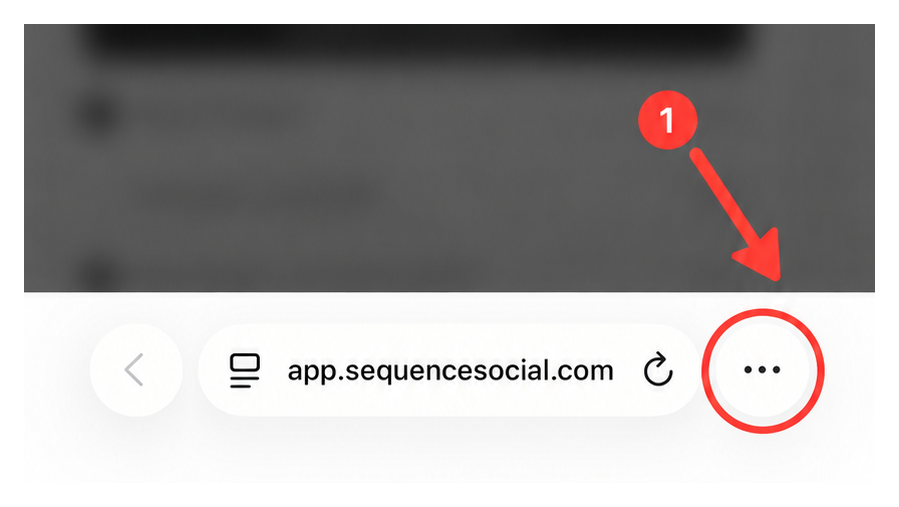
1. Open Safari and go to app.sequencesocial.com. You can add Sequence before signing in. Tap the three-dot page menu beside the address bar.
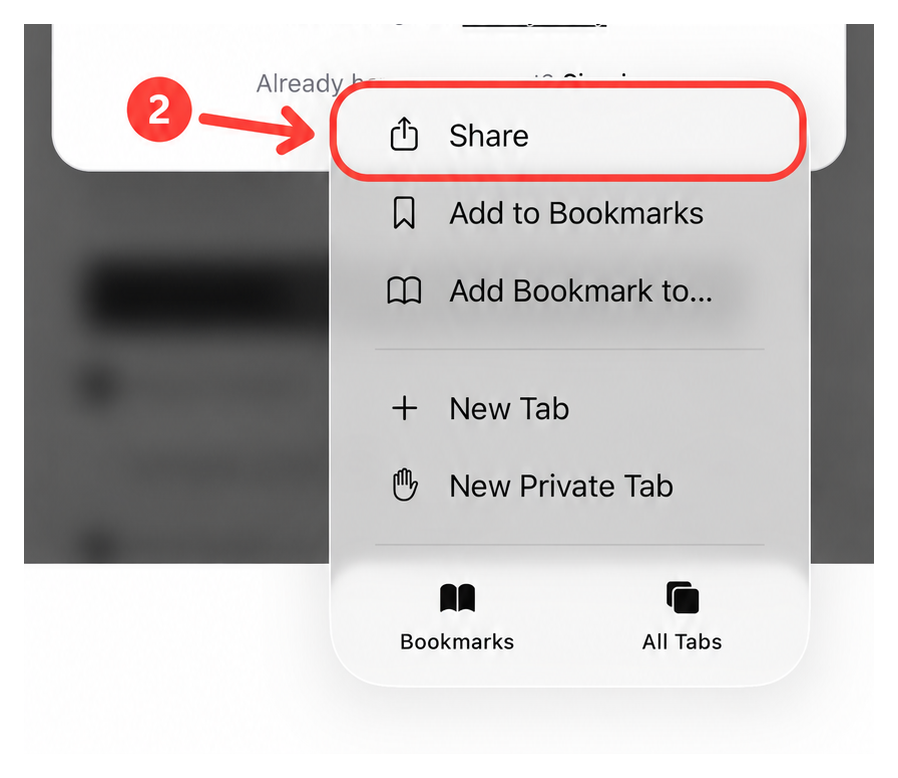
2. Tap Share. With some Safari layouts, the Share button is already visible in the toolbar. Look for a square with an arrow pointing upwards.
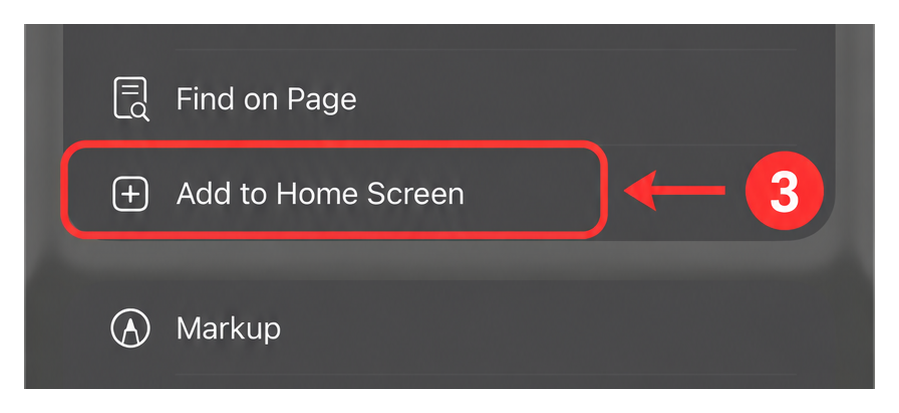
3. Scroll down the share sheet and tap Add to Home Screen. If it is missing, scroll to Edit Actions and add it to the list.
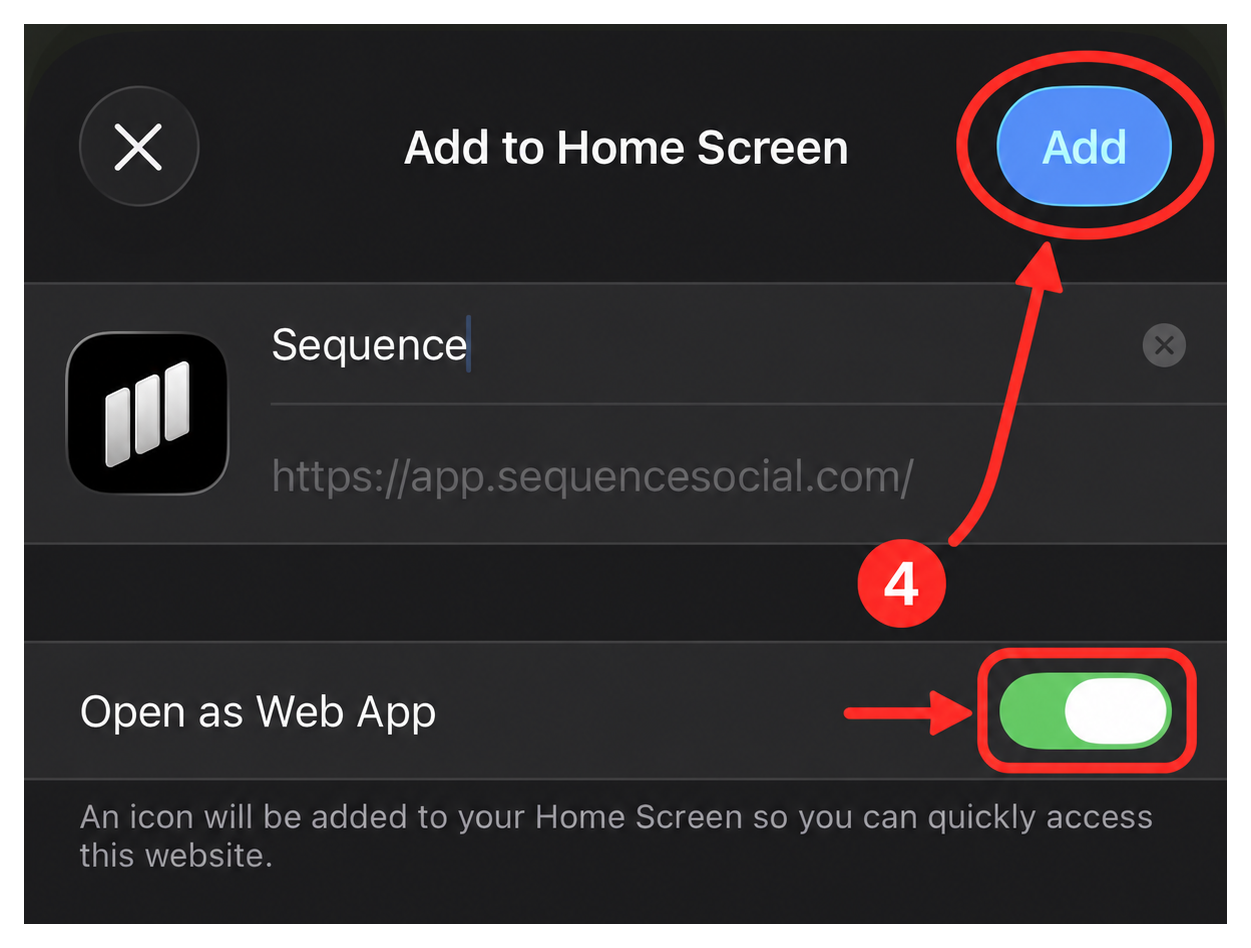
4. Check that the name is Sequence. If Open as Web App is shown, leave it switched on, then tap Add.
5. Return to your Home Screen and tap the Sequence icon. With Open as Web App enabled, Sequence opens in its own window without Safari’s address bar. Sign in if prompted.
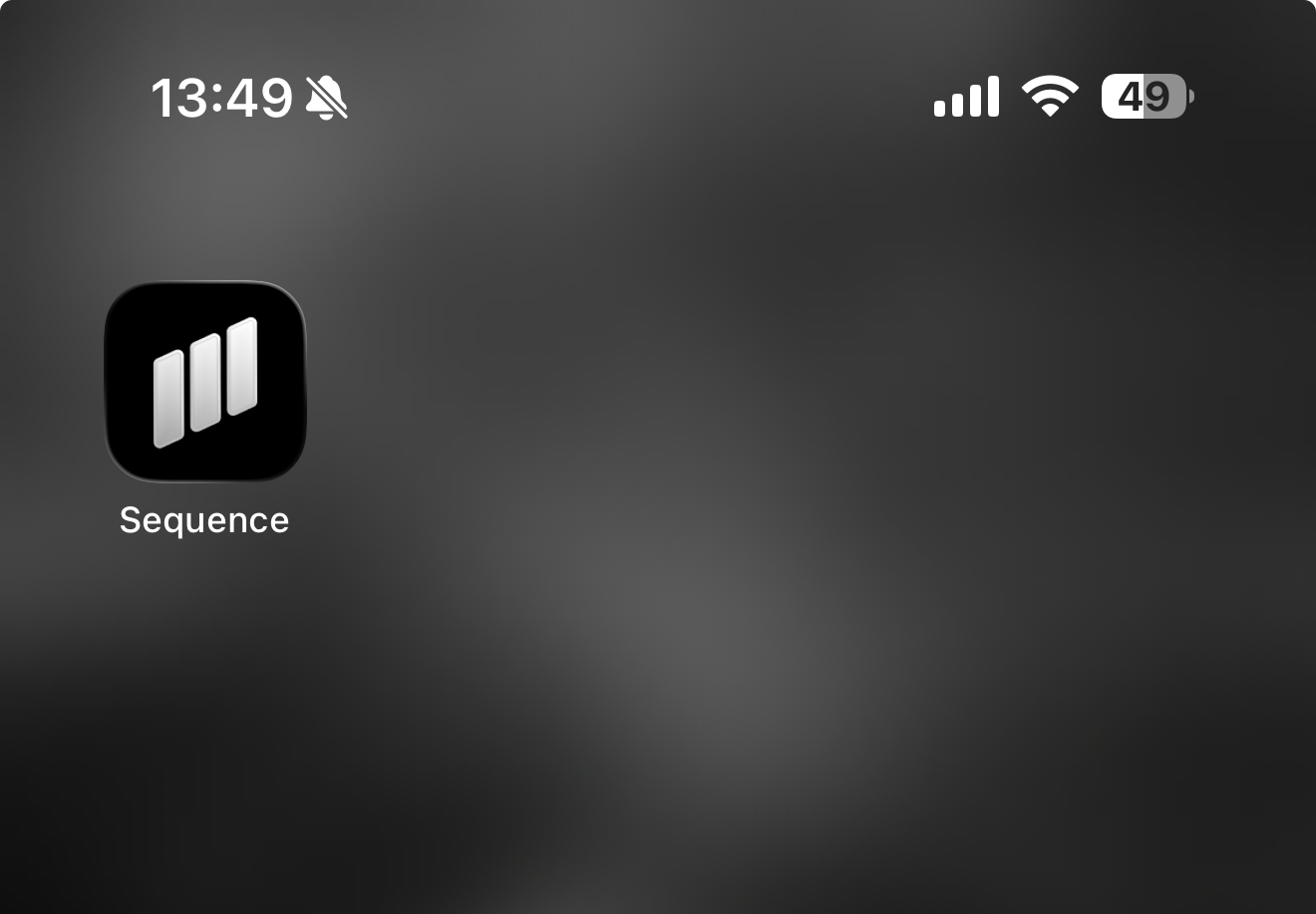
Keep an internet connection available when using Sequence. Adding it to your Home Screen does not turn it into the future App Store app.
Browser instructions: Apple’s Home Screen guide and Open as Web App.
Android
Use Google Chrome for the steps below. Other Android browsers may use different menus.
1. Open Chrome, go to app.sequencesocial.com, and sign in. Tap the three-dot menu beside the address bar.
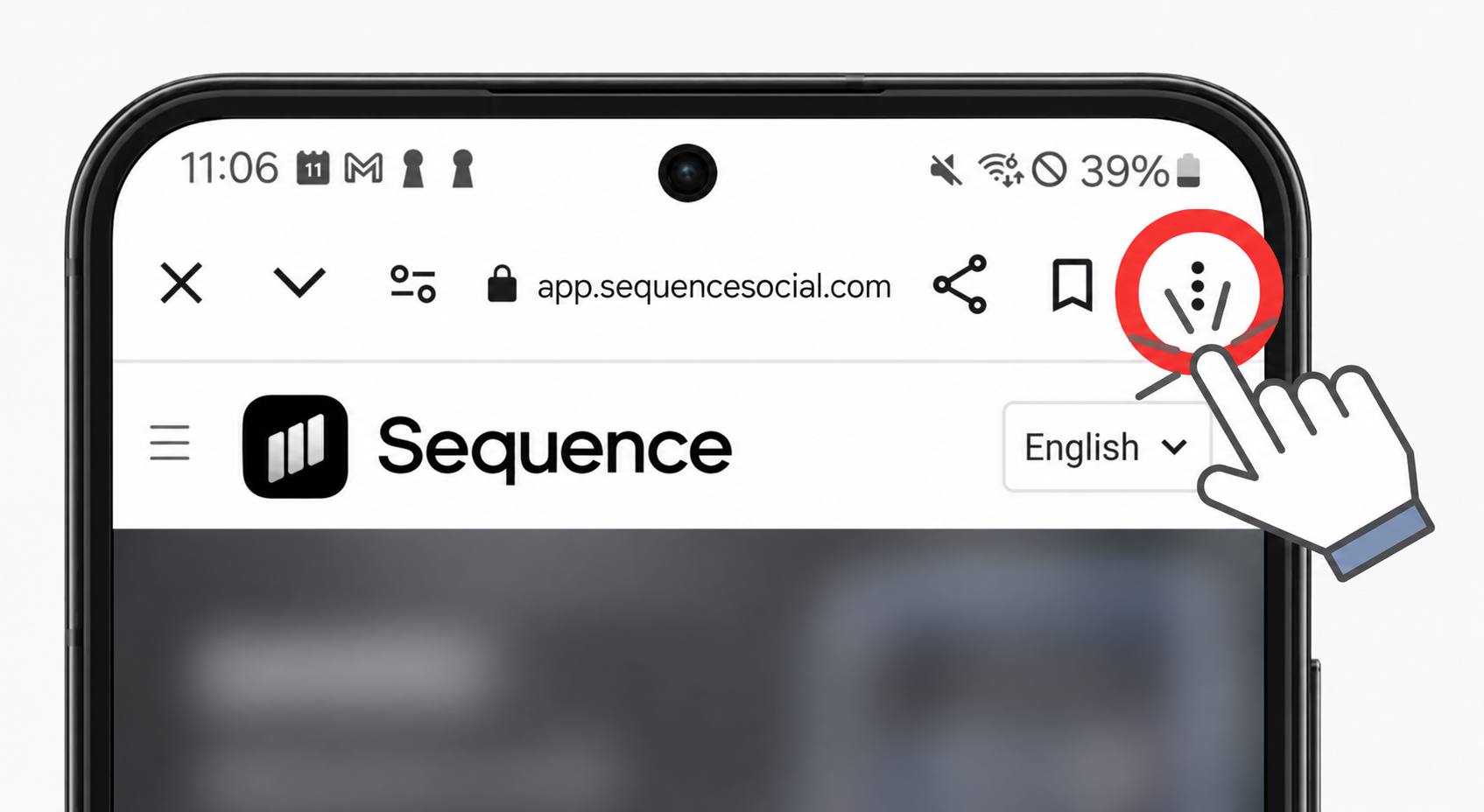
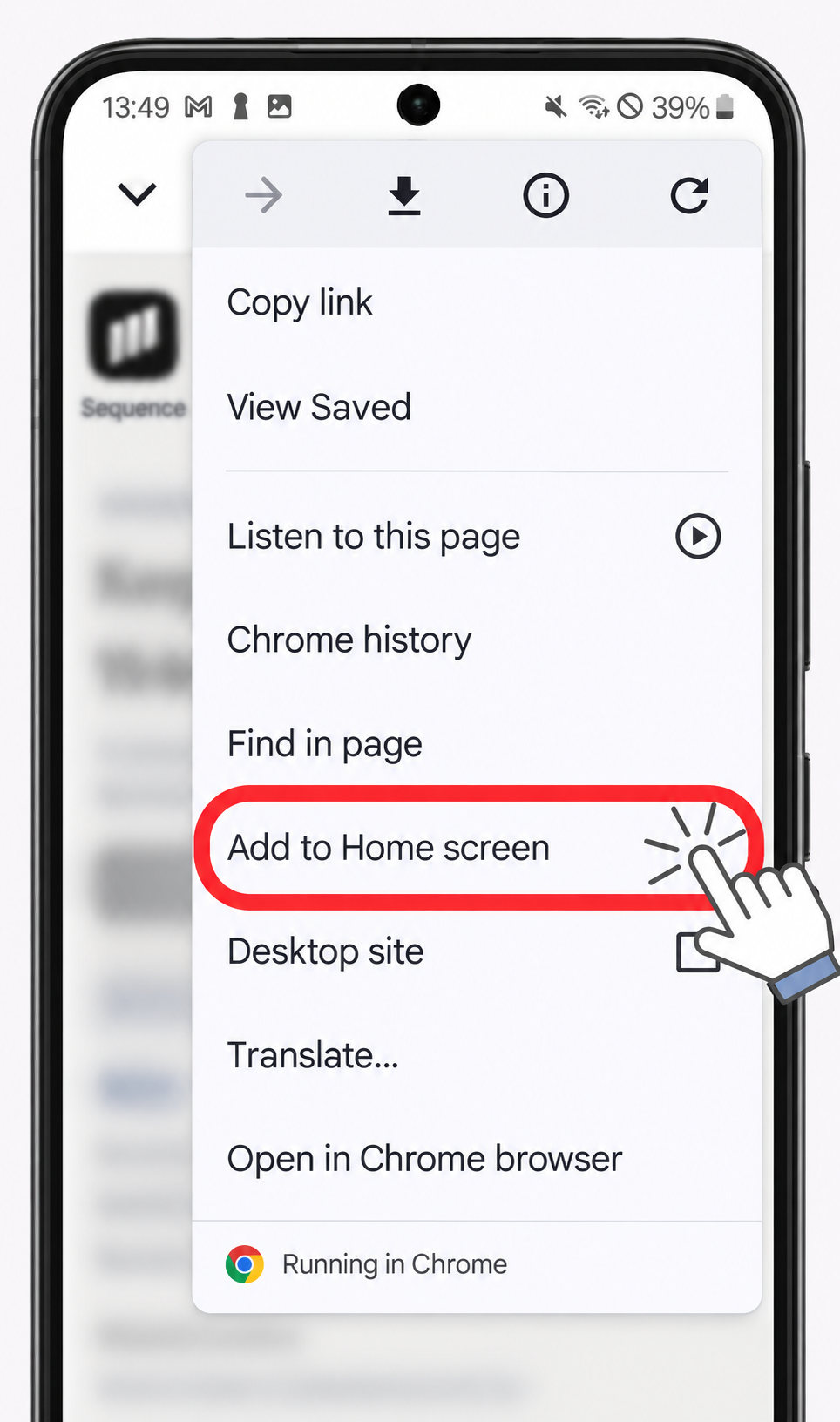
2. Choose Install and create shortcut. Depending on your Chrome version, this may be called Add to Home screen, as shown below.
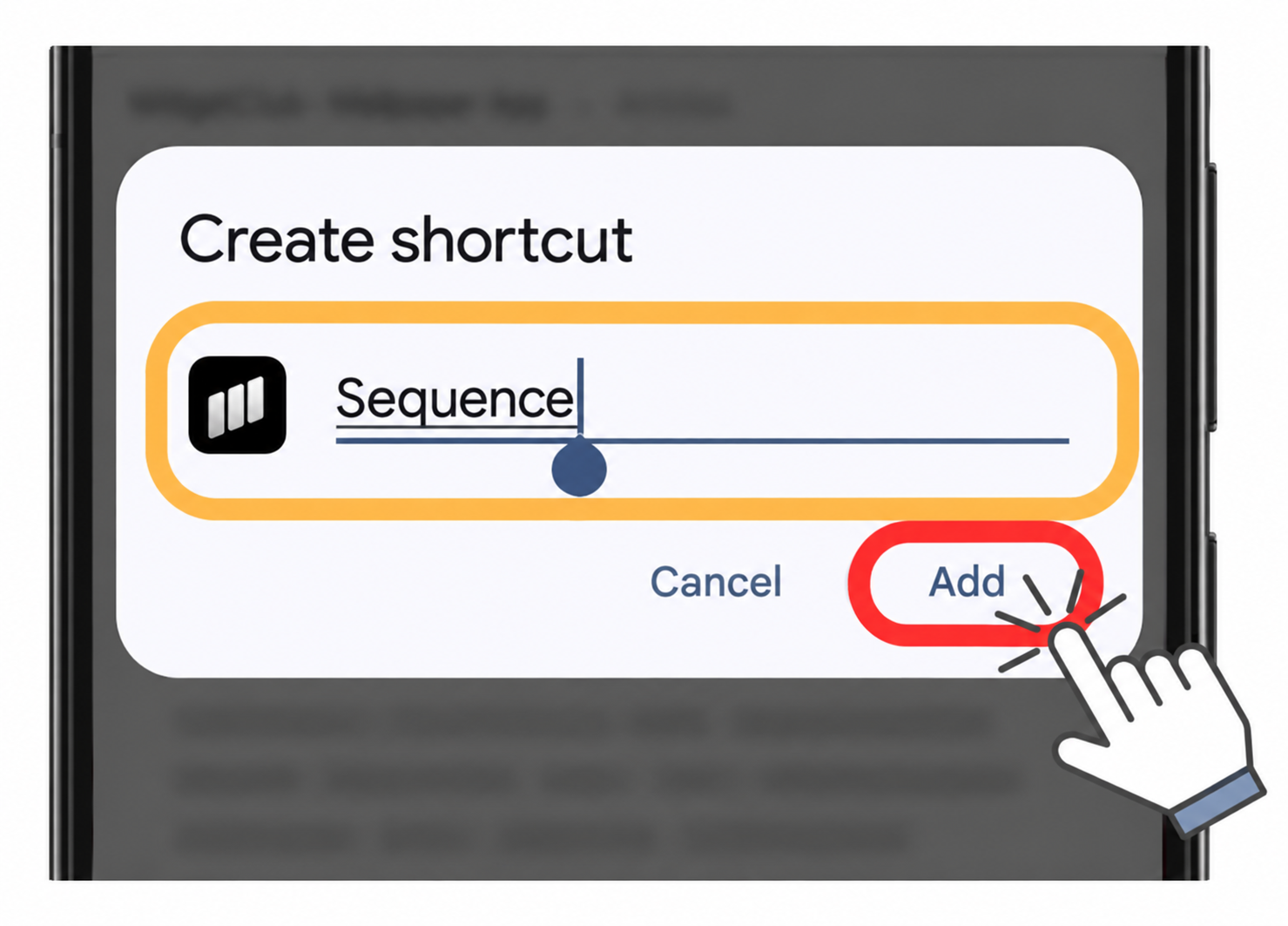
3. If Install is available, select it and follow the confirmation prompts to add the web app. Alternatively, choose Create shortcut for an icon that opens Sequence in Chrome. The remaining screenshots show the shortcut option.
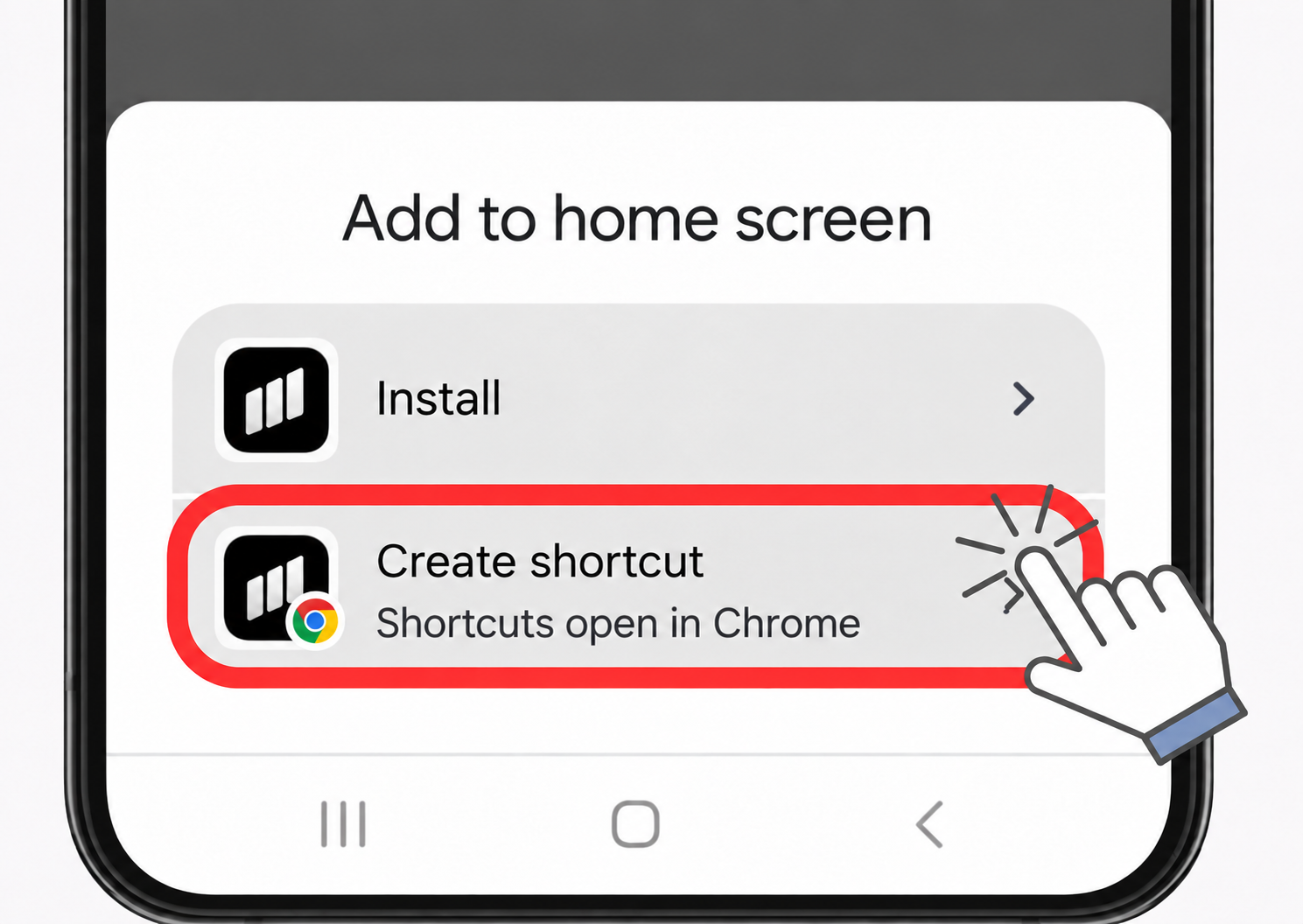
4. For a shortcut, change the name to Sequence if needed, then tap Add.
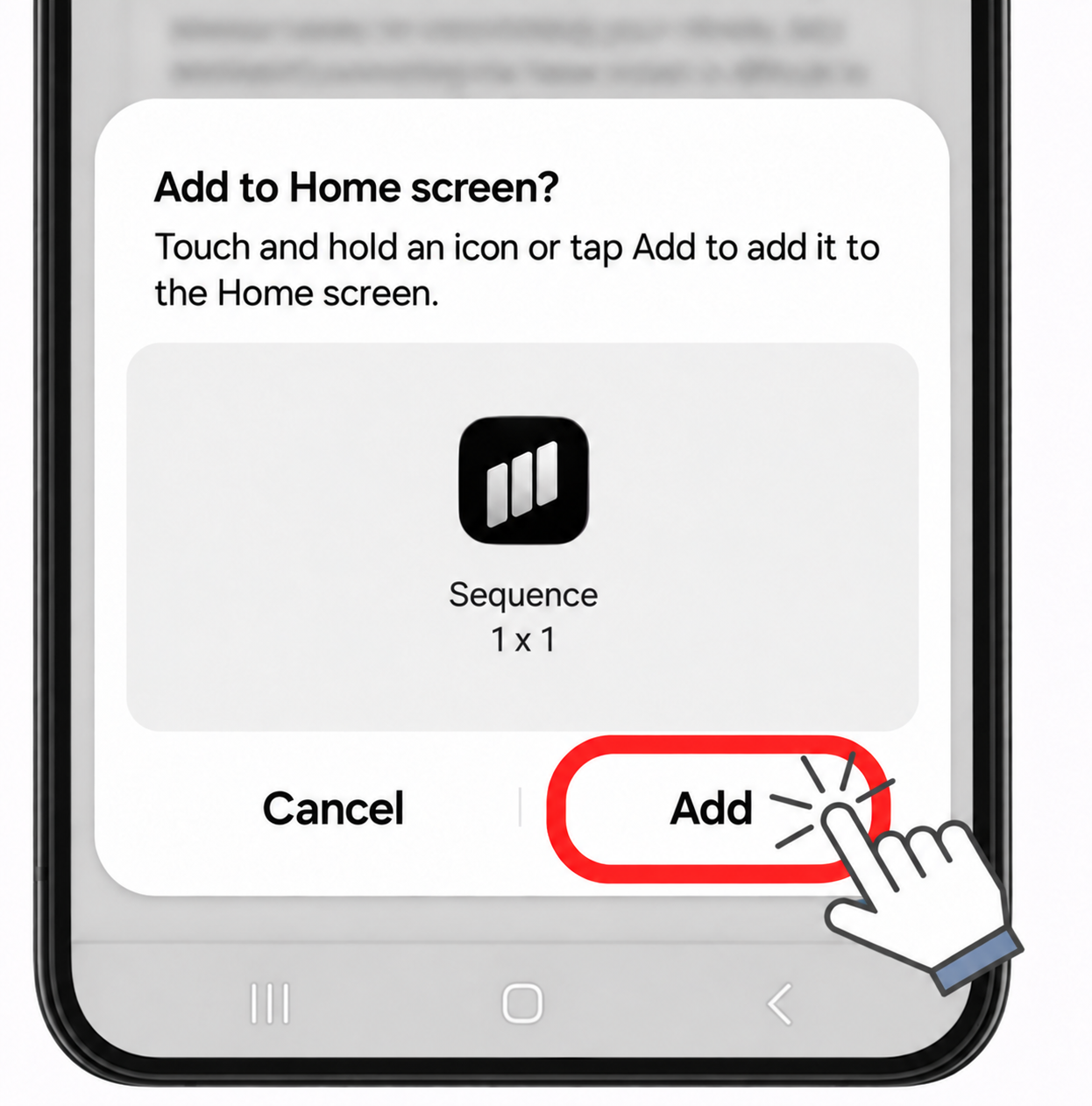
5. If your phone asks where to place the icon, tap Add or follow the on-screen placement instructions.
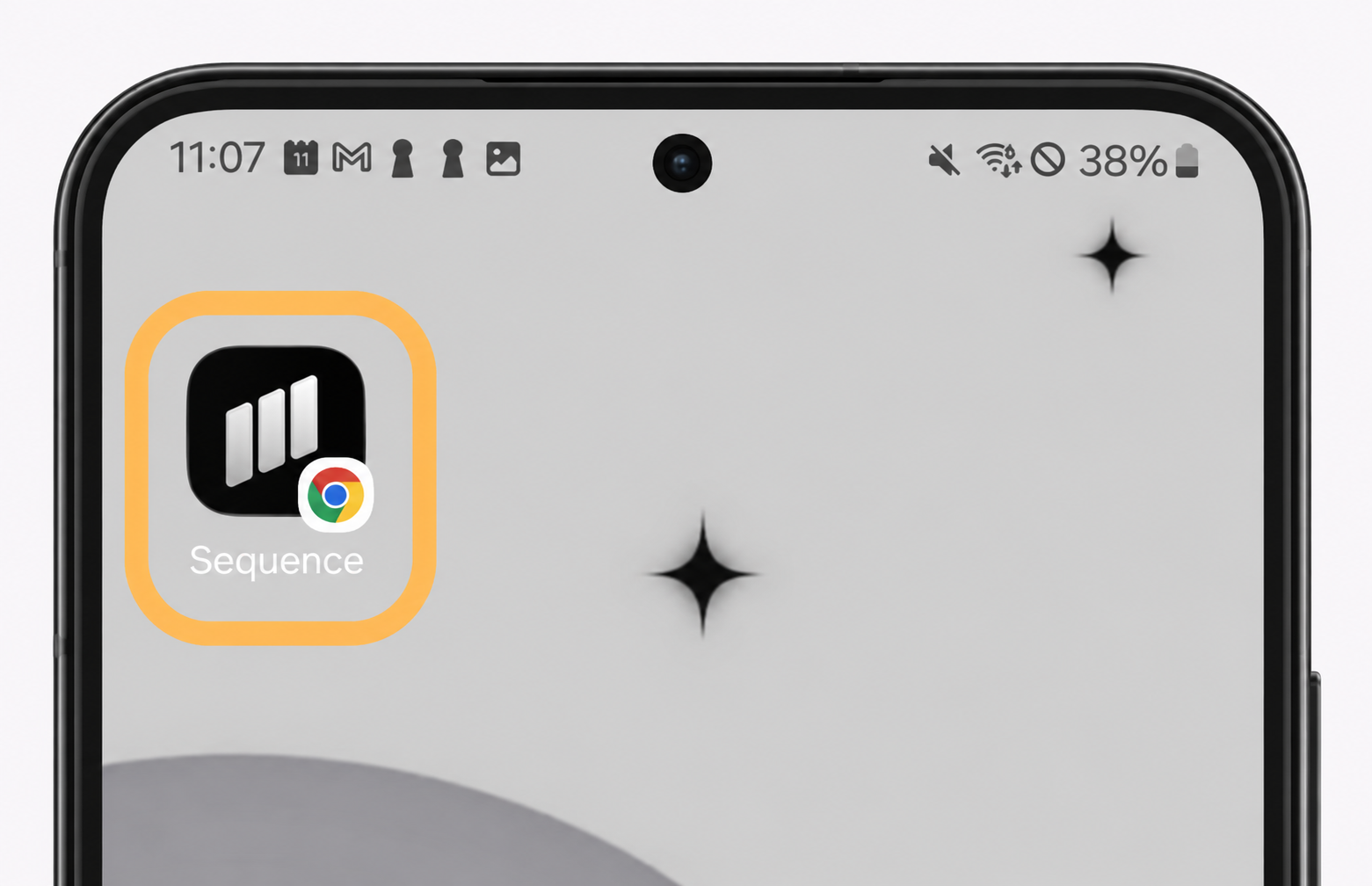
6. Find the Sequence icon on your Home Screen and tap it to open Sequence. A shortcut with a Chrome badge opens in Chrome. Sign in if prompted.
Keep an internet connection available when using Sequence. Installing the web app or adding a shortcut does not install the future Google Play app.
Browser instructions: Google’s web app guide and website shortcut guide. Illustration references adapted from WidgetClub.
Was this page helpful?
Related articles
Need more help with this?