
Calendar sync puts your Sequence dates in the calendar app you already use. Post times, project dates and the Date fields you pick appear in Google Calendar, Apple Calendar or Outlook, and stay up to date on their own.
What is Calendar sync?
Calendar sync gives you a private calendar link. Your calendar app subscribes to that link and checks it for changes, so your Sequence dates sit next to your meetings without any copying.
- It is read-only. Your calendar shows the dates, and you still change times in Sequence. Nothing you do in your calendar app moves a post.
- It is personal. Each person has their own link, and it only shows brands you can open.
- It is included in Pro.
Here is how each item appears in your calendar:
| In Sequence | In your calendar |
|---|---|
| Post times | A 15 minute event at the post's time, shown as free time so it never blocks your day. |
| Project dates | An all-day event from the project's start date to its end date. |
| Date fields | An event on each post's date in that field: all day for a date, or at its time when the value has one. |
Each event links back to the post or project in Sequence. When your calendar shows more than one brand, the brand name is added to the end of each event's title.
Create your calendar link
- 01Open your profile menu in the sidebar and select Settings.
- 02In the section with your name, select Calendar sync.
- 03Select Create calendar link.

A new link shows nothing until you choose what to show, which you do below.
Add the link to your calendar app
Under Add to your calendar, select your calendar app:
- Google Calendar opens Google Calendar so you can add it.
- Apple Calendar opens the Calendar app on your Mac, iPhone or iPad so you can subscribe.
- Outlook with Personal account is for Outlook.com and Hotmail accounts. Outlook with Work or school account is for Microsoft 365. Choose the one you sign in to.
- For any other calendar app, select Copy link and paste it where the app lets you subscribe to a calendar from a URL.
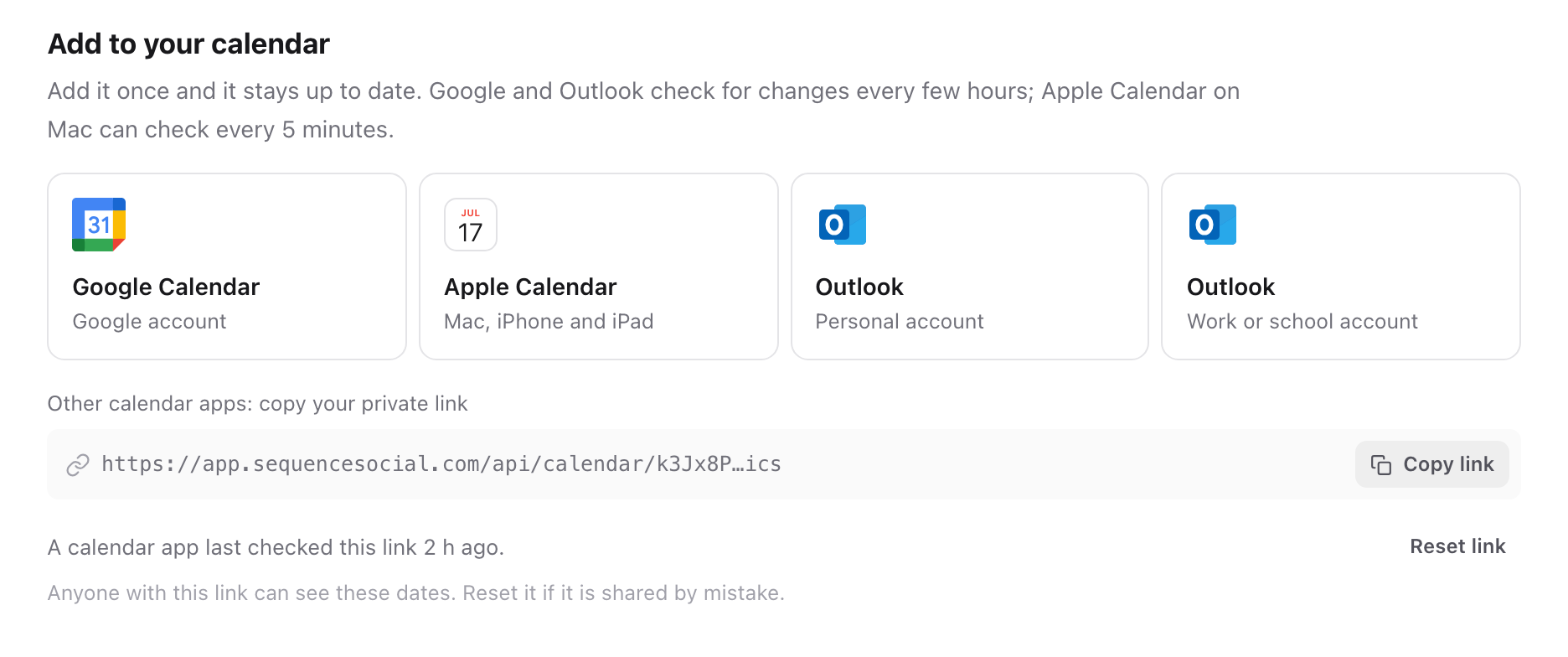
Calendar apps check the link on their own schedule. Google Calendar and Outlook can take several hours to show a change, and Google can take up to about 12 hours. Apple Calendar on Mac can check as often as every 5 minutes. The line under your link shows when a calendar app last checked it.
Choose what shows
Under What to show, turn on what you want in your calendar. Each change saves straight away and reaches your calendar on its next check.
- Post times: every post with a post date, at its post time.
- Project dates: every project with a start or end date.
- Date fields: select a field to add its dates, and select it again to remove it. Fields are grouped into workspace fields and each brand's own fields.
- Only mine: only posts and projects where you're the assignee.
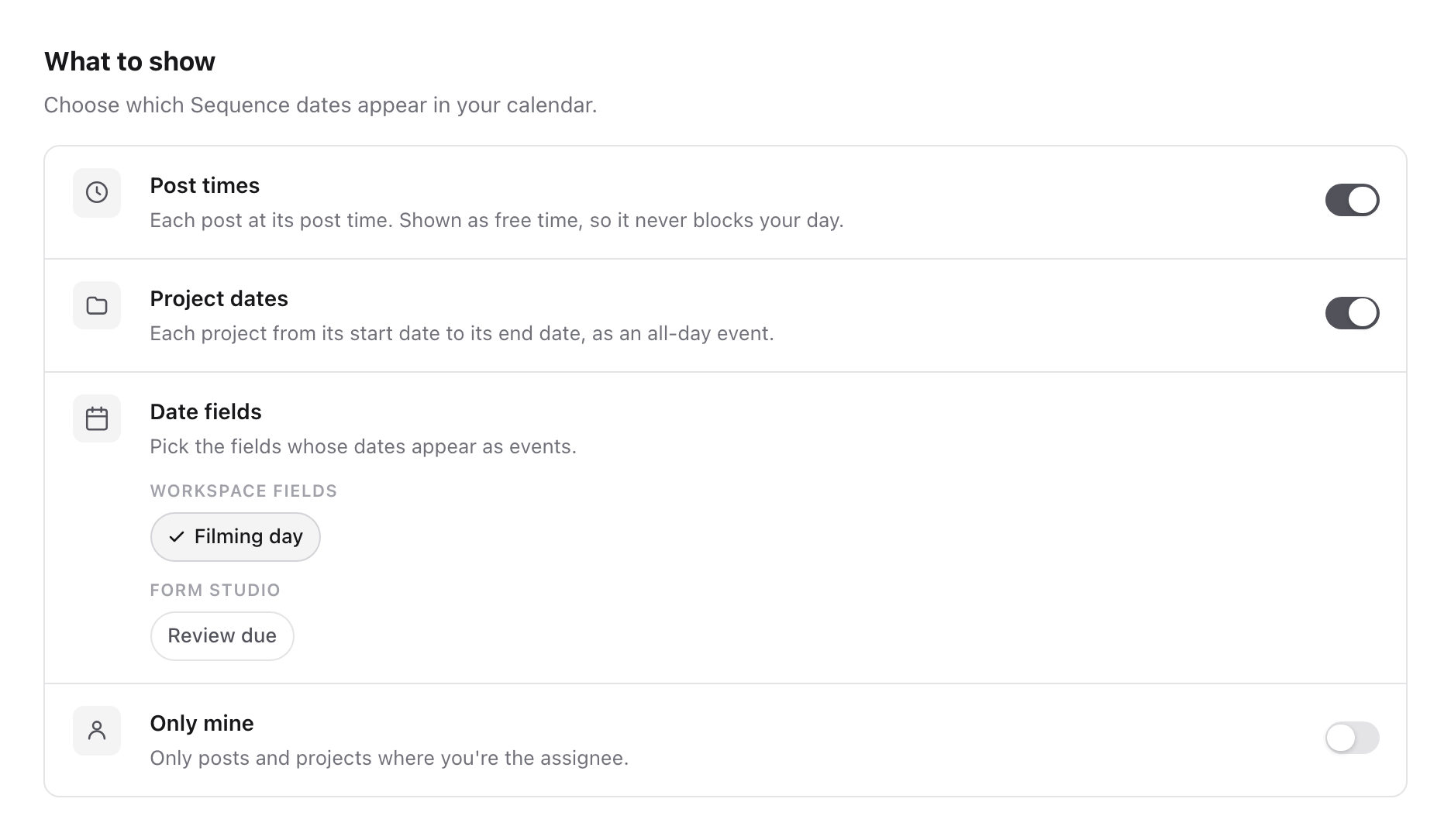
You can also add a Date field from the Content planner's List view: open the field's column menu and select Show in my calendar.
Choose brands
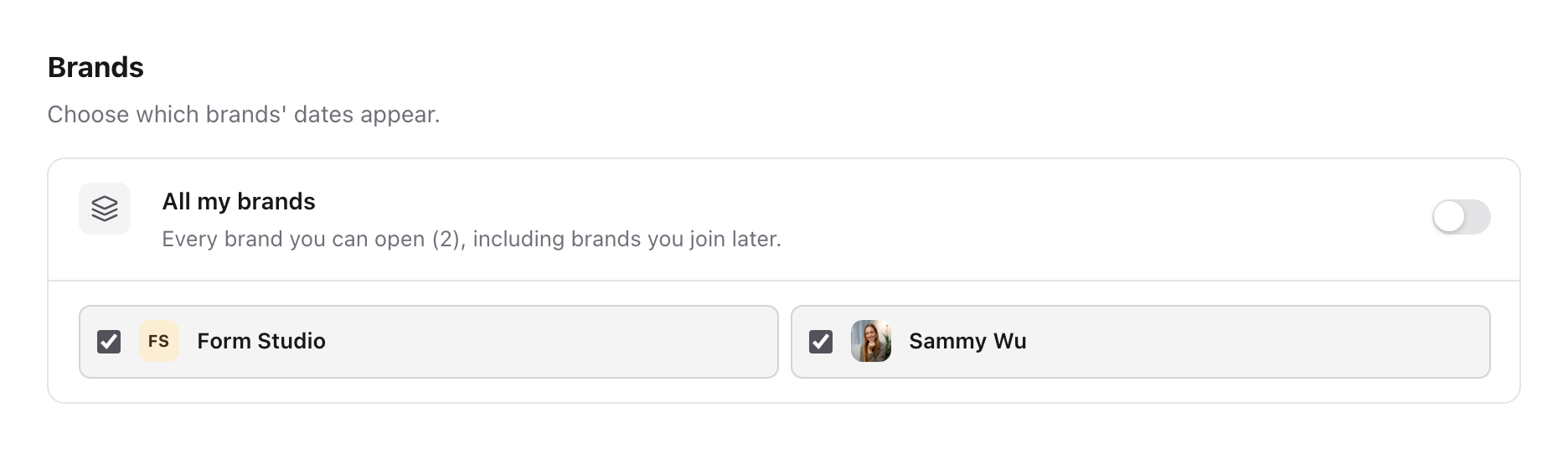
Under Brands, All my brands shows every brand you can open, including brands you join later. Turn it off to choose brands, then tick the brands you want. At least one brand stays ticked.
Keep your link private
Anyone who has your link can see the dates in it, so add it only to your own calendar apps. If it's shared by mistake, select Reset link and confirm. The old link stops working straight away, and you add the new link to your calendar apps again.
Your link follows your access. If you lose access to a brand, its dates leave your calendar on the next check. If your workspace leaves Pro, your calendar shows no events until it upgrades again.
Was this page helpful?
Related articles
- Custom fieldsAdd brand fields from a post, set their values, and edit, hide, show or delete them.
- Projects and campaignsCreate a project, connect its content and coordinate campaign ownership without changing each post’s schedule.
- Assign content and projectsAssign the next action to the right person, associate projects and understand ownership during approval.
- Use the Content plannerChoose a planner view, find the right content and make the next production hand-off clear.
- Manage billingFind workspace billing, manage payment methods and capacity, and locate invoices or subscription support.
Need more help with this?