
A personal API key lets your own scripts and tools work with Sequence. Each key covers one workspace, the brands and social accounts you pick, and the permissions you allow, and it can never do more than your own account can.
Create a key
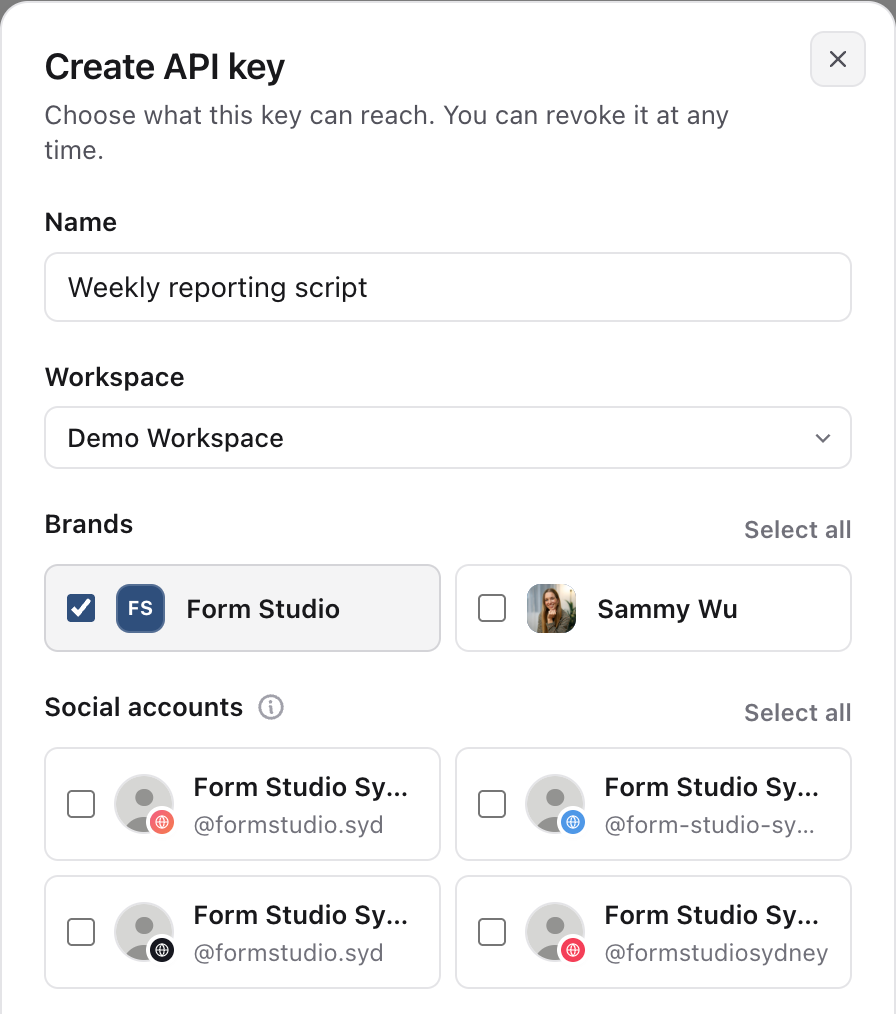
- 01Open Settings, select MCP & API, then API keys, and select Create API key.
- 02Enter a Name, choose the Workspace and Brands, and tick any Social accounts the key needs.
- 03Tick the Permissions the integration needs and choose when the key expires: 7, 30 or 90 days, or Never. A key set to Never works until you revoke it.
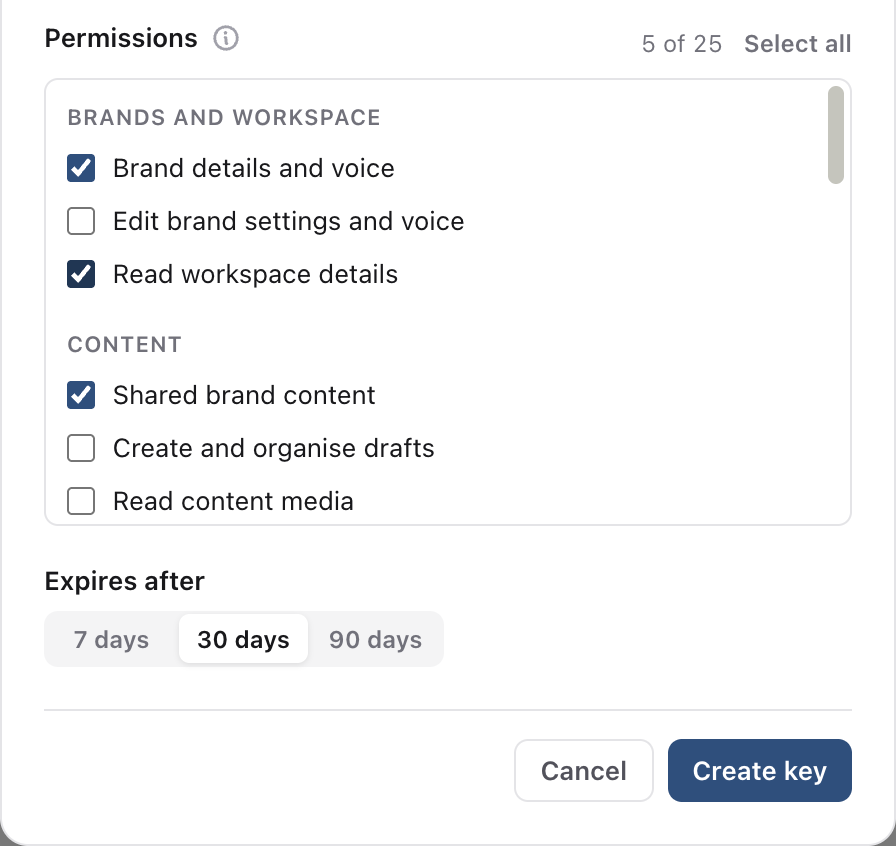
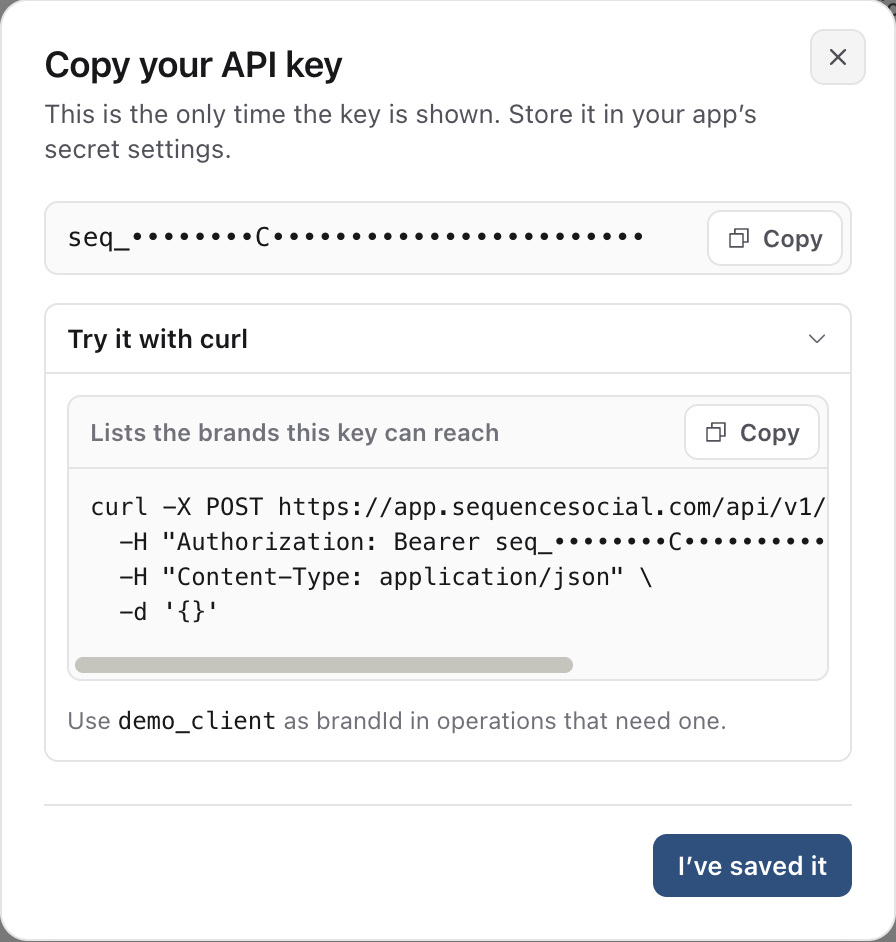
- 01Select Create key. Copy the key now; Sequence shows it only once. Store it in your integration's secret settings, never in a URL or shared document.
Make your first request
Every operation is a POST to /api/v1/operations/ followed by the operation name, with the key as a Bearer token. This request lists the brands the key can reach:
curl -X POST https://app.sequencesocial.com/api/v1/operations/brands.list \
  -H "Authorization: Bearer $SEQUENCE_API_KEY" \
  -H "Content-Type: application/json" \
  -d '{}'
Successful responses return data and a requestId. If something fails, the response includes an error code and the same requestId, which you can quote to support. The full list of operations is in the OpenAPI reference at https://app.sequencesocial.com/api/v1/openapi.json.
Editing, retries and limits
- Edits need the current version from a read, so a stale change is refused instead of overwriting someone's work.
- Changes that create or send something take an idempotency key. Retrying with the same key returns the first result and never repeats the action.
- Scheduling and publishing only work on approved content for the accounts the key includes.
| Limit | Value |
| Requests | 120 per minute per person, shared with MCP connections |
| Request size | 64 KB of JSON |
| Page size | 20 by default, up to 50 |
| Key lifetime | 7, 30 or 90 days, or Never |
Each response includes X-RateLimit-Remaining. When you reach the limit, wait for the seconds in Retry-After.
Rotate or revoke a key
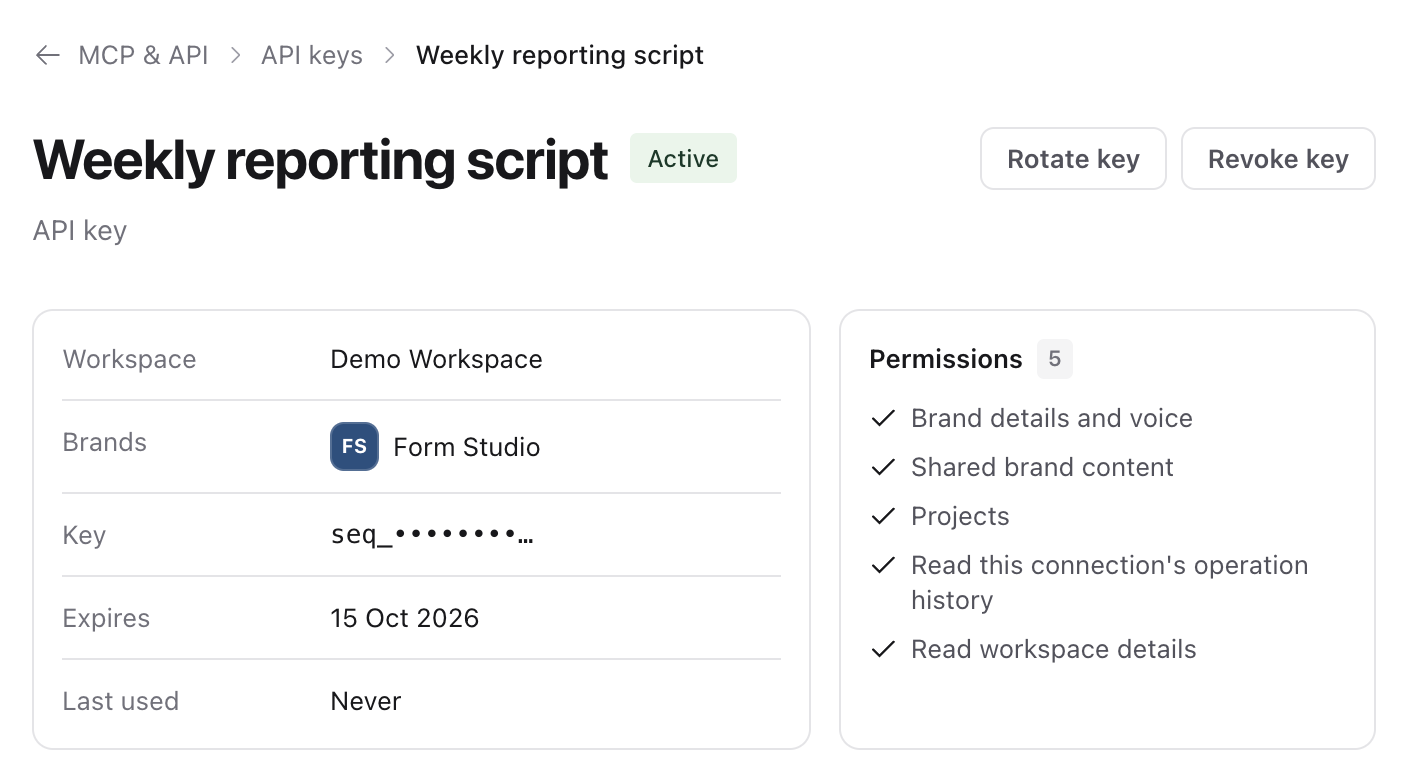
Open the key and select Rotate key to create a replacement with the same access and expiry. The old key keeps working until you select Revoke key, so update your integration first.
To check what a key can do without leaving Sequence, open the key and use Try an operation: pick an Operation, adjust the Input and select Run. It uses the key's permissions, and write operations change real data.
Was this page helpful?
Related articles
Need more help with this?