
Use Comments to discuss a post with your team. You can mention a teammate to draw their attention to your message, or link to another post so everyone can open the reference.
Each comment is Public, which brand members such as clients can also see, or Private, for your workspace team and anyone they give access. See use Private and Public comments.
Add a comment
- 01Open Content and select the post you want to discuss.
- 02Scroll down the post's properties panel to Comments. This is the general discussion for the post.
- 03Comments open on Public. Select Private instead for a team-only note, write your message in the comment box, then select Post (Post privately on Private). Your message appears in that thread.
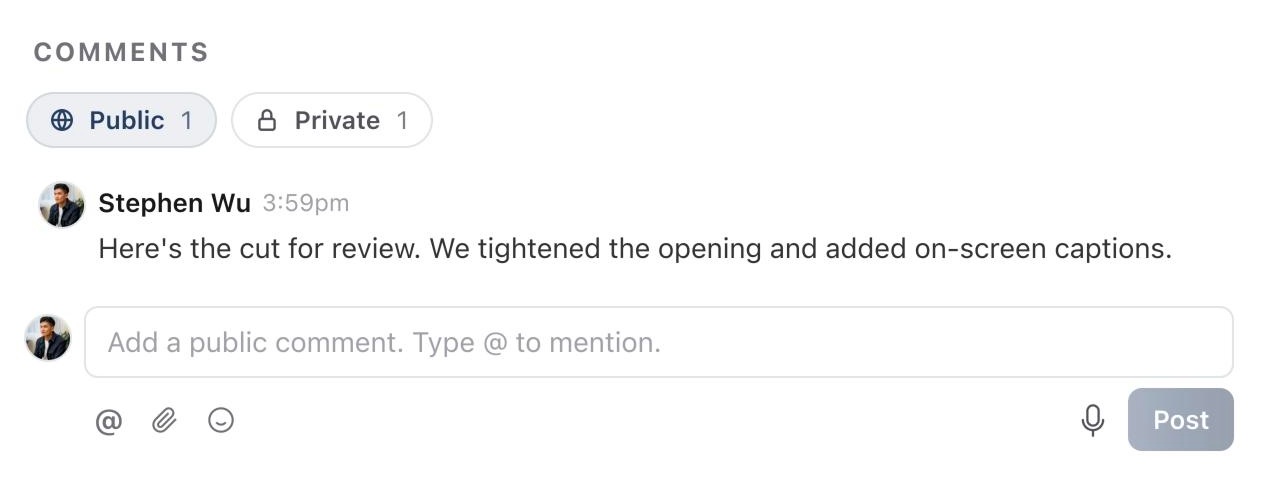
Keep each comment focused on one question or action. For example: “The brief is ready. Please check the opening before filming.”
You can also use Attach a file, Add emoji or Record voice note in the composer. Wait for any file to finish uploading before you post.
Mention a teammate
Mention someone when you want them to notice or respond to your comment. Choose their name from the picker so Sequence recognises the mention.
- 01Start your comment, then select the @ button below the comment box. Its label is Mention a person or post.
- 02Enter the teammate's name in Search people or posts.
- 03Select their name under People.
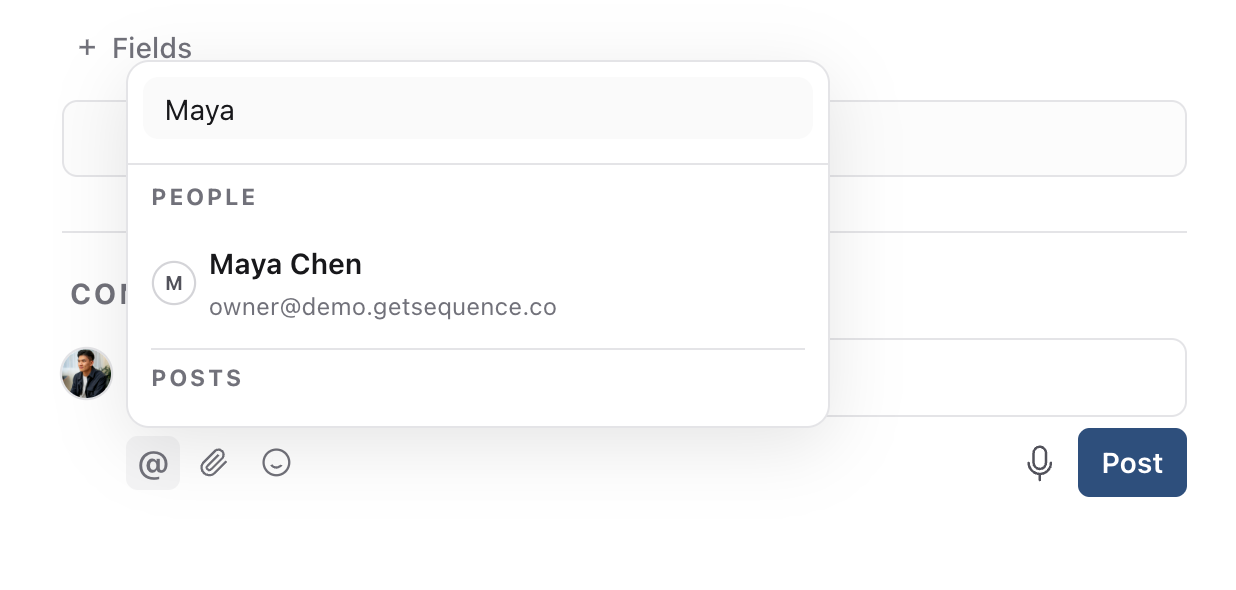
Their name appears as a mention in your draft. Finish your message, then select Post. Sequence sends the mentioned teammate a mention notification according to their notification settings.
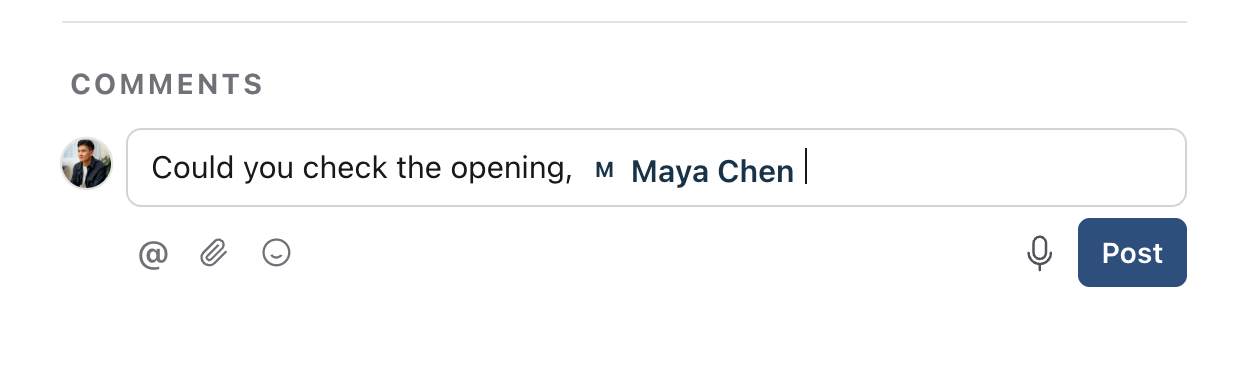
You can also type @ followed by their name directly in the comment box, then choose the matching person from the suggestions. Typing a name as ordinary text does not create a mention.
On Private, the picker only suggests people who can see Private comments.
A mention does not assign the post to that person. Use Assignee to set responsibility, or send the post for approval when you need a review decision.
Link to another post
Add a post reference when your comment refers to other content in the same brand. For example, you might ask the team to reuse an opening from an earlier post.
- 01Write your comment, then select the @ button.
- 02Enter part of the other post's title in Search people or posts.
- 03Select the matching result under Posts. Check its status and post type if several results have the same title.
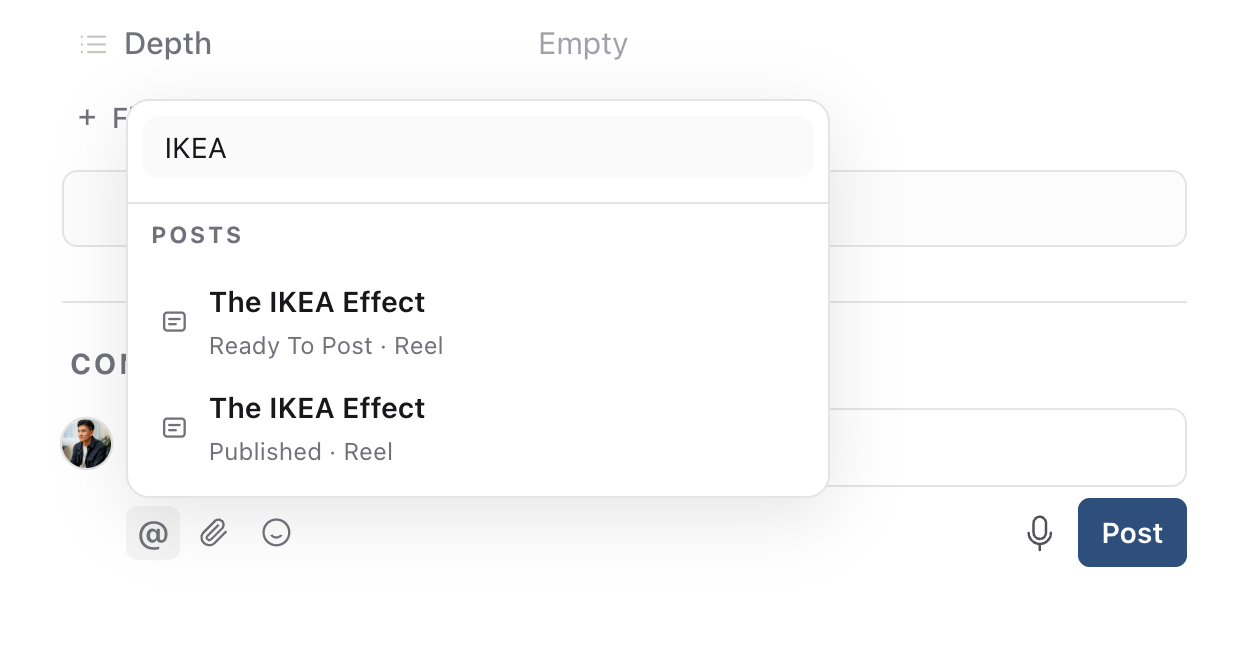
The post title appears as a linked reference in your draft. Select Post to share the comment. Readers can then select the reference in the posted comment to open that post.
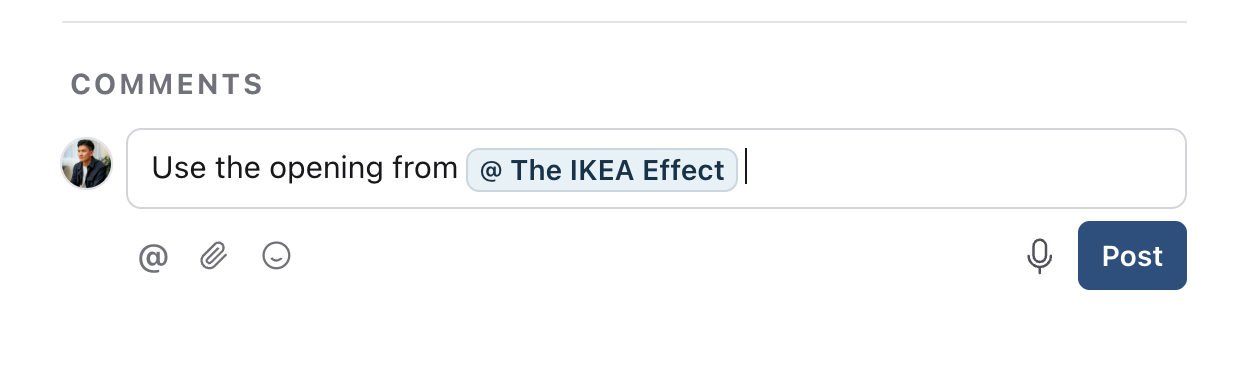
Linking a post does not notify its assignee or change who can access it. Mention a teammate separately if you want their attention. Readers still need access to the linked content.
Reply and react
Select Reply on a comment to keep follow-up discussion together. Write your response and select Post.
To acknowledge a comment, hover over it and select React, then choose an emoji. Select a reaction you have already added to remove it.
For feedback about a specific video moment or image area, use the Media tab. See comment on video timestamps and annotate creative for that workflow.
Comments and approval decisions
Writing “approved” or adding a thumbs-up reaction does not record an approval decision. Use the post's approval controls to approve it or request changes.
A share link that shows Comments only includes Public comments, so Private discussion stays with your team. See share content outside your workspace for the link's comment settings.
Was this page helpful?
Related articles
Need more help with this?