
Every comment on a post is Private or Public. Private comments are for your workspace team. Public comments can also be seen by brand members, such as the clients you invite to a brand, and by viewers of a share link that shows comments.
What are Private and Public comments?
Use Private comments when your team needs to talk candidly about a post: a note for the editor, a concern about the hook, or a question to settle before the client sees it. Use Public comments for the conversation you share with your client.
| Who | Private comments | Public comments |
|---|---|---|
| Workspace members (owners, admins and members) | See and add | See and add |
| Brand members, such as invited clients | Never see | See and add |
| Share link viewers | Never see | See them when the link shows Comments |
Brand members don't see the Private and Public filter. For them, the Public thread is simply the post's comments.
Comments that existed before 3 October 2026 are Public, so nothing a client could already see has changed.
Choose Private or Public
The filter sits above the comments on a post. The number beside each option shows how many comments it holds. As a workspace member, you start on Private.
- 01Open the post and scroll down its properties panel to Comments.
- 02Select Private for a team-only note, or Public for anything the client should read.
- 03Write your comment and select Post. The comment box reads Add a private comment or Add a public comment, so you can check who will see it before you post.
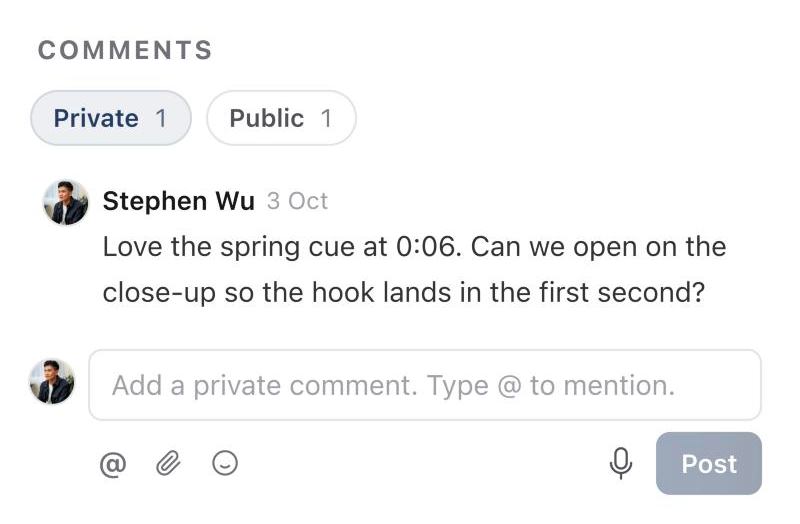
Select Public to see the comments your client sees. A comment you post there is visible to brand members on the brand.
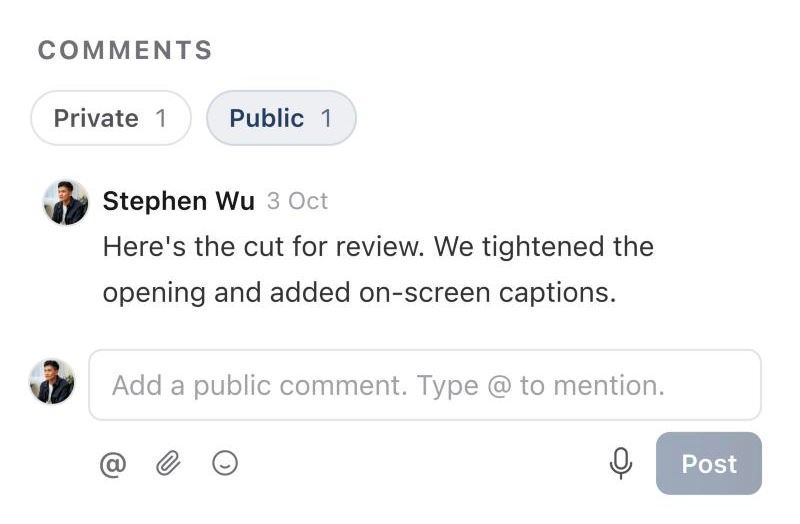
Replies stay in their thread, so a reply to a Private comment is also Private.
Private and Public in Media review, Plan and Approvals
The same filter appears wherever you comment on a post:
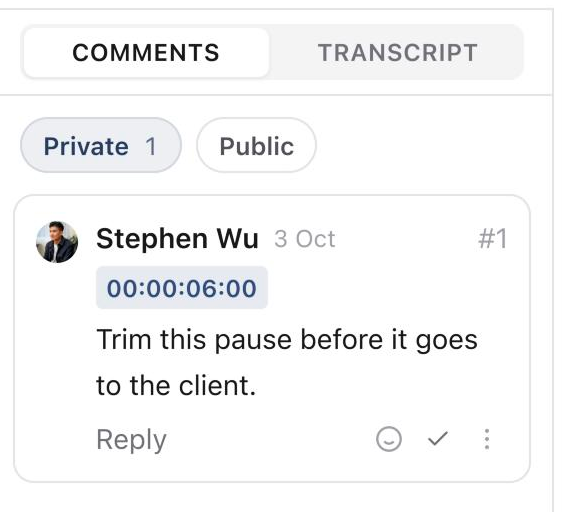
- Media review: under Comments and Transcript, beside the video or images. Timestamps and annotations work the same in both.
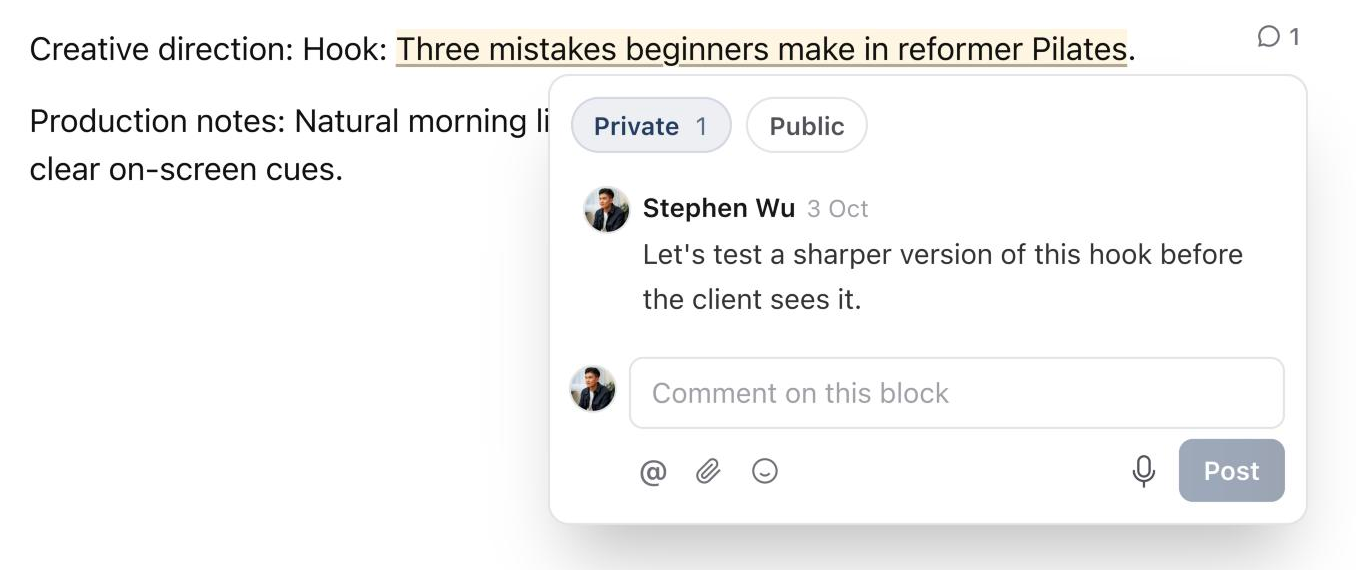
- Plan comments: at the top of the comment box when you comment on text in the Plan.
- Approvals: above a piece's comments when you open them from Approvals.
Move a thread to Public
When your team has agreed on something the client should see, move the thread instead of retyping it.
- 01Find the first comment in the thread.
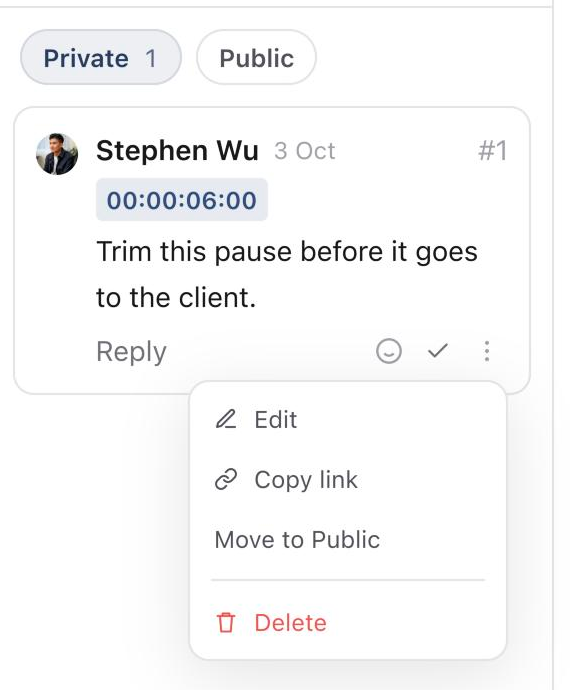
- 02Select More on that comment. In a post's Comments, More appears when you hover over the comment.
- 03Select Move to Public. The comment and its replies move to the Public tab.
Brand members on the brand are notified about a thread when it moves to Public, the same way they would be about a new Public comment.
Move to Private works the same way while everyone in the thread is in your workspace. Once a brand member or share link viewer has commented, the thread stays Public, and Sequence shows: Someone outside your workspace has commented in this thread, so it stays public. Moving a thread back to Private also removes the notifications brand members received about it.
Mentions and notifications
- On Private, the mention picker only suggests workspace members, so a team-only note can't pull a client in.
- Private comments only notify your workspace team. Public comments also notify brand members, according to their notification settings.
- A comment notification opens the post on the tab that holds the comment.
Share links, approvals and Sequence AI
- A share link with Comments turned on only shows Public comments. Private comments never appear on a share link.
- Comments posted through a share link are Public.
- A note you add when you send a post for approval, or with an approval decision, is Public, because the reviewer is often a client.
- When Sequence AI adds a comment for you, its confirmation shows whether the comment will be Private or Public.
Was this page helpful?
Related articles
- Comments and mentionsDiscuss a post, mention a teammate, link to related content, and use replies and reactions to keep feedback together.
- Comment on mediaAttach clear feedback to a video moment or image area, then reply, resolve and hand off the revision.
- Share content externallyCreate a read-only link, choose visible sections and manage viewer comments, passcodes and expiry.
- Client review accessInvite a client to the correct brand, choose suitable permissions and send their first review request.
- Roles and brand accessChoose workspace and brand access, tailor role permissions, and give clients the right review capabilities.
- Send for approvalChoose the review step and reviewer for one or multiple posts, use Default per post for mixed batches and confirm the approval request.
Need more help with this?