
Sequence separates approval of the plan, the creative and the finished post. Use the stages your team needs, choose who makes each decision, and keep the feedback with the same content piece.
Three approval stages
| Review stage | What the reviewer checks | If approved | If changes are requested |
|---|---|---|---|
| Plan review | The idea, brief, script or written plan before production. | Plan approved | Plan changes |
| Media review | The edited video, image or other creative. | Media approved | Media changes |
| Final review | The complete post, including caption, creative and intended destinations. | Ready to post | Post changes |
These are the default outcomes. Workspace or brand routing can send decisions to different statuses. Final-review revisions go to Post changes by default, and sending that revised post for approval returns it to Final review.
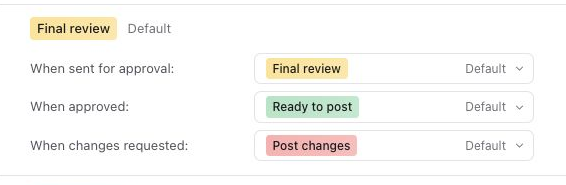
Media approval does not mean the caption is finished or that the post is scheduled. Final approval moves the post to Ready to post. A person with publishing permission still needs to check and confirm scheduling in Publish.
Where Send for approval goes
The default review step follows the current status and your saved routing. Plan approved goes to Media review, and Media approved goes to Final review. A post awaiting changes returns to the corresponding review stage.
The Review step field lets you choose an enabled step for the request. For a mixed selection, Default per post keeps each post on its own route; choosing a specific step sends the selection to that step.
You can change colours, duplicate workflow statuses, enable or disable approval steps and edit these routes in Settings. See Use built-in and custom content statuses
Who owns the next action?
Use Assignee for the person doing the work. Sending a post for approval replaces its assignees with the selected reviewer, so the review becomes that person's task. After the decision, check Assignee and hand the post to the next person; the previous assignees are not automatically restored.
For example, the social media manager prepares the plan, the client approves it and films, the video editor edits the footage, and the client reviews the creative. The social media manager then writes the caption and prepares the finished post for final approval.
Choose a real person with brand access and approval permission. Role names such as Client and Video editor in the examples below describe responsibilities; they are not automatic assignments or required account roles.
Example: a client-filmed video
This example assumes the client films the content, the editor produces the video, and the client approves both the creative and the final post.
| Your team's stage | Sequence status | Person handling the next action |
|---|---|---|
| Idea | Idea draft | Social media manager |
| Client Input Needed | Planning | Client |
| Idea or script ready for client approval | Plan review | Client |
| Ready to Film | Plan approved | Client |
| Filmed | In production | Video editor |
| Editing | In production | Video editor |
| Ready for Review | Media review | Client |
| Need Caption | Media approved | Social media manager |
| Client Approval Needed | Final review | Client |
| Approved | Ready to post | Social media manager |
| Scheduled | Scheduled | Social media manager |
| Posted | Published | Social media manager |
Client Input Needed and Plan review mean different things. Planning is appropriate when you need information or changes to an unfinished brief. Send for Plan review when the idea or script is ready for an explicit decision before filming.
Need Caption fits Media approved only after creative approval. If the video still needs editing, keep it In production. Write the caption in Publish, check the complete post and then send it for final review.
This is an operating workflow, not an import preset. When importing from Notion, Scheduled becomes Ready to post and must be scheduled separately. See Import a content plan.
Example: a LinkedIn written post
A written post can use a shorter route: Idea draft → Planning → Final review → Ready to post → Scheduled → Published. Add Plan review if the client needs to approve the idea before the copy is written. You do not need to add filming or editing stages to a text-only post.
The social media manager writes the post, the client supplies input and makes the final decision, then the social media manager schedules it. Right-click the prepared post, select Send for approval, choose Final review in Review step, then select the reviewer. Check Approvals to confirm the request. This lets a written post skip media production.
Keep destination and format separate: Platforms identifies the connected accounts, and Post type identifies the kind of post. A LinkedIn post and an Instagram video can follow different paths through the same brand workflow.
Record a decision and continue
The reviewer opens the post in context and records a decision. In the post panel, select Approve or Revise. A comment alone is feedback, not an approval decision. Make requested changes and send the post back to the reviewer when it is ready.
For visual feedback, use written comments, video timestamps or image annotations so the editor can locate the exact change. These work alongside the approval decision and keep the handoff understandable without relying on a voice conversation.
See Send one or multiple content pieces for approval for the sending steps, or Give a client access to review content for access setup.
Was this page helpful?
Need more help with this?