
Sequence can write a short client update from your analytics, the kind you would otherwise type up by hand each week. You check it, add your own next steps, then send it by email or Slack, once or on a schedule. You can also copy it and paste it anywhere.
What is an AI report update?
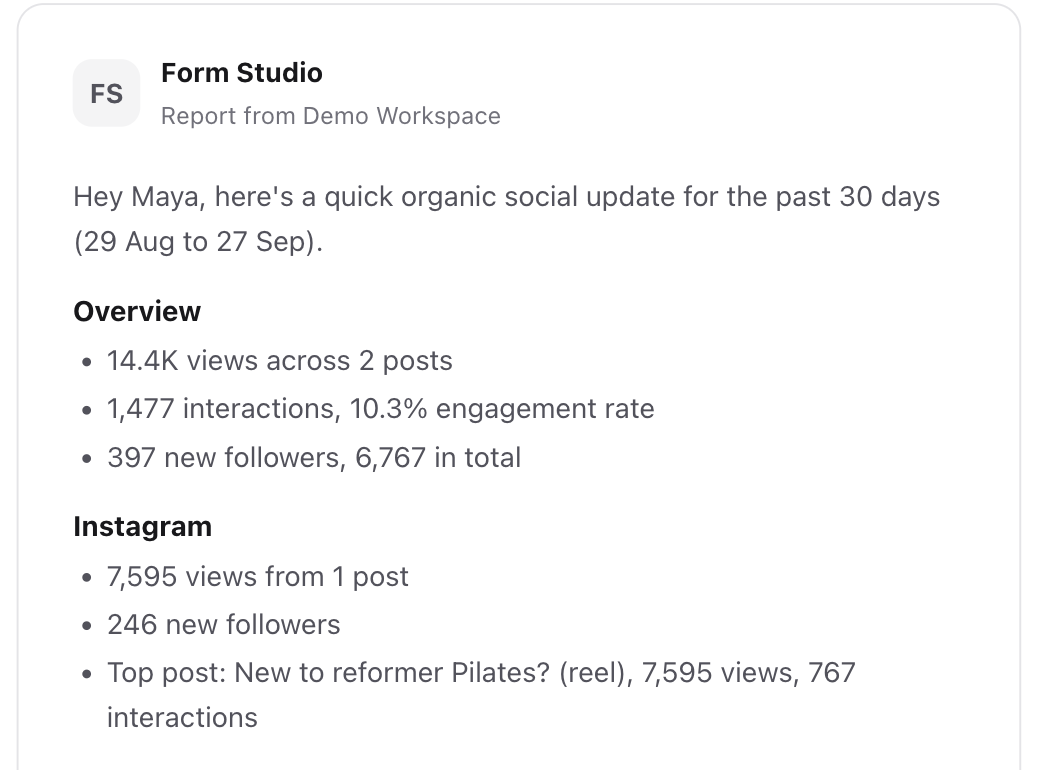
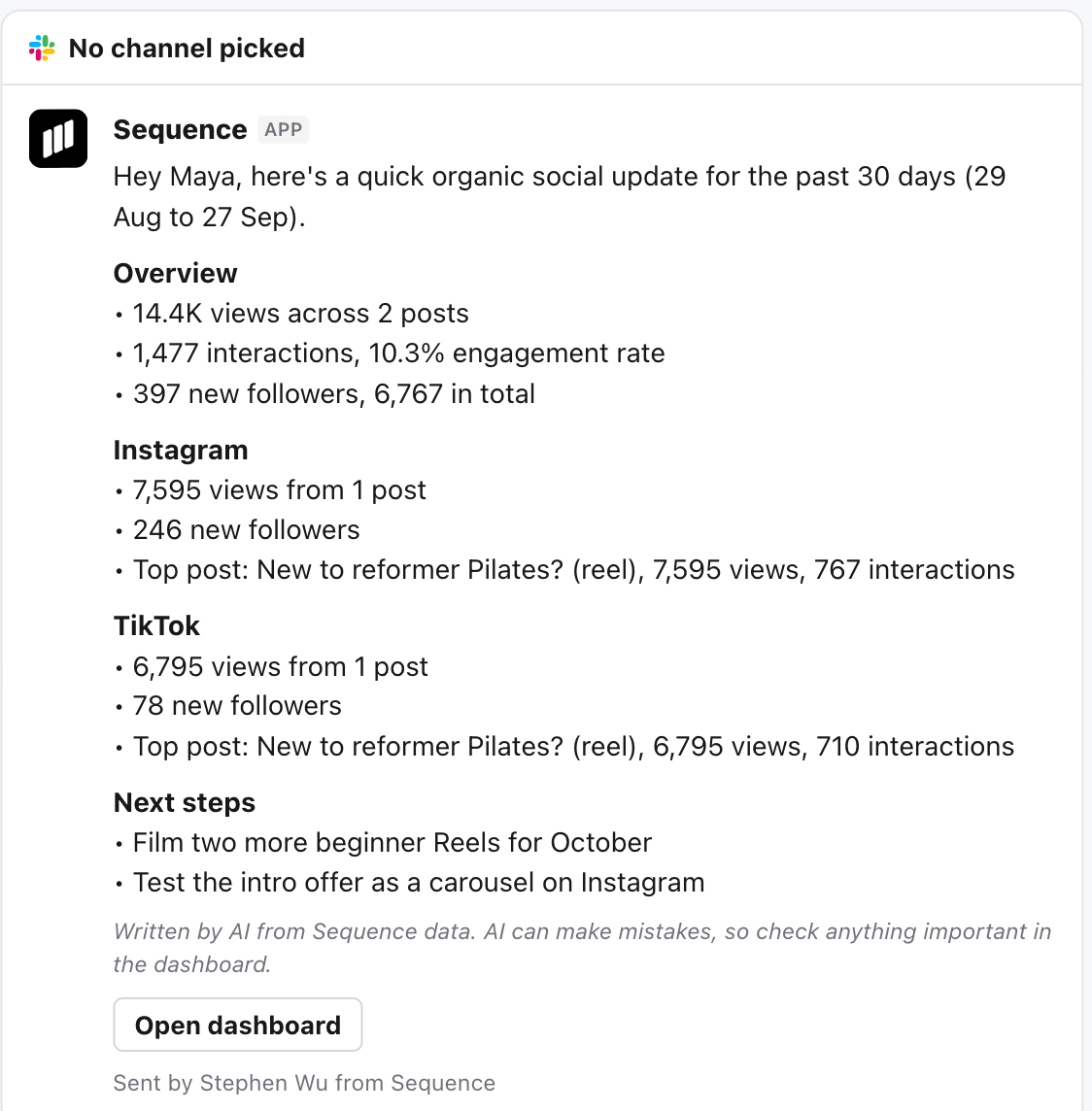
An AI report update is a message written from your brand's numbers for the dates you choose. For organic social it covers views, posts, new followers and the top post on each platform. For paid ads it goes campaign by campaign, with each campaign's results and cost per result, then the ads inside it: which one led, which were most efficient and which spent without a result.
It only reports what happened. It never suggests next steps or asks your client questions, so those stay yours to add. Every number is checked against your Sequence data before the update is used. If a number cannot be matched, Sequence stops instead of sending it.
This is different from the Dashboard summary, which sends three headline numbers and a link to a dashboard. Both end with a button to the dashboard for the full numbers.
Write an update
- 01Open Analytics and select Report.
- 02Select New report.
- 03Under Send, keep Once, now to send a single update.
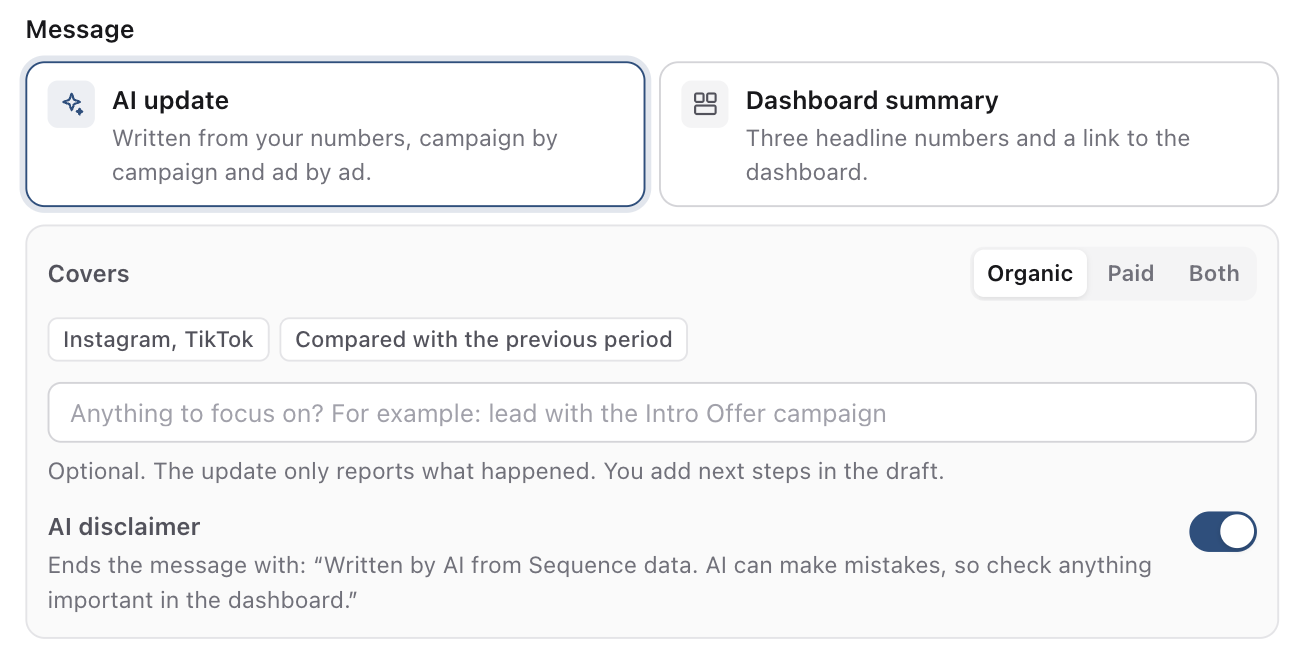
- 04Under Message, choose AI update, then choose Organic, Paid or Both under Covers. Add a focus if you want the update to lead with something, such as one campaign.
- 01Choose the Date range.
- 02Select Write update. Writing an update uses 30 AI credits.
Edit the draft
The draft opens in the Edit tab. Change any line, and use Heading, Bullets and Text to shape it. This is where you add your next steps. Your edits carry into the Email, Slack and Plain text previews.
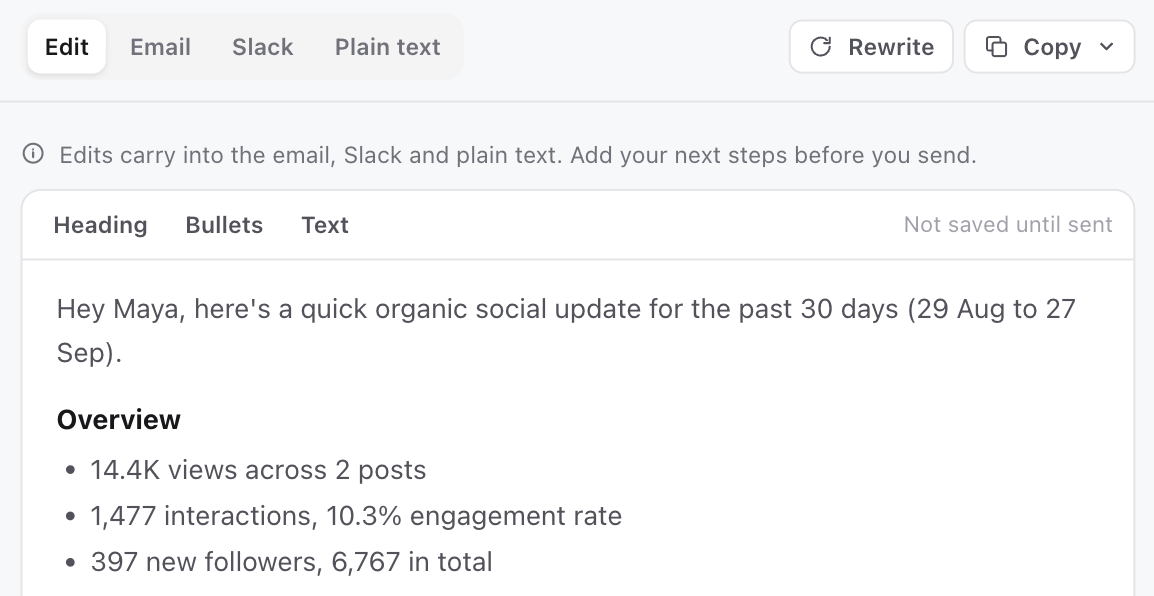
Select Rewrite to write it again, which uses another 30 AI credits. If you change what it covers, the focus or the dates after it is written, Sequence tells you the draft no longer matches your settings.
The AI disclaimer is on by default. It ends the message with a line saying the update was written by AI and can make mistakes, and it shows under the draft so you can see it before you send. Turn it off under AI disclaimer if you prefer.
Choose where it goes
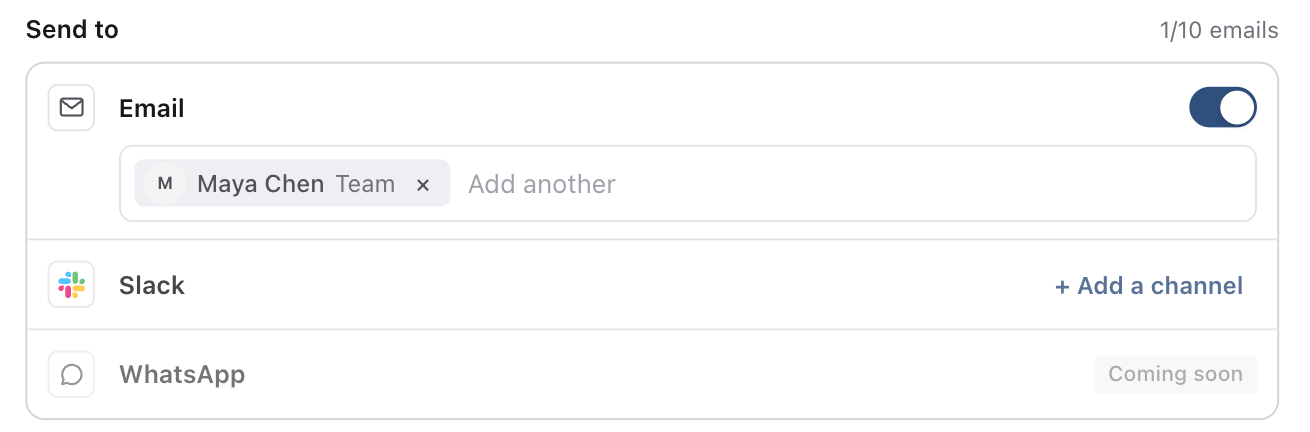
Under Send to, add at least one email address or a Slack channel.
- Email: pick teammates or type any address, up to 10.
- Slack: select Add a channel and pick a channel. Slack needs to be connected in Settings, and Sequence needs to be added to the channel in Slack.
- WhatsApp is coming soon.
In Slack, the update is posted by Sequence with a button to the dashboard.
Send it or copy it
Select Send test to me to check it in your own inbox, then Send now. The report stays in your reports list as sent once, where its menu has View message, Copy message and Send again.
To send it yourself instead, open Copy and choose Copy for email (keeps the headings and bullets when you paste into Gmail or Outlook), Copy for Slack or Copy as plain text. Copying does not need any recipients.
Send updates on a schedule
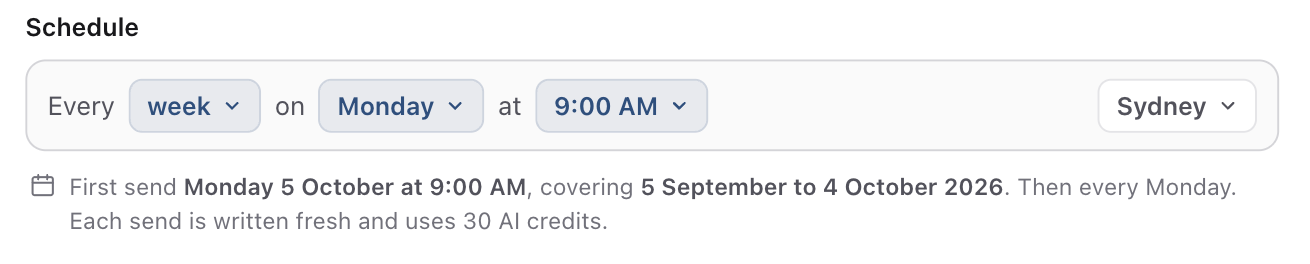
Under Send, choose On a schedule, then set when it goes out under Schedule. Each send writes a fresh update for its own period and uses 30 AI credits. Emails greet each recipient by first name, or with Hi there when Sequence does not know their name, and Slack posts say Hey team. Add your next steps in the Personal note, which appears under the update in every send.
If the workspace is out of AI credits when a scheduled update is due, that send goes out as the dashboard summary and the report row says why. To send a scheduled report straight away, open its menu and select Send now. The schedule does not change.
Save as template keeps every setting on the report, including the message, what it covers and the Slack channel. Workspace templates leave out the recipients, Slack channel and dashboard, because those belong to one brand. Reports, including AI updates, are part of Pro plans.
Was this page helpful?
Related articles
Need more help with this?