
A custom dashboard lets you choose which cards appear and what each one shows, then share it as a report. Changes stay as a draft until you select Save, so you can try things without changing what your team or clients see.
Create a dashboard
- 01In the sidebar, open Analytics and select Dashboards.
- 02Select Add dashboard in the left panel. Custom dashboards are part of Pro.
- 03Under Start this dashboard, choose a starting point. Default dashboard, under Everything, copies the overview, each platform and your ads as cards you can change. Organic Content, Audience Growth and Platform Comparison cover organic posts. Paid Ads, Creative Performance and Lead Generation need a connected ad account. Start empty opens the editor so you add each card yourself.
- 04Adjust the cards, then select Save. Select the dashboard's name at the top to rename it.
The built-in Default dashboard and the platform views can't be changed. If you select Customise card on one of their cards, Sequence asks Customise on your own dashboard?. Select Duplicate dashboard to copy the Default dashboard into a custom dashboard you can edit. The Default dashboard's options menu also has Duplicate as custom dashboard.
How saving works
Every change you make, such as renaming a card, re-sorting a table or moving cards in Edit, is held as a draft. While a dashboard has unsaved changes, its header shows Cancel and Save in place of Edit.

- Select Save to keep the changes for everyone who opens the dashboard.
- Select Cancel, or press Esc, to drop them.
- If you open another dashboard, switch between Organic and Ads, or leave Analytics with changes unsaved, Sequence asks Save changes to this dashboard?. Choose Save, Discard, or Cancel to stay where you are.
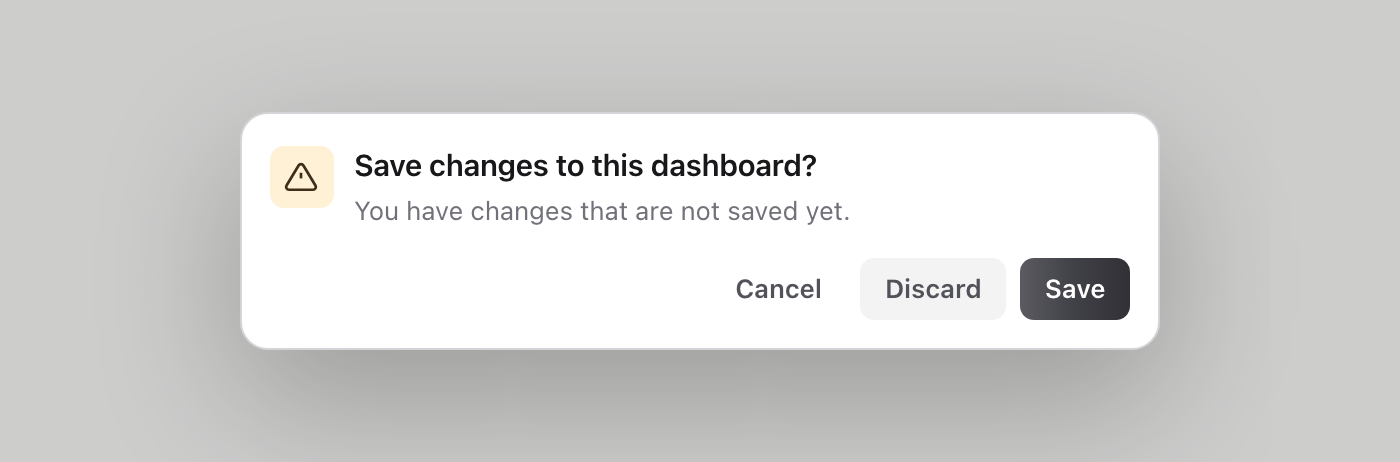
Share and Save as PDF use the dashboard as it was last saved, so save before you share. See Create, share, and export an analytics report.
Customise a posts card
Best posts, Recent posts and Posts performance are one posts card with different starting settings. Best posts ranks posts by overall performance, which adds weighted likes, comments, shares, saves and clicks to views. Recent posts shows the newest posts first. Posts performance is a table of metrics sorted by views.
- 01Select Customise card, the sliders button at the top right of the card.
- 02In Columns, choose Table or Compact under Show as, tick the metrics to show, and drag ticked columns to reorder them. Compact shows the first three.
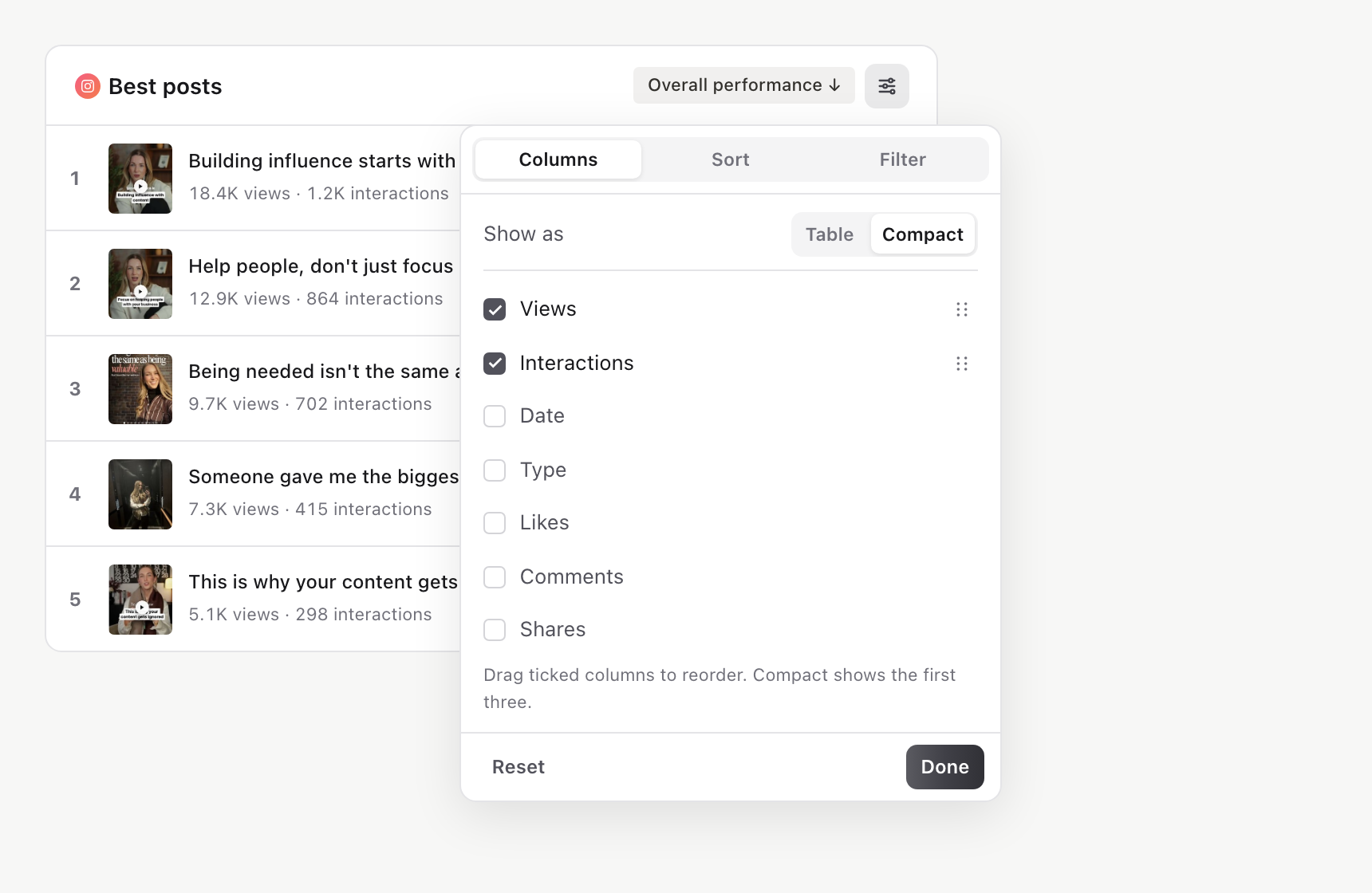
- 03In Sort, choose what to sort by, Highest first or Lowest first (Newest first or Oldest first for dates), and how many rows to show: 5, 10, 25 or 50.
- 04In Filter, select post types such as Reels or Carousels, or enter Minimum views. With no type selected, every type shows.
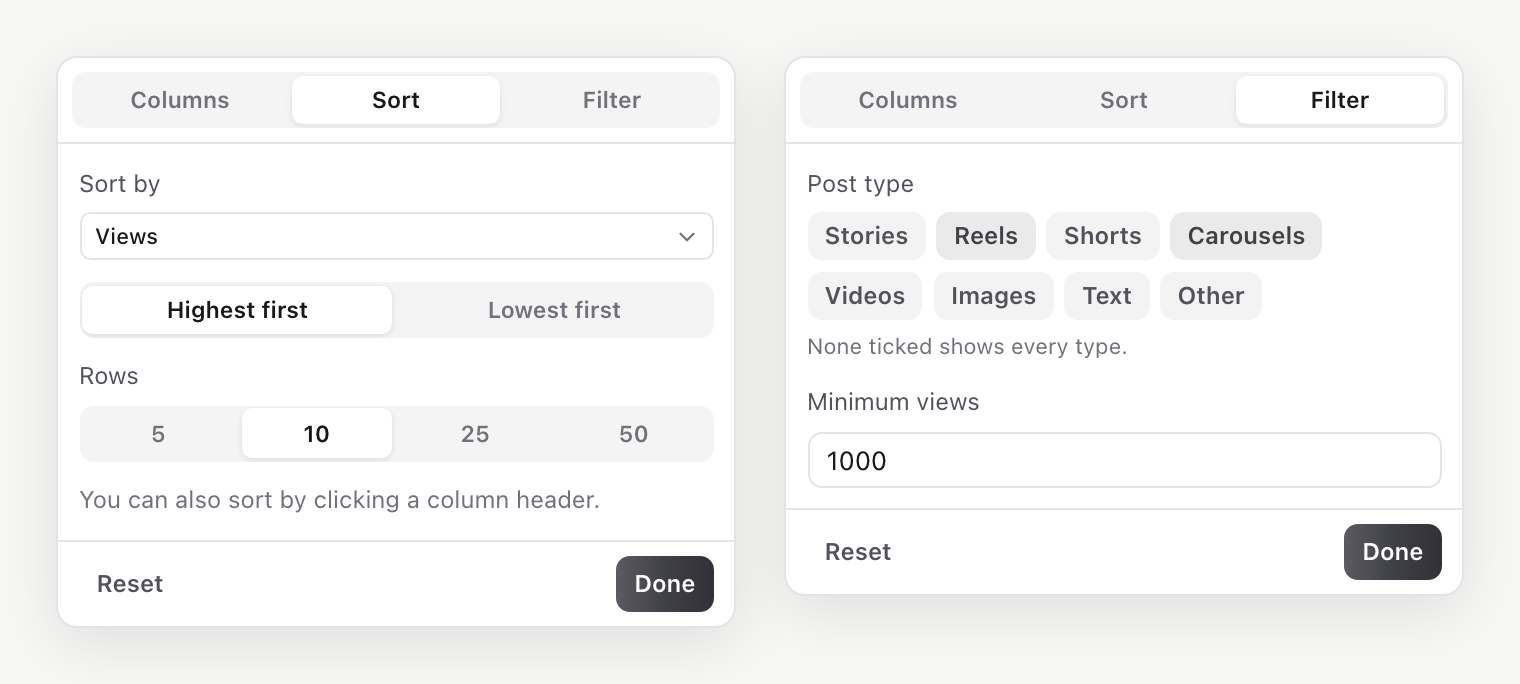
- 05Select Done, then Save.
Tags beside the card's title show its sort, plus Filtered when a filter is on. Reset returns the card to its starting settings. You can also sort by selecting a column header.
Posts cards draw from each platform's 30 most viewed posts in the date range plus its 10 newest, so a long table doesn't list every post.
Customise an ads table
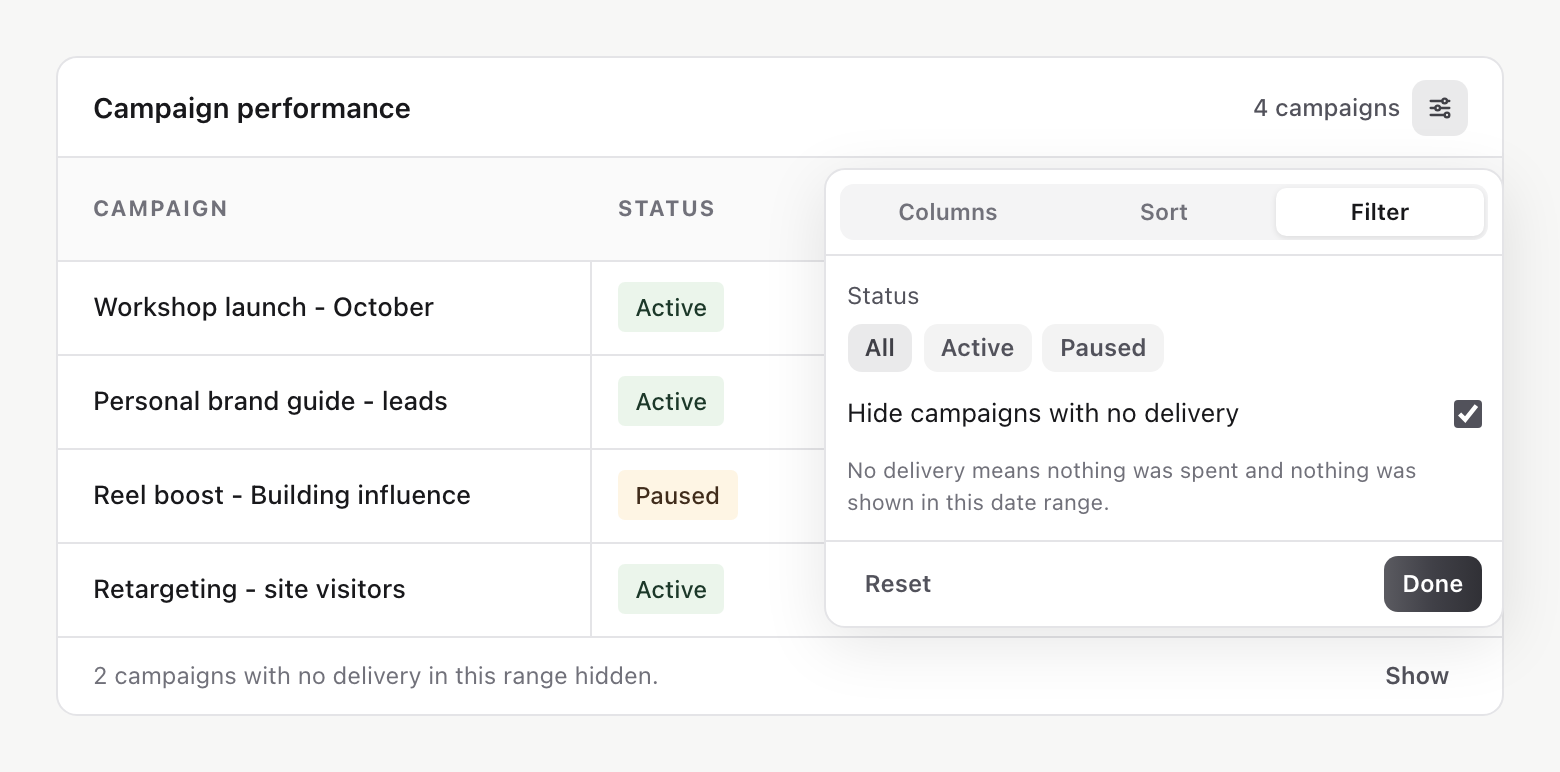
Campaign, ad set and ad tables share one layout. On a custom dashboard, select Customise table on a campaigns card to choose columns, including results, cost per result and the other ad metrics; sort it; show 5, 10, 25, 50 or 100 rows; and filter by status.
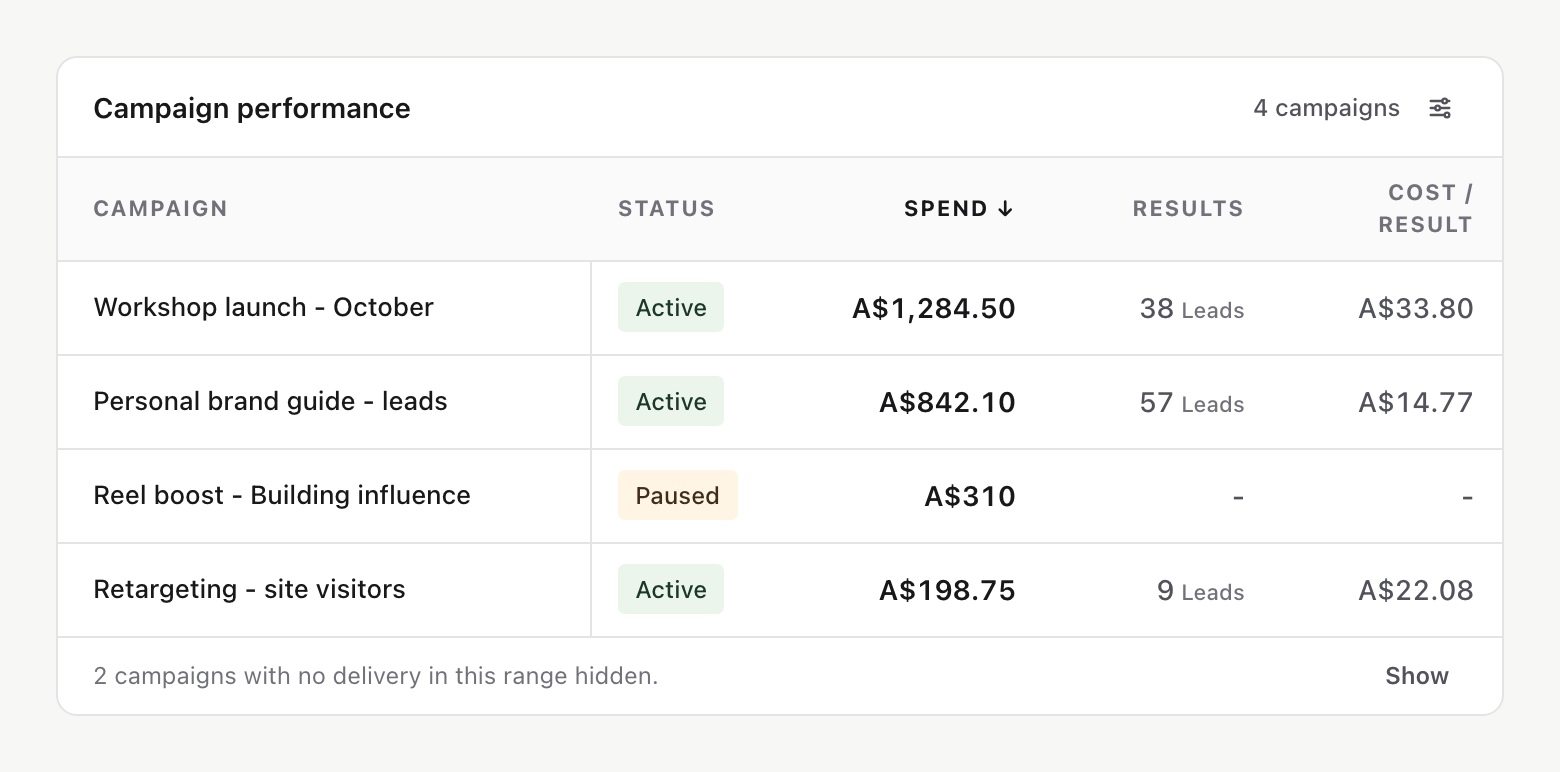
Rows that spent nothing and had no impressions in the date range are hidden by default. A line under the table says how many are hidden. Select Show to see them for this visit, or turn off Hide campaigns with no delivery in Filter.
Conversion tables list standard conversions first, each with Spend per conversion. Custom conversions sit under their own heading, because they can count the same actions as the rows above.
Customise a stat card
Hover a stat card and select Customise card to choose the metric it shows, from the metrics available for that card's platform, and to turn its Growth chart on or off. A metric without daily data can't show a chart. Followers charts the follower count for each day of the range. On a touch screen, the button is always visible.
Rename or rearrange cards
Select a card's title to rename it. To add, remove, move or resize cards, select Edit, make your changes, then select Save.
Was this page helpful?
Related articles
- Analytics overviewChoose a reporting scope and understand Overview cards, period activity, post-level results and data coverage.
- Create and share reportsChoose a fixed analytics scope, publish a controlled web link, or save the current dashboard as a PDF.
- Schedule recurring reportsSend a dashboard summary or an AI update by email or Slack every day, week or month, then pause, test or send it now.
- Understand social metricsSeparate views, impressions, reach and engagement, then compare like-for-like results across a consistent scope.
Need more help with this?