
Import your content plan into the current brand from the planning tool you already use. Sequence connects directly to Notion, Trello, Asana, Monday.com and ClickUp, and also reads CSV, XLSX and Trello JSON exports. Importing brings across titles, statuses, dates and the other values you map; it does not recreate the other tool's workflow or rename Sequence's built-in statuses.
Choose how to import
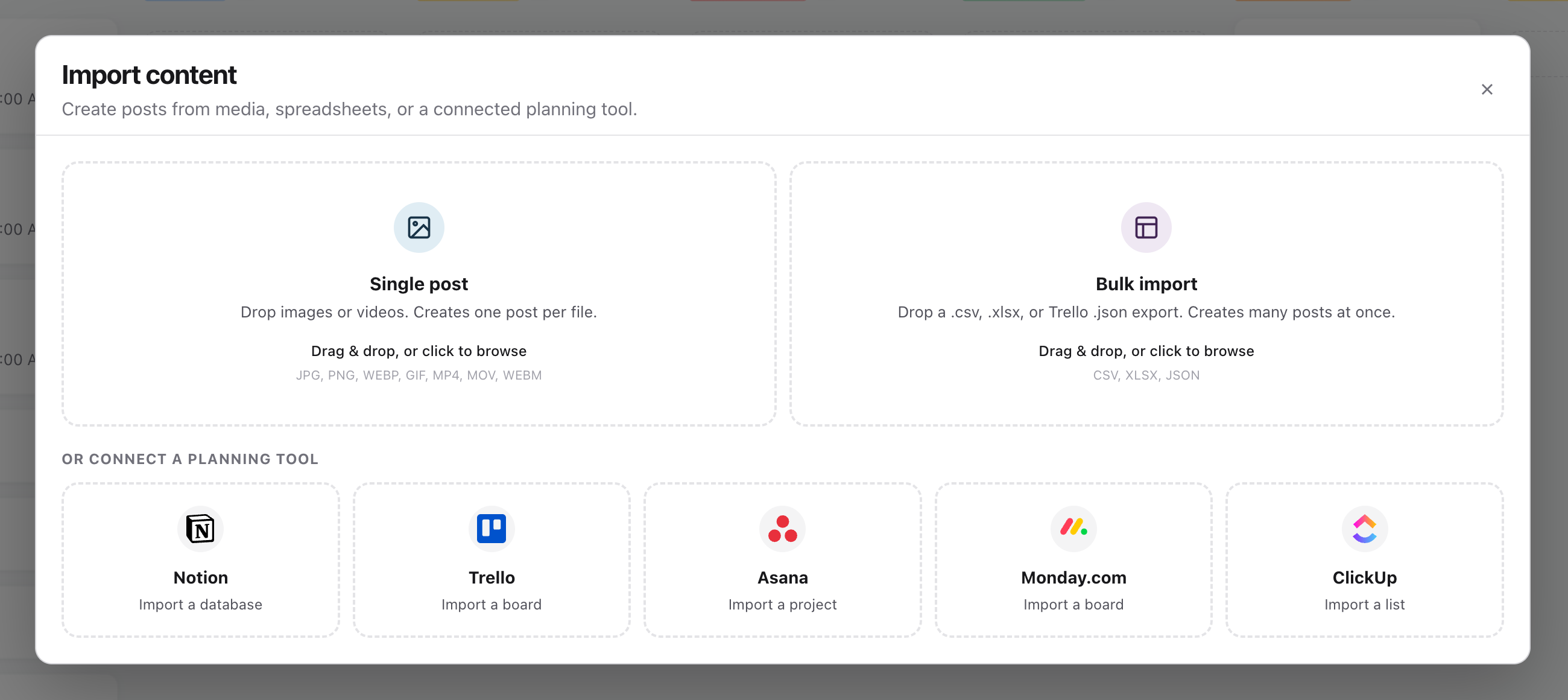
Open Content in the correct brand and select Import. The Import content dialog offers three routes:
- Single post creates one post per image or video you drop in.
- Bulk import reads a .csv, .xlsx or Trello .json export and creates many posts at once.
- Or connect a planning tool pulls items straight from a Notion database, Trello board, Asana project, Monday.com board or ClickUp list.
You need permission to create content in the destination brand, and access to the source board, project, list or database in the other tool. A connected import brings in up to 1,000 items from Trello, Asana, Monday.com or ClickUp and up to 500 from Notion. An export file can hold up to 1,000 rows.
Connect a planning tool
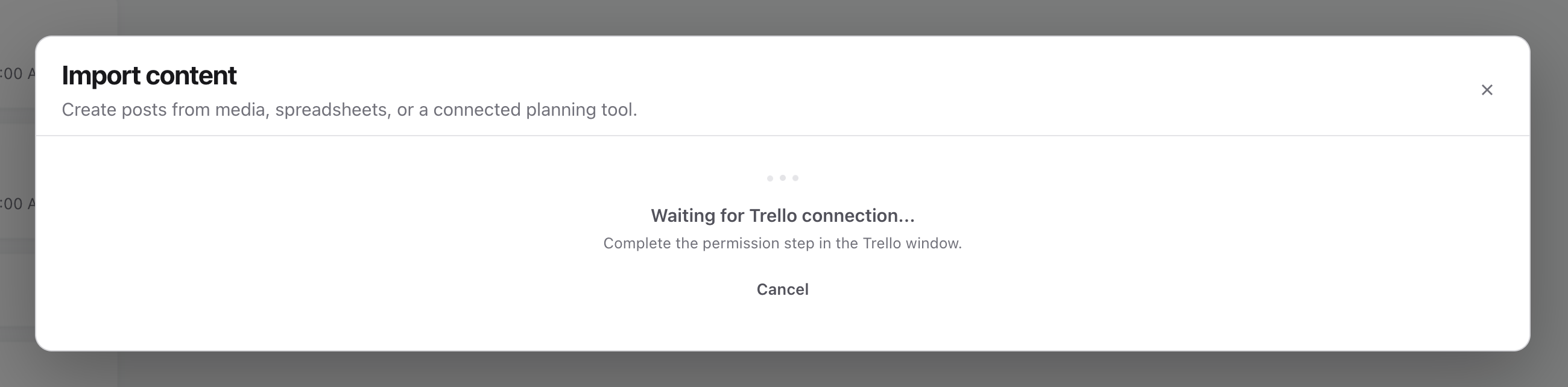
- 01Select the card for the tool, for example Trello. Sequence opens the tool's permission window and shows Waiting for Trello connection... until you finish there. Choose Cancel if you picked the wrong tool.
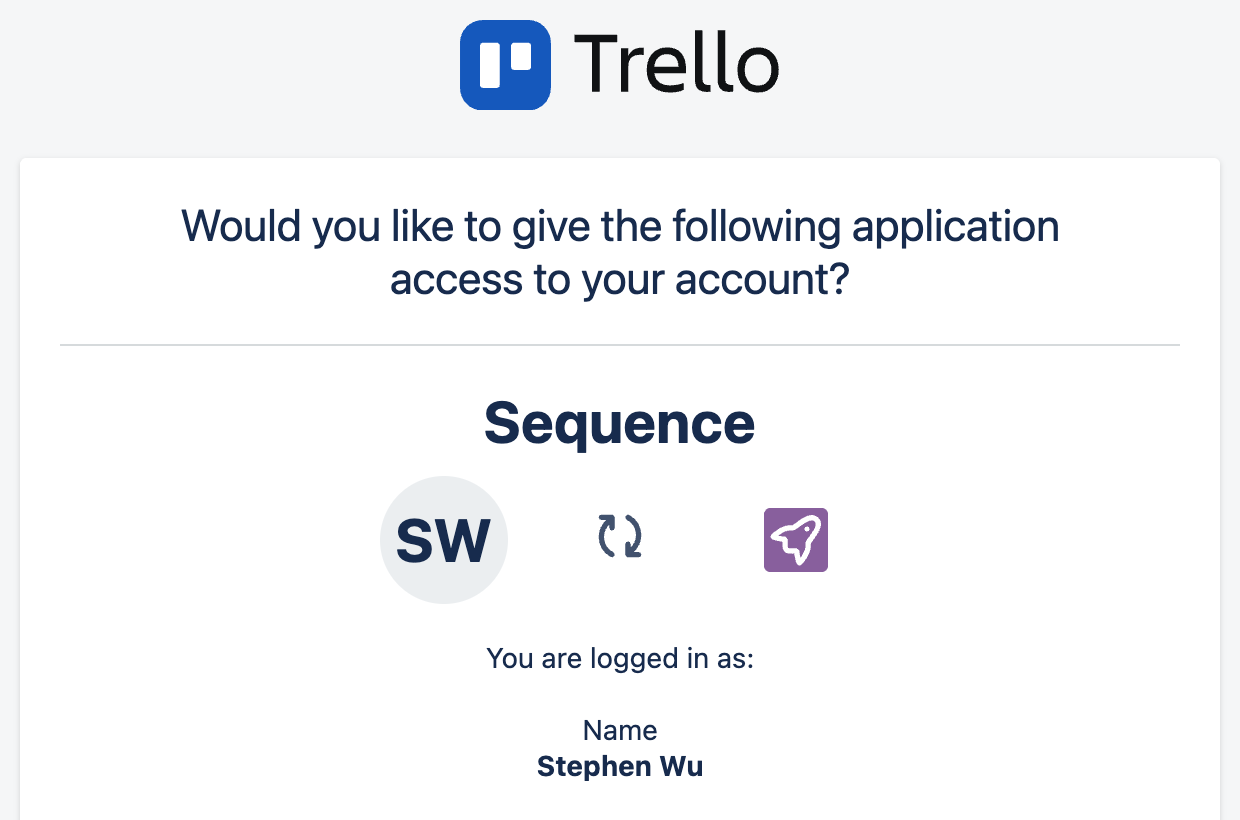
- 01In the tool's window, allow Sequence to read your account. Trello, Asana, Monday.com and ClickUp each show their own permission screen; Sequence asks for read access only. The window closes on its own once you allow it.
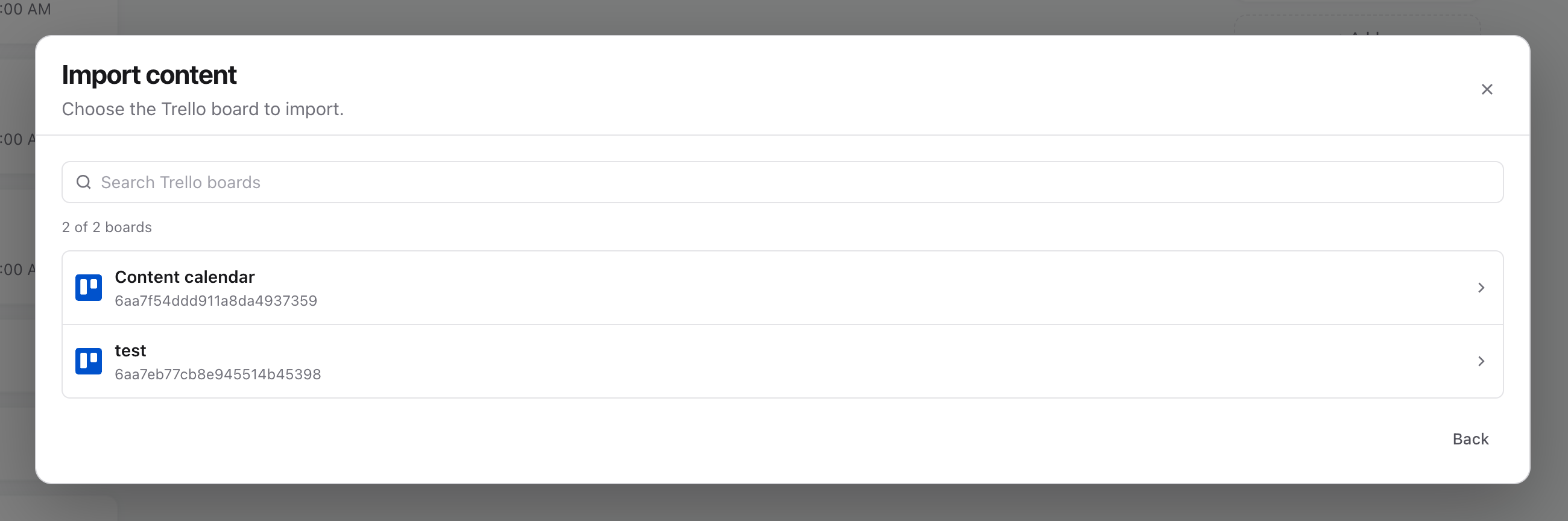
- 01Choose the board, project, list or database to import. Use the search box to narrow a long list.
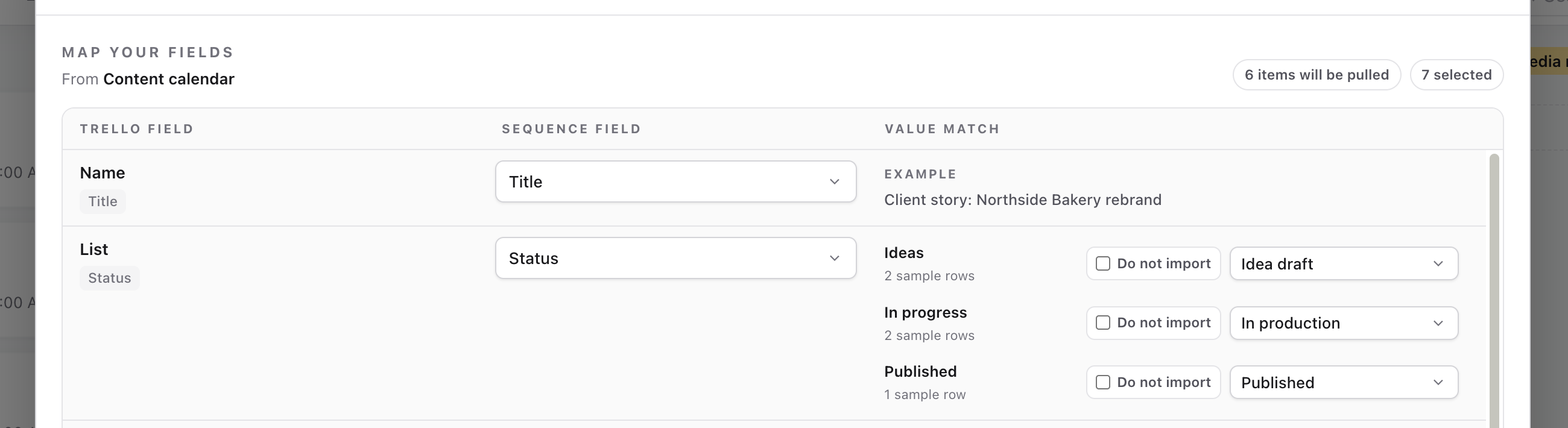
- 01On Map your fields, check each source field against a Sequence field. Title is required. Sequence suggests the workflow field as Status: the List in Trello, the Section in Asana, the Status column in Monday.com (or the Group when the board has no Status column), and the task status in ClickUp. Under Value match, choose which Sequence status each source value becomes, or tick Do not import to leave everything with that value behind.
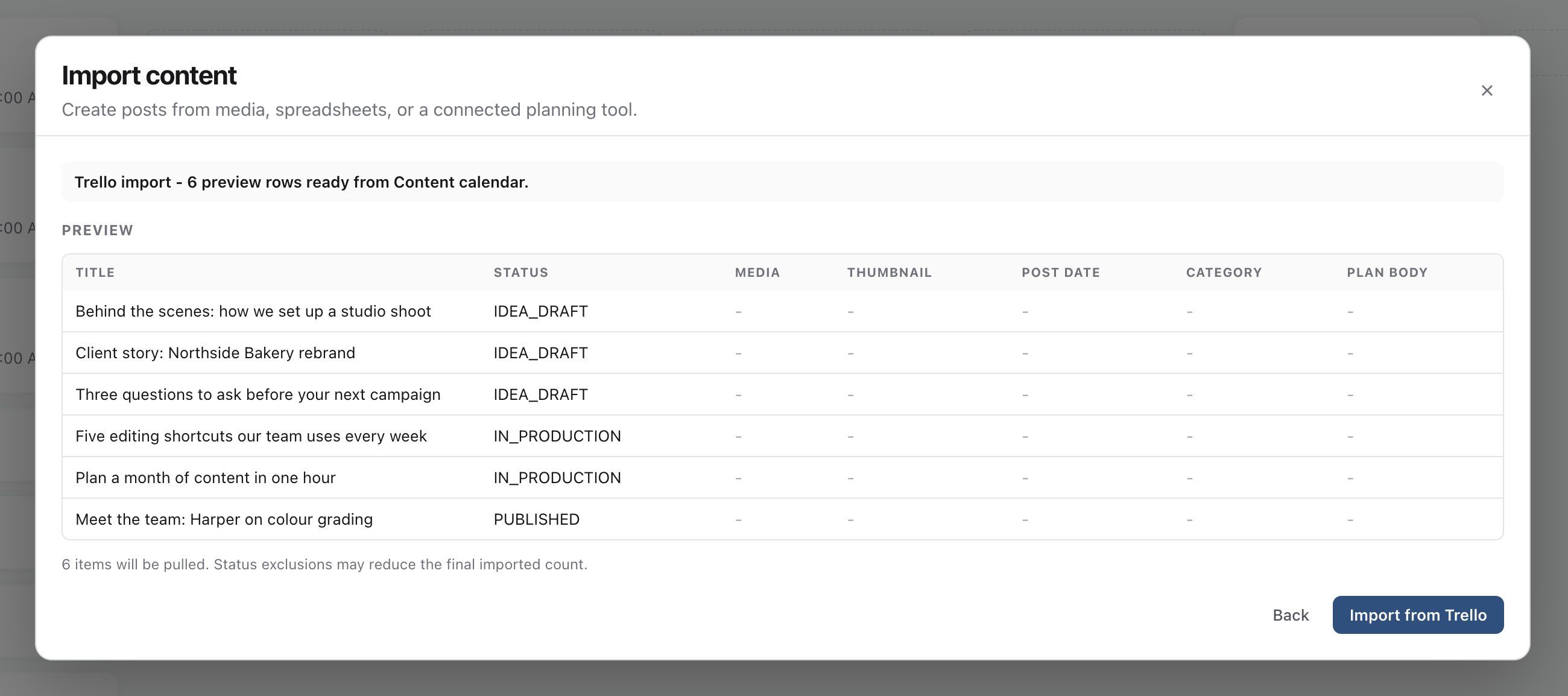
- 01Select Preview. Check the sample titles, statuses, dates and other mapped values, along with the item count. Choose Back to correct the mapping.
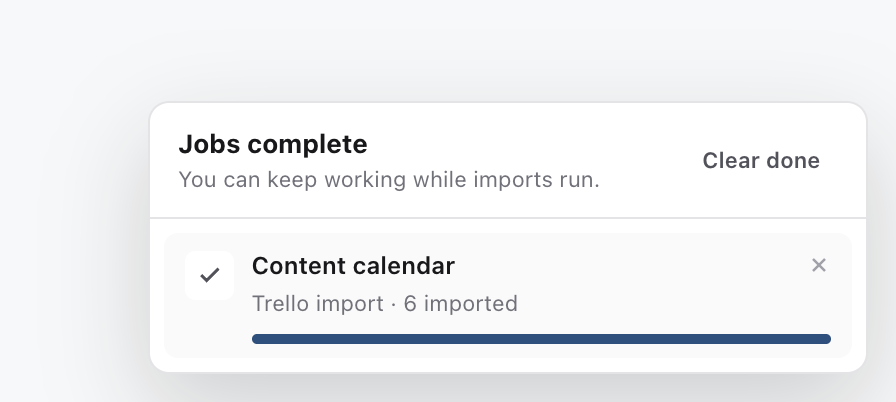
- 01Select Import from Trello (the button is named after the tool you connected). The dialog closes and the import runs in the background. The jobs tray in the corner shows progress and the number of posts created, and you can keep working while it runs.
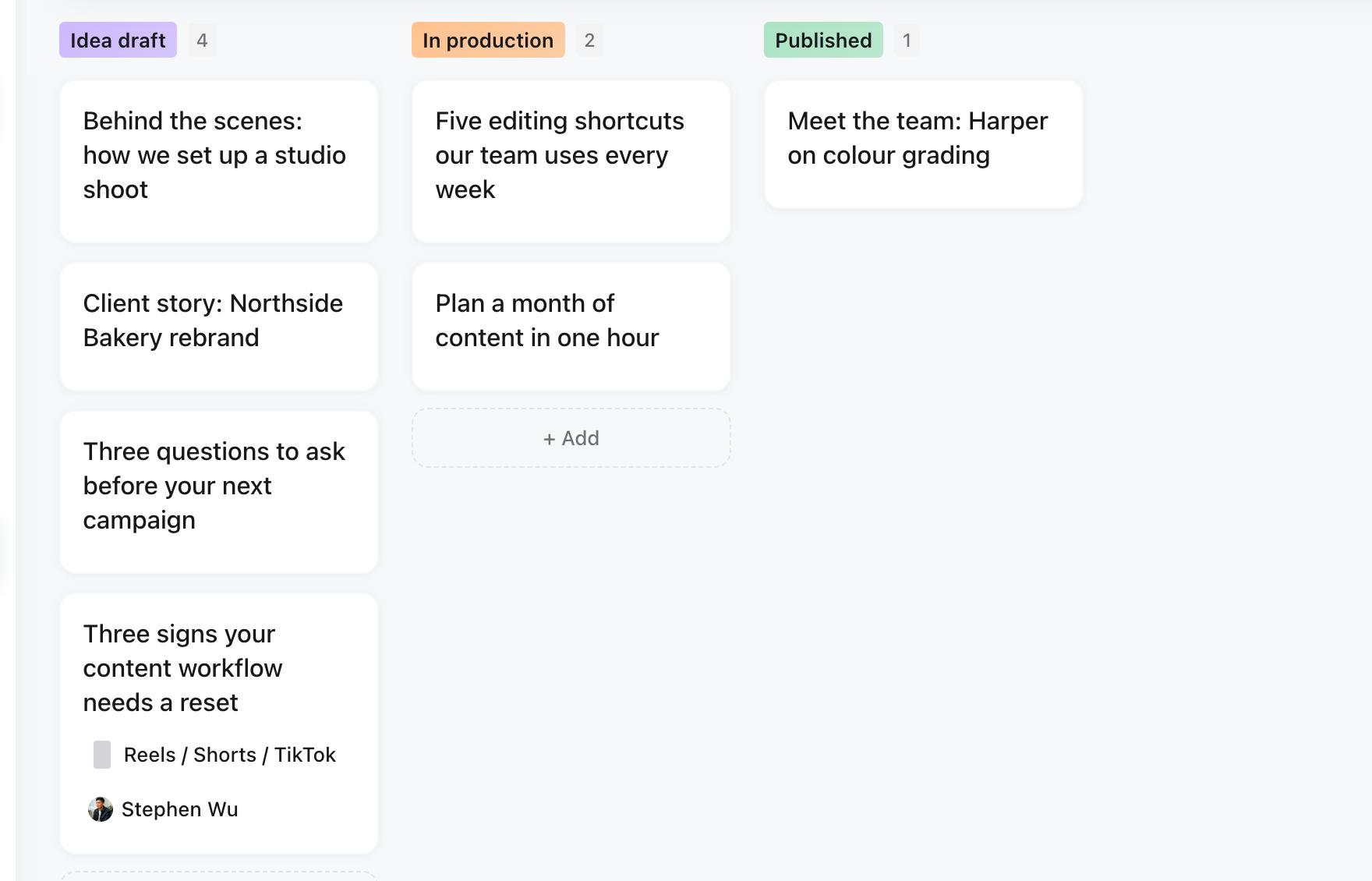
- 01Open the posts in the planner and check the status and next owner of a few before you carry on. Statuses come from your Value match choices; everything else lands in the field you mapped.
Each tool brings across a different set of fields. The suggestions below are starting points; you can change any mapping before you preview.
| Tool | You choose a | Suggested Status | Also available to map |
| Trello | Board | List | Description, Due, Start, Labels, Members, Attachments, Cover, Card URL |
| Asana | Project | Section | Notes, Due date, Start date, Completed, Assignee, Tags, Attachments, Task URL |
| Monday.com | Board | Status column, or Group | Every board column, including dates, people, files and text, plus Item URL |
| ClickUp | List | Status | Description, Due date, Start date, Priority, Assignees, Tags, Attachments, Task URL |
| Notion | Database | Status property | Every database property, plus the page body |
If the other tool asks Sequence to slow down during a large import, the jobs tray shows Waiting for Trello (or the tool you connected) with a rough time, and the import continues on its own. If the connection expires before the import finishes, the tray shows Reconnect. Choosing it reopens the Import dialog so you can connect again and start a new import; the posts already created stay in the planner, so tick Do not import on any values that already came across, or review for duplicates afterwards.
Bring media across
Sequence copies every imported file into your workspace, so the link in the other tool has to open for someone who is not signed in. Three kinds of link behave differently:
- Files uploaded into the tool come across through a connected import. Sequence downloads them with the connection you approved, so Trello attachments and covers, Asana and ClickUp attachments, Monday.com file columns and Notion files all work.
- Google Drive and Dropbox share links import on every path, connected or file, as long as the file is shared with anyone who has the link. Sequence turns the share link into a download and keeps the file name. A private link is reported as "Google Drive link did not return a file" or the Dropbox equivalent.
- Uploaded files listed in a Trello or Monday.com export cannot come across, because those tools only serve them to a signed-in user. The mapper warns when a column maps to Media or Thumbnail. Connect the tool instead, or use public links.
A file that is too large or in a format Sequence cannot publish is skipped and listed in the jobs tray. The post is still created, so you can add the media by hand.
Import an export file instead
If you would rather not connect the tool, or it is not listed, export the plan and drop the file on Bulk import. Choose the sheet and header row when offered, then under Where is this file from? pick the tool the file came from. Sequence shows how to export from that tool and uses the choice to recognise its column names.

| Tool | How to export |
| Trello | Board menu, Print and export, Export as JSON. CSV export needs Trello Premium. |
| Asana | Open the project, click the project name, Export, CSV. |
| Monday.com | Board menu (three dots), More actions, Export board to Excel. |
| ClickUp | Open the list in List view, click the view menu, Export. CSV export needs the Business plan. |
| Notion | Export the database as CSV from the database menu. |
| Other tools | Google Sheets, Airtable, Buffer, Later and most planners export a .csv or .xlsx. |
Map the columns, check How to read post dates, then select Preview and confirm. A Trello JSON export keeps its lists, labels, due dates and descriptions, but not uploaded files (see Bring media across). A Monday.com Excel export keeps its groups, and Sequence reads the group name as the status when the sheet has no Status column. The same status, scheduling and tidy-up notes below apply to file imports.
Understand status mapping
There are two separate choices: which source property maps to Status, and which Sequence status each source value becomes. Mapping a source value does not add a new status with that name.
For example, you can map both Filmed and Editing to In production. Those posts will share Sequence's In production column. An unfamiliar or unmatched status can fall back to Idea draft, so check suggestions before importing.
| Your existing stage | Suggested Sequence status | What this assumes |
|---|---|---|
| Idea | Idea draft | An idea to develop. |
| Client Input Needed | Planning | You need information. If you need a decision on a finished plan, use Plan review and send a review request after import. |
| Ready to Film | Plan approved | The plan has already been approved. |
| Filmed | In production | The footage needs editing. |
| Editing | In production | Creative work is underway. |
| Ready for Review | Media review | The client needs to review the creative. Send a review request after import. |
| Need Caption | Media approved | The creative has been approved; the caption still needs writing. |
| Client Approval Needed | Final review | The complete post is ready for final sign-off. Send a review request after import. |
| Approved | Ready to post | Final approval is complete. |
| Scheduled | Ready to post | Schedule the imported post in Sequence separately. |
| Posted | Published | This is a historical record of content already posted. |
These are suggested choices, not guaranteed automatic matches. Imported review statuses do not replace choosing a reviewer and sending a request in Sequence. An imported Published label does not establish a live publishing result or connect the record to an existing social post.
Importing a date or Scheduled status does not schedule a post. Scheduled, Publishing and Publish failed inputs are brought in as Ready to post. Check the connected accounts, media, caption, date and time zone in Publish, then schedule the post there.
Keep platform and format separate
Your Notion Platforms property may contain Instagram, LinkedIn or both. Those labels describe destinations, whereas Post type describes the format, such as a text post or video.
Connect the brand's social accounts, then choose the intended accounts using Platforms or the Publish tab after import. A copied platform label in a custom field does not connect an account or select a publishing target. Set the Assignee after import to the person who should act next.
If you deliberately map a source column into a custom field, its values remain additional metadata. They are separate from Sequence's built-in Status field and from custom statuses created in the Status picker.
Tidy up after an import
If Board view looks crowded, select Layout → Hide empty columns. Sequence has standard workflow columns even when the import did not create any new statuses. Hiding empty columns changes the view, not the posts or status definitions.
If posts landed in the wrong status, correct their Status directly, individually or with bulk editing. You do not need to delete and reimport posts just to change their status. For review stages, choose the reviewer through the approval action.
Starting a fresh import is not an undo or update of the first import and can create duplicates. If you need to start over, identify and review only the affected imported posts before moving them to the Bin. Preserve any work added since importing, and check the new preview before confirming.
See Use built-in and custom content statuses and Understand the Sequence approval workflow for the next steps.
Was this page helpful?
Related articles
- Duplicate and bulk updateUpdate selected pieces, duplicate drafts and reuse published posts without repeating successful deliveries.
- Templates and Plan blocksBuild a useful Plan with a template, brief, references, files and embeds, then share the right sections.
- Saved Content viewsChoose a Content view, save its layout and controls, and share a consistent setup with a brand or workspace.
Need more help with this?