
You can add music to a TikTok post or an Instagram Reel before you schedule it. Sequence shows what’s trending, lets you play a preview, and sends the track you choose with the post.
Before you start
- TikTok: the account needs TikTok’s Business connection. If Music asks you to reconnect the account, reconnect it from Channels.
- Instagram: music works for accounts connected through Facebook (Meta Business Suite). To move an account connected through Instagram, use Switch to Facebook on its card in Channels.
- Instagram music is for Reels only. Photo posts, carousels and Stories can’t take a track.
Add music to a TikTok post
- 01Open the post, go to the Publish tab and select your TikTok account.
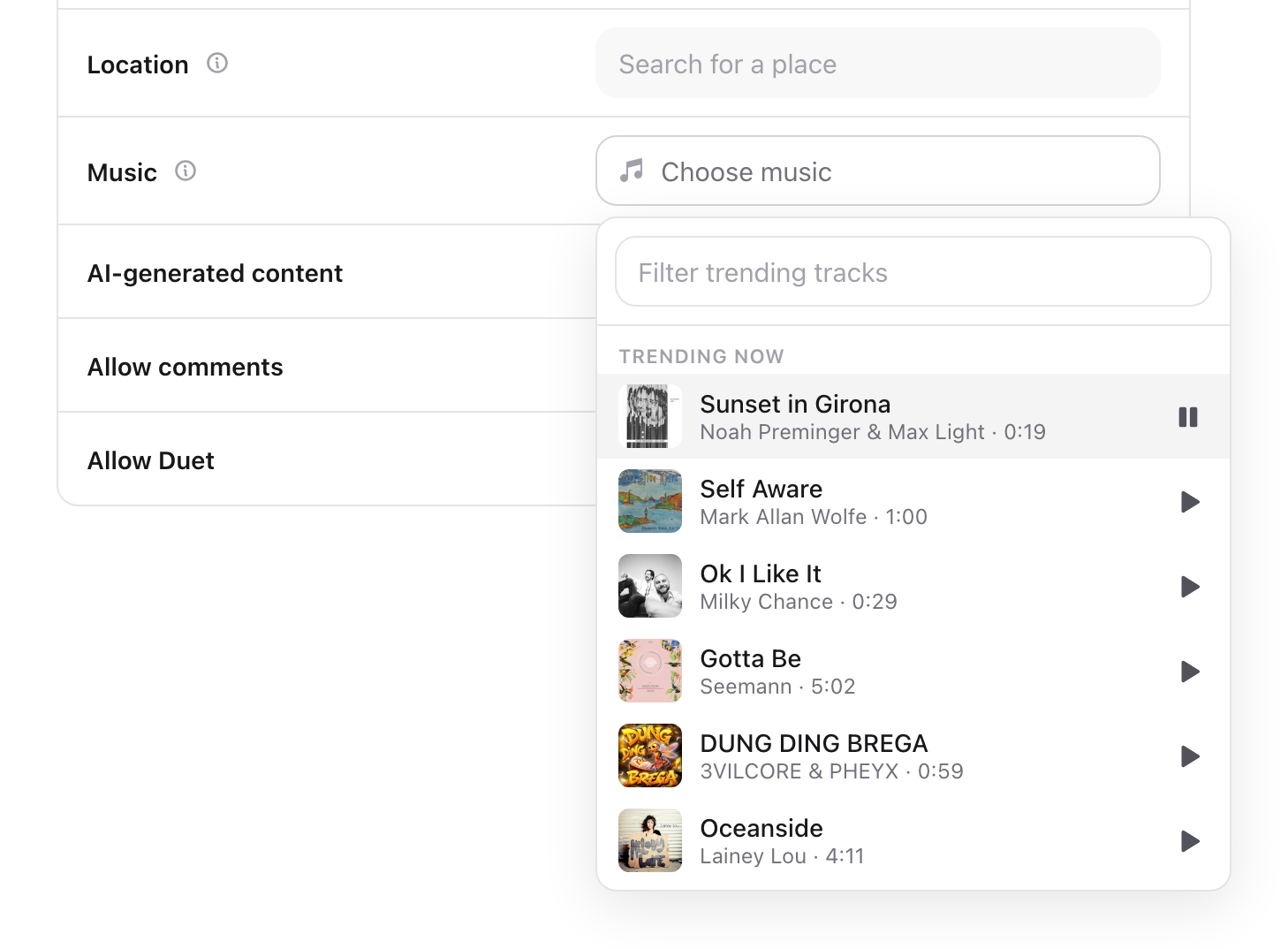
- 02In TikTok options, select Choose music next to Music. The list shows the 100 tracks trending in TikTok’s Commercial Music Library, which is cleared for business use.
- 03Select the play button to hear a preview, or type in Filter trending tracks to narrow the list.
- 04Select a track to add it.
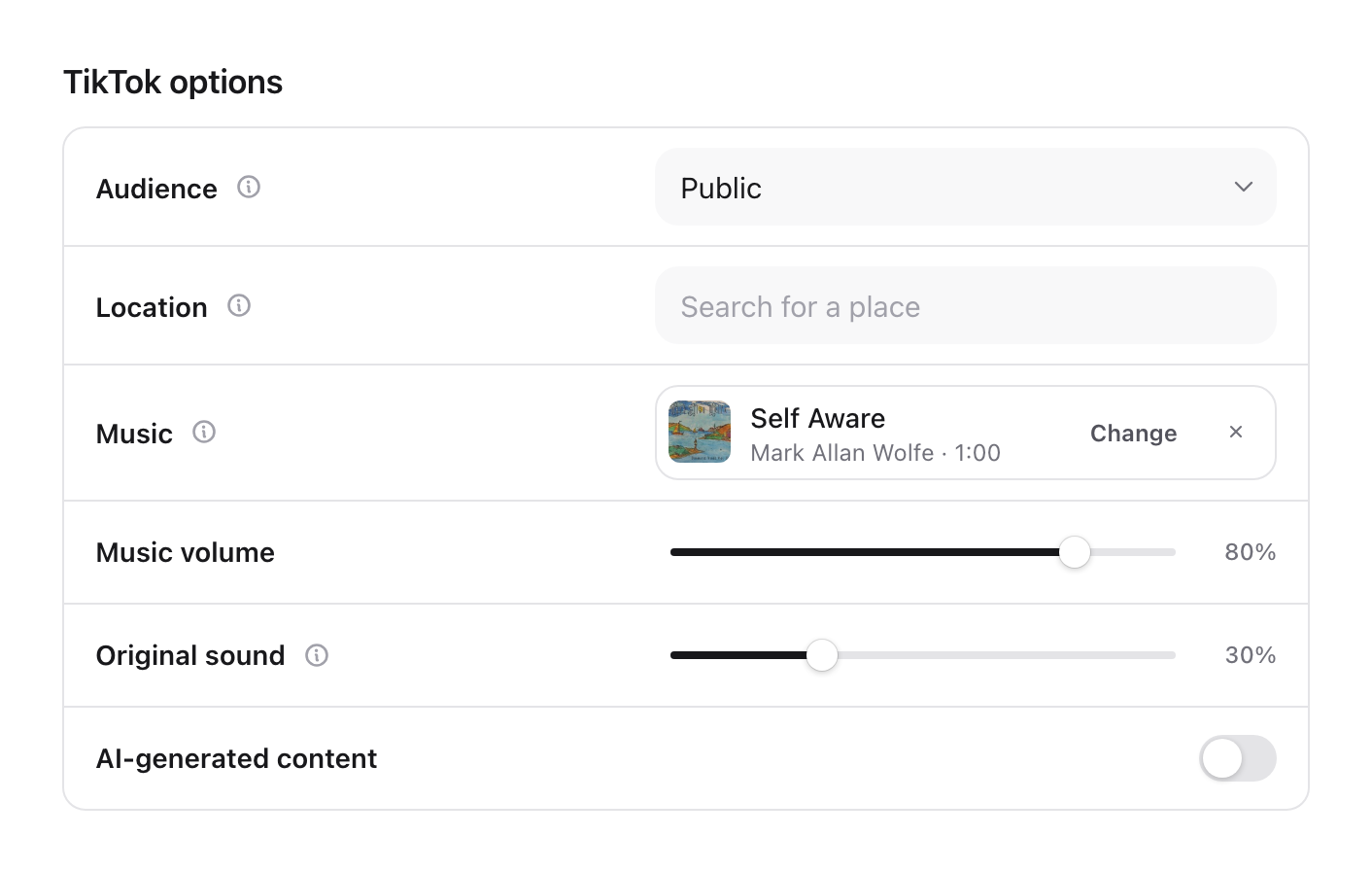
On a video post, two sliders appear. Music volume sets how loud the track plays and Original sound sets how loud your video’s own audio plays under it. Both start at 50%.
On a photo or carousel post the track has no volume controls, and it replaces the music TikTok would otherwise add. To let TikTok choose instead, remove the track and turn on Auto-add music.
Add music to an Instagram Reel
- 01Open the Reel, go to the Publish tab and select your Instagram account.
- 02In Reel options, select Choose music next to Music.
- 03Choose Music for Instagram’s licensed business music library, or Original sounds for audio from other creators’ Reels. The list starts on what’s trending. Type to search.
- 04Play a preview, then select a track.
Use Music volume and Video sound to balance the track against the Reel’s own audio. Both start at 100%.
Instagram only shares its business music library with apps like Sequence, so popular chart songs aren’t in it. To use one of those, add it in the Instagram app.
Change or remove a track
Select Change to pick a different track, or the × to remove it. Your volume settings stay when you change tracks.
If Sequence asks you to remove the track
When an account can’t use the track you picked, Fix before publishing shows a message and scheduling waits, so a post never goes out without the music you chose.
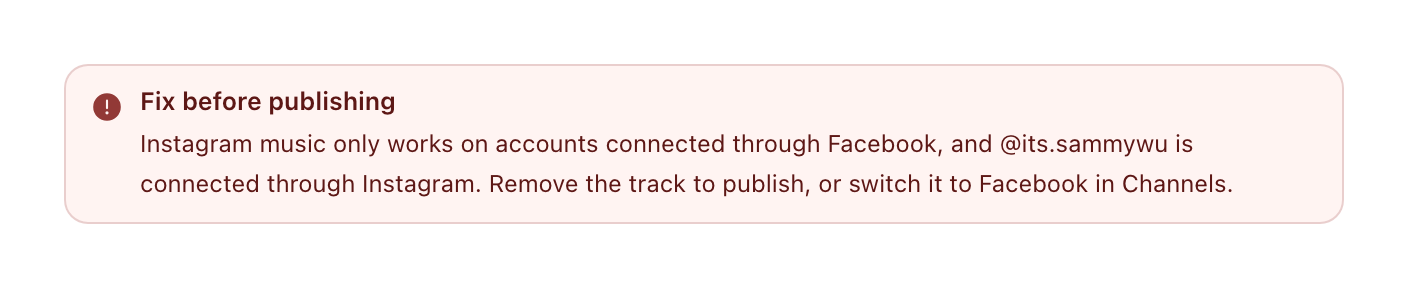
Remove the track to publish to that account. For Instagram, you can instead use Switch to Facebook on the account in Channels. For TikTok, you can instead reconnect the account to move it to the Business connection.
If a track is withdrawn after you schedule, the post fails with Instagram music not available or TikTok music not available. Choose another track and try again.
Was this page helpful?
Related articles
- Connect TikTokConnect the correct TikTok account and approve every requested permission needed for publishing and supported account features.
- Connect InstagramConnect the correct Instagram professional account and approve the access Sequence needs for publishing, analytics and supported Inbox features.
- Prepare and preview a postReview media, captions, destinations and required platform settings before submitting a post.
- Reconnect or remove accountRenew access to an existing profile, check affected posts and distinguish disconnecting from removing an account.
Need more help with this?