
Use Publish to check what each selected account will receive before you schedule or publish the content piece. The preview helps you review the post, while validation messages identify settings that still need attention.
Check the format and destinations
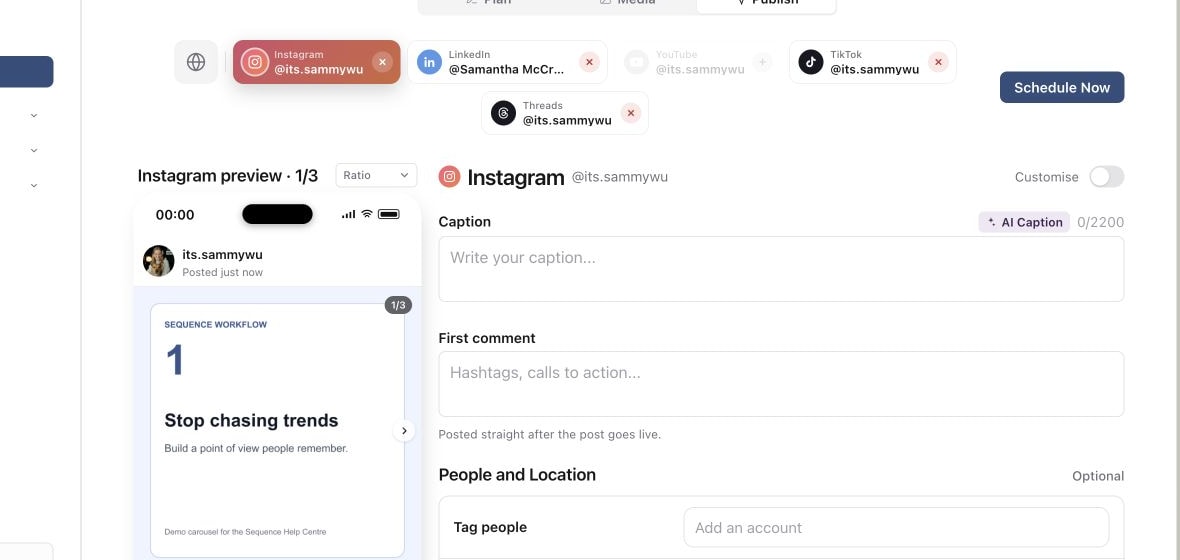
Open the piece and select Publish. Choose the post type if prompted, then select the intended accounts. Check names and handles, particularly when more than one account belongs to the same platform.
Use All selected accounts for shared settings. Select an individual account to inspect its platform view and any additional options. If a destination is missing or unavailable, resolve the account and post-type selection before proceeding.
1. Review the shared publishing setup
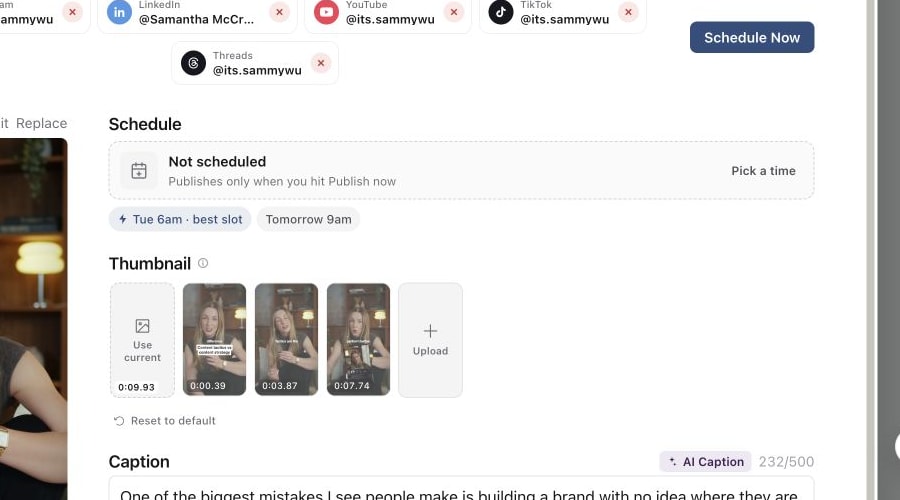
2. Check account-specific fields and the preview
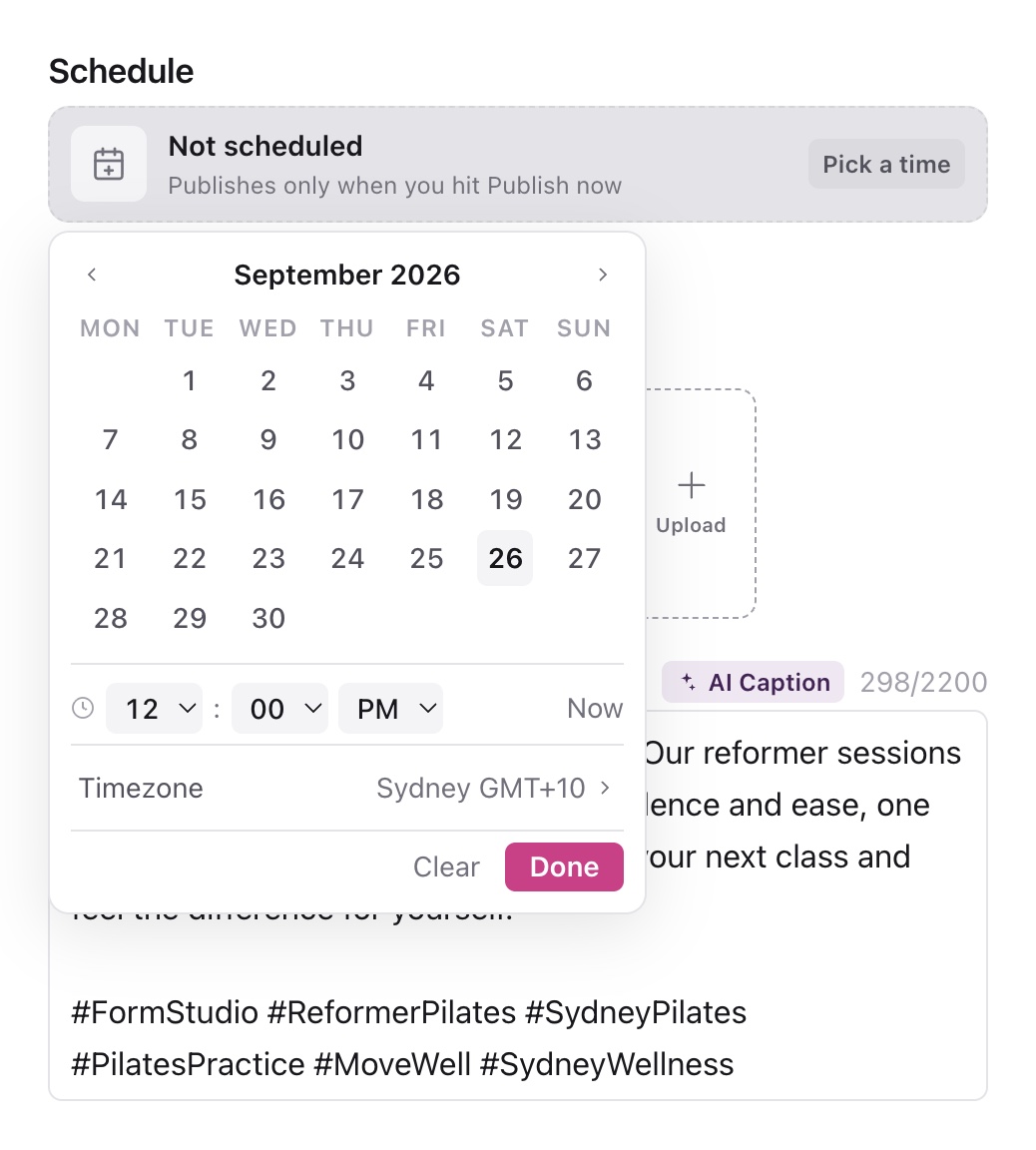
3. Set the intended date and time
Review the media that will be used
Check the actual image, video or slides shown in Publish. Confirm it is the intended version, then review these details where relevant:
- Play the video and check its opening, sound and ending.
- Check the crop and whether essential text remains visible.
- Check carousel slide order and each slide's framing.
- Review the thumbnail. Use an available frame or upload a cover where the platform supports it.
If the wrong creative appears, return to Media to select or prepare the intended version. A file being uploaded does not mean it has finished processing for every platform. Resolve any media-preparation message before relying on the preview.
Read the final copy on each platform
Read Caption in the shared view, then check each customised platform. Look for leftover production notes, broken wording, incorrect names and links. Check First comment separately where it is available.
If a platform needs different wording, use Customise in that platform's view. See Write shared and platform-specific captions.
The preview is a preparation aid. The platform can render spacing, crops and interface elements differently after publication. Use the live post link once publishing succeeds to inspect the delivered result.
Complete the platform's required fields
Review the controls shown for each selected platform. Depending on the destination and format, you may need details such as video metadata or a destination board. Do not assume that completing the shared caption fills those fields.
If Sequence blocks submission, read the account-specific message and fix the named issue. Typical checks include caption length, account connection, media compatibility, required metadata and carousel preparation. Check the relevant platform view again after fixing it.
Confirm readiness and timing
If another person must approve the final post, send it for review and check the decision before scheduling. The publishing confirmation may offer to mark the piece Ready to post; that action does not replace your team's review process.
Check the date, time and displayed time zone. A date on the piece is still a plan until you submit. Select Schedule Now, read the destination list and timing in the confirmation, then follow Schedule a post or publish it immediately. Afterwards, check Targets for the result on every account.
Was this page helpful?
Related articles
Need more help with this?