
Sequence can send native people tags and collaborator invitations for supported Instagram posts. LinkedIn has its own person and company tags. Other publishing connections do not currently expose native account tagging in Sequence, so an @handle in a caption should be treated as text unless the social platform turns it into a link.
Instagram tags and collaborators are account-specific. Open the exact Instagram account in Publish before adding them.
What Sequence supports
| Platform | Native tagging or collaboration in Sequence | What to do |
|---|---|---|
| Tag people on feed posts, carousels and Reels, at a chosen spot on each photo. Invite up to three collaborators on feed posts and Reels. | Use Tag people and Collaborators in the Instagram account view. | |
| Tag people and company pages in the caption. | See Tag people and companies in LinkedIn posts. | |
| No native account tagging field. | Add the tag in Facebook after publishing. | |
| TikTok | No native account mention picker. | Add the mention in TikTok after publishing when it must be clickable. |
| Threads, X, YouTube and Pinterest | No native people-tagging or collaborator fields. | Use the platform's own editing tools after publishing when needed. |
Tag people on Instagram
- 01Open the content piece and select Publish.
- 02Choose the post type and select the exact Instagram account that will publish the post.
- 03Select the Instagram account in the target row to open its account-specific view.
- 04Under People and Location, enter an Instagram username in Tag people. Choose the matching account from the results, or use the typed username when you have checked it carefully.
- 05Wait for the change to save, then review the Instagram preview and any validation message before scheduling.
Once the Instagram account is selected, both people fields appear under People and Location.
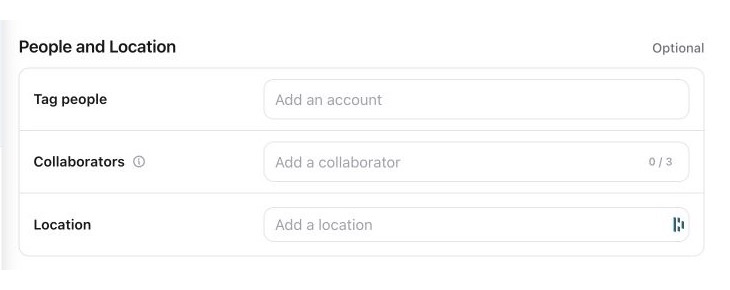
Tag people creates a native media tag. It is separate from writing an @handle in the caption.
Place tags on a photo or carousel slide
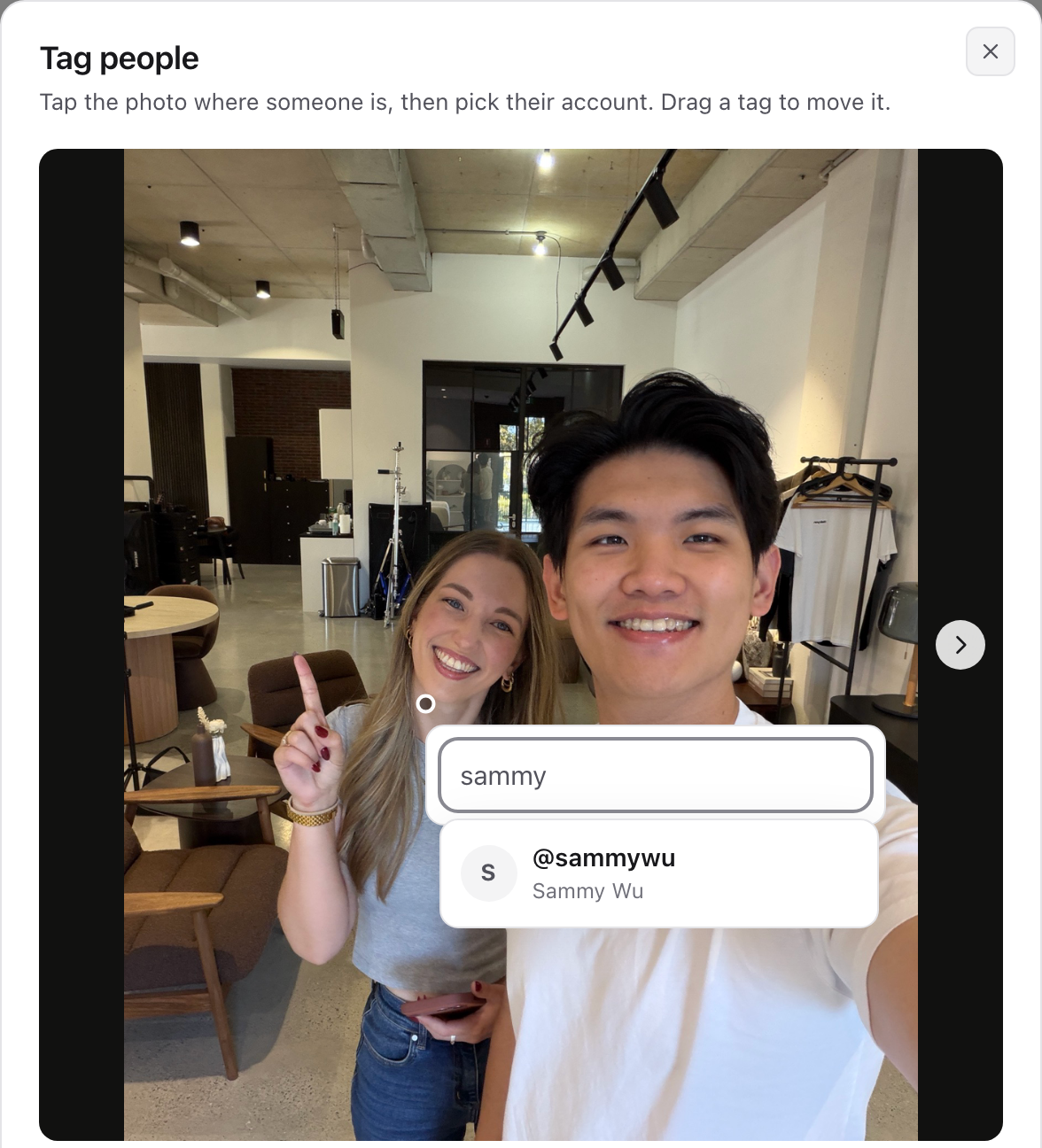
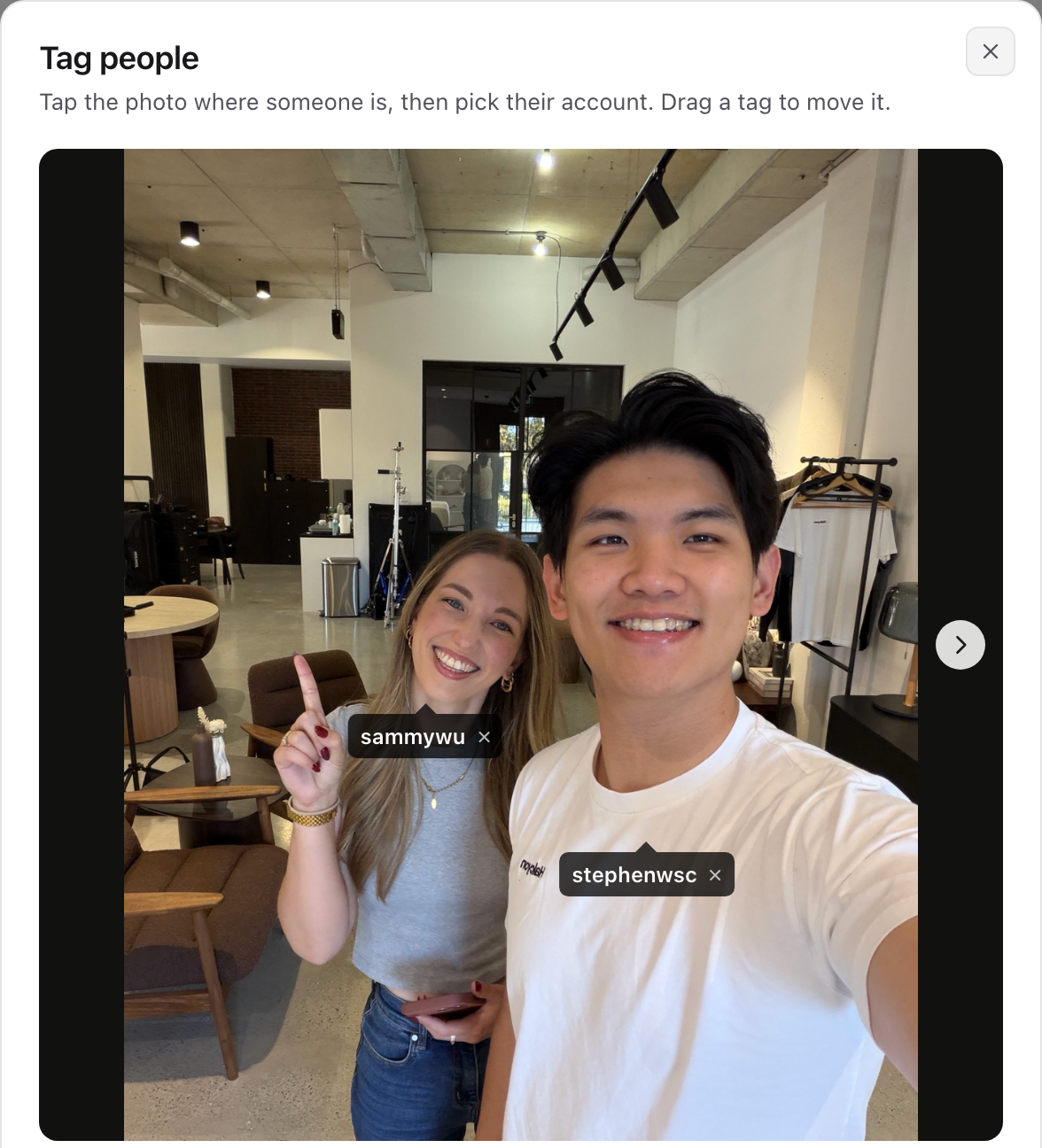
On photo and carousel posts you can choose where each tag sits, so it appears on the right person in the right photo. On a carousel, each slide has its own tags.
- 01With the Instagram account open in Publish, select Tag on photos under Tag people.
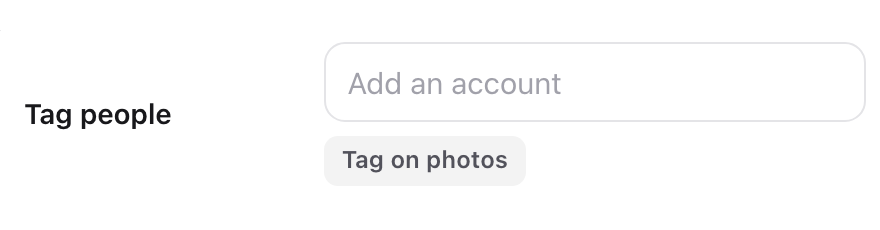
- 02In the Tag people window, tap the photo where the person is. Search for their Instagram account and choose it from the list.
- 03The tag appears where you tapped. Drag it to move it, or select the x on the tag to remove it.
- 04On a carousel, use the arrows or the slide thumbnails to move between slides and tag each one. A thumbnail shows how many people are tagged on that slide.
- 05Select Done. Under Tag people, Sequence lists who is tagged on each slide.
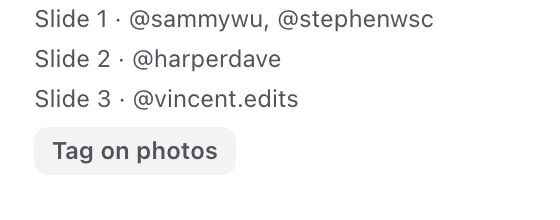
- Video slides take names only. Add the people in the video and Instagram places those tags itself.
- Anyone you add in Tag people without placing them is tagged on the first photo, in the centre.
- Instagram allows up to 20 tags on each photo. Sequence shows a message before publishing if a slide has more.
- Removing someone from Tag people also removes their tags from the photos. If you remove a slide from the post, its tags are not published.
Invite Instagram collaborators
- 01In the same People and Location section, use Collaborators.
- 02Add up to three Instagram usernames. Only public Business or Creator accounts can collaborate, and Instagram may reject an account that is not eligible.
- 03Review the selected usernames, then schedule or publish the post.
Instagram sends the collaboration invitation when the post is published. The invited account must accept it in Instagram before the post appears on both profiles.
Account and format limits
- Instagram Stories do not support people tags or collaborators through Sequence. Add anything available directly in Instagram after publishing.
- Tags and collaborators belong to one connected Instagram account. If you select more than one Instagram account, clear these fields or prepare a separate content piece for each account.
- Check every username. A renamed, private or ineligible account can cause Instagram to reject the tag or collaboration request.
- If one target fails, correct the Instagram settings and retry that target without resubmitting destinations that already published.
Mentions in captions and Sequence comments
Sequence sends caption text to each platform, but it does not resolve a typed @name into a native Facebook tag or TikTok account mention. A platform may choose to turn the text into a link, but do not rely on that when the mention is important.
Use platform-specific captions when the wording should differ by channel. For a guaranteed native mention on an unsupported platform, add it in that platform after the post is live.
An @mention in a Sequence comment notifies a teammate inside Sequence. It is never added to the social caption or published as an account tag.
After the post is live
Open the published target from Sequence and check the delivered result. If you need to add or change a native tag that Sequence does not support, edit the post in the social platform. Changes made there may not appear back in the Sequence content piece.
See supported platforms and requirements for the wider capability list, or fix a failed publishing target when Instagram rejects a submission.
Was this page helpful?
Related articles
- Targets and post typesChoose a post format and the exact accounts that should receive it, then check their target states.
- Prepare and preview a postReview media, captions, destinations and required platform settings before submitting a post.
- Platform-specific captionsWrite a shared caption, customise platform versions and check the final copy before publishing.
- Platform media limitsSee which social networks support photo, carousel, video, Story and text-only posts, plus current media limits.
- Edit scheduled contentUnschedule before changing queued creative, understand published locks and create a separate repost safely.
Need more help with this?