
A completed upload, a playable preview and a published social post are three different milestones. Check the stage shown in Sequence before deciding to wait, replace a file or retry a publishing target.
Understand the three stages
| Stage | What is happening | What to check |
|---|---|---|
| Uploading | Your browser is transferring the selected file to Sequence. | Keep the page open and wait for the transfer to finish. |
| Preparing media | Sequence is preparing a usable preview or playback version. | Reopen the piece and check whether the media is ready and plays correctly. |
| Platform processing | A submitted publishing target is being processed by the social platform. | Read that account's target status in Publish. |
A preview can become available separately from other media preparation. It is useful for reviewing the content, but it does not prove that every selected platform will accept the file.
For video, Sequence also creates a proxy, a lighter copy used only for playback inside Sequence. Until it is ready, the video plays from the original file. The proxy is never what gets published; see Play and download videos in the Media tab.
Before you schedule
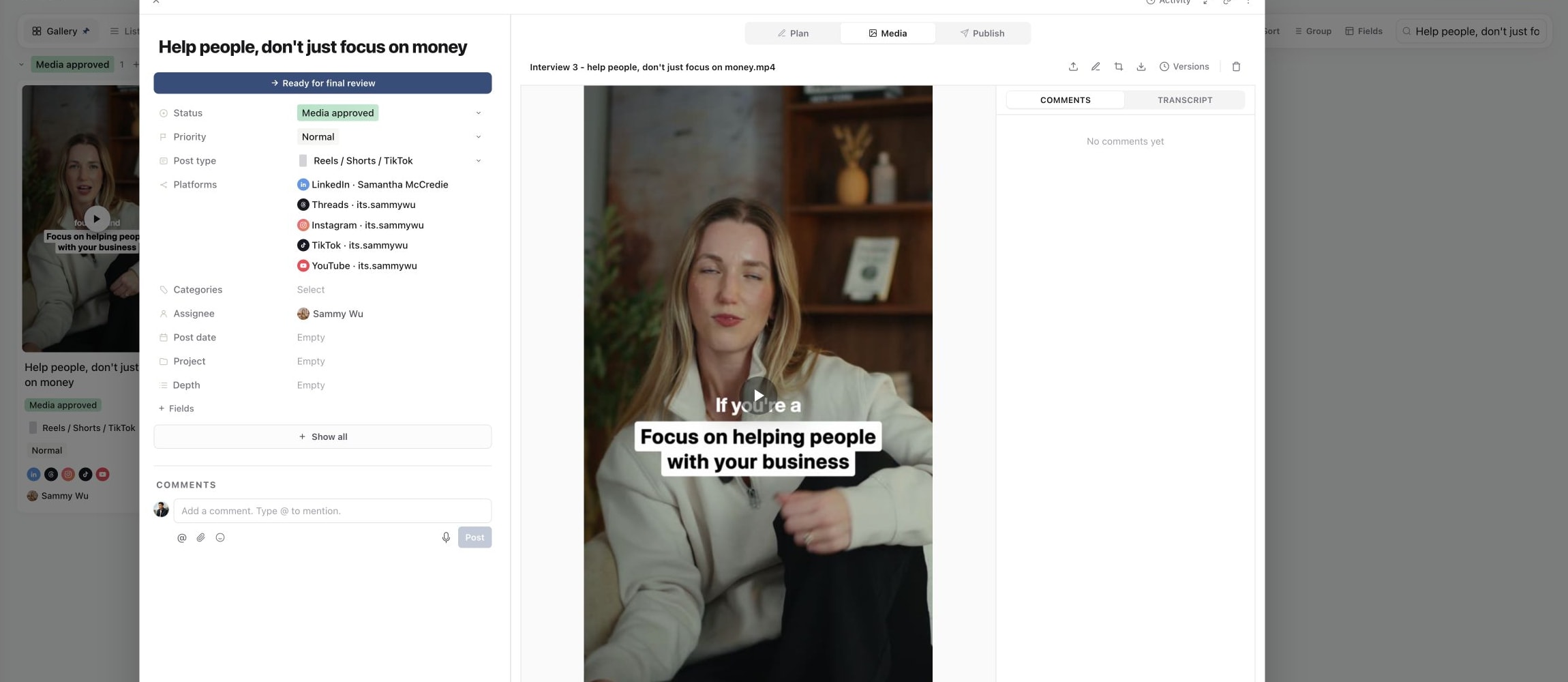
Open the content piece's Media tab and confirm the intended files are attached, in the right order and playable. Check the beginning and end of a video and any important audio before moving on.
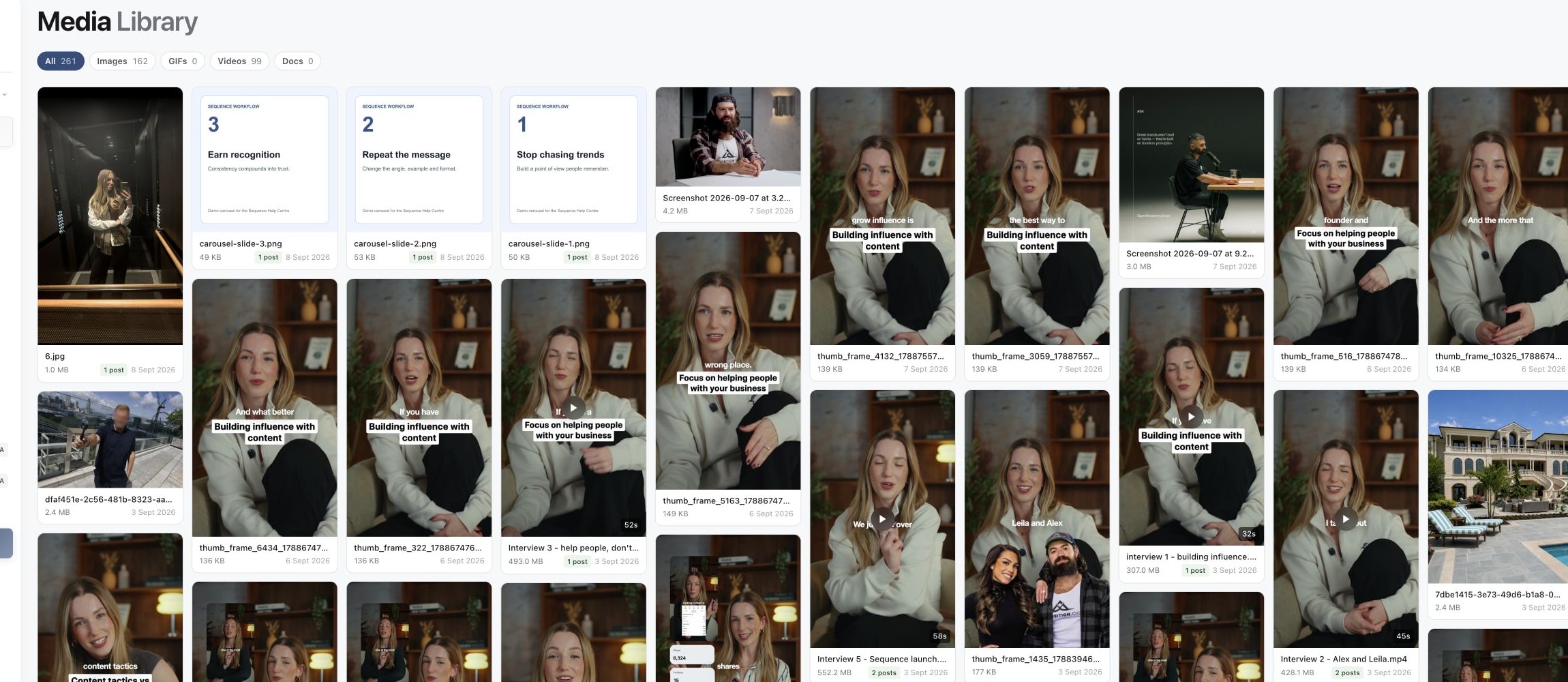
1. Confirm the upload appears in Media Library
2. Wait for the creative to become reviewable
3. Check the processed media in Publish
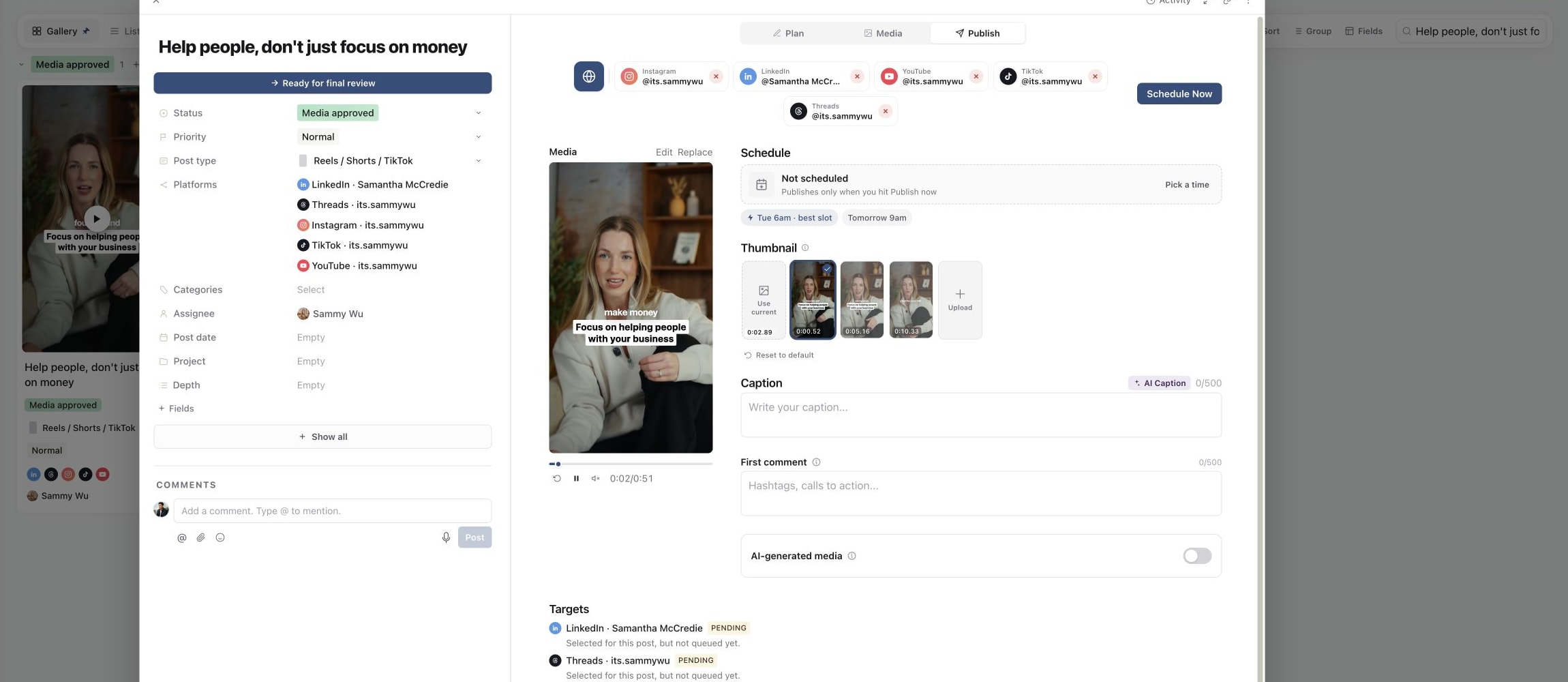
Open Publish and inspect each selected account's preview and validation message. The account's format, file requirements and required fields still apply after Sequence has prepared the media. Resolve a specific validation problem before confirming the schedule.
Setting a planning date alone does not submit the post. Use the scheduling action and its confirmation, then verify the individual targets. See Schedule multiple posts for a batch workflow.
A file keeps showing as processing
Reopen the piece to check its latest state. Large files and different encodings can take different amounts of time; there is no single processing duration that applies to every upload.
Avoid uploading repeated copies while the first is still being prepared. If the state remains stuck, confirm that the original opens locally. A fresh export in a supported format can help when the source file is damaged or cannot be prepared. Keep the original until the replacement has been checked.
Use Fix media upload or processing for transfer and file troubleshooting.
Submission is still processing on one account
Check the target's latest status before sending again. A platform may have accepted the submission without returning its final result yet. Re-uploading the media or publishing again can create duplicate work and potentially duplicate posts.
If a target reports failure, follow Fix a failed publishing target. Include the piece link, affected account and exact target message when escalating a persistent processing state.
Video looks softer after it is published
Once a post is live, the social platform re-encodes the video and decides the quality viewers see. A new Instagram Reel can look softer for a while before sharper versions are ready. See Understand Instagram video quality after publishing.
Was this page helpful?
Related articles
- Schedule multiple postsPrepare and confirm a batch schedule, then check partial success and individual publishing destinations.
- Fix media processingIdentify upload, processing and publishing problems, check the source file and retry the right step.
- Fix failed publishingIdentify a failed account, correct its error and retry it without resubmitting successful destinations.
Need more help with this?