
A content piece has an overall workflow status, and each selected social account has its own publishing target state. Check both when deciding whether a post is scheduled, still being prepared or successfully live.
A date on a piece is planning information until you complete the publishing action. Ready to post is also a workflow stage, not confirmation of a submitted schedule.
Read each account's result
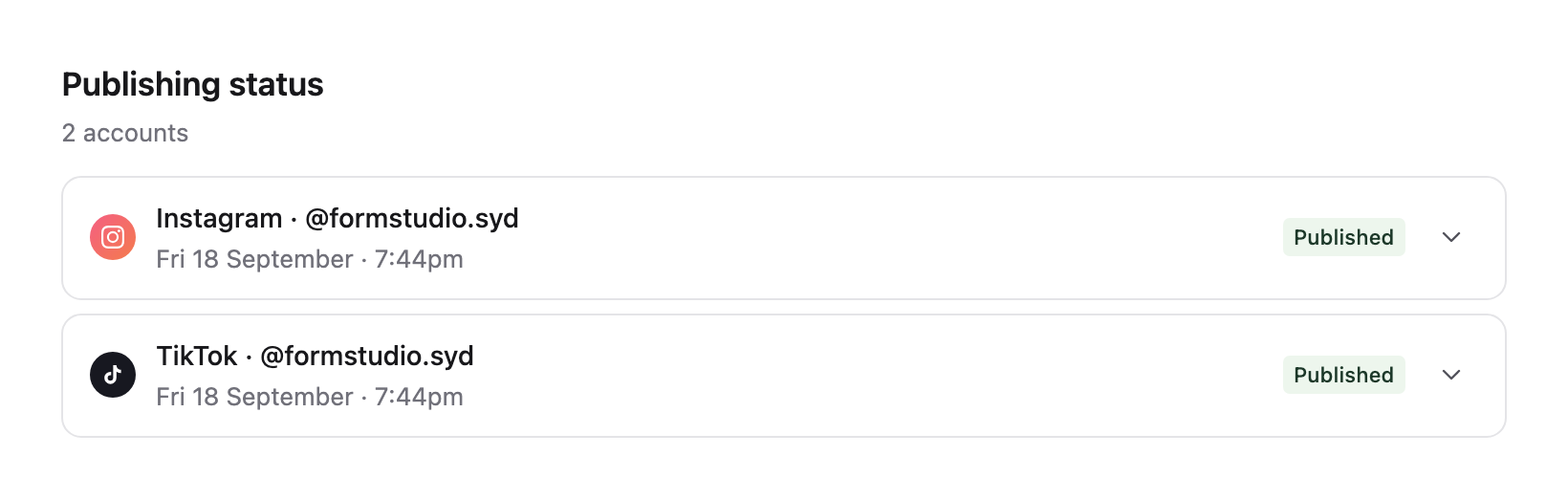
Open the piece, select Publish and inspect Publishing status. Read the state and message for the exact account, particularly if you publish the same piece to several destinations.
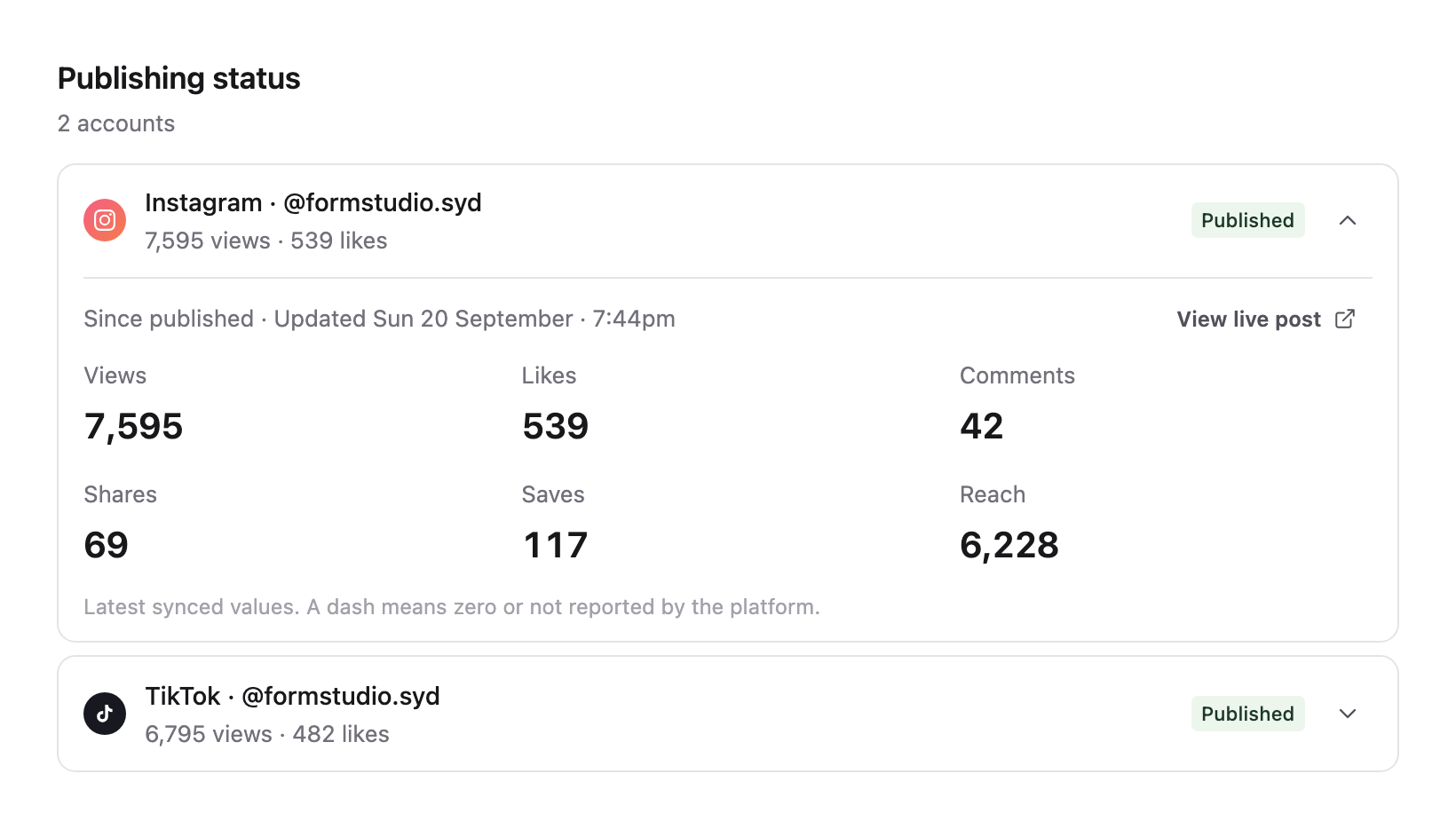
Select anywhere on an account header to expand or collapse its details. Failed accounts and accounts that need reconnecting start expanded. Routine statuses stay compact. Published accounts show their latest synced analytics when expanded.
| State or message | What it tells you | Next step |
|---|---|---|
| Pending | The account is selected but does not yet have a completed delivery result. | Check whether scheduling or publishing was actually confirmed. |
| Preparing media | Sequence is preparing the files for this account before delivery. | Wait for the state to advance and check the result before submitting again. |
| Scheduled | The target is set for a future delivery. | Check the account and scheduled time. |
| Processing | Delivery is in progress. | Wait for success or failure; do not create another submission to hurry it along. |
| Published | Sequence has received confirmation that the target went live. | Open its live post link and inspect the result. |
| Failed | That destination could not complete delivery. | Read its error, fix the cause and retry the failed target. |
Media processing inside the Media tab is different from a publishing target's progress. A video can be preparing its playback before you have scheduled anything.
One piece can have different target outcomes
If Instagram publishes but another destination fails, the successful target remains live. An overall Published status is not a guarantee that every account succeeded. Look for the failed-target message and inspect the full target list.
Retry the failed account after correcting its error. Do not schedule another copy to all accounts, because that can repeat a post on destinations that already succeeded. See fix a failed publishing target.
Use live evidence to confirm publication
The target's published link is the best next place to check the actual result. Open it and verify the intended account, media and caption. Sequence sets Published from publishing confirmation; manually selecting a workflow label is not a substitute for delivery.
Older content marked published without live evidence may show a different state banner. Read that banner before deciding whether the piece needs to return to planning.
For the wider queue, use Schedule views. To submit new work, follow schedule or publish now. To change content that is already locked, use scheduled and published edits.
Was this page helpful?
Related articles
Need more help with this?