
Skye can read the active brand's content plan and turn a broad question into a clear list of posts and next steps.
Ask one focused question
Open Skye beside the page you're working on (Cmd+J, or Ctrl+J on Windows). State the period, scope and decision you need to make. Useful questions include:
- What's waiting for review?
- What is in my pipeline this week, grouped by status?
- Which scheduled posts have no assignee?
- Find planned video ideas that don't have media yet.
- Which approved posts could fill a gap next Tuesday?
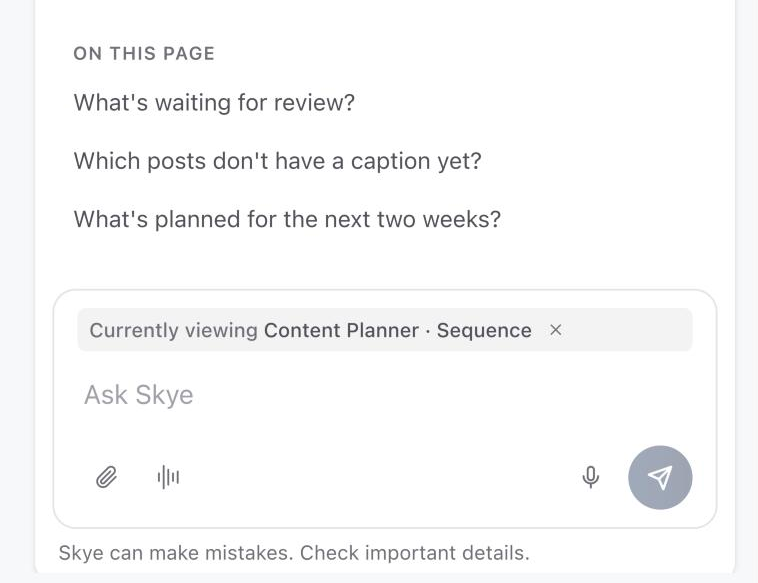
On the Content Planner, Skye also suggests questions under On this page. Select one to ask it straight away.
Check the answer
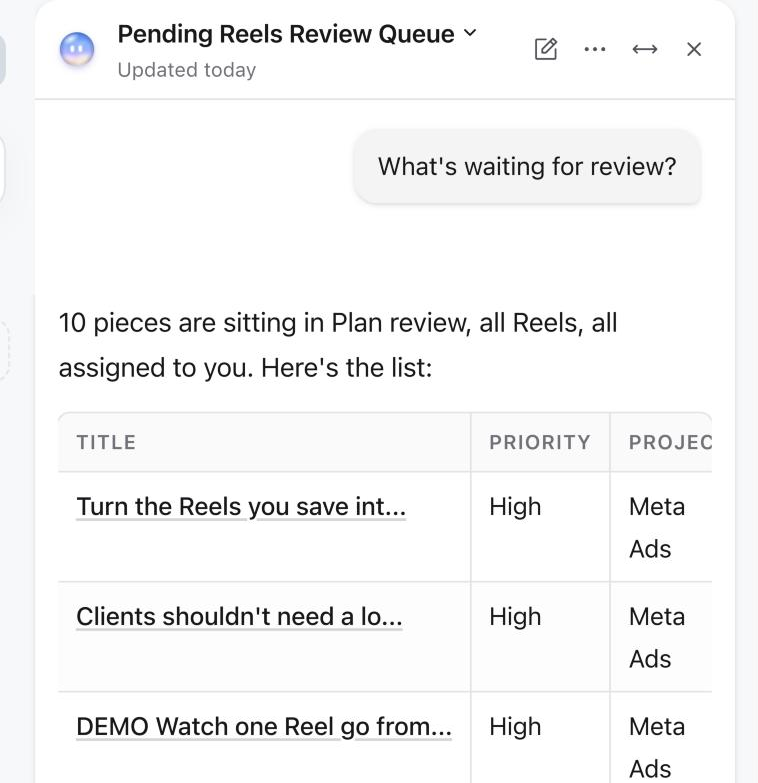
Skye answers from the brand's current data and names the posts it found. Select a post's title to open it. If a result looks wrong, open the post and check its fields. Skye can only use data in the active brand that your access allows.
Refine the answer
Ask Skye to narrow the answer by project, platform, post type, assignee, status or date. Follow-up questions keep the earlier answer in context.
Turn the answer into action
Ask for a checklist, or ask Skye to make the change, such as assigning posts or moving a date. Skye shows a proposal, and nothing changes until you select Allow. If several unrelated updates are needed, ask for smaller groups so each proposal is easy to check. See Review and allow changes proposed by Skye.
Was this page helpful?
Need more help with this?