
Skye can start a new idea, draft a post's Plan or rewrite a passage you've selected. Give it enough context for a useful first pass, then keep editorial control.
Write a useful brief
Include the audience, desired outcome, platform, post type, point of view, source facts and any words or claims to avoid. Ask for a small number of distinct options so you can compare real choices.
Draft a Plan with Skye
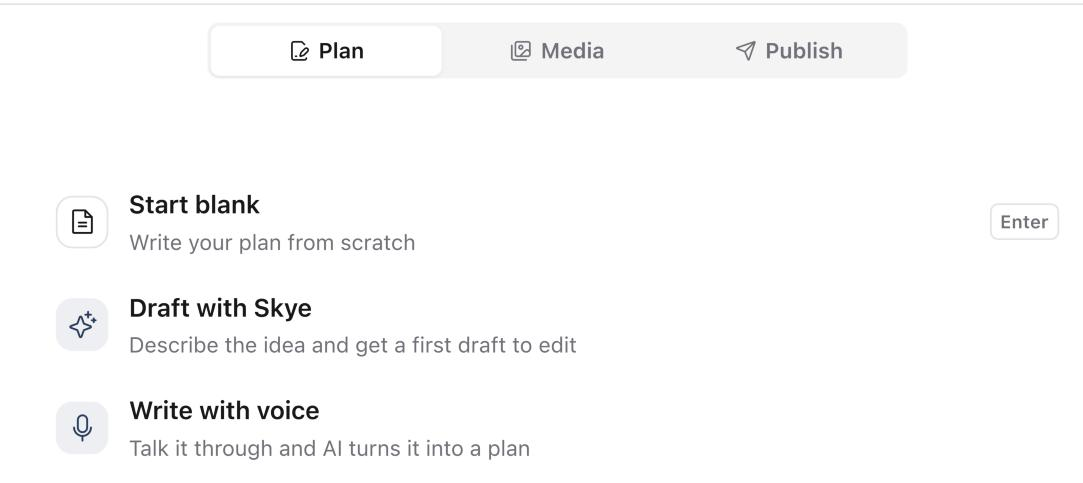
Open a post with an empty Plan and choose Draft with Skye.
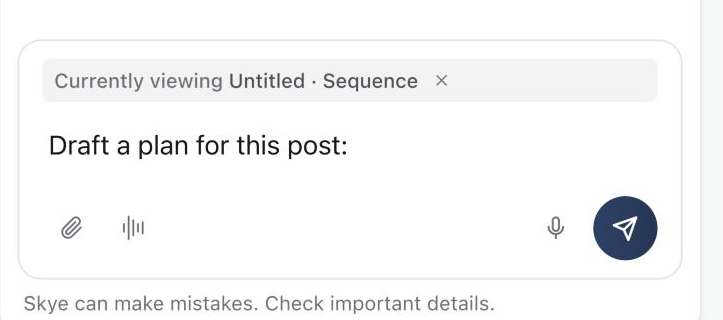
Skye opens beside the post with Draft a plan for this post: in the message box. Add your idea, audience and format, then send.
Skye proposes the Plan for you to review. Select Allow to add it to the post, or Deny and ask for changes. On a post that already has a Plan, open Skye and ask it to rework the hook, tighten the script or add a call to action. See Review and allow changes proposed by Skye.
Rewrite a selected passage
In the Plan, select the text you want to change, then choose Improve in the formatting toolbar. Pick Improve, Shorten, Stronger hook or Tone (More conversational, More confident, More playful or More concise), or type your own instruction in Ask AI to edit this selection.
The suggestion appears beside the text. You can edit it before you select Replace, or select Discard to keep the original. Only the highlighted text is replaced.
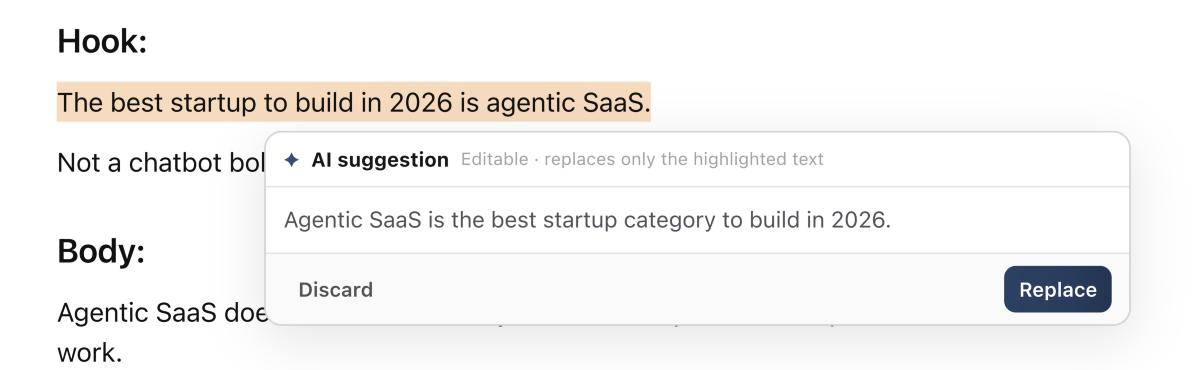
If the highlighted text changes while Skye is working, the suggestion no longer lines up. Select the text again and retry.
Generate a caption
In a post's Publish tab, check the selected publishing targets and the post's source material, then select Generate caption.
Review before approval or publishing
Check accuracy, brand voice, originality, calls to action and platform limits. Skye's output is a draft and still follows the same review and approval flow as work your team writes.
Was this page helpful?
Need more help with this?