
Skye is the AI assistant in Sequence. It opens beside the page you're on, so you can ask about your content, draft and rewrite Plans, and get changes made without leaving your work. Skye works inside the active brand and only uses what your access allows.
Open Skye
Select the Skye button in the bottom-right corner of any page, or press Cmd+J (Ctrl+J on Windows). Press Cmd+J again, or Esc, to close it. You can also search for Ask Skye in Search anything.

Skye opens as a panel beside the page, so the page stays usable while you chat. Select Panel width in the header to make the panel wider. If you'd rather Skye didn't wait in the corner, open More options and choose Tuck away. Ask Skye then appears in the sidebar instead.
Skye sees the page you're on
The chip above the message box shows what Skye can see, for example Currently viewing Content Planner · Sequence. When a post is open, the chip names the post, so you can ask what the post is about or ask Skye to tighten its script. Select × on the chip to leave that context out of your messages. It comes back when you move to another page or post.
Under On this page, Skye suggests questions that fit where you are. Select one to ask it.
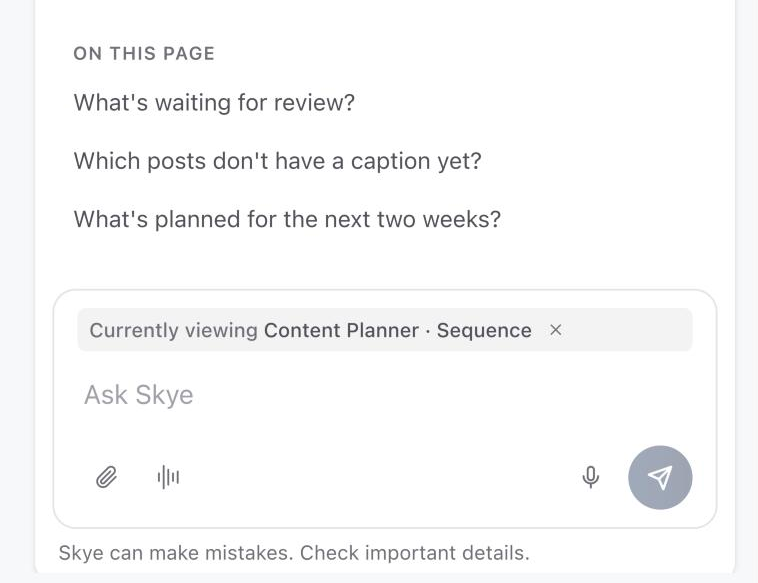
Ask it to inspect your work
Ask focused questions about your pipeline, posts, saved inspiration, brand voice or analytics. For example, ask what is waiting for review, which posts don't have a caption yet, or which posts performed best in the last 30 days. See Ask Skye about your content plan.
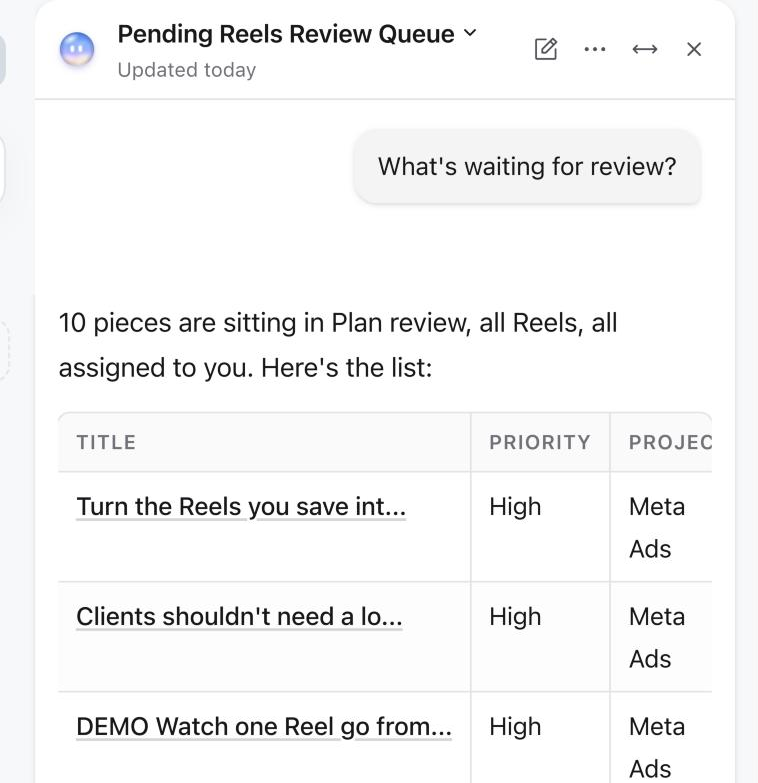
Skye can also read a post's version history and video transcript, Media review comments, Inbox conversations, reports, ad results, notifications, creators and your watchlist.
Ask it to create
Skye can draft ideas, Plans, captions, comments and new posts, and it can create images for a post. Give it the outcome, audience, platform, source material and any constraints. See Generate ideas, captions and rewrites with Skye.
Every change waits for you
Reading and drafting never change anything. When Skye wants to create or update something in Sequence, it shows a proposal headed Skye wants to:. Nothing changes until you select Allow. See Review and allow changes proposed by Skye.
Skye can make changes across Sequence: organise Inspiration folders, assign Inbox conversations and add team notes, send replies, set up report schedules, restore an earlier version of a post, request or decide approvals, and schedule posts. Billing, members and roles, connecting social accounts, and launching or boosting ads stay with you.
More ways to work with Skye
- Research the web: Skye can search the web and lists its sources under the reply. See Research the web with Skye.
- Talk out loud: have a hands-free voice conversation with Skye. See Talk with Skye out loud.
- Files and dictation: attach images and documents, or dictate a message. See Use files, images, dictation and transcripts with Skye.
- Past chats: select the chat title at the top of the panel to open Chat history. Search your conversations, or rename, pin or delete a chat.
- Inbox replies: Draft with Skye writes a reply to a DM, comment or review in your brand's voice. See View and reply to conversations in Inbox.
Skye can make mistakes. Check names, dates, platform requirements, claims and final wording before you publish.
Was this page helpful?
Related articles
- Draft with SkyeBrief Skye with an audience, outcome and source material, then review its ideas, Plans and rewrites in context.
- Review Skye proposalsCheck every target and changed field in a Skye proposal before you allow a one-time change.
- Talk with SkyeHave a hands-free voice conversation with Skye, choose its voice, and interrupt or talk over it when you need to.
- Research the webAsk Skye about trends, platform changes or best practice and it searches the web, then lists its sources under the reply.
- Files and dictationAttach images and documents to a Skye message, dictate a request and work with transcripts within the current limits.
Need more help with this?