
Talk with Skye turns a chat into a spoken conversation. You speak, Skye answers out loud, and it keeps working in Sequence the same way it does when you type.
What is Talk with Skye?
It's a hands-free way to work with Skye when typing gets in the way, such as talking through ideas for a shoot or reviewing your week while you look at the board. Your words are transcribed as you speak, and every turn is saved in the chat so you can read it back later. Skye's voice is AI-generated.
Start a conversation
- 01Open Skye with the button in the bottom-right corner, or press Cmd+J (Ctrl+J on Windows).
- 02Select Talk with Skye, the sound-wave button beside the paperclip in the message box.
- 03Allow microphone access if your browser asks.
- 04Start speaking. The status moves through Listening, Got it, Thinking and Speaking as the conversation goes.
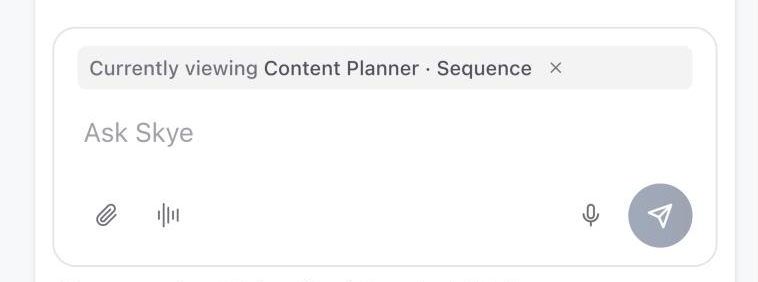
Talk with Skye is different from Voice input, the microphone button, which turns one spoken message into text for you to edit before sending. See Use files, images, dictation and transcripts with Skye.
Interrupt or talk over Skye
To cut in while Skye is speaking, start talking. In browsers that support it, Skye stops and listens. You can also select Interrupt. Select End to finish the conversation.
If your browser can't separate your voice from Skye's, talking over Skye is turned off and Interrupt is the way to cut in. Each spoken turn can be up to 60 seconds, and the microphone switches off after about 15 seconds of silence.
Choose Skye's voice
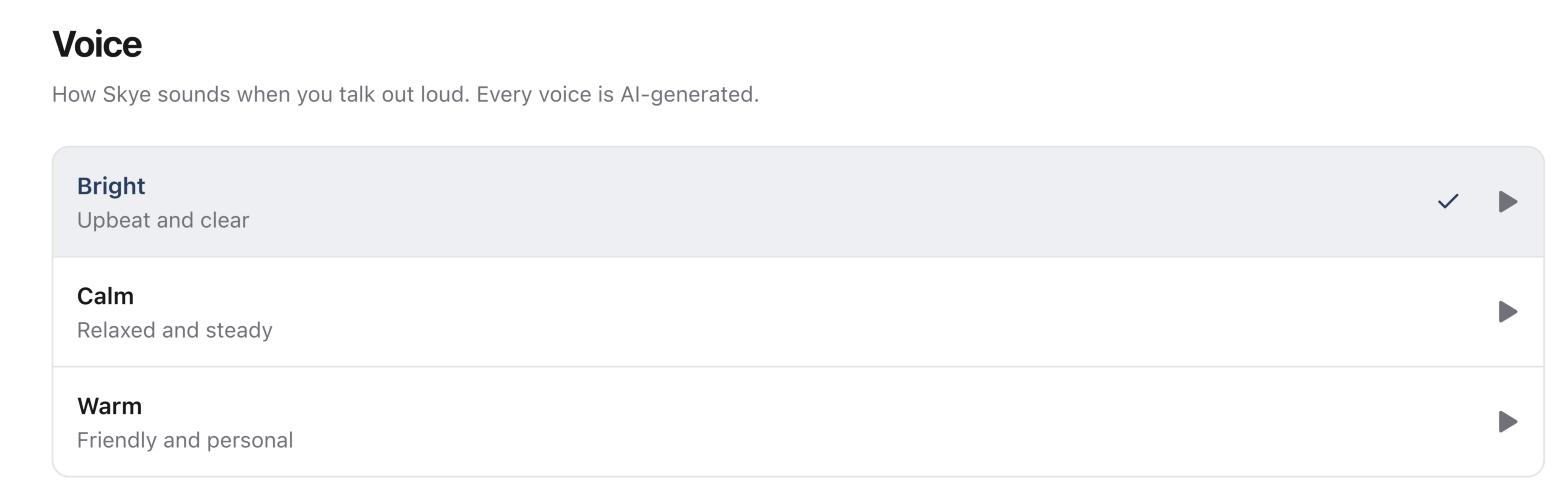
Open your profile menu, select Settings, then Skye. Under Voice, choose Bright, Calm or Warm, and select the play button to hear a sample first. These choices apply to you, in this browser.
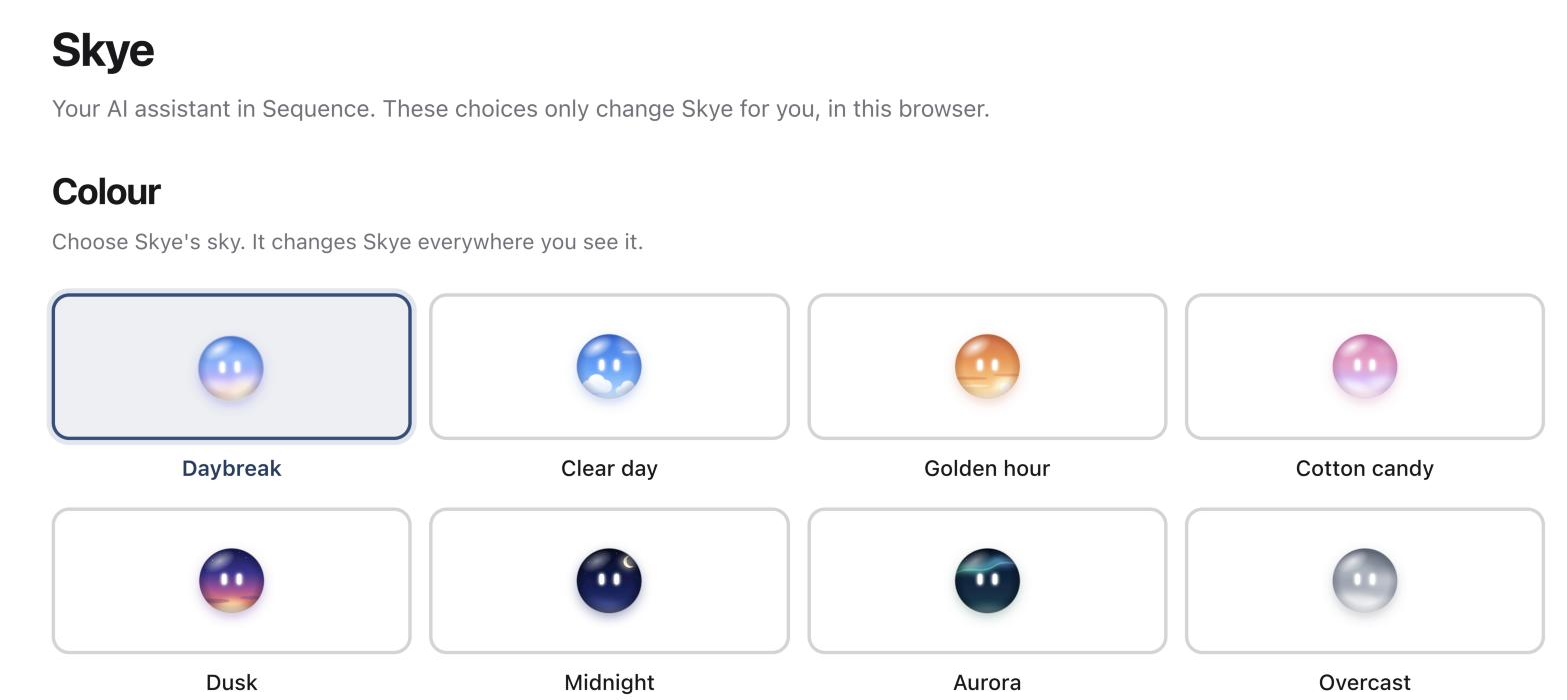
On the same page you can choose Skye's colour, from Daybreak to Overcast, and whether Skye floats in the corner of every page.
Credits
Speaking and listening add no extra credits. Each message you speak is charged like a typed Skye message. See Understand AI credits and troubleshoot a failed generation.
Was this page helpful?
Related articles
- What Skye can doSkye is the AI assistant beside every page in Sequence. Ask about your content, draft and rewrite Plans, research the web and review every change before it's applied.
- Files and dictationAttach images and documents to a Skye message, dictate a request and work with transcripts within the current limits.
- AI credits and failuresReview AI credit usage and activity, understand the allowance and recover a failed generation without repeated attempts.
Need more help with this?