
When Skye wants to create or change something in Sequence, it shows a proposal headed Skye wants to:. Nothing changes until you select Allow.
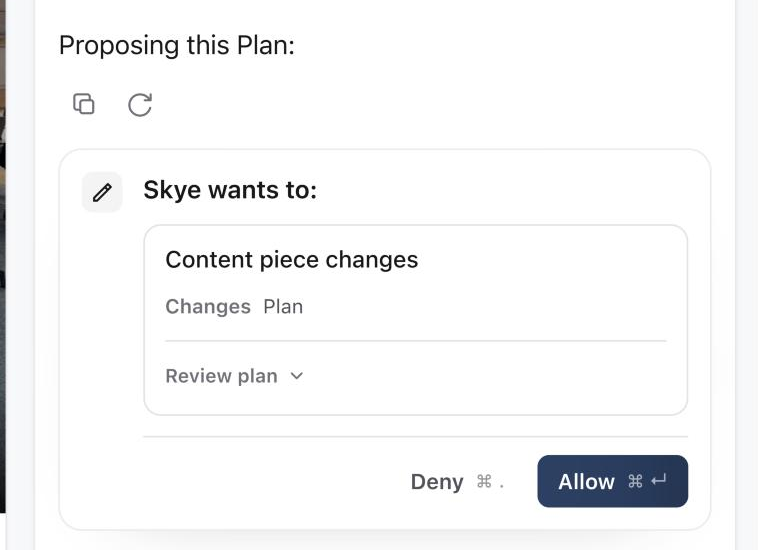
Review the target and scope
Open Review plan, Review changes or Review details to see exactly what will change. Check the post, status, post type, categories, assignee, date and every text change. If a change would clear an existing field, the review warns you, for example This change clears one existing field.
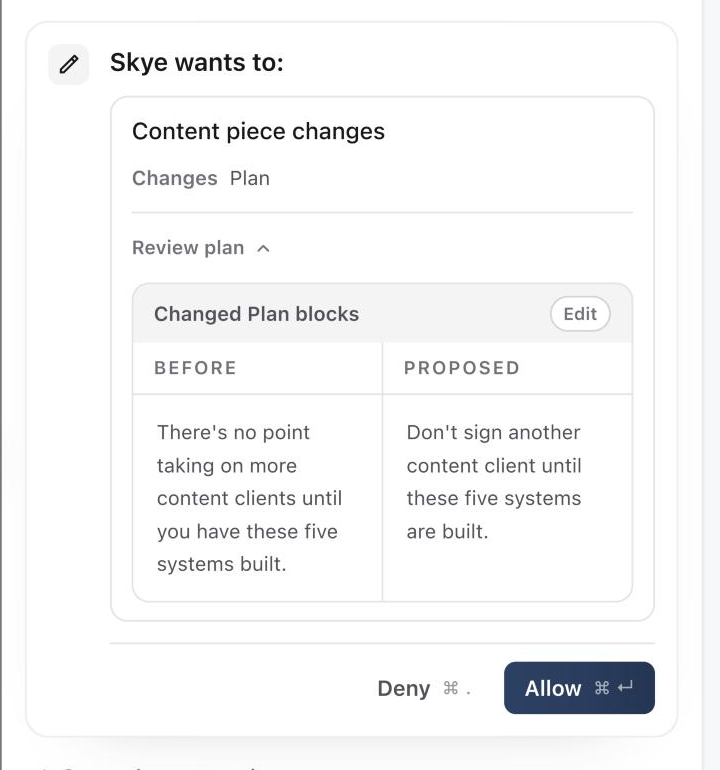
For a Plan change, Changed Plan blocks shows each block Before and Proposed, so you can compare the wording side by side.
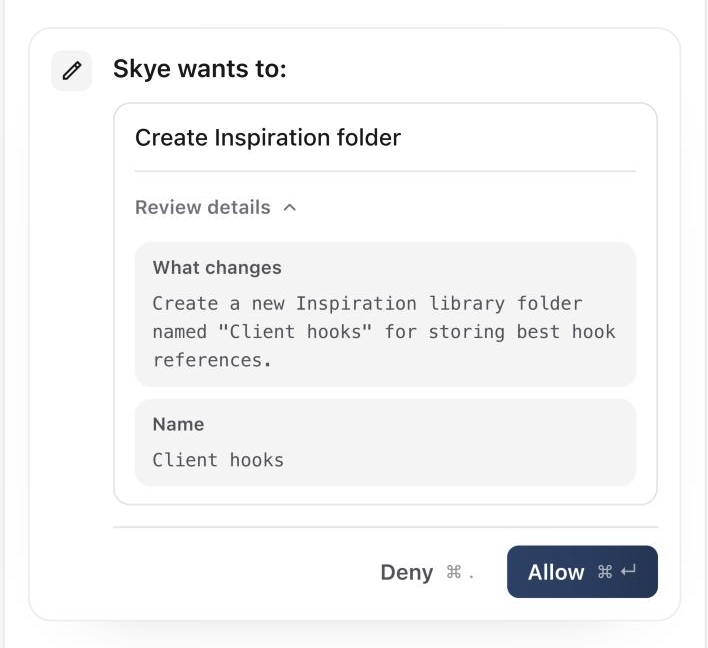
For other actions, such as creating a folder or assigning an Inbox conversation, Review details starts with What changes, a short summary from Skye, followed by each field the action will use. If a change can't be undone, for example deleting something or sending a message, the card says This change can't be undone from Skye. before you decide.
Allow or deny
Select Allow to apply the change, or Deny to leave Sequence unchanged. While Skye is focused, you can also press Cmd+Enter to allow or Cmd+. to deny (Ctrl on Windows). While a proposal is waiting, the message box reads Allow or deny the proposal above.
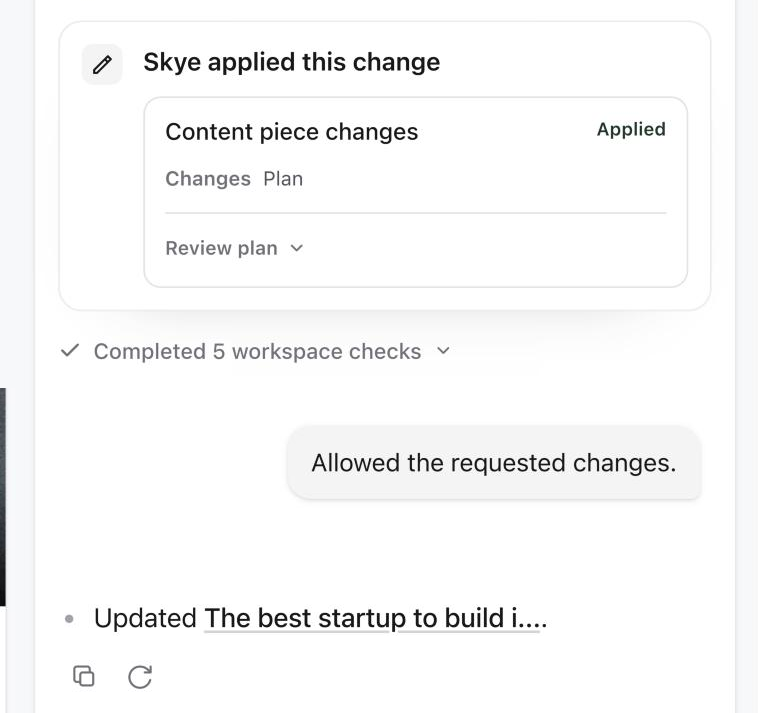
After you allow it, the card reads Skye applied this change and each change is marked Applied. Skye then links to the post it updated.
If a proposal expires or the content changed
Proposals that change a Plan or create an image stay open for 24 hours. Other proposals expire after 10 minutes. An expired card reads This proposal has expired. Ask Skye to prepare it again against the latest content.
If the Plan changed after Skye prepared its proposal, nothing is applied. Ask Skye for a fresh proposal.
Handle large or partial changes
A Plan change too large to review in full can't be allowed. Deny it and ask Skye for a smaller change. If only some changes apply, the card reads Skye applied some of these changes. Open the post, compare it with the proposal and ask Skye for the missing part.
After a change is applied, continue through your normal review, approval and publishing steps.
Was this page helpful?
Related articles
- What Skye can doSkye is the AI assistant beside every page in Sequence. Ask about your content, draft and rewrite Plans, research the web and review every change before it's applied.
- Ask about your content planAsk Skye a focused question about the active brand to find pipeline gaps, deadlines, owners and next steps.
Need more help with this?