
Sequence works as an MCP connector, so you can manage content from Claude, ChatGPT or Codex. You choose which workspaces, brands and actions each assistant can use, and every action still follows your Sequence permissions.
What an assistant can do
- Read brand details, voice, projects and content, and create or edit draft ideas.
- Add media from a link or a local file, save inspiration, and leave comments.
- Request reviews, and record approval decisions on content assigned to you.
- Schedule or publish approved content to the social accounts you select, after it checks with you.
Inbox replies, analytics and billing stay in Sequence. An assistant cannot approve its own work or publish content that has not been approved.
Add Sequence to your assistant
- 01In Sequence, open Settings and select MCP & API.
- 02On the MCP tab, select Copy URL. The address is https://app.sequencesocial.com/api/mcp for everyone.
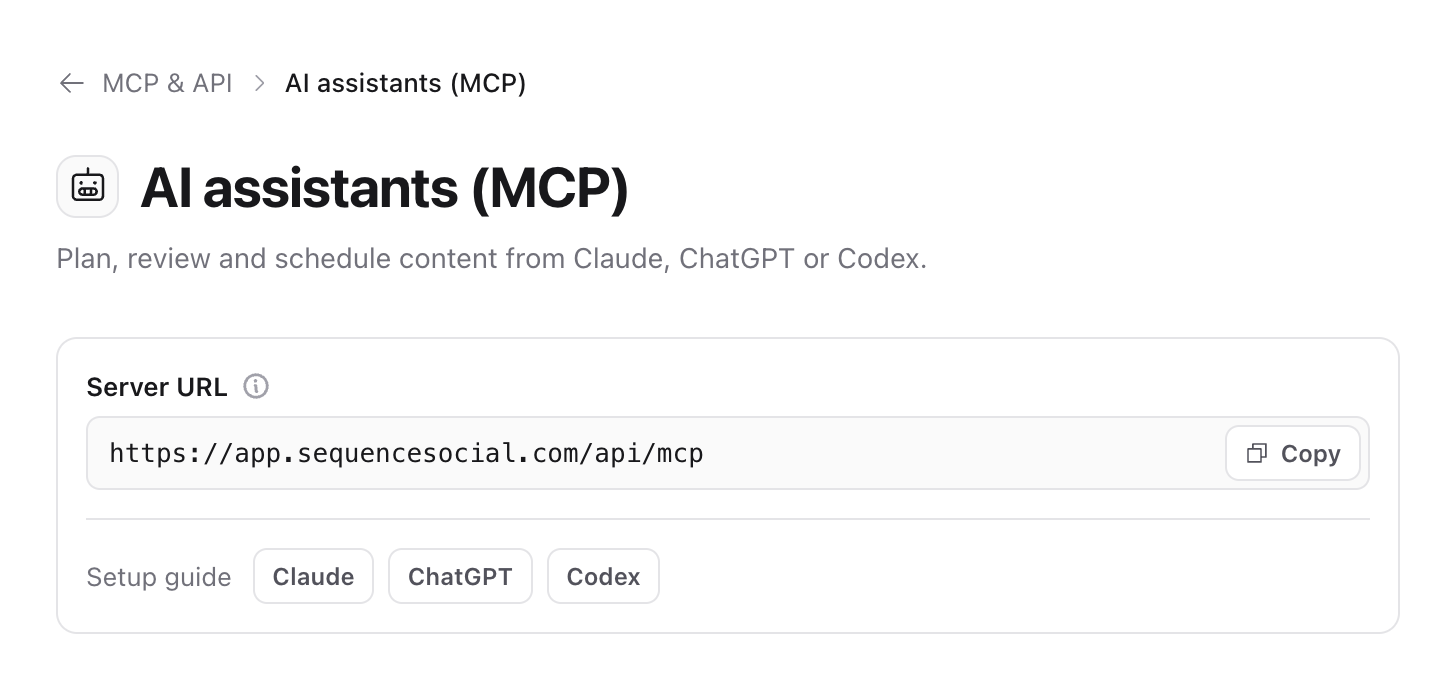
- 01Add the address in your assistant using the steps for your tool below, then continue in Sequence when it asks you to sign in.
Claude
Open Customize, then Connectors, and add a custom connector with the Sequence address. On a Team or Enterprise plan, an owner first adds it in Organization settings under Connectors. Select Connect to sign in to Sequence.
ChatGPT
Turn on Developer mode under Security and login in ChatGPT settings; your workspace admin may need to allow it. Open Plugins, add a connection with the Sequence address, and sign in to Sequence.
Codex
Add Sequence as a Streamable HTTP MCP server, then sign in:
codex mcp add sequence --url https://app.sequencesocial.com/api/mcp
codex mcp login sequence
Choose what the assistant can access
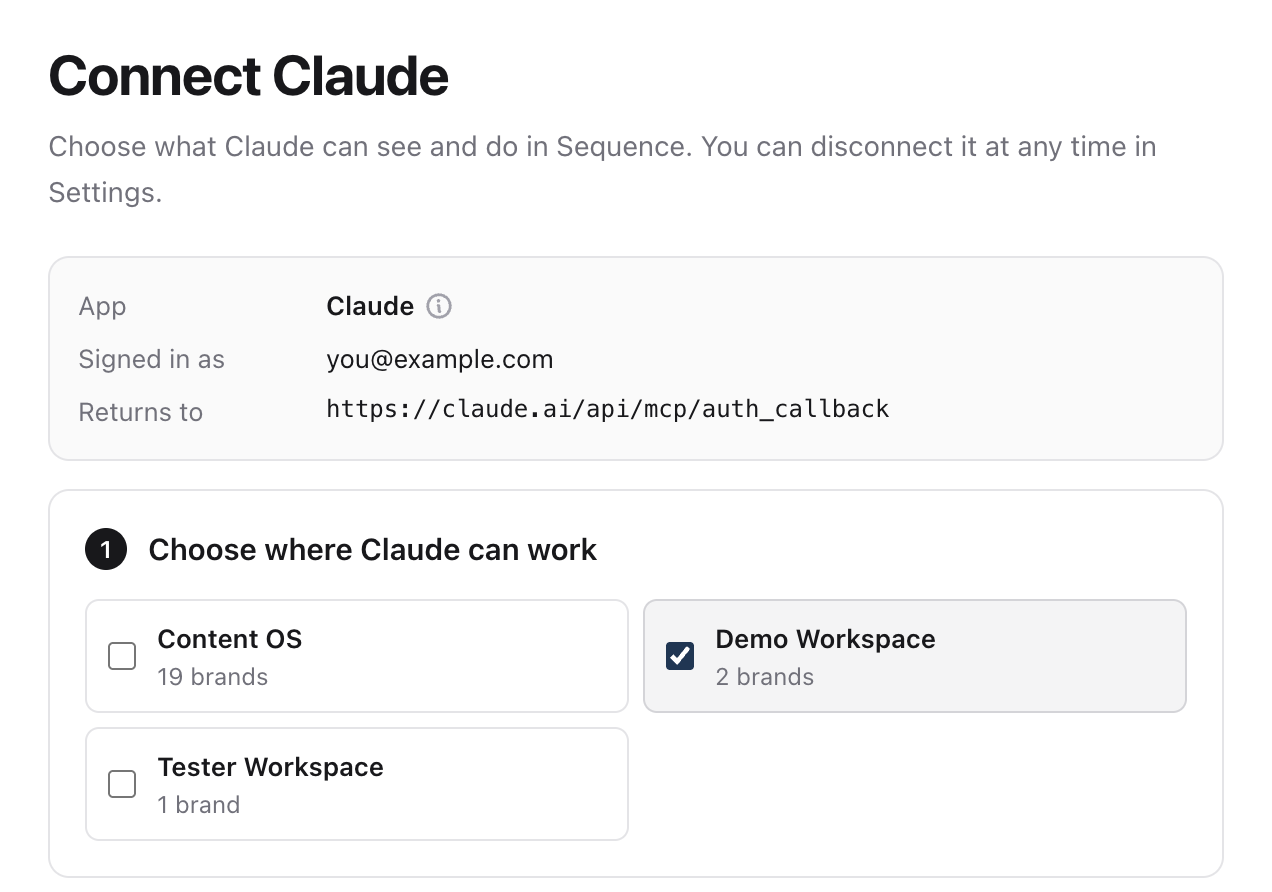
Sequence shows the assistant's name and where it will return you. Only continue if you started the connection yourself.
- 01Under Choose where this assistant can work, select one or more workspaces.
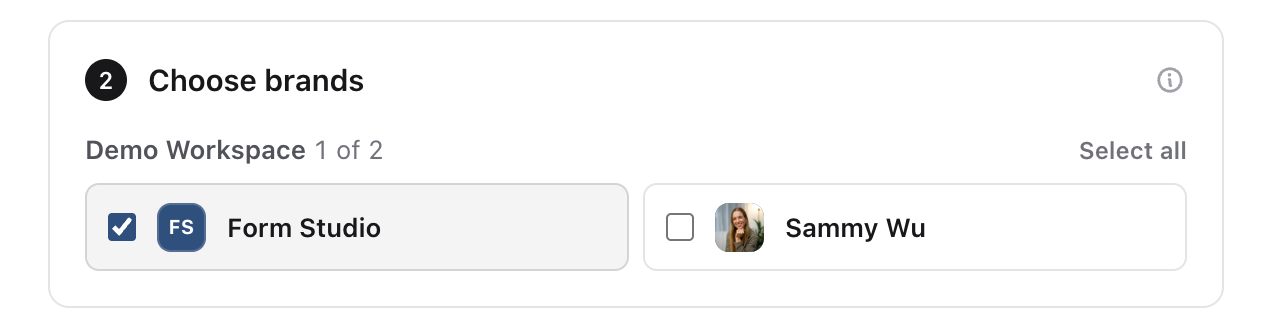
- 01Under Choose brands, select at least one brand in each workspace. Brands you add later are not included automatically.
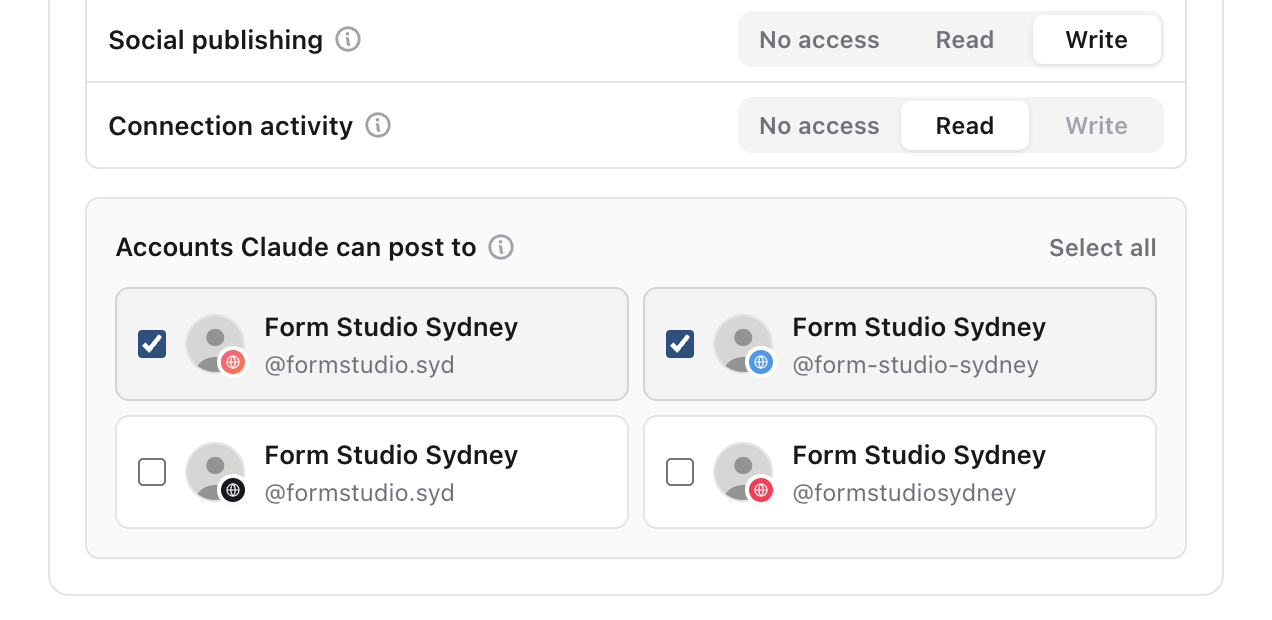
- 01Under Choose access, set each area to No access, Read or Write. Read only and Full access fill the table quickly.
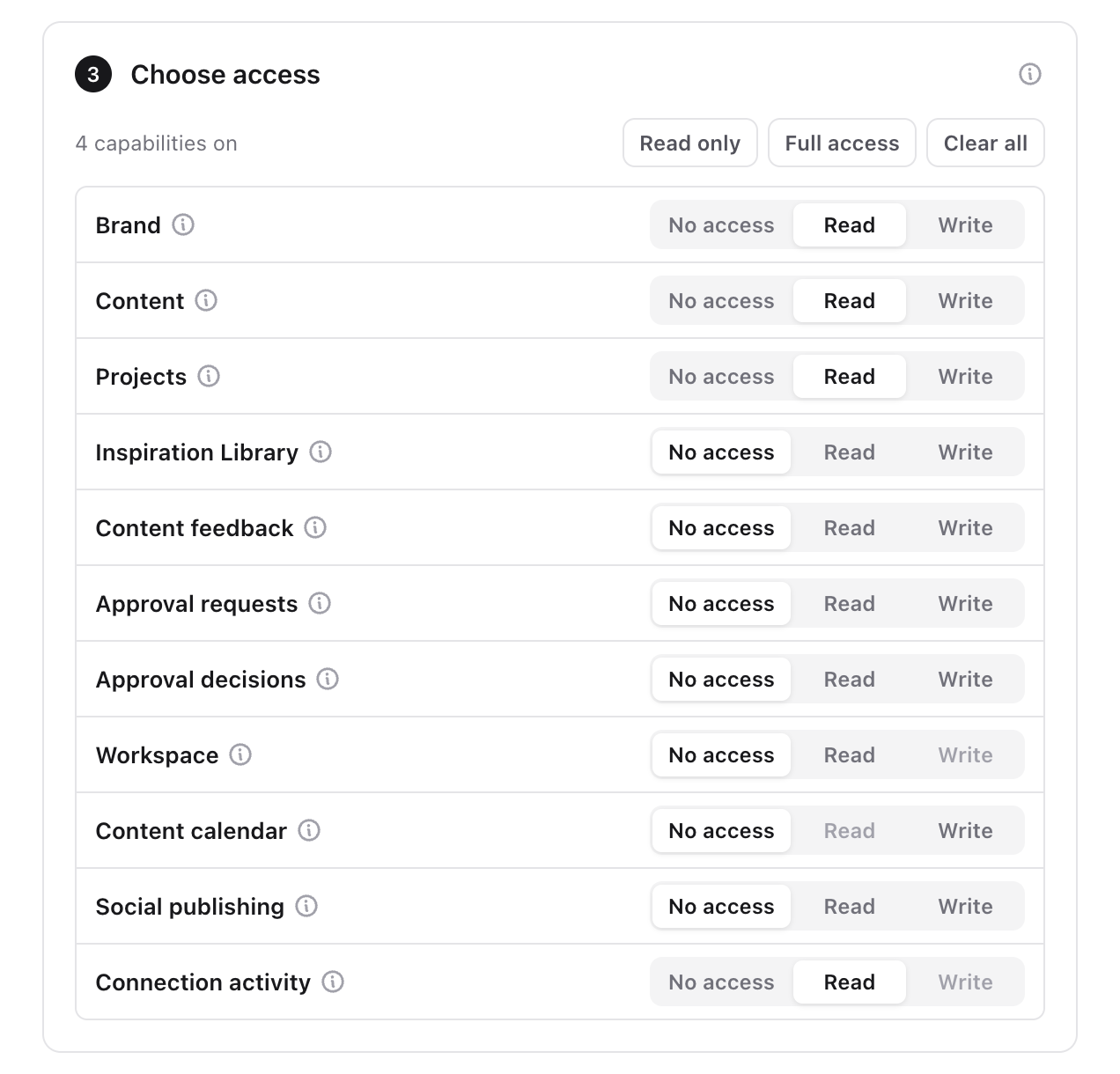
- 01To let the assistant schedule or publish, set Social publishing to Write and tick the social accounts it may use. Presets never turn this on for you.
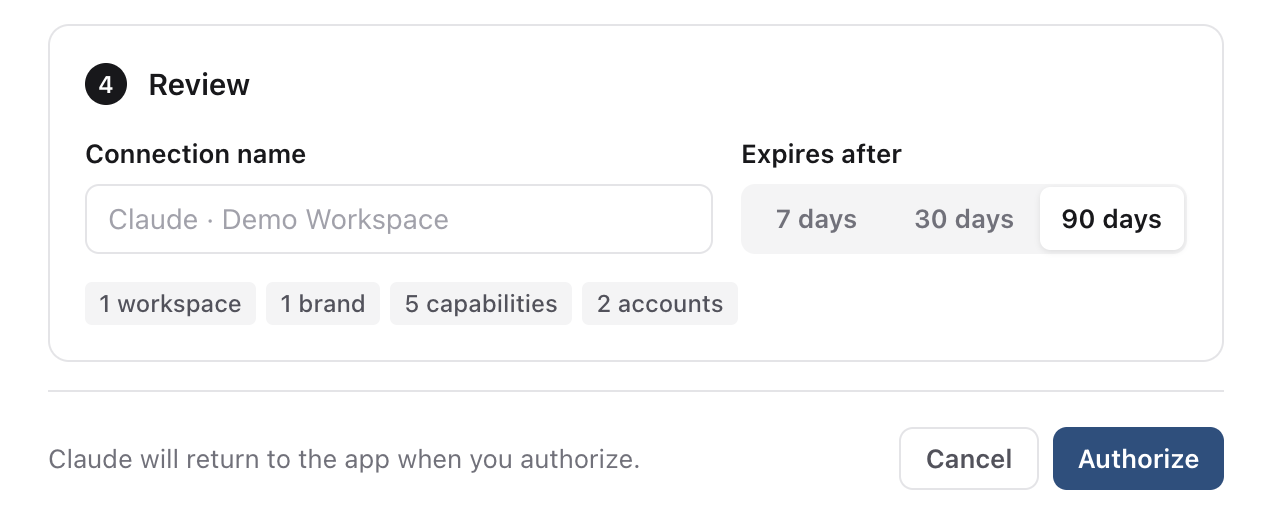
- 01Review the summary, choose how long the connection lasts (7, 30 or 90 days), and select Authorize connection.
Schedule and publish from an assistant
Ask the assistant to schedule or publish a piece of content. It checks that the content is approved (Ready to post) and that the selected accounts can post, then shows you the content, accounts and time and waits for your confirmation. Times use the brand's time zone unless you name another.
Each account reports its own result, so one platform can succeed while another needs attention in Sequence. To cancel or change the time of a post that is already scheduled, open the content in Sequence.
Change or remove access
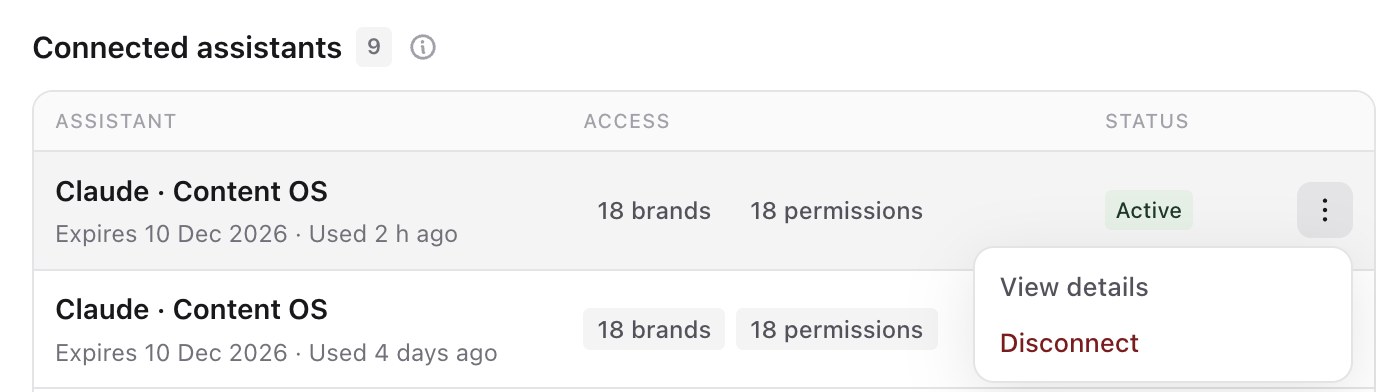
Your connections are listed on the MCP & API page with their brands, access, expiry and last use. To change what an assistant can reach, select Revoke and connect it again with the new choices. Revoking stops access straight away; anything the assistant already created or scheduled stays in Sequence.
Was this page helpful?
Related articles
Need more help with this?