
Sequence for Slack helps agency and content teams route brand notifications, review content and turn Slack conversations into work in Sequence.
One Slack connection is shared by your Sequence workspace. Each person then links their own Sequence account, so the brands and actions they can use follow their current Sequence access.
Before you start
You need:
- owner or admin access in the Sequence workspace;
- permission to install apps in the target Slack workspace, or help from a Slack admin;
- at least one brand in Sequence;
- a Slack channel for each notification route you want to enable.
Private Slack channels are supported. Invite the Sequence app to each private channel before selecting it in Sequence.
Connect your Slack workspace
- 01In Sequence, open Settings.
- 02Under Current brand, choose Integrations.
- 03Select Slack from the integrations library.
- 04Choose Connect Slack or Reconnect Slack.
- 05Review the Slack permissions and select Allow.
- 06Return to Sequence and confirm that the connected Slack workspace appears on the page.
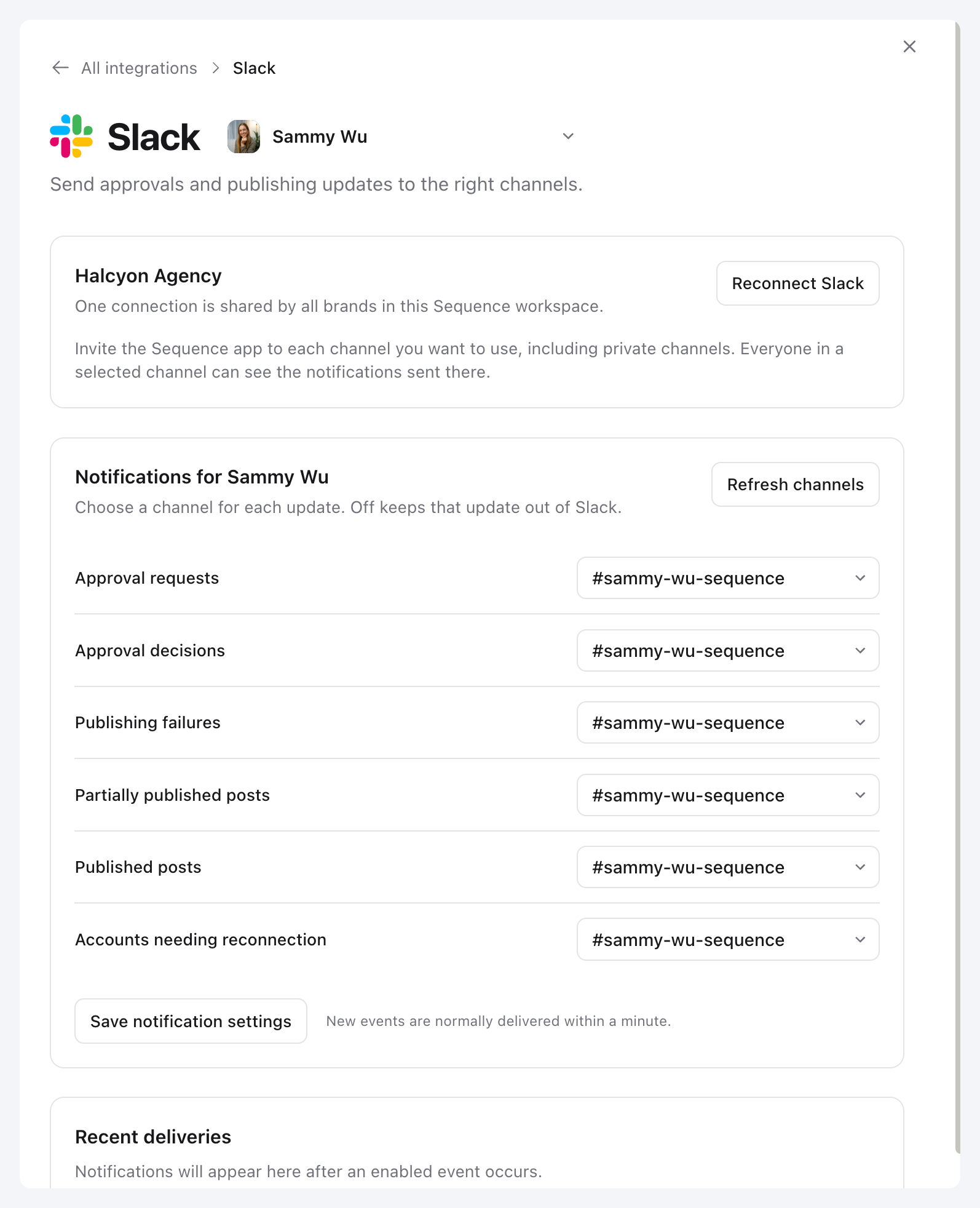
The Slack installation belongs to the Sequence workspace. You can switch between Sequence brands on the Slack integration page without creating another Slack app installation.
Invite Sequence to the channels you want to use
In Slack, open each public or private channel that should receive Sequence notifications. Add the Sequence app to the channel using Slack's channel member or integration controls.
If a channel does not appear in Sequence:
- 01confirm that Sequence has been added to the channel;
- 02return to Settings > Integrations > Slack;
- 03select Refresh channels;
- 04open the channel selector again.
Everyone in a selected Slack channel can see the notifications sent there. Choose client-facing and internal destinations carefully.
Route notifications for each brand
Choose the current brand at the top of the Slack integration page, then select a Slack channel for each event you want to send:
| Notification | When Sequence sends it |
|---|---|
| Approval requests | A plan, media set or final post is ready for review. |
| Approval decisions | A reviewer approves the current version or requests changes. |
| Publishing failures | A scheduled post fails to publish. |
| Partially published posts | Some selected channels publish successfully and others fail. |
| Published posts | A scheduled post publishes successfully. |
| Accounts needing reconnection | A connected social account needs attention. |
Select Off to keep an event out of Slack. Repeat the setup for each Sequence brand. Different brands and events can use different Slack channels.
Select Save notification settings when the routes are ready.
Link your personal Sequence account in Slack
- 01In Slack, open Apps and select Sequence Social.
- 02Open the app's Home tab.
- 03Select Connect account if Slack asks you to sign in.
- 04Complete the Sequence sign-in and return to Slack.
- 05Choose the working brand for private tools and direct messages.
The workspace installation and your personal link serve different purposes. The installation lets Slack and Sequence communicate. Your personal link decides which brands and actions you can access.
Approve or request changes from a notification
When content reaches a configured review stage, Sequence posts a compact review card in the selected channel.
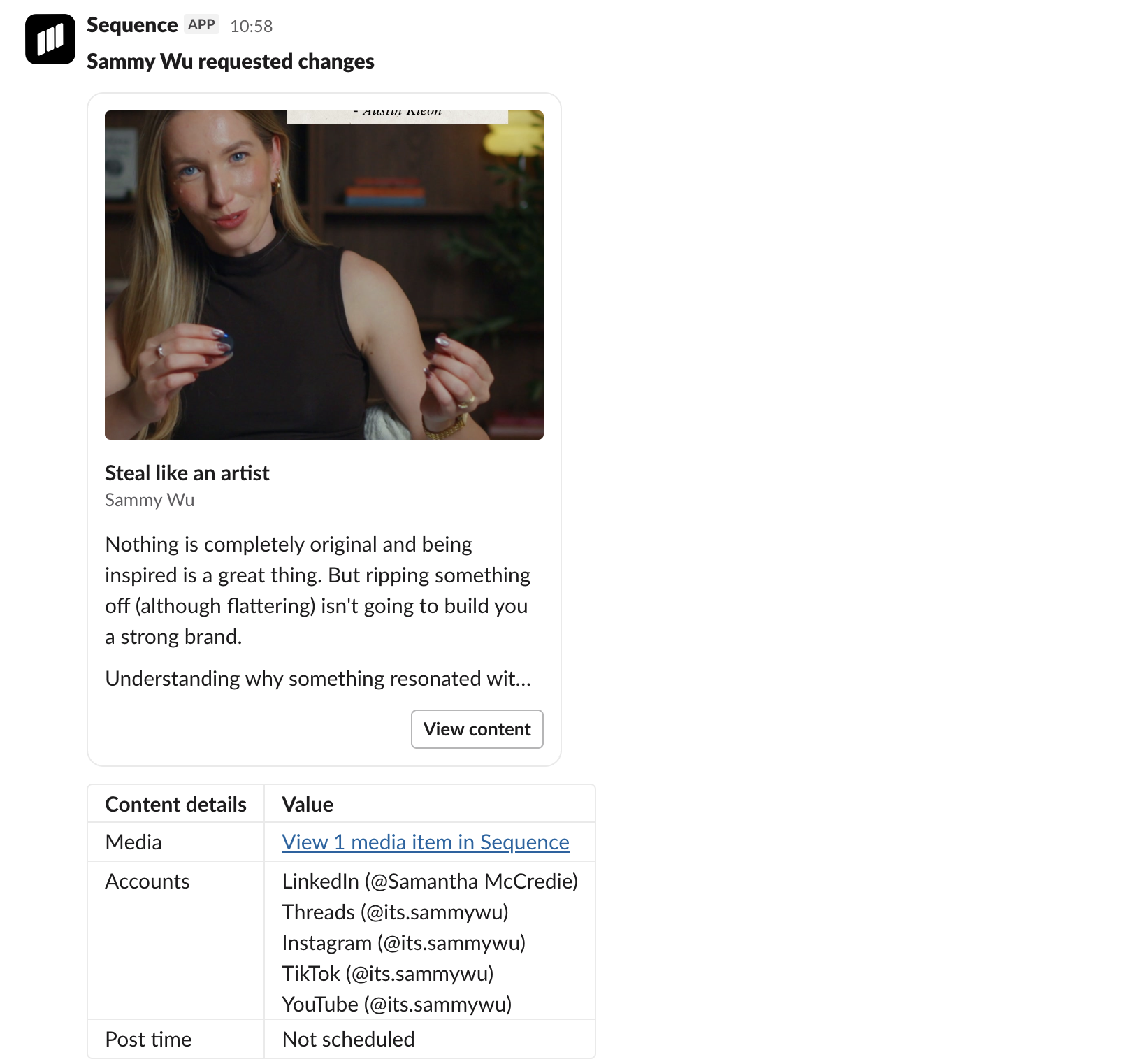
The card uses a native Slack table to show the content title, brand, media link and count, selected platforms, planning notes when available, caption and post time. Slack controls the surrounding message layout, so Sequence uses Block Kit tables and buttons instead of a custom web-style card.
- Select Approve to approve the current review stage.
- Select Request changes to add a note and return the content for revision.
- Select View content to open the full content piece in Sequence.
Sequence checks the current post version, reviewer assignment and your permissions before it records the decision. If the content changed after the notification was sent, open the latest version in Sequence and review it again.
The Media link opens the authenticated content page in Sequence. Videos and carousels open there instead of trying to reproduce the complete preview inside Slack.
Open Sequence tools
You can open the task launcher in three ways:
- open the Sequence Social app in Slack;
- type
/sequencein a Slack message field; - choose the global Open Sequence tools shortcut.
Choose a brand, then choose the task you want to start.
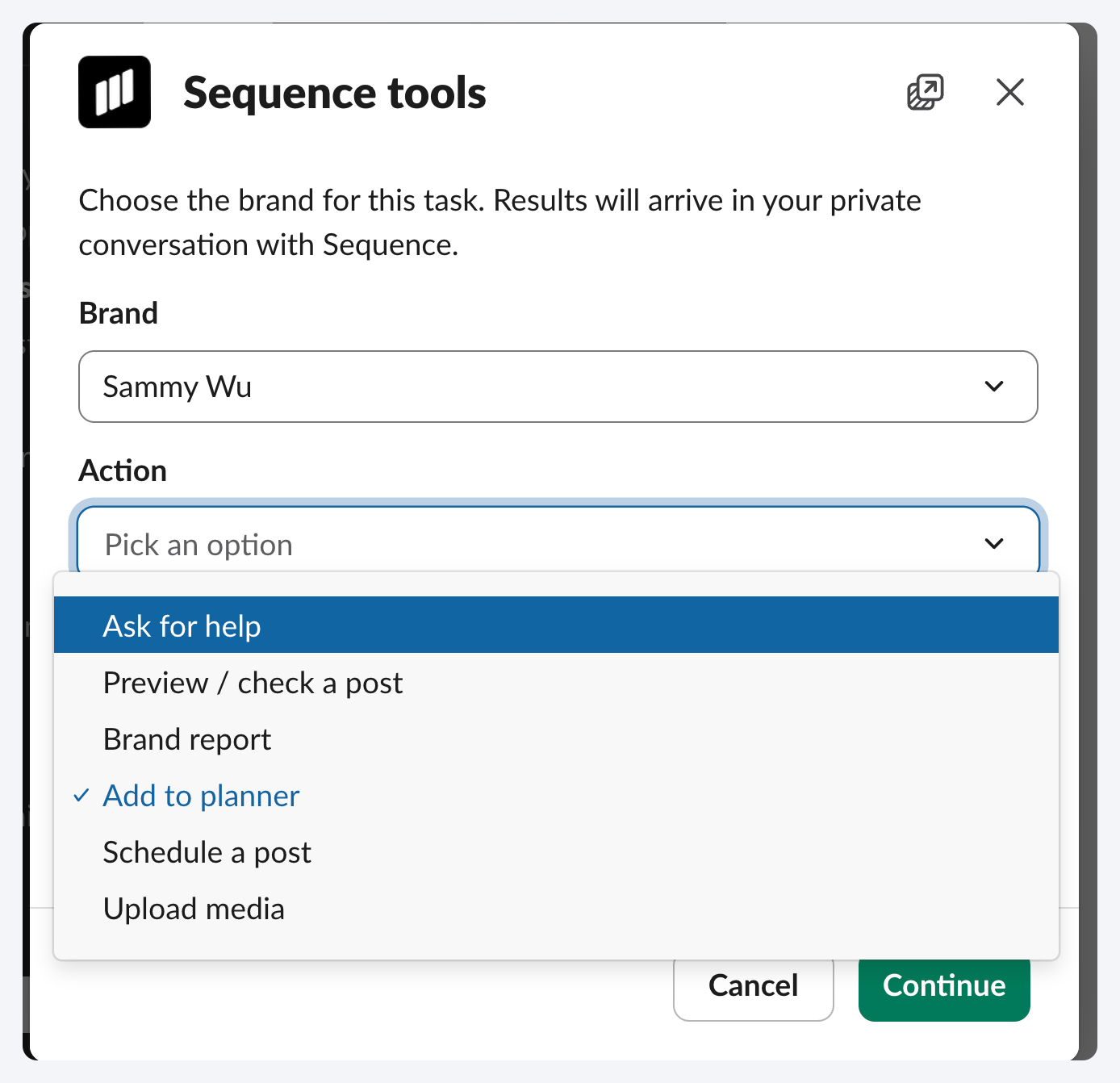
Results from a global shortcut or app Home action arrive in your private conversation with Sequence. Channel actions stay connected to their source message or thread.
Create a content piece from a Slack message
Use this when a client message, idea or brief should become an item in the content planner.
- 01Open the message's More actions menu in Slack.
- 02Choose Create content piece.
- 03Confirm the Sequence brand.
- 04Add a title.
- 05Review the planning notes copied from the source message.
- 06Add or edit the caption if it is ready.
- 07Choose a post format if known.
- 08Attach Slack files, choose existing brand media or select Upload files in Sequence for a larger file.
- 09Select Continue, review the confirmation and create the item.
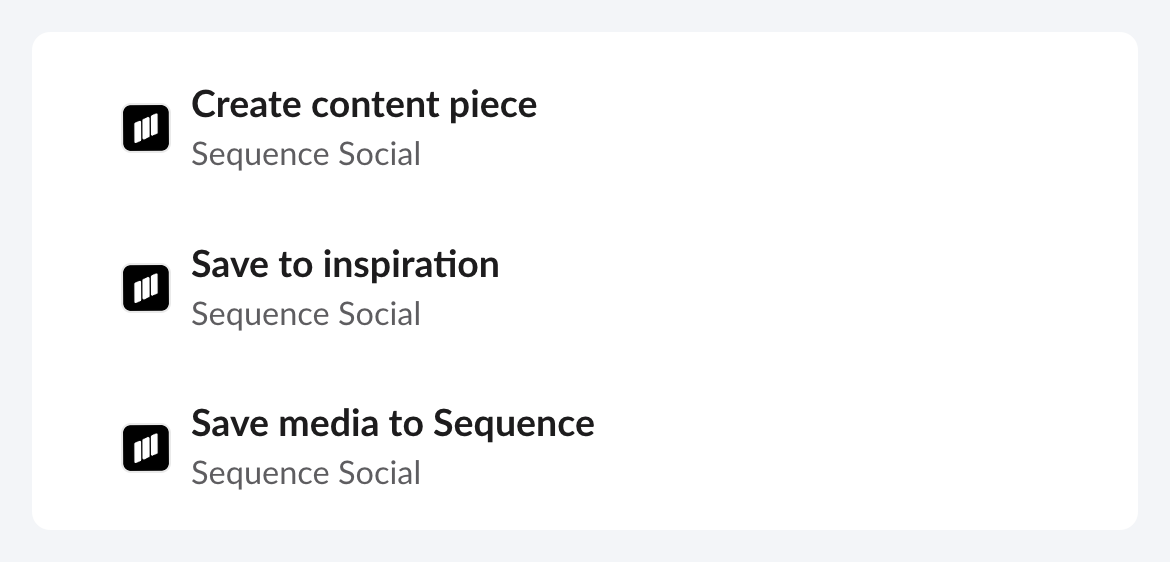
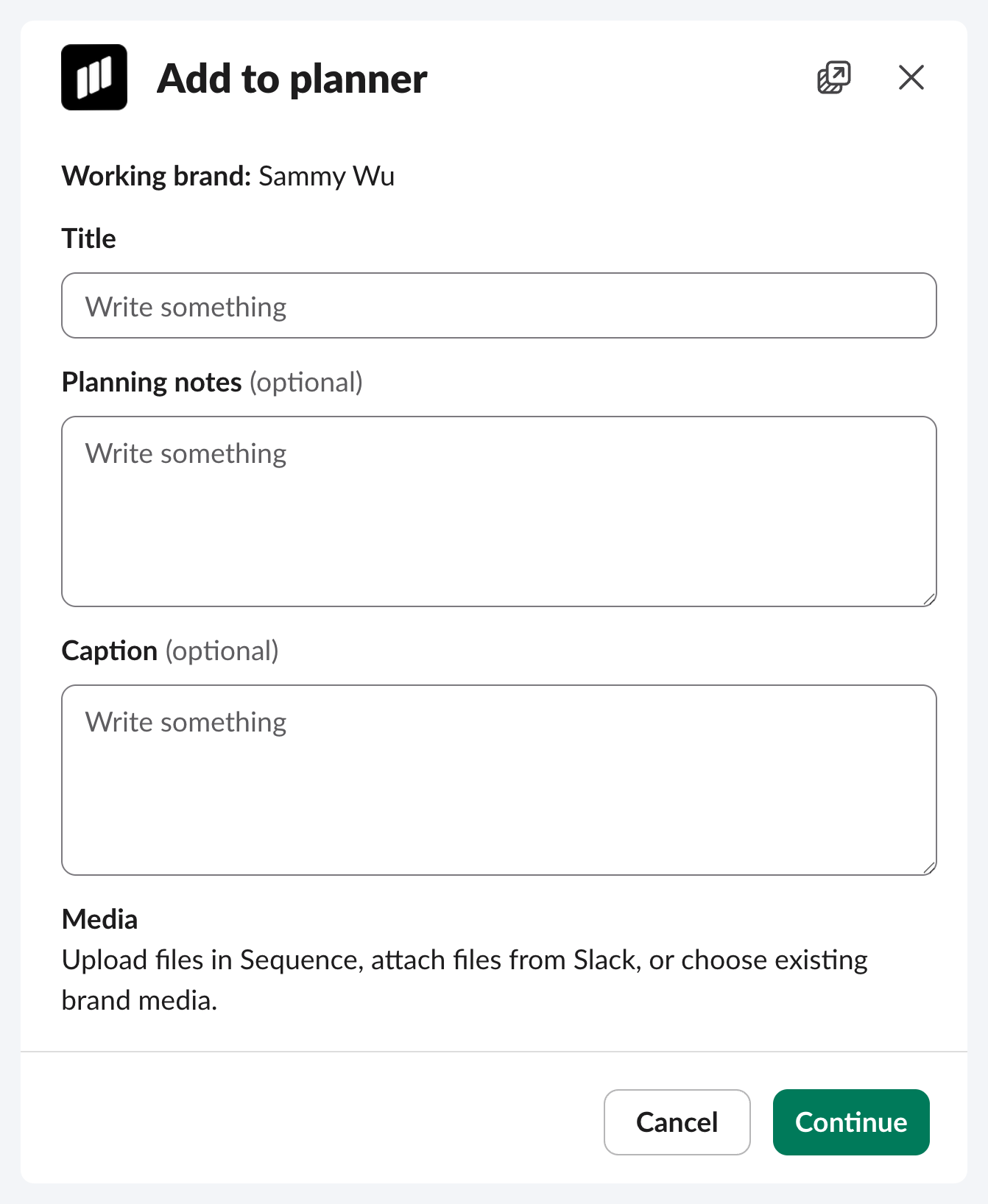
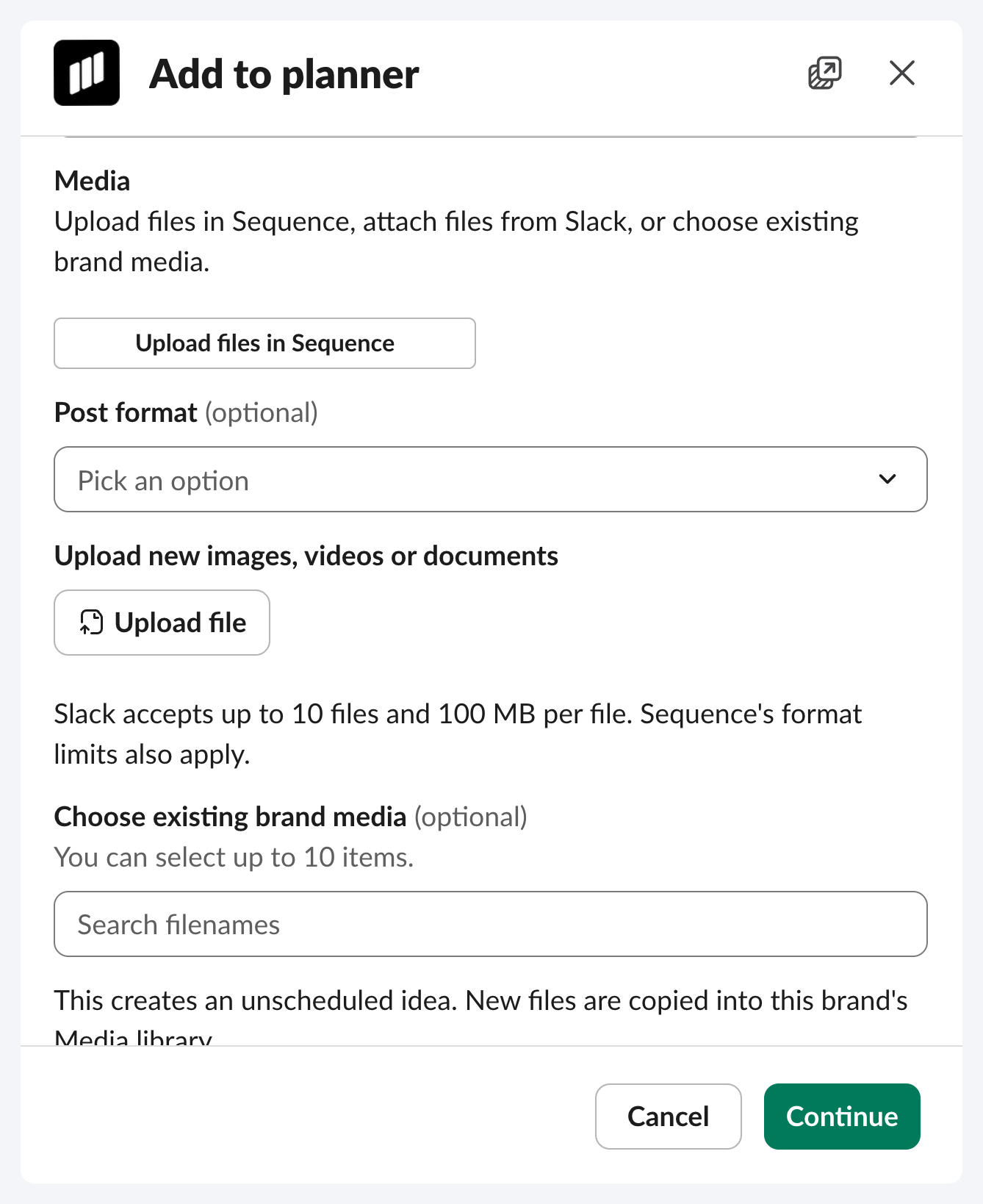
The new item is created as an unscheduled idea in the selected brand's planner. Sequence records the person who created it through Slack.
Save an inspiration link from a message
Sequence can find supported public URLs inside normal message text. The message does not need to contain only the link.
For example:
This opening could work for the campaign: https://www.instagram.com/reel/example
- 01Open the message's More actions menu.
- 02Choose Save to inspiration.
- 03Confirm the brand.
- 04Review the links Sequence found.
- 05Select the links you want to save and continue.
Sequence applies the normal Inspiration library rules, including supported source checks and duplicate handling. Categories are managed by Sequence and are not entered in the Slack shortcut.
Save Slack files to Sequence
Use Save media to Sequence on a message containing files to copy those files into the selected brand's Media library.
Slack accepts up to 10 selected files and 100 MB per file in this workflow. Sequence's supported format and processing limits also apply.
For a larger file:
- 01open Create content piece, Add to planner or Create and schedule;
- 02select Upload files in Sequence;
- 03upload the file in the protected Sequence page;
- 04return to Slack;
- 05search for the uploaded item under existing brand media.
Create and schedule a post
Use Create and schedule when the caption, media and publishing time are already known.
- 01Open Sequence tools and choose Schedule a post.
- 02Choose whether to schedule an existing content piece or create a new one.
- 03Select the brand and connected social accounts.
- 04Set the date, time and timezone.
- 05Review the caption and media.
- 06Continue to the confirmation screen.
- 07Confirm the schedule.
Sequence uses the same account permissions and publishing checks as the web app. Open the content in Sequence for detailed per-platform customisations.
Preview a post, check publishing or view a report
Use the Sequence tools launcher for these read-only tasks:
- Preview or check a post shows the current title, status, updated date, content link and relevant content details.
- Check publishing reports connected targets and publishing readiness for the selected post.
- Brand report shows a structured period summary, key totals and linked top-performing posts.
- Ask for help searches current Sequence Help Centre guidance.
These responses use structured Sequence data and fixed formatting. The Slack app does not run an open-ended AI agent.
Troubleshooting
Sequence does not reply in a channel
Confirm that the app is a member of the channel and that the channel maps to one Sequence brand. If Slack cannot resolve the brand safely, use the app Home, a direct message or /sequence and choose the brand manually.
A channel is missing from the selector
Invite Sequence to the channel, then select Refresh channels on the integration page. Private channels must include the app before Slack makes them available.
You cannot see a brand
Open Sequence and confirm that your account can access the brand. Then reconnect your personal Sequence account from the Slack app Home.
An approval action is unavailable
The post may have changed, the review may already be complete or you may not be an eligible reviewer. Select View content and review the latest state in Sequence.
A file cannot be saved
Check the file size and format. Use Upload files in Sequence for files over Slack's 100 MB limit or when Slack cannot provide the file to the app.
Notifications stopped after a Slack change
Return to Settings > Integrations > Slack and reconnect the workspace. Then refresh channels and confirm each brand's saved routes.
Was this page helpful?
Related articles
- Upload media and formatsUpload creative, check file formats and sizes, and prepare the correct version for review and publishing.
- Add or switch brandsCreate a brand in the right workspace, finish its setup and find existing brands before creating duplicates.
- Roles and brand accessChoose workspace and brand access, tailor role permissions, and give clients the right review capabilities.
- Connect a social accountConnect the correct social profile to a brand and check it is available for your posts.
- Approval workflowUse plan, media and final approval with clear handoffs between your client, video editor and social media manager.
- Prepare and preview a postReview media, captions, destinations and required platform settings before submitting a post.
Need more help with this?