
Post analytics shows the latest synced results for each account on one published post. Use it when you want to check how a specific post performed without leaving the post. For comparisons across posts, channels or reporting periods, use the brand's Analytics page.
What you can see
In this Form Studio demo, Instagram is expanded and TikTok remains collapsed. Each account keeps its own results. The numbers are examples from the demo brand, not combined totals.
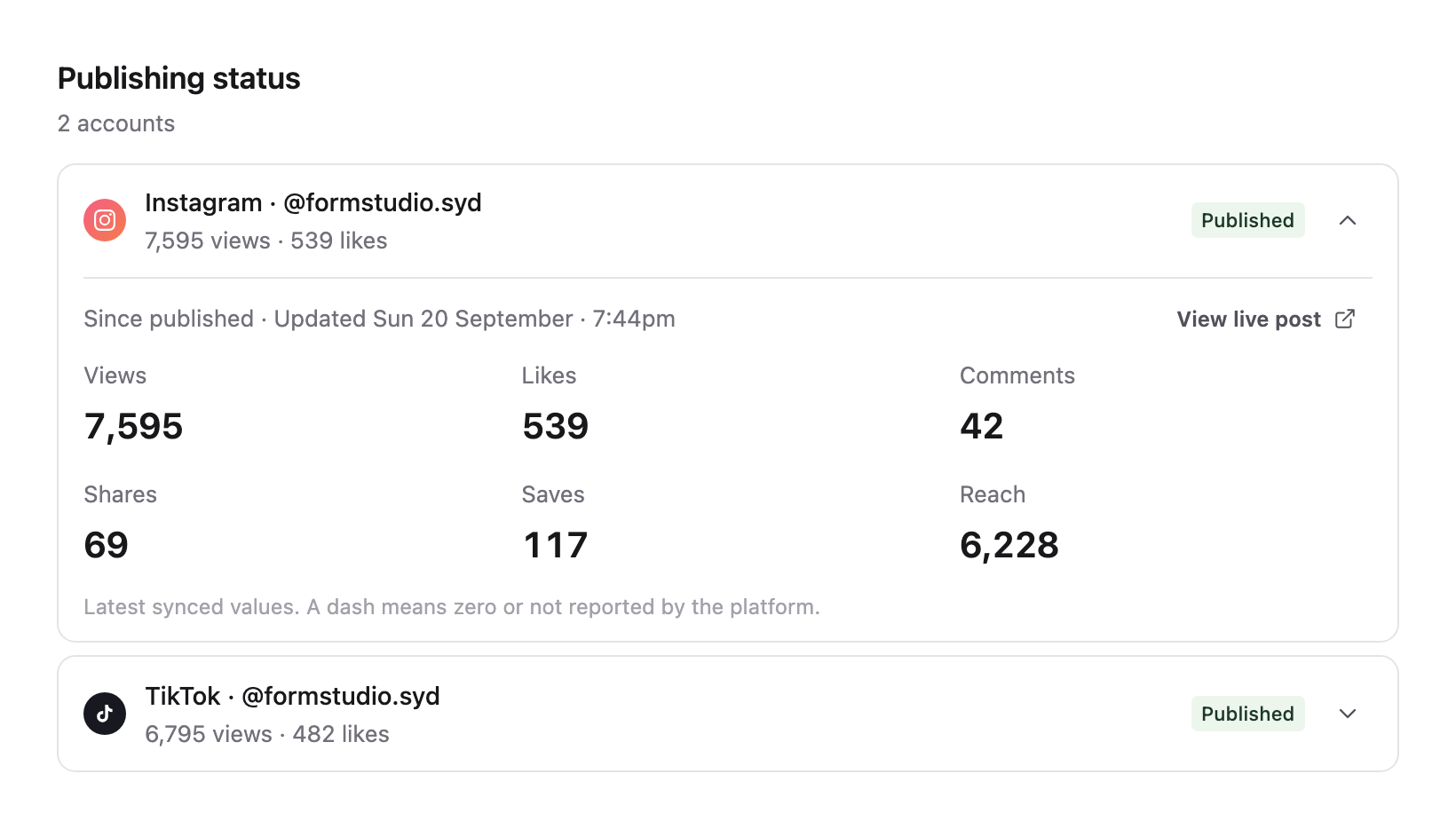
The panel shows Views, Likes, Comments, Shares, Saves and Reach where values are available. Since published describes the period covered, and Updated shows when Sequence last synced the values. A dash means zero or not reported by the platform; it does not confirm that a metric is unsupported.
Open an account’s results
1. Open the brand’s Content planner and select a published post.
2. Select Publish, then scroll to Publishing status. Check the platform, account handle and Published badge.
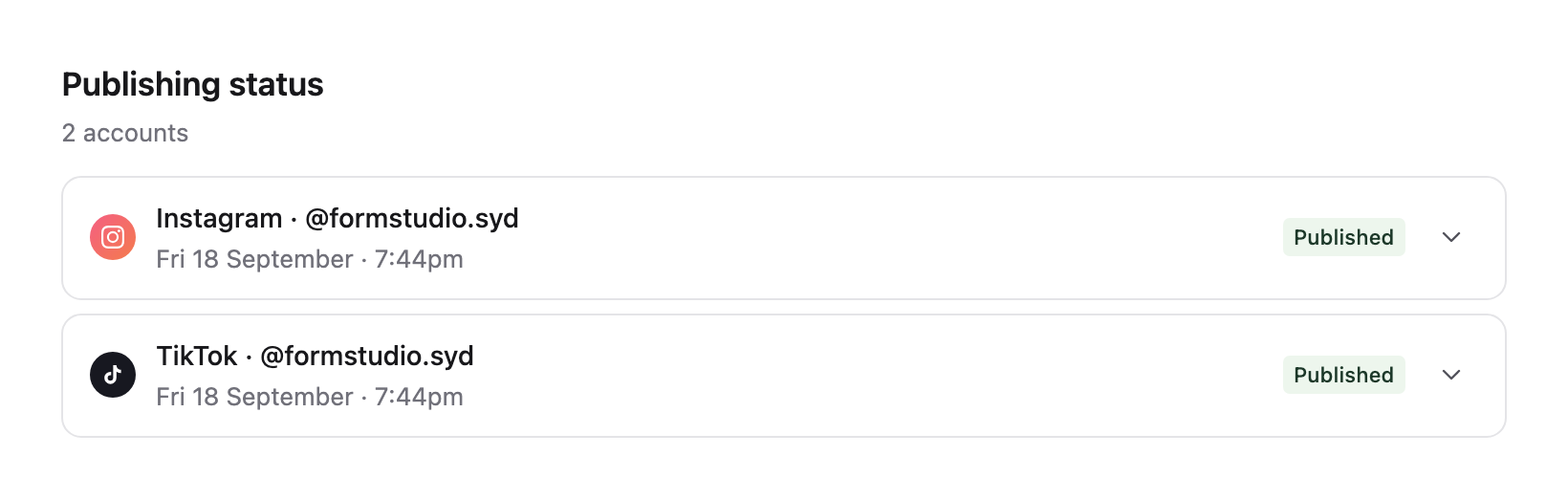
3. Select anywhere on the account header to expand its performance. You can also focus the row with your keyboard and press Enter or Space. Select it again to collapse it.
4. Read the results for that account and the Updated time. Expand another account to see its separate results. Select View live post, when available, to open the published post on the platform.
When results are missing
Waiting for the first analytics update means there is no stored snapshot for that account yet. Publishing a post does not immediately produce analytics. Reopen the post after a later sync; these values are not a live counter.
This post is outside your plan's analytics history means the post's publication date falls outside the history available on your plan.
You need access to the post and permission to view Analytics to read its results. If performance cannot load, select Try again. If values remain missing or differ from the social platform, see Fix missing analytics or numbers that differ from the platform.
Before the post is live
Pending, Preparing media, Processing, Scheduled and Failed rows show publishing details instead of performance. Failed accounts and accounts that need reconnecting open their details automatically. Read the error and next step before using Retry. See Understand publishing statuses or Fix and retry a failed social publishing target for recovery instructions.
Was this page helpful?
Related articles
- Understand social metricsSeparate views, impressions, reach and engagement, then compare like-for-like results across a consistent scope.
- Missing analytics dataMatch accounts, date ranges and metric definitions, then diagnose missing data or a difference from the platform.
- Compare performanceCompare a consistent metric, scope and period, then inspect top content to explain the difference.
- Publishing statusesRead overall and per-account publishing states, confirm live results and handle mixed success and failure.
- Fix failed publishingIdentify a failed account, correct its error and retry it without resubmitting successful destinations.
Need more help with this?