
Use the media editor to change the creative itself, and the thumbnail controls in Publish to choose the still image that represents a video. A thumbnail choice does not crop or replace the underlying video.
Crop or format the creative
- 01Open the piece and select Media.
- 02Select the correct file or carousel slide.
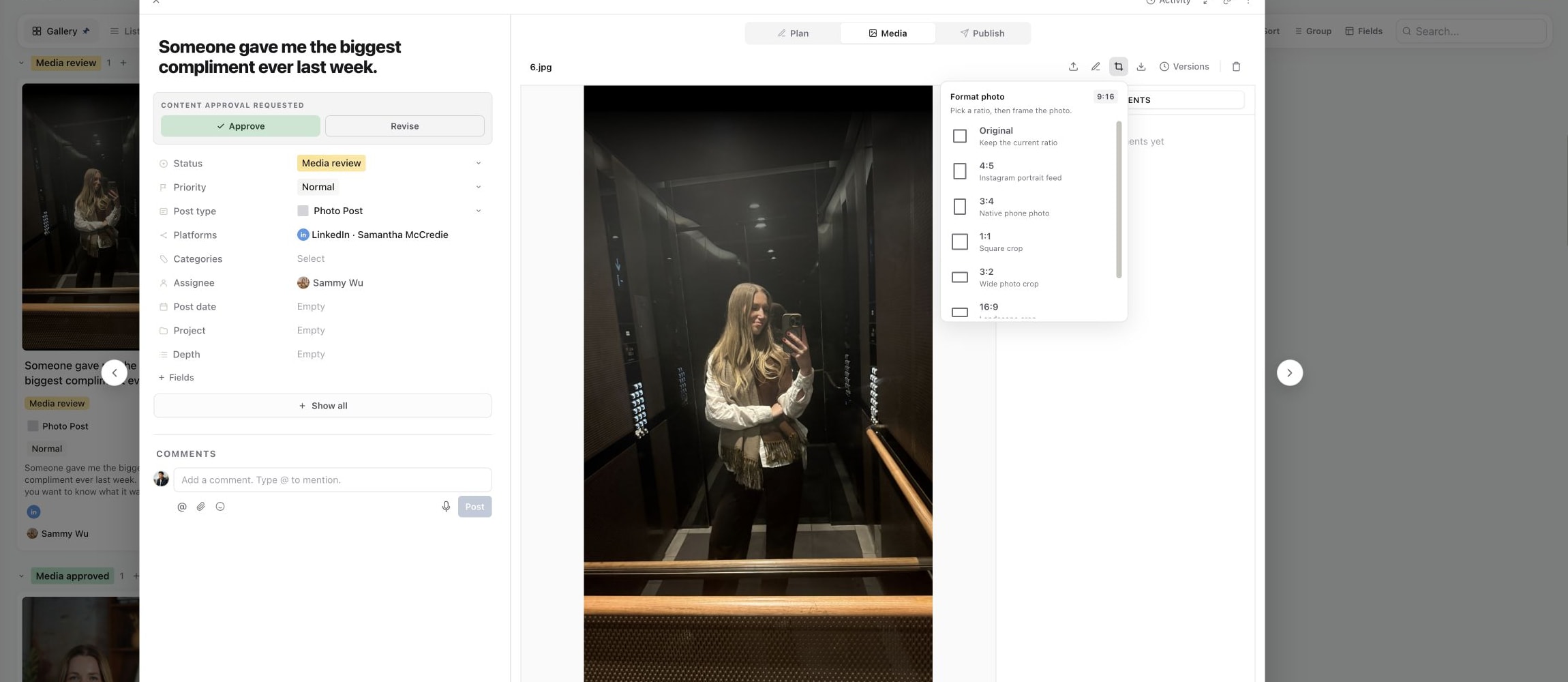
- 03Choose Format media and select a ratio, such as 4:5, 1:1, 16:9 or 9:16.
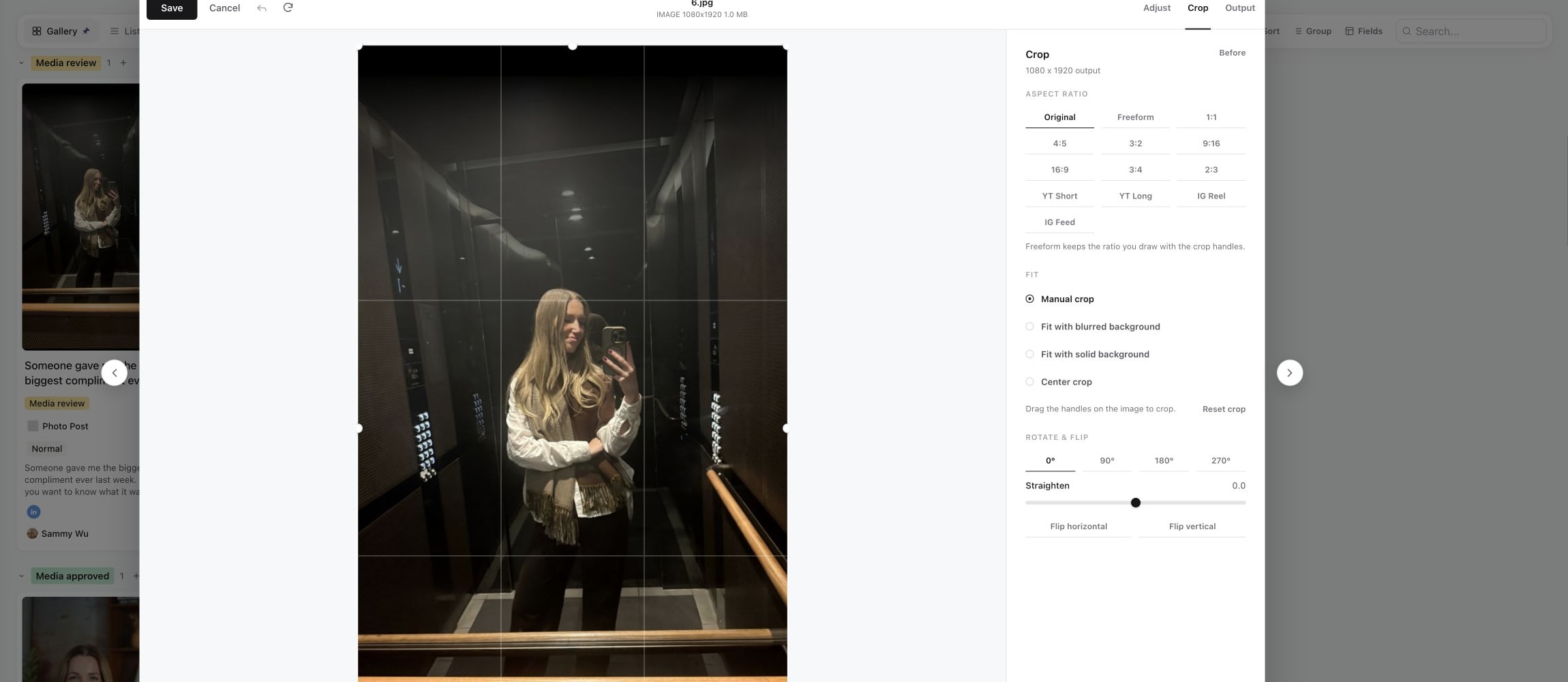
- 04Frame the important content inside the crop. Check faces, on-screen text and anything near the edges.
- 05Use Save crop when the inline crop control is shown, or review and Save in the media editor.
1. Choose a photo ratio
2. Crop and position the image
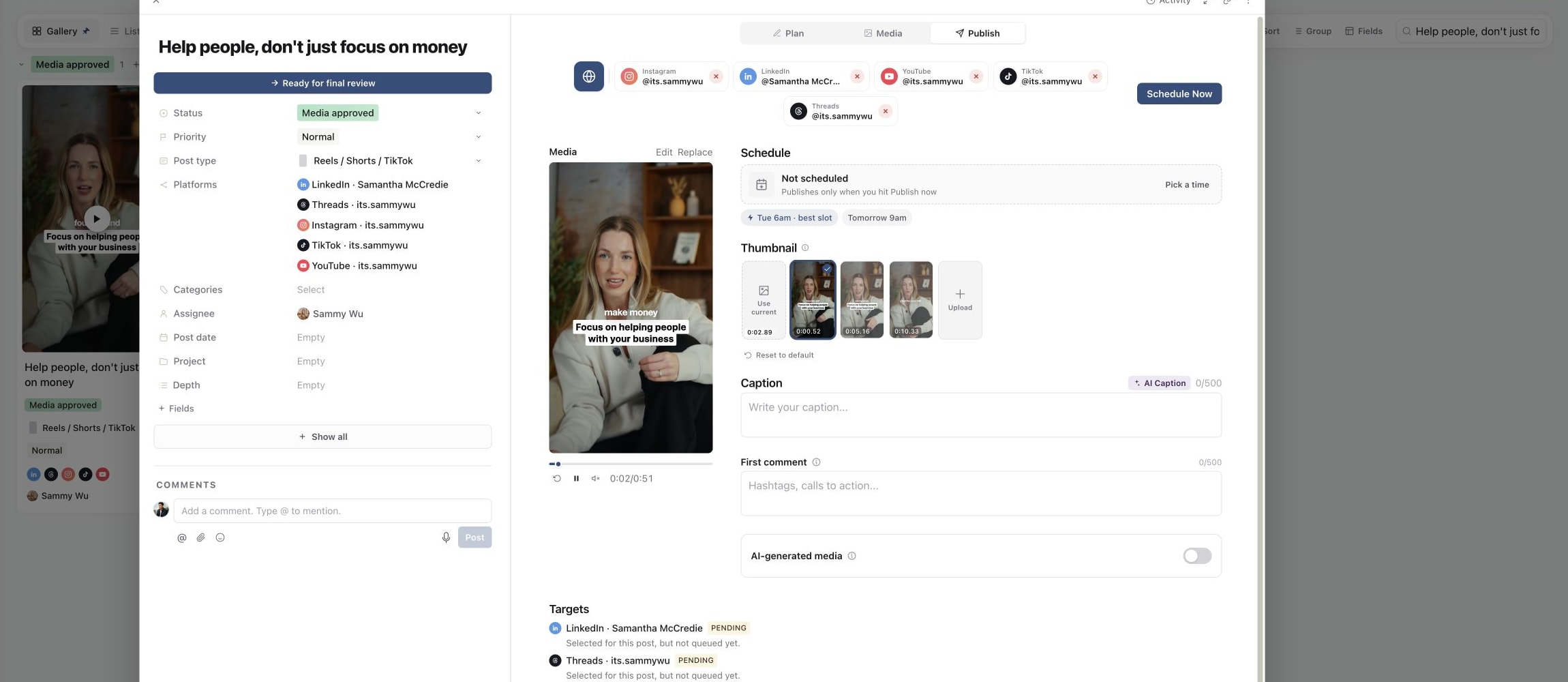
3. Choose a video thumbnail
Original keeps the current ratio. The ratio names help you prepare a shape; they do not guarantee that every destination accepts the entire file. Check the selected account's validation in Publish afterwards.
Use the full editor
Choose Edit media for the available adjustments. The editor includes crop and transform controls such as rotation and flipping; video also has clip and volume controls.
Before saving, inspect Output. Save as new version updates the shared media version for the piece. Where you are editing in a platform context, Save only for [platform] keeps the shared media unchanged and applies the result to that platform. A disabled platform-only option means there is no applicable target context.
Wait for the saved media to finish processing and review the resulting file. See compare creative versions if you need to check it against the earlier edit.
Choose a video thumbnail
Open Publish and find Thumbnail next to the media preview. You can select one of the available frames, pause at a suitable moment and choose Use current, or use Upload to provide a thumbnail image.
Check Thumbnail platform support for the destination's behaviour. Inspect each account preview, particularly when you have customised a platform separately. A thumbnail that looks good in the preview may be subject to platform-specific support, so do not assume one selection is delivered identically everywhere.
When controls are locked
Scheduled and published pieces protect their output. Unschedule before changing a scheduled piece's creative, or duplicate a published post to create a new version for publication. Internal planning fields can remain editable while media and caption controls are locked. Follow scheduled and published locks for the right next step.
Was this page helpful?
Related articles
Need more help with this?