
Use versions to keep successive edits together and compare the creative before approving it. Add a new version when an editor returns a revision; replace media only when you intend to replace the selected item rather than keep it as another review version.
Upload a revision
- 01Open the content piece and select Media.
- 02Check the current file and version number. On a carousel, select the correct slide first.
- 03Use Upload new version to upload the revised file.
- 04Wait for upload and processing to finish, then check the new creative from start to finish.
If you drop files onto existing media, read the Add version or replace media? dialog. The choice determines whether you keep another version or replace the current media. In carousel mode, the dialog refers to slides instead, so make sure the selected slide is the one you mean to change.
Compare two versions
Select Versions to open the history. Choose Compare, then use the two version selectors to choose the versions you want to inspect. Exit compare returns to the regular review view.
1. Open the current creative
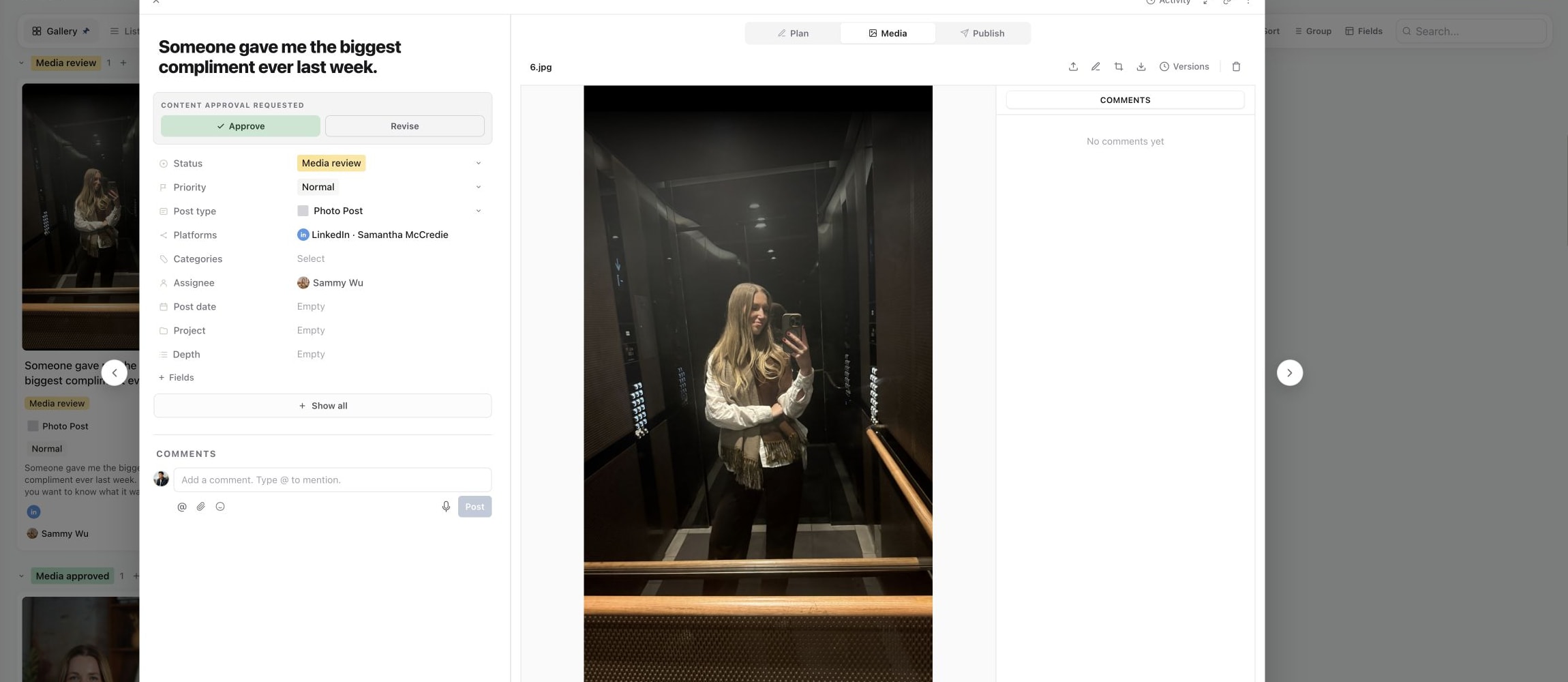
2. Open Versions
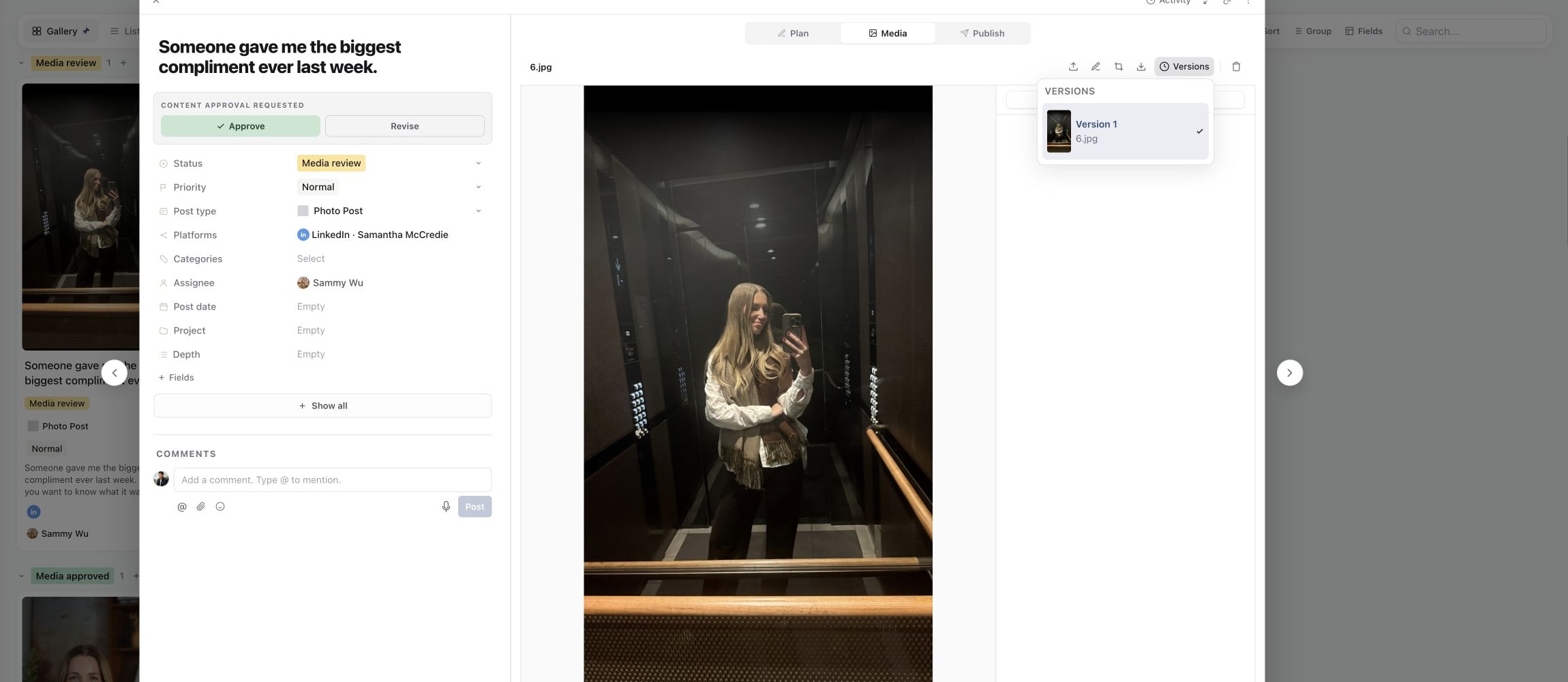
3. Inspect or edit the selected version
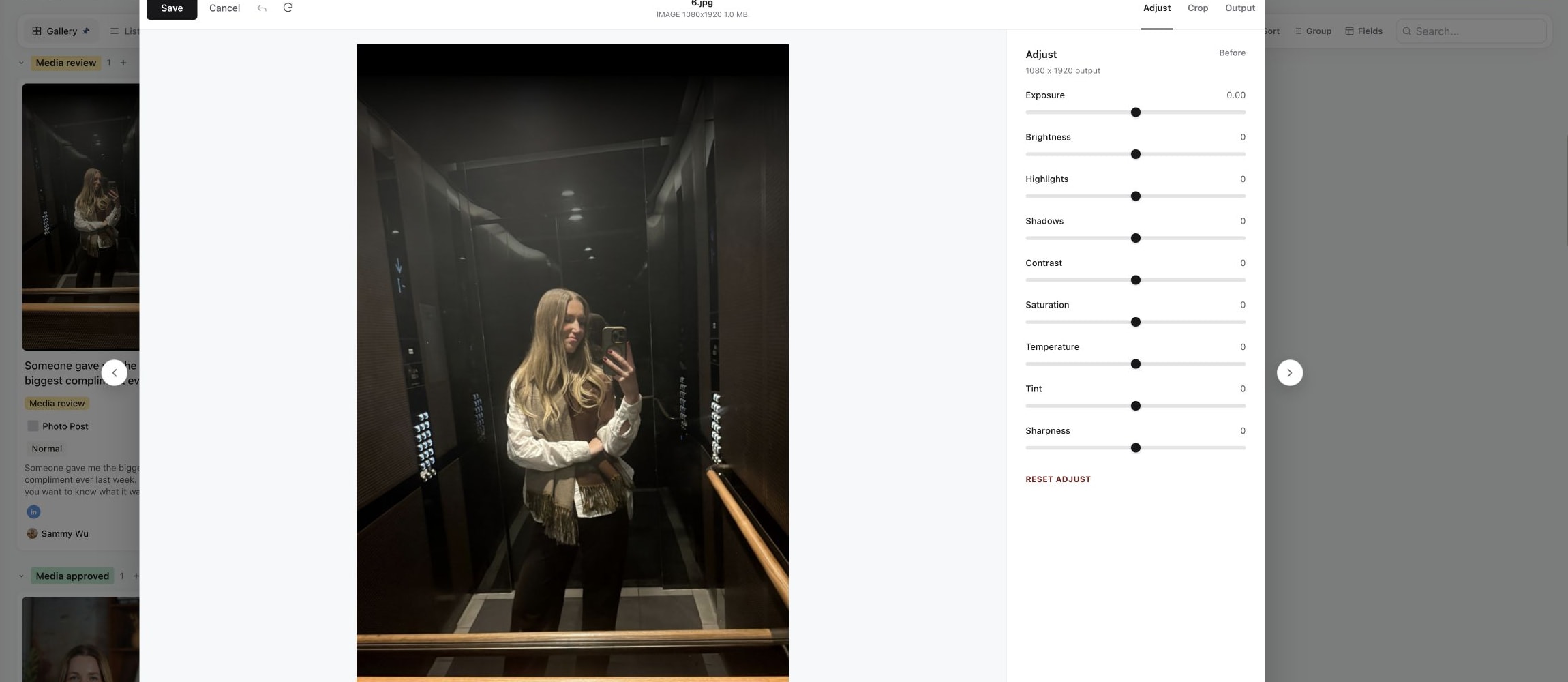
Compare a specific question, such as whether the revised hook appears sooner or the requested text is readable. For video, check the relevant moment and the surrounding playback, not just a thumbnail. For a carousel, confirm you are comparing revisions of the same slide.
Selecting an older version to inspect it is not a reason to assume the publishing output has changed. After review, open Publish and check the actual media preview for every destination, including any platform-specific creative.
Keep feedback attached to the right creative
Use a timestamp or annotation when a change concerns a particular moment or area. Read the version and slide context before acting on older feedback. A comment on an earlier cut may no longer describe the current timing.
After uploading the revision, briefly explain what changed and send the relevant stage for review again. Uploading a file or resolving a comment does not itself create a new approval request. See resubmit and activity history.
Removing a version
Inspect the version carefully before using its Delete control and confirming. Do not remove older creative merely to make the history look tidy while reviewers still need it for comparison.
Scheduled and published content has output locks. If the upload or edit controls are unavailable, check the state banner and follow edit a scheduled or published post. For a file that will not load, see upload and processing problems.
Was this page helpful?
Related articles
Need more help with this?