
One post can offer more than one thing. With a different DM per keyword, people who comment GUIDE get your guide and people who comment TEMPLATE get your template, all from the same post and the same DM Flow.
What is a different DM per keyword?
It's a comment flow split into branches. Each branch has its own keywords and its own DM. When someone comments, the flow checks which branch's keyword they used and sends that branch's DM. They don't have to pick again in the DM.
On the canvas, the branches sit side by side under Which keyword did they comment?, each with its keyword and the DM it sends.
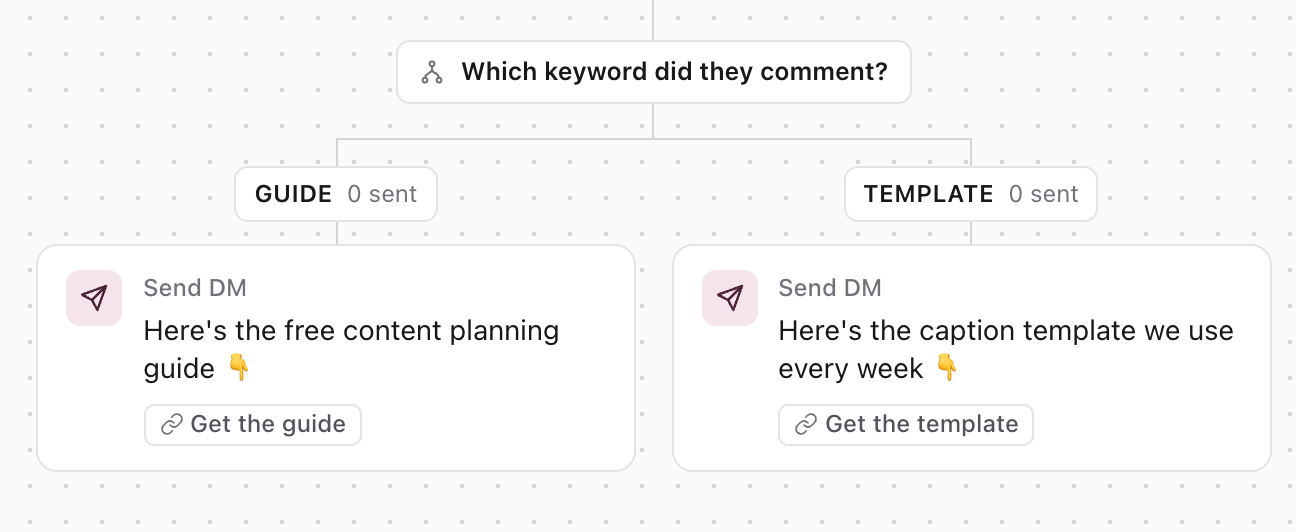
Use it when the options are different enough to deserve their own DM. If everyone should get the same DM and then choose, use one DM with buttons or a quiz instead.
Before you start
- DM Flows are included in the Pro plan. The feature is in beta.
- Keyword branches work on comment flows for Instagram accounts and Facebook Pages connected with Inbox access.
- To create or edit a flow, you need permission to reply in Inbox for that account. See Send automated DMs with DM Flows.
Start from the template
- 01In the sidebar, open Community and select DM Flows.
- 02Select New DM Flow, then pick Different DM per keyword.
- 03Rename the flow, choose the account, and under On pick Any post, one Published post or a Scheduled post.
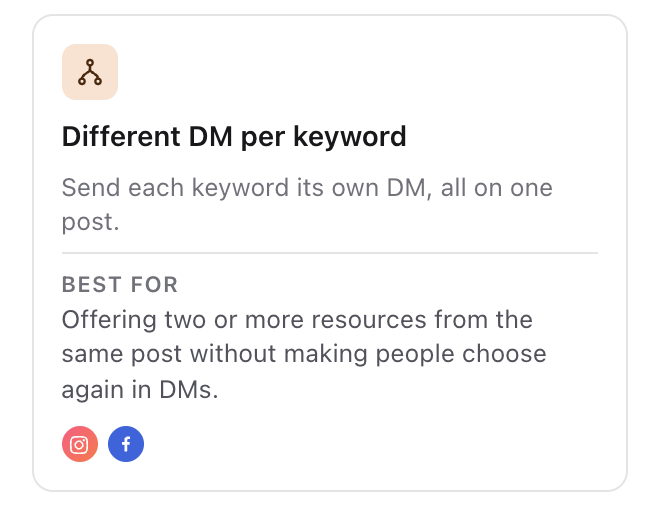
The template starts with two branches, OPTION A and OPTION B, each with its own example DM. You can also turn any comment flow into branches: select Trigger and switch on Different DM per keyword.
Set up the branches
- 01Select Trigger on the canvas.
- 02Under Branches, type a keyword for Branch 1, then press Enter. A branch can have up to 20 keywords.
- 03Do the same for Branch 2. Select Add a branch for more, up to 6.
- 04Under Match, choose how keywords are matched. It applies to every branch: Anywhere counts the keyword even inside another word, Whole word needs it as a word of its own, and Exact only counts a comment that says just the keyword.
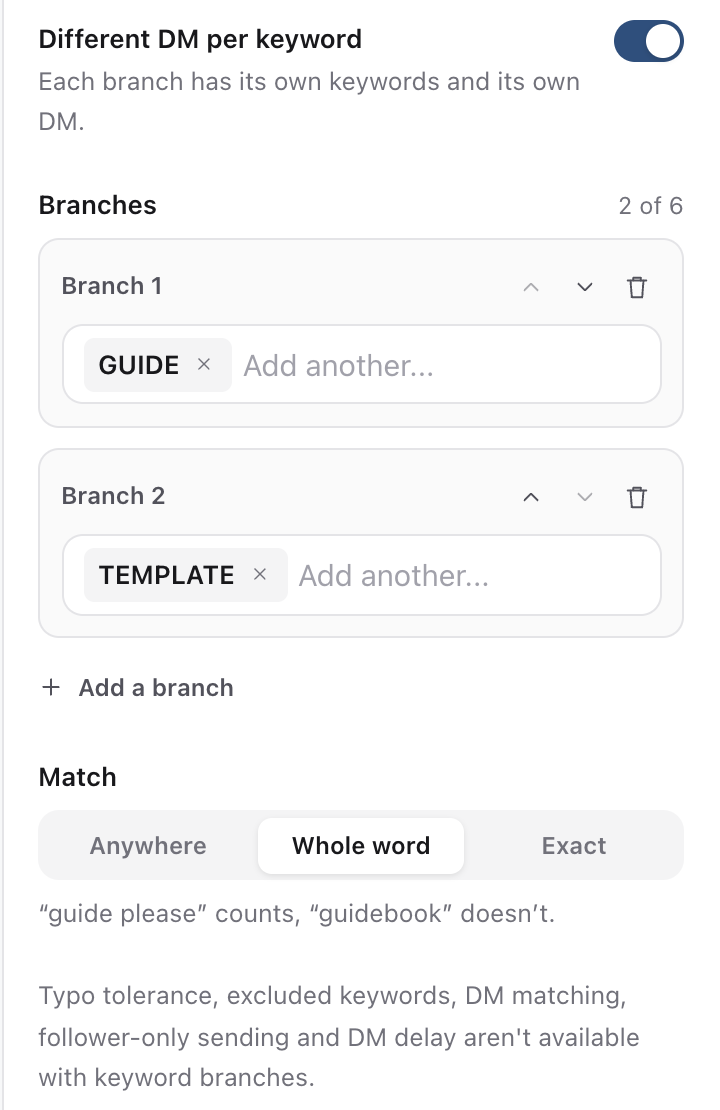
Use the arrows on a branch to move it up or down, and the bin to remove it. A keyword can only be in one branch, and capitals don't matter.
Write each branch's DM
Select a branch's Send DM card on the canvas. Its settings open as Send DM for branch 1, Send DM for branch 2 and so on. Write its message there. Each DM works like any other: up to 1,000 characters, or 640 with buttons, and up to three buttons that open a website or send follow-up messages. Each branch can also collect emails with Add email collection.
Reply publicly and Ask them to reply first are shared by every branch, and so are the Like the comment and Hide the comment switches in Trigger.
What isn't available with branches yet
- Allow small typos and Ignore comments containing.
- Also answer the keyword in DMs.
- Require a follow, so the DM can't be limited to followers.
- Wait before sending.
- Story replies and welcome messages. Branches work on comment flows only.
- Link click tracking. Results doesn't count clicks on branch buttons yet.
Preview and turn it on
Select a branch's Send DM card, then select Preview at the top of the panel to see that branch's DM on a phone. When every branch is ready, turn on Live and select Create flow.
If a branch needs fixing, like a branch with no keyword or no DM, its card gets a red border with the fix in words, and the header shows how many things to fix.
Check the results
Open the flow and select Results. The totals show comments matched, DMs sent and read, and Keyword branches lists each branch with its keywords and how many DMs it sent.
Go back to one DM
Switch off Different DM per keyword in Trigger. With more than one branch, Sequence asks you to confirm: Branch 1's keywords and DM are kept, and the other branches are removed.
Was this page helpful?
Related articles
- Build a DM quizAsk questions in a DM Flow with buttons or quick replies, give each answer its own reply, then carry everyone on to the next question and see how they answered.
- Collect emailsAsk for an email in a DM Flow, find every email collected in Contacts, export them, and send new ones to Zapier, Make or your own webhook.
- View and replyFind direct messages or comments, reply from the right account and handle sending or permission errors.
Need more help with this?