
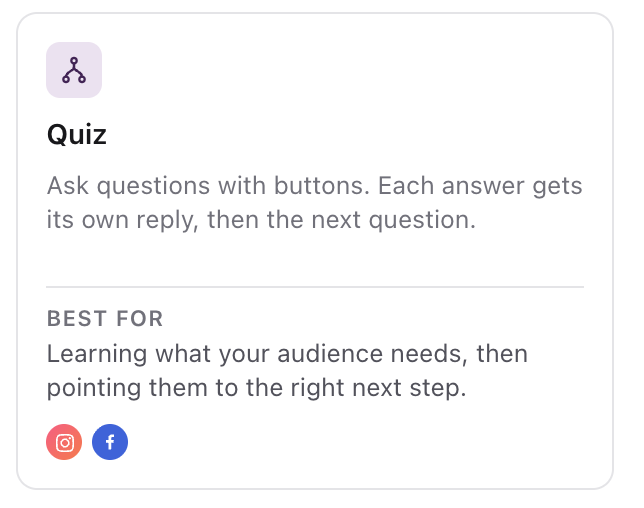
A DM Flow can ask questions in the DM and reply to each answer differently. Use it for a short quiz, to find out what someone needs before you send a link, or to point people to the right offer. Everyone who answers then carries on to the next question or your closing message.
What is a quiz in DM Flows?
A quiz is a follow-up message that ends with a question and two or more choices. People tap a choice, get the reply you wrote for that choice, then carry on with everyone else. You can chain several questions, so each answer leads into the next question.
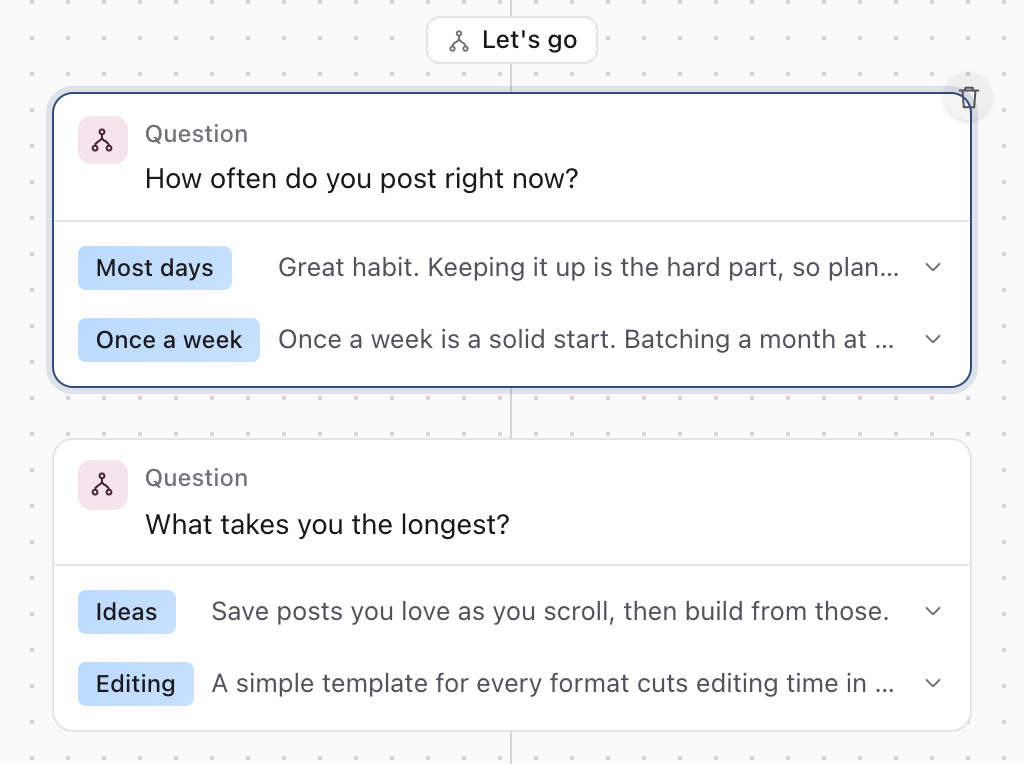
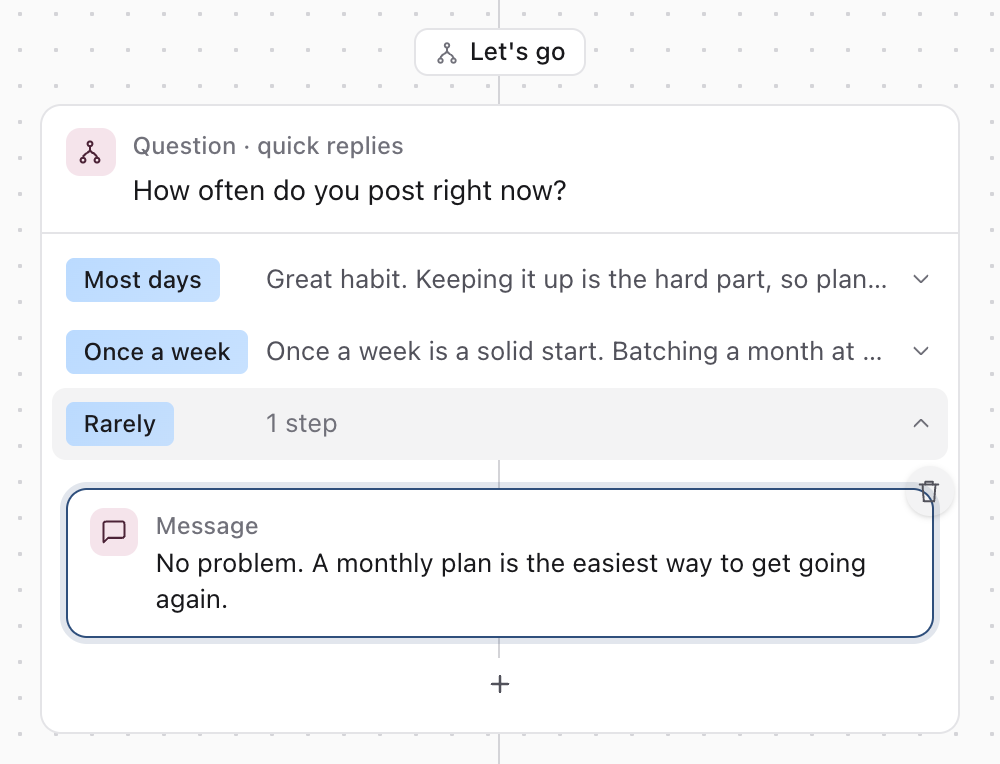
On the canvas, a question is one card: the question at the top, then a row for each choice showing the first reply it sends. The steps below the card are what everyone gets after any answer.
Before you start
- DM Flows are included in the Pro plan. The feature is in beta.
- Quizzes work on Instagram accounts and Facebook Pages connected with Inbox access.
- A question goes in the follow-up messages someone gets after tapping a button, a conversation starter or another choice. It can't go on the first DM itself. See Send automated DMs with DM Flows.
Start from the Quiz template
- 01In the sidebar, open Community and select DM Flows.
- 02Select New DM Flow, then pick Quiz.
- 03Rename the flow, choose the account and set the keyword in Trigger. The template starts with the keyword QUIZ.
The template opens as Quick quiz. Its DM has a Let's go button that starts three questions, each with two choices and a reply for each, and a closing message after the last one. Replace the example text with your own questions and replies.
Write a question and its choices
- 01Select the question card on the canvas. Its settings open in the panel on the right.
- 02Write the question in Message.
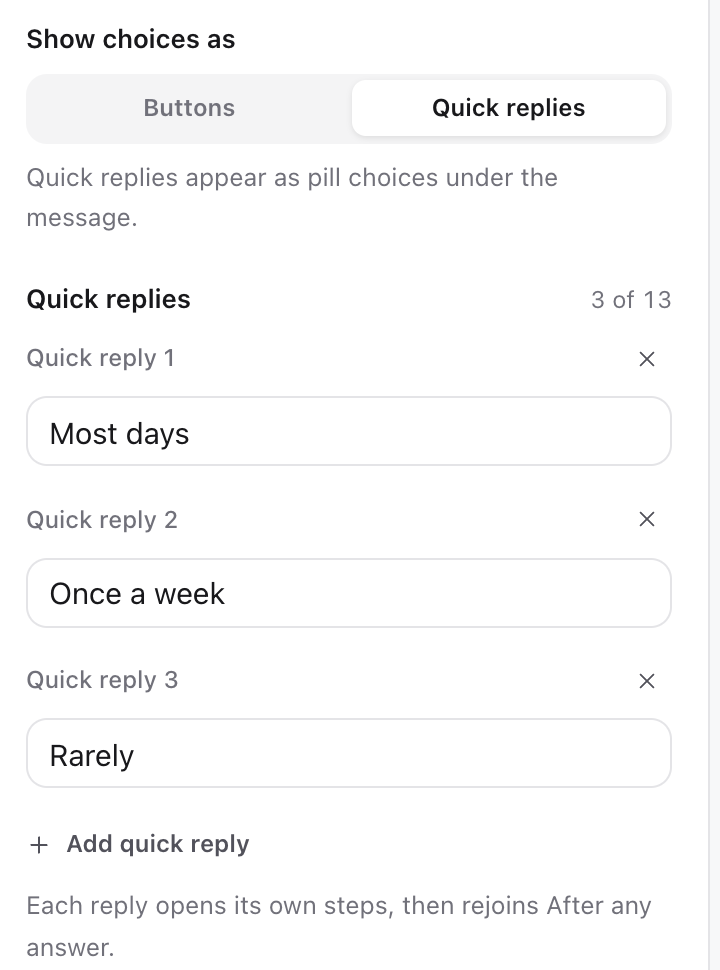
- 03Under Show choices as, pick Buttons or Quick replies.
- 04Give each choice a label of up to 20 characters. Every choice needs a different label.
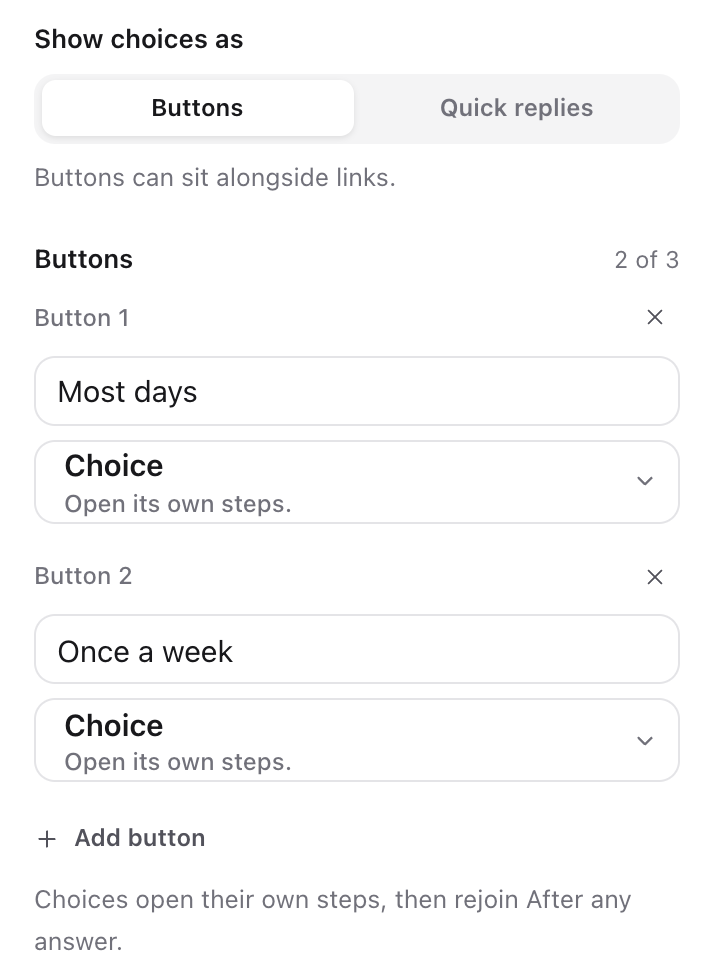
To turn any follow-up message into a question yourself, select Add button and set the button to Choice. Choices only go on the last message of a path, so a question always ends its own set of steps.
Buttons or quick replies
- Buttons show under the message like other DM buttons. A question can have up to 3 buttons, and link buttons can sit alongside its choices.
- Quick replies appear as pill choices under the message. A question can have up to 13 quick replies. They can't be mixed with link buttons on the same message.
- Quick replies only work in follow-up messages, not on the first DM, because they don't show in message requests.
Write the reply for each choice
Select a choice's row on the question card. The row opens to show that choice's steps inside the card, and its first step opens in the panel so you can write the reply. Select the row again to close it.
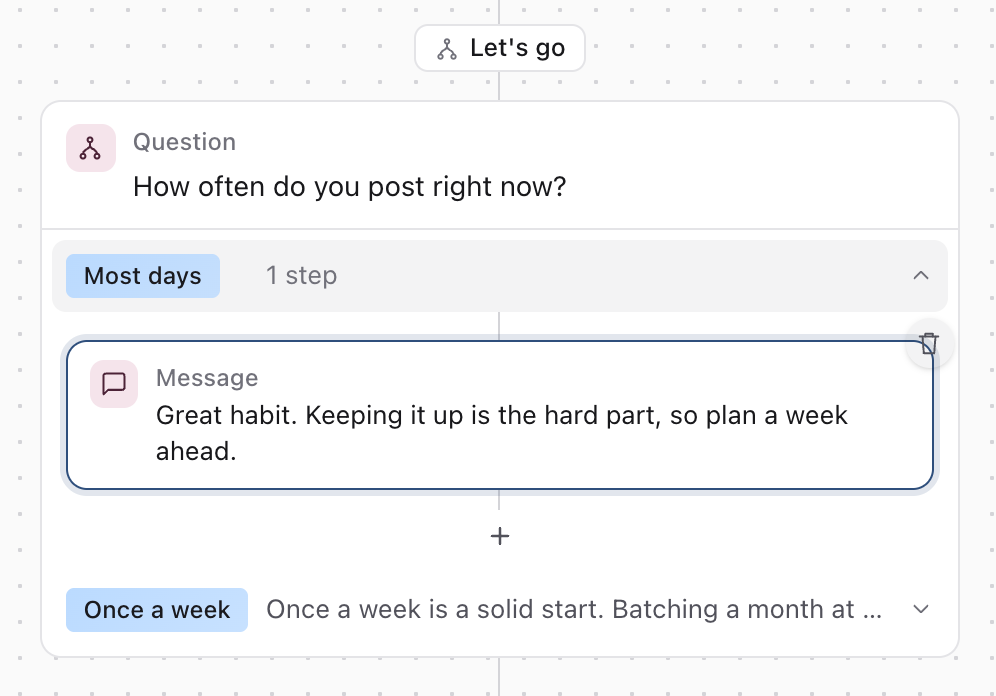
- Each choice can have its own messages, images, videos or files, waits and an Ask for email step. Use the + inside the choice to add more.
- A choice with no reply shows Add a reply. Select it to add the first message.
- A choice's steps can end with another question, so the answer leads to its own follow-up question.
What everyone gets after any answer
After someone's choice runs its own steps, they carry on down the line under the question card. That's where the next question or your closing message goes, so you only write it once. Use the + on that line to add steps after the question.
If you take every choice off a question, the steps after it are removed too, and Sequence asks you to confirm first.
Add more questions
Choices only go on the last message in a line, so a new question goes at the end of the quiz, where the closing message sits. To add a fourth question to the template:
- 01Select the closing message, Thanks for taking the quiz!, and write your next question in its place.
- 02Select Add button, set the button to Choice, and add the choices.
- 03Select the + under the new question card and add your closing message there, along with any Ask for email step.
If your closing steps include an Ask for email step, delete it first and add it again under the new question.
Preview the quiz
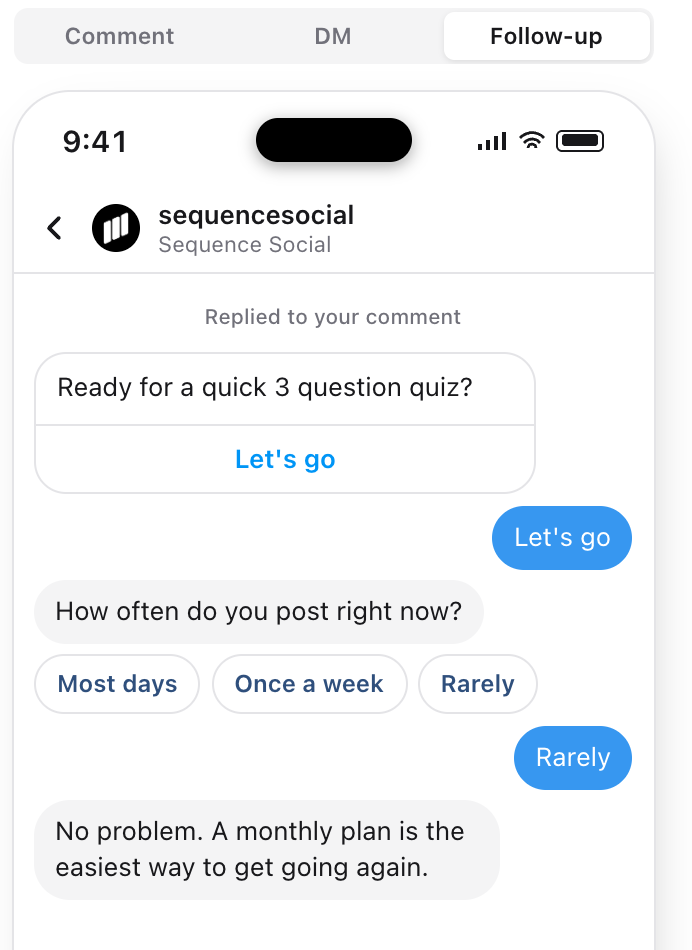
Select a step inside a choice, then select Preview at the top of the panel. Follow-up shows the conversation on a phone: the DM, the tap on its button, the question with its choices, the choice they tapped and the reply it sends.
When the quiz is ready, turn on Live and select Create flow.
Limits
- A quiz can ask up to 20 questions in a row.
- A DM Flow can have up to 80 paths in total. Every button that sends follow-up messages, every conversation starter and every choice counts as one.
- A choice's own steps plus the steps after any answer can add up to 10 steps.
- The waits along the way can add up to 24 hours at most, because Instagram only allows replies within a day of the person's tap.
See how people answered
Open the flow and select Results. When the flow has questions, Answers lists each question with its choices, how many people tapped each one and each choice's share of the taps. Paths shows how many people started each path.
Good to know
- If something needs fixing, like a choice with no label, its card gets a red border with the fix in words, and the header shows how many things to fix. Select it to jump to the first one.
- To collect emails from a quiz, add an Ask for email step to a choice or after the last question. See Collect emails with DM Flows.
- To send a different DM depending on which word someone comments, use a different DM for each keyword instead.
Was this page helpful?
Related articles
- Set up DM FlowsSet up a DM Flow that answers comments and story replies with an automatic DM, add buttons, follow-up messages, images and files, fix anything flagged, turn it on and check the results.
- Different DM per keywordSplit a comment flow into keyword branches so each keyword on the same post sends its own DM, with up to six branches.
- Welcome new DMsAnswer the first DM someone sends your Instagram account or Facebook Page with a welcome message and buttons, and add up to four conversation starters.
Need more help with this?