
DM Flows send a DM automatically when someone comments a keyword on your Instagram or Facebook post, or replies to one of your Instagram stories. Use them to share a link, a guide or a discount code, answer questions you get every day, or ask people to follow you first. When someone replies, you pick the conversation up in Inbox.
What is a DM Flow?
A DM Flow is a short set of steps that runs on its own. Someone comments, the flow can reply publicly under their comment, wait a little if you want it to, and then send them a private DM. The DM can have up to three buttons. Each button opens a link or starts a path of follow-up messages.
This is the editor's preview of what someone sees after they comment. It's an example, not a delivered message.
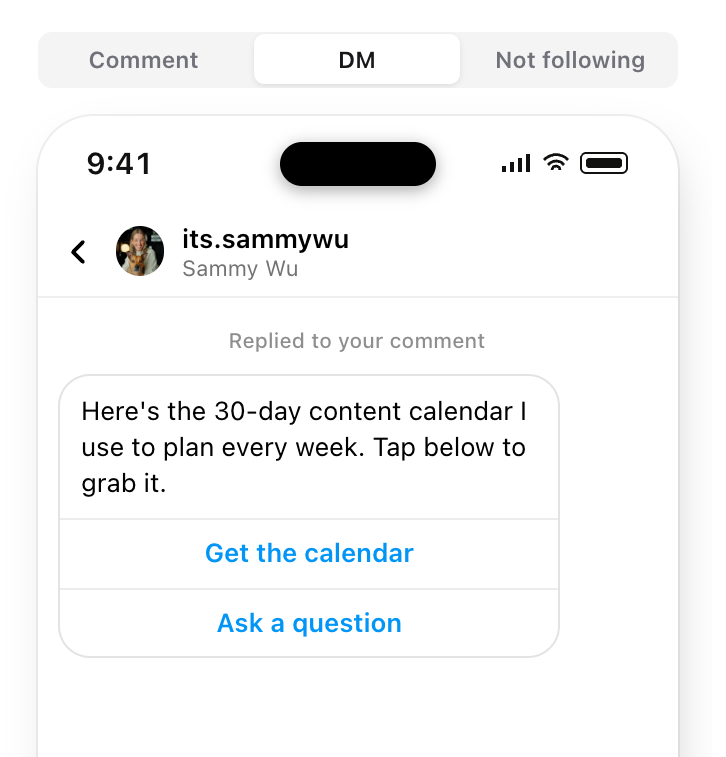
Messages a flow sends show Sent by DM Flows under them in Inbox, so your team can tell them apart from replies written by a person.
Before you start
- DM Flows are included in the Pro plan. The feature is in beta.
- The brand needs an Instagram account or Facebook Page connected with Inbox access. Story replies and the follow check work on Instagram only. TikTok isn't supported.
- To see a brand's flows you need permission to view its Inbox. To create, edit, switch on or delete a flow you need permission to reply in Inbox for that account. See Choose the right role and brand access.
- Comment flows only work on posts the account owns. Instagram sends comments on a collab post only to the account that started the collab.
Create a DM Flow from a template
- 01Open DM Flows in the sidebar, under Inbox.
- 02Select New DM Flow.
- 03In Start a DM Flow, pick the template closest to what you want. You can change everything after.
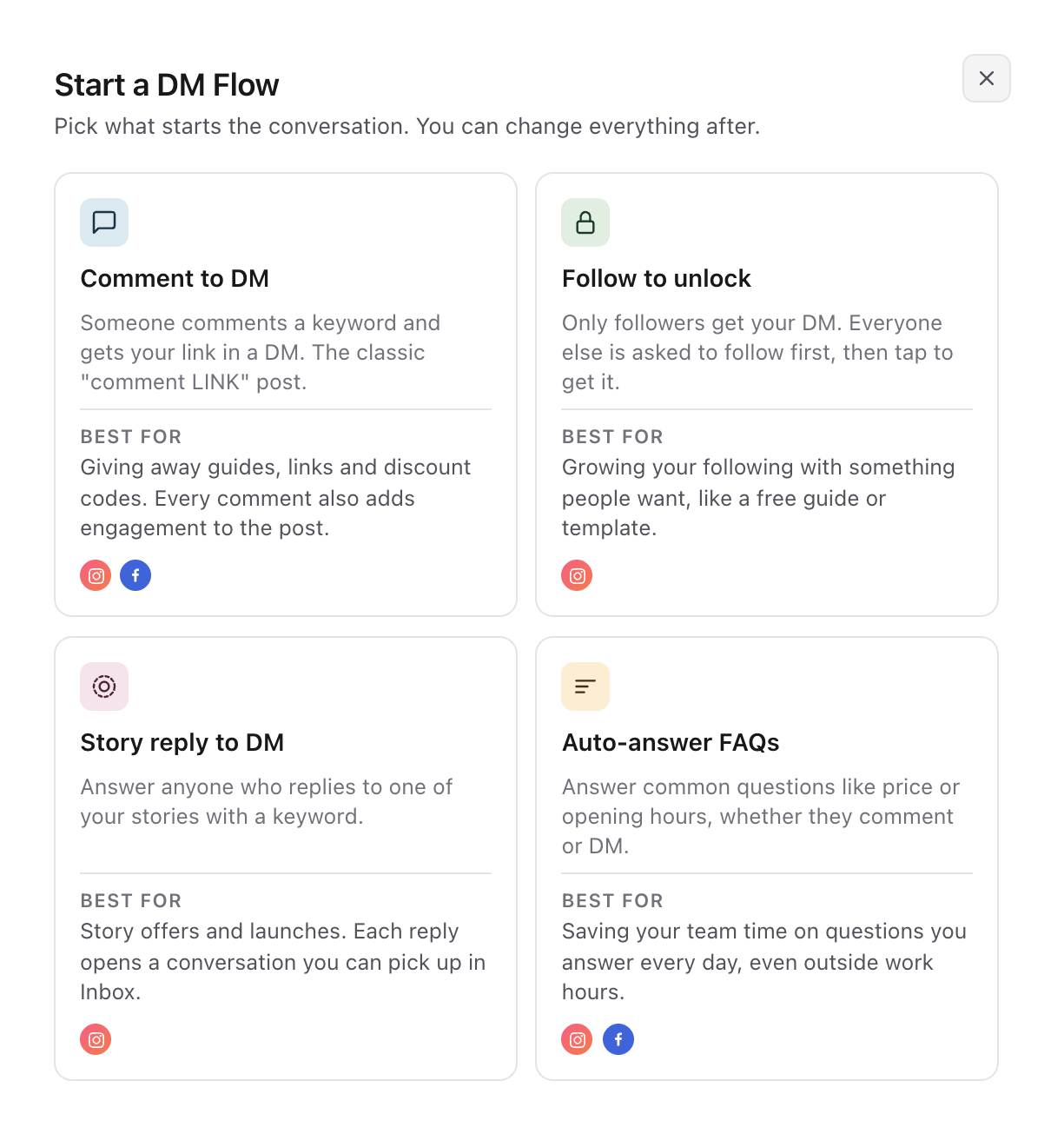
- Comment to DM: someone comments a keyword and gets your link in a DM. Instagram and Facebook.
- Follow to unlock: only followers get the DM. Everyone else is asked to follow first, then taps a button to get it. Instagram only.
- Story reply to DM: answers anyone who replies to one of your stories with a keyword. Instagram only.
- Auto-answer FAQs: answers common questions, like price or opening hours, whether people comment or DM. Instagram and Facebook.
The new flow opens in the editor with the template's starting text filled in. Select the name at the top to rename it. If you can add flows on more than one account, choose the account under the name.
How the editor works
The flow reads from top to bottom: Trigger, Reply publicly, Who gets it, Wait and Send DM. Select a step to edit it in the panel on the right. Optional steps that are switched off show as dashed outlines, and the + between steps opens Add a step. Reply publicly is for comment flows only, and Who gets it appears for Instagram accounts.
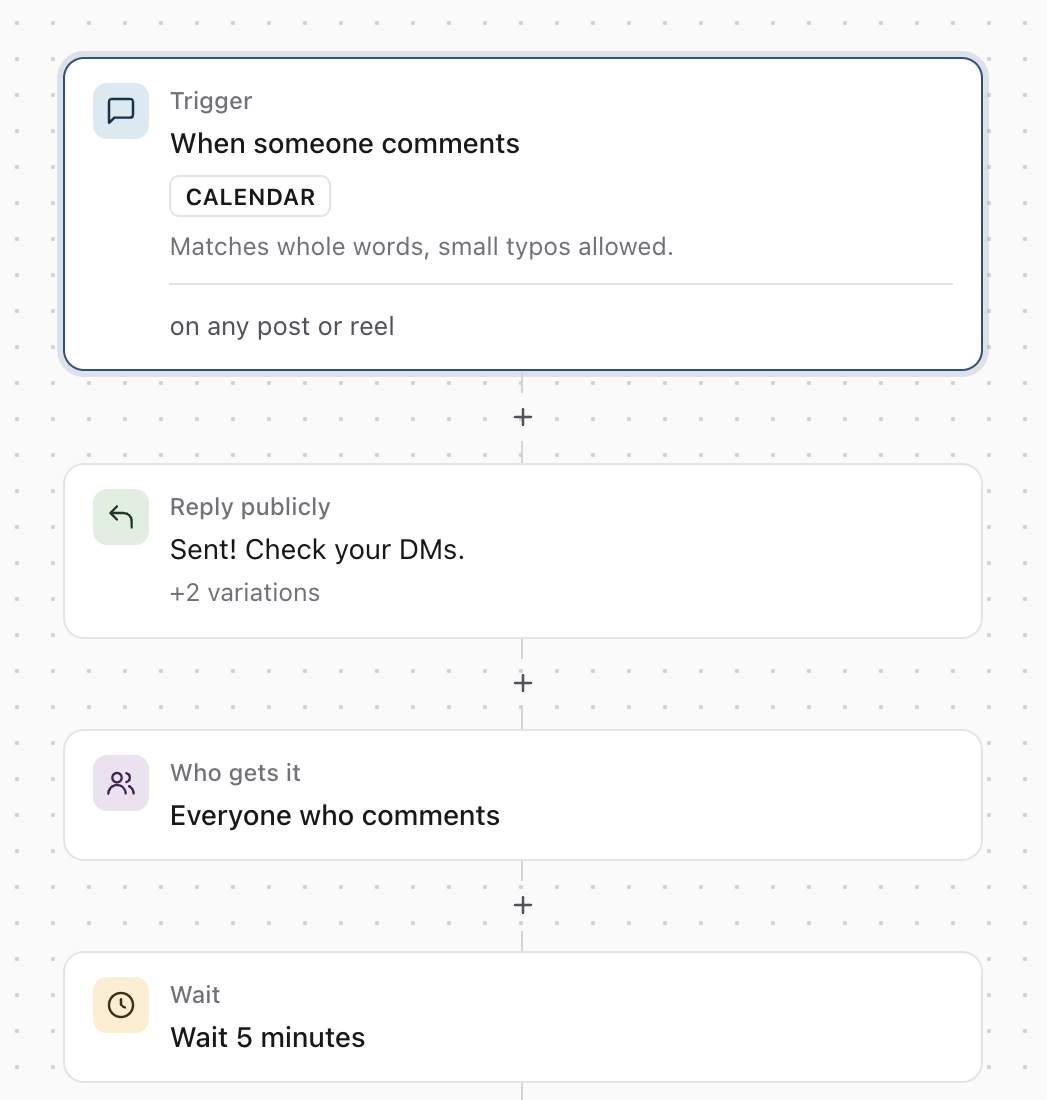
If a step needs attention, such as a button with no link, it shows a short red label. Selecting Create flow or Save takes you to the first problem.
Choose what starts the flow
Select Trigger, then set:
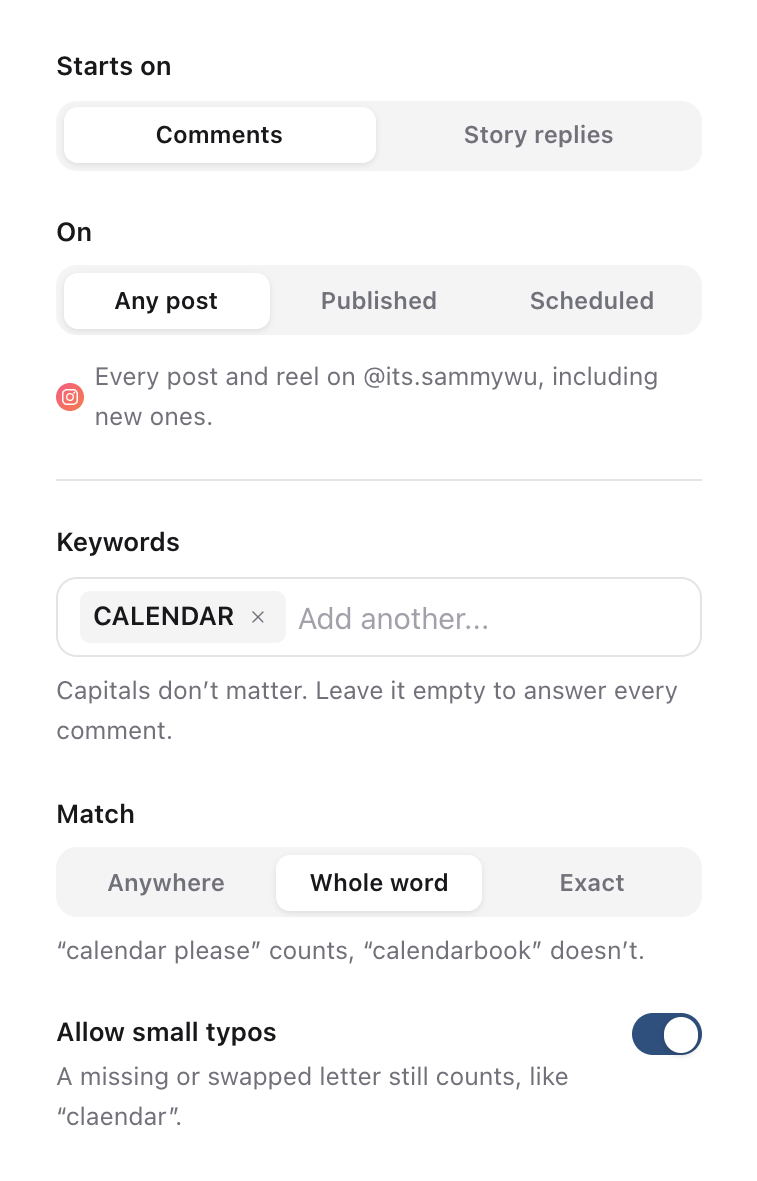
- Starts on: Comments, or Story replies (Instagram only).
- On: Any post (every post and reel on the account, including new ones), Published (one post you pick) or Scheduled (a post scheduled in Sequence). A flow on a scheduled post turns on when the post goes out.
- Keywords: type a word, then press Enter. Capitals don't matter. Leave it empty to answer every comment or story reply. You can add up to 20 keywords.
- Match: Anywhere counts the keyword even inside another word, Whole word needs it as a word of its own, and Exact only counts a comment that says just the keyword.
- Allow small typos: available with Whole word. A missing or swapped letter still counts.
- Ignore comments containing: words that stop the flow even when a keyword is there, like "stop".
Reply publicly, choose who gets it and add a wait
Reply publicly posts a reply under the person's comment, so others know to check their DMs. Write the reply and add up to five variations. One is picked at random each time, so the thread doesn't look automated. To stop public replies, turn off Reply to the comment.
Who gets it sets who receives the DM on Instagram. Choose Everyone, or Followers only. With Followers only, followers get the DM straight away. Anyone else gets a message asking them to follow, with a button to tap once they have. You can edit that message, the button label and the message sent if they tap it without following.
Wait before sending adds a pause before the DM, which makes it feel less automatic. Pick 30 sec, 5 min or 1 hour, or choose Custom for any wait up to 24 hours. To add a step that's switched off, select its dashed outline or use the + between steps.
Write the DM and add buttons
Select Send DM and write the message. It can be up to 1,000 characters, or 640 characters when it has buttons.
Select Add button for up to three buttons. Give each one a label of up to 20 characters, then choose what it does:
- Link opens a web address, like yoursite.com/guide.
- Path starts a series of follow-up messages when someone taps it.
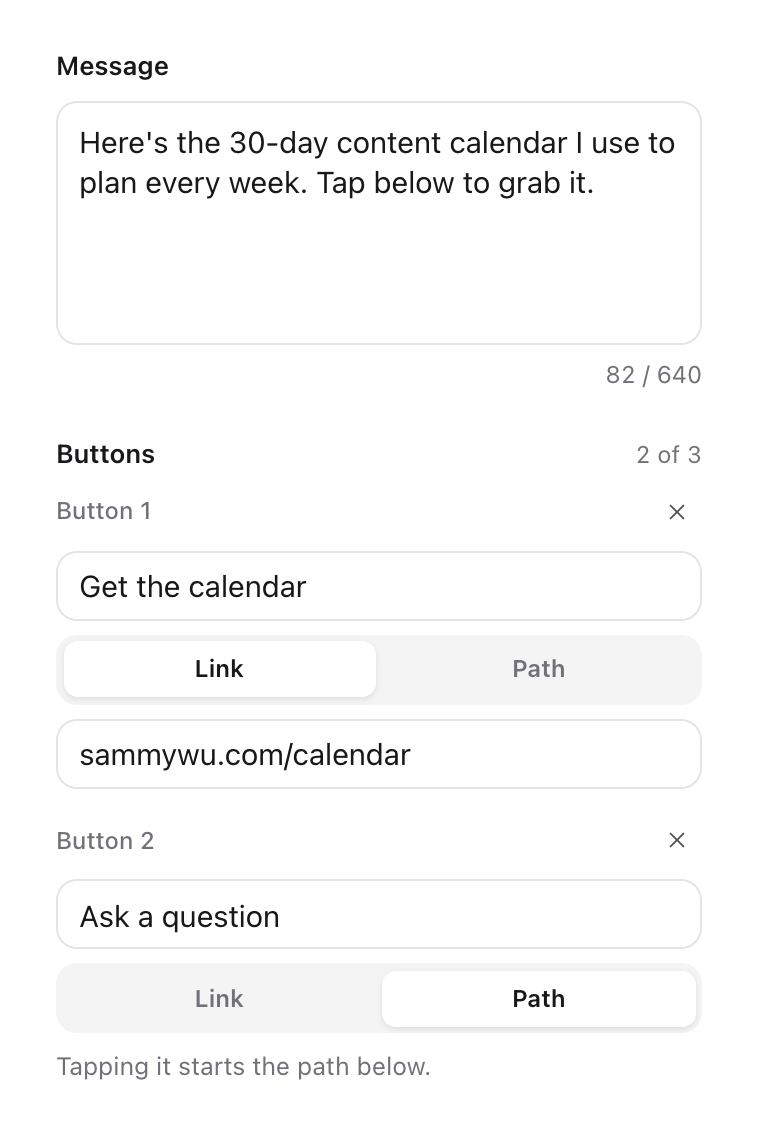
Instagram doesn't deliver buttons to people who don't follow you, and that comment can't get another reply. If the flow sends to everyone, put the link in the message text as well so everyone can reach it.
On comment flows, turn on Also answer the keyword in DMs to send the same DM to someone who messages you the keyword instead of commenting. It needs at least one keyword.
Add follow-up messages with a path
When a button is set to Path, a lane for that button appears under Send DM. Select Add the first message, or the + in the lane, and choose Message or Wait. Selecting a step in the lane opens it in the panel on the right.
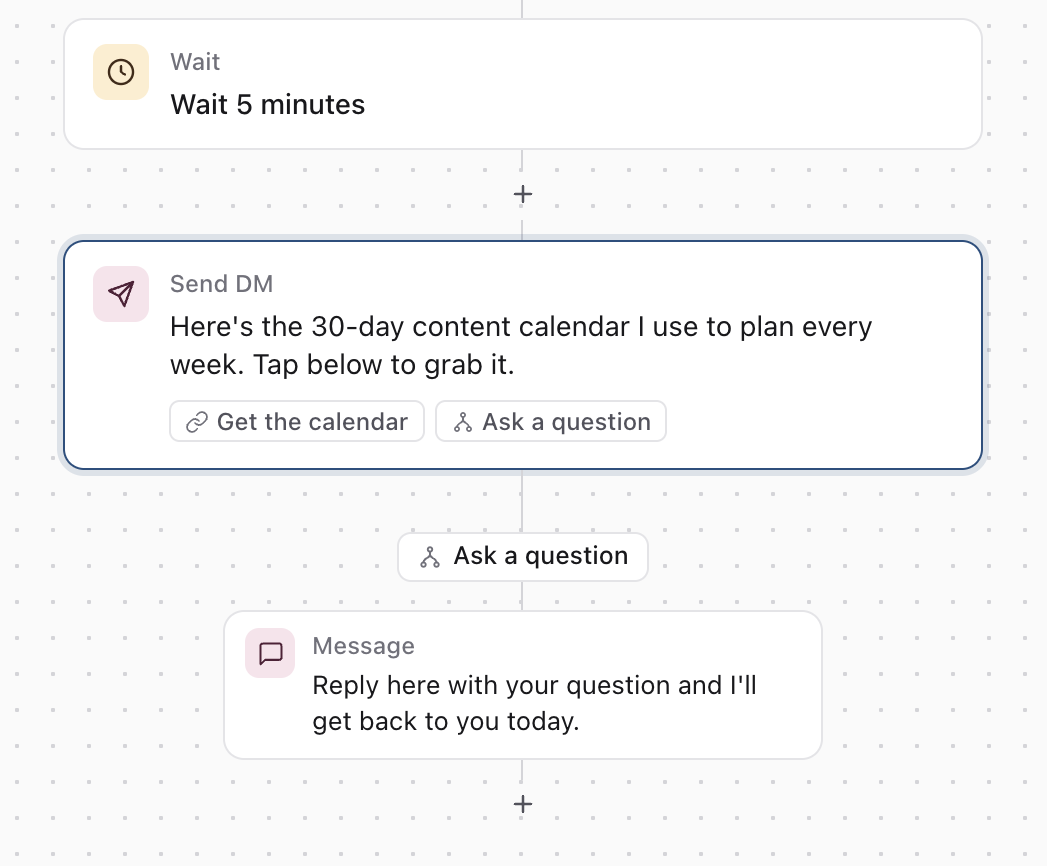
- Path messages are text only. Instagram and Facebook don't allow buttons in them.
- A path can have up to 10 steps. Each wait can be 1 minute to 24 hours, and the waits in one path can add up to 24 hours at most, because Instagram only allows replies within a day of the person's tap.
- If you switch a saved path back to Link, its follow-up messages are deleted when you save.
Preview the flow and turn it on
Select Preview at the top of the right panel to see the flow on a phone. Switch between Comment (or Story reply) and DM, plus Not following on Instagram and Path when a path step is selected. The preview is a guide: Instagram or Facebook decides the final styling.
The Live switch at the top sets whether the flow starts on. Select Create flow to save it. After that, Live saves as soon as you switch it, and other changes need Save.
If you change the post a saved flow listens to, Sequence asks you to confirm, because the flow's results start again from zero.
To delete a flow, open it, select More actions (the three dots next to Save), then Delete flow. People who comment won't get the DM any more, and you can't undo this.
Check the results
The DM Flows page lists each flow with its DMs sent, clicks, click rate and a Live switch. Above the list are totals for DMs sent, link clicks, click rate and people reached. Filter by Comments or Story replies, search by name or keyword, or choose one account.
Open a flow and select Results to see its lifetime totals: comments matched, DMs sent, read and, when the DM has link buttons, link clicks. Where people drop off compares each stage, and Paths shows how many people started each path.
Below that, Activity lists each person and what happened, such as DM sent, Waiting to send, Asked to follow, Skipped or Failed, with the reason. Failed and Skipped show just those rows. Didn't match shows recent comments that matched no keyword, which helps you spot words to add.
Add an Auto-DM from a post
When a content piece has an Instagram or Facebook post that's scheduled or published, its Publish tab shows an Auto-DM card. Select Add an Auto-DM to start a Comment to DM flow for that post, or Edit in DM Flows to change the flow already on it.
Good to know
- If the workspace moves off the Pro plan, its DM Flows are switched off. Switch them back on after upgrading.
- Results are lifetime totals from Instagram or Facebook. Moving a flow to another post starts them from zero.
- To reply to people after the flow has messaged them, use Inbox. See View and reply to conversations in Inbox.
- If an account doesn't appear in DM Flows, check its Inbox connection with Fix missing Inbox access or conversations.
Was this page helpful?
Related articles
- View and replyFind direct messages or comments, reply from the right account and handle sending or permission errors.
- Missing Inbox messagesCheck filters, account permissions and connection availability when Inbox access or a conversation is missing.
- Connect InstagramConnect the correct Instagram professional account and approve the access Sequence needs for publishing, analytics and supported Inbox features.
- Connect a Facebook PageConnect the correct Facebook Page and allow access to its business portfolio and linked accounts during Meta authorisation.
- Roles and brand accessChoose workspace and brand access, tailor role permissions, and give clients the right review capabilities.
Need more help with this?