
DM Flows can ask people for their email in the DM, check it, and save it to their contact. Every email collected lands in Contacts, where you can export it, and can go straight to Zapier, Make or your own system.
What is Ask for email?
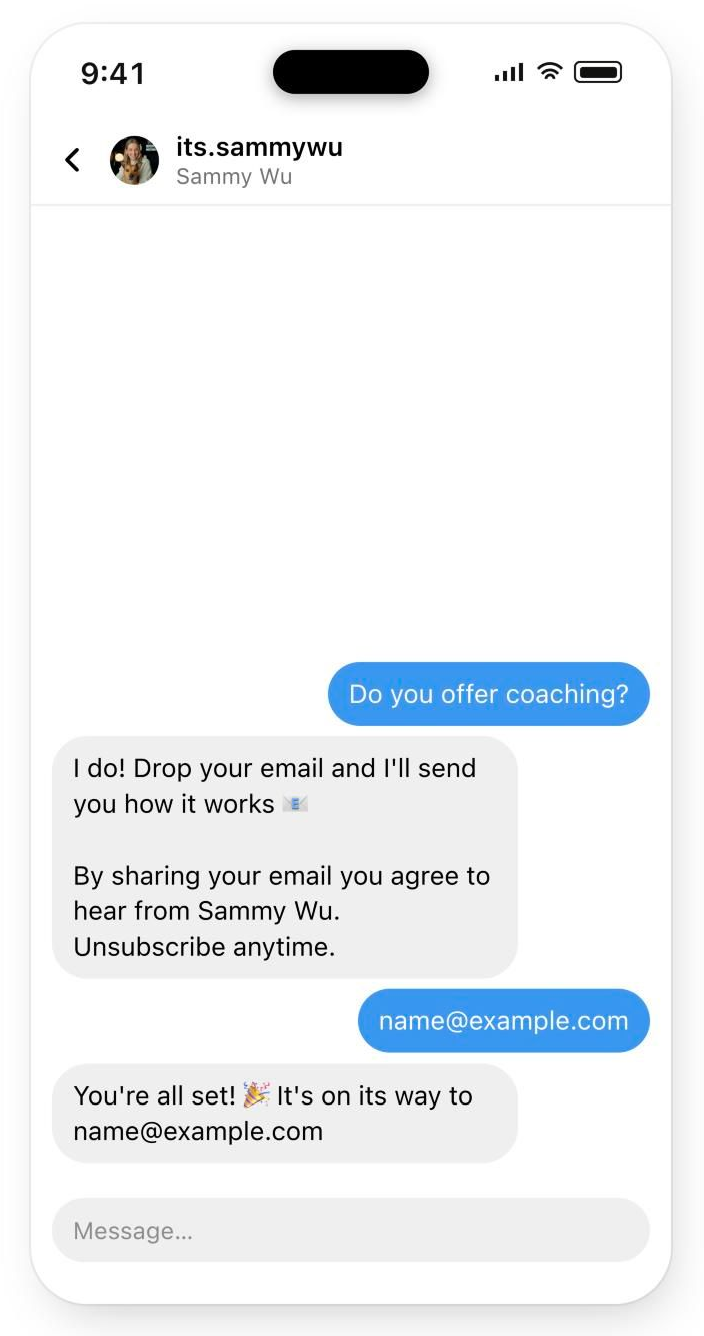
Ask for email is a step you add to a path: the follow-up messages someone gets after tapping a button, or after tapping a conversation starter. It sends your question, waits for their reply and checks that it looks like an email. If it doesn't, it can ask again. When it gets one, it saves the email to their contact, adds a tag if you set one, and sends your thank-you message.
Before you start
- DM Flows are included in the Pro plan. The feature is in beta.
- You need a DM Flow with a path button, or a welcome message with a conversation starter. See Send automated DMs with DM Flows and Welcome new DMs and add conversation starters.
- Sending emails to Zapier, Make or a webhook also needs app connections, which are part of Pro.
Add an Ask for email step
- 01Open the flow in DM Flows.
- 02In a path's lane, select Add the first step, or the + between steps, then choose Ask for email. A path can have one Ask for email step.
- 03Select the step and fill in the fields on the right.
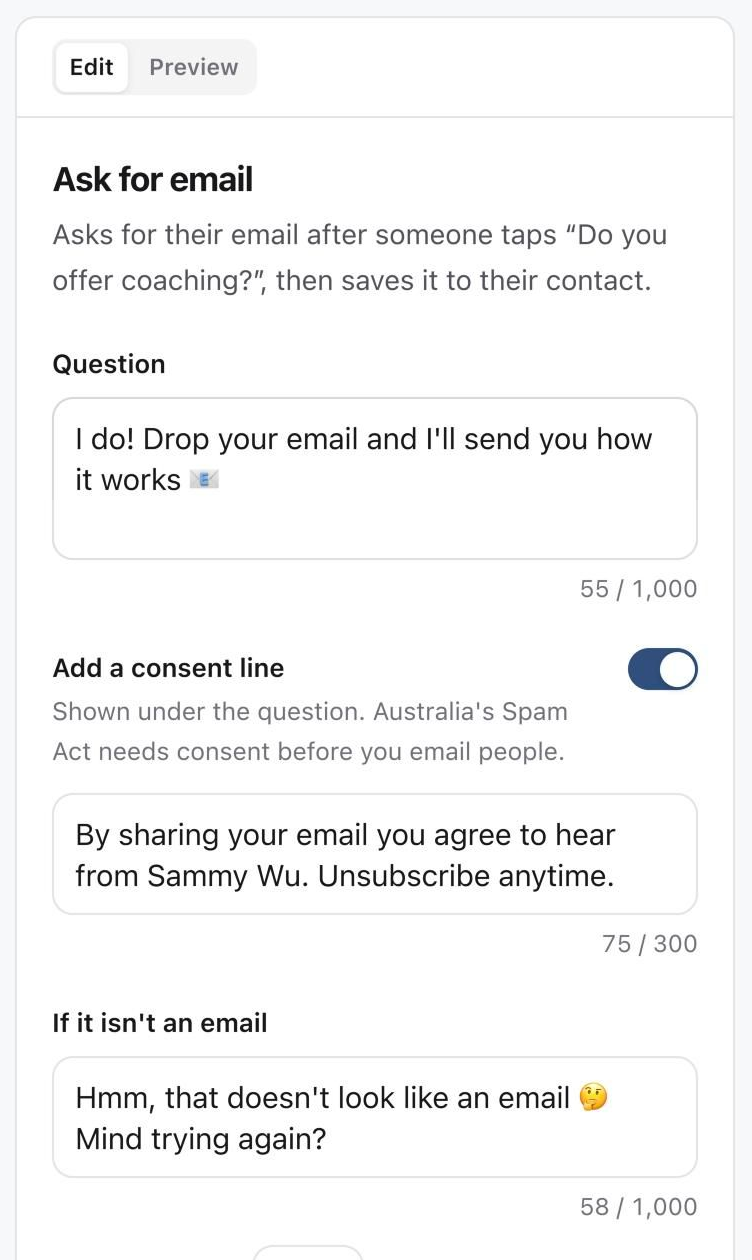
- Question: what you ask, like "Where should we send it? Drop your best email below".
- Add a consent line: shown under the question. Australia's Spam Act needs consent before you email people, so leave it on if you plan to send marketing.
- If it isn't an email: what to say when the reply doesn't look like an email, and Ask again up to how many times (0 to 2). After the last try the path stops, and the conversation waits for you in Inbox.
- Thank-you message: sent once they reply with an email. {email} is replaced with the email they sent.
- Tag them: an optional tag added to their contact, so you can filter Contacts by it.
- Wait for a reply up to: how long to wait for their answer, up to 24 hours. If they don't reply in time, the path stops.
Select Preview to see the exchange on a phone, including a reply that isn't an email.
Find emails in Contacts
In the sidebar, open Community and select Contacts. It lists everyone who has messaged the brand's connected Instagram and Facebook accounts.
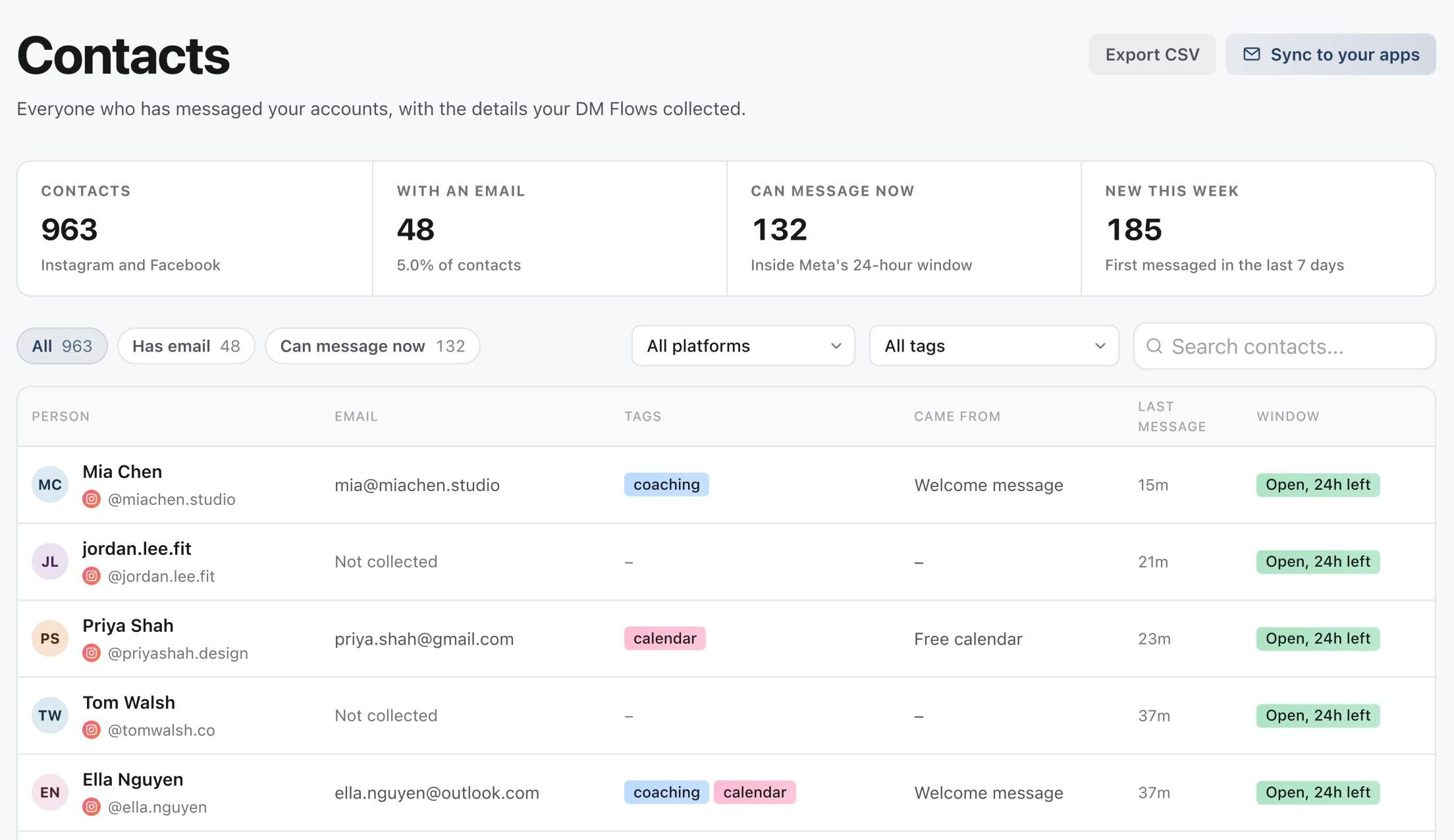
- Person, Email, Tags, Came from (the flow that collected their email) and Last message.
- Window shows whether you can still message them. Instagram and Facebook allow replies within 24 hours of a person's last message.
- Use Has email or Can message now to filter the list, or search by name, handle, email or tag.
- Select Export CSV to download the list.
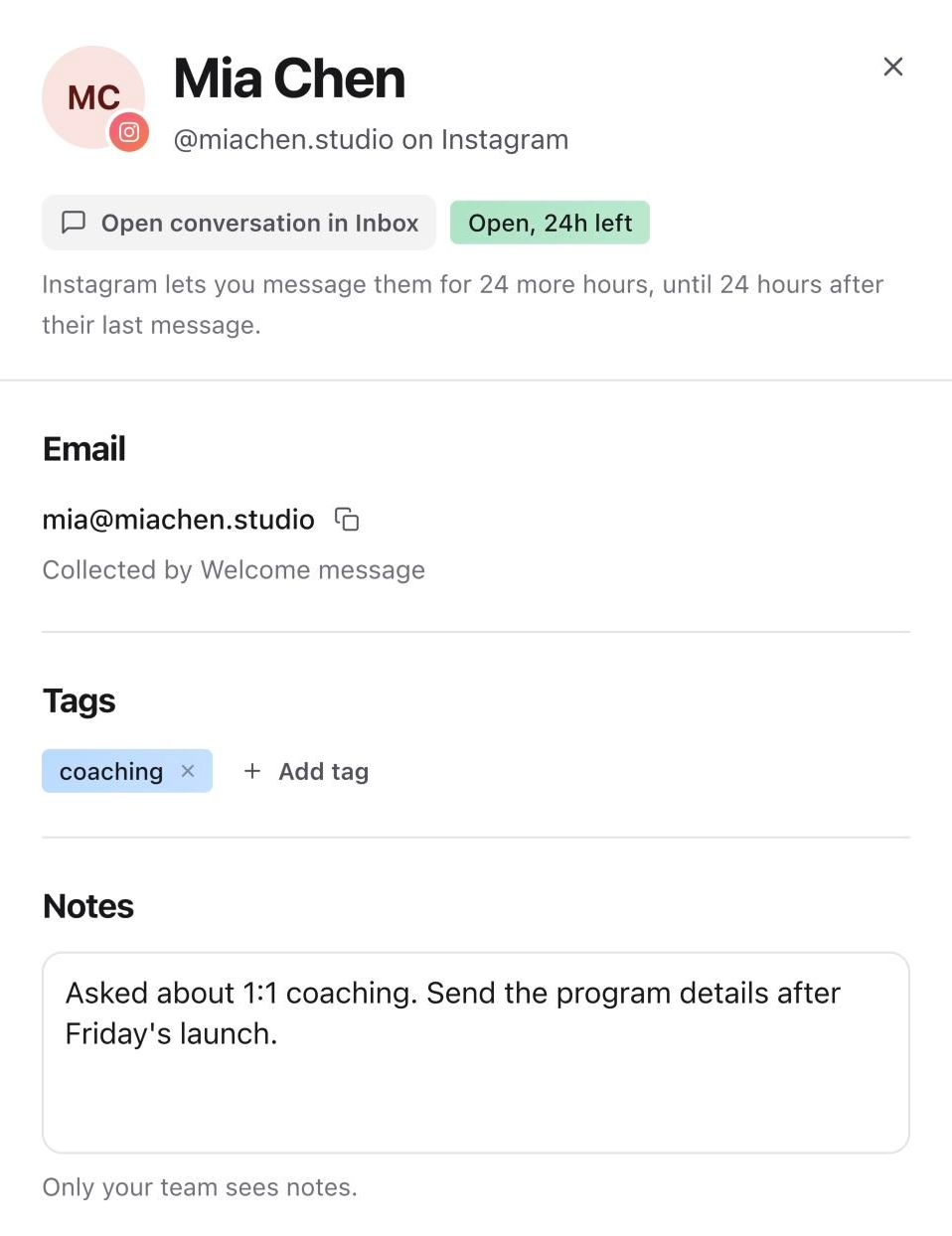
Select a person to open their details. You can copy their email, add or remove tags, write notes only your team sees, open the conversation in Inbox, or delete the contact.
Send new emails to your apps
- 01In Contacts, select Sync to your apps.
- 02Select Connect Zapier, Connect Make or Connect Webhook URL, then get the address to paste:
- Zapier: create a Zap that starts with Webhooks by Zapier, Catch Hook, and copy its URL.
- Make: add a Webhooks, Custom webhook module and copy its address.
- Webhook URL: use your own public HTTPS endpoint. Sequence posts JSON signed with a Sequence-Signature header.
- 03Paste the address and select Connect.
- 04Copy the signing secret. It's shown only once, and lets your system check that deliveries came from Sequence.
- 05Select Send test to send one sample contact, then check it arrived in your app.
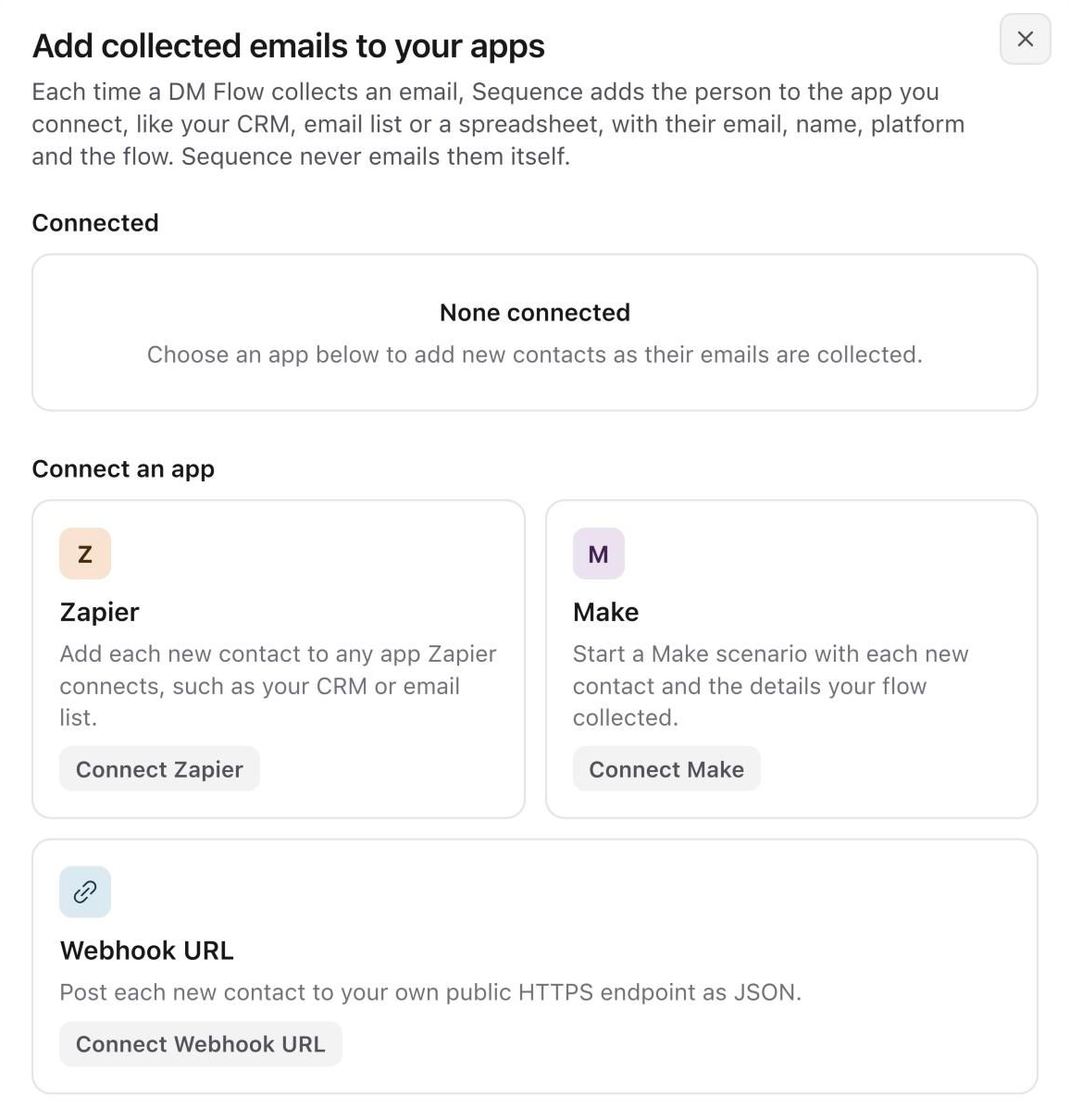
Each email collected from then on is sent with the person's name, email, platform and the flow that collected it. Emails collected before you connected aren't sent. For those, use Export CSV.
HubSpot, Klaviyo, Mailchimp and Google Sheets are coming soon.
Check what a flow collected
Open the flow and select Results. Flows with an Ask for email step list each email collected, with the person, the path it came from and when. Select Export CSV there to download them.
Good to know
- Every email is saved to the person's contact, whichever path collected it.
- Each path can have one Ask for email step, and it counts towards the path's 10 steps.
- People's emails are personal information shared with the brand. Use them only for the brand's own follow-up.
Was this page helpful?
Related articles
- Welcome new DMsAnswer the first DM someone sends your Instagram account or Facebook Page with a welcome message, and add up to four conversation starters on Instagram.
- View and replyFind direct messages or comments, reply from the right account and handle sending or permission errors.
- Missing Inbox messagesCheck filters, account permissions and connection availability when Inbox access or a conversation is missing.
Need more help with this?