
Sequence Social is listed in Claude's connector directory, so you can add it without copying a server address.
Add Sequence Social
- 01In Claude, open Customize, select Connectors, then Discover.
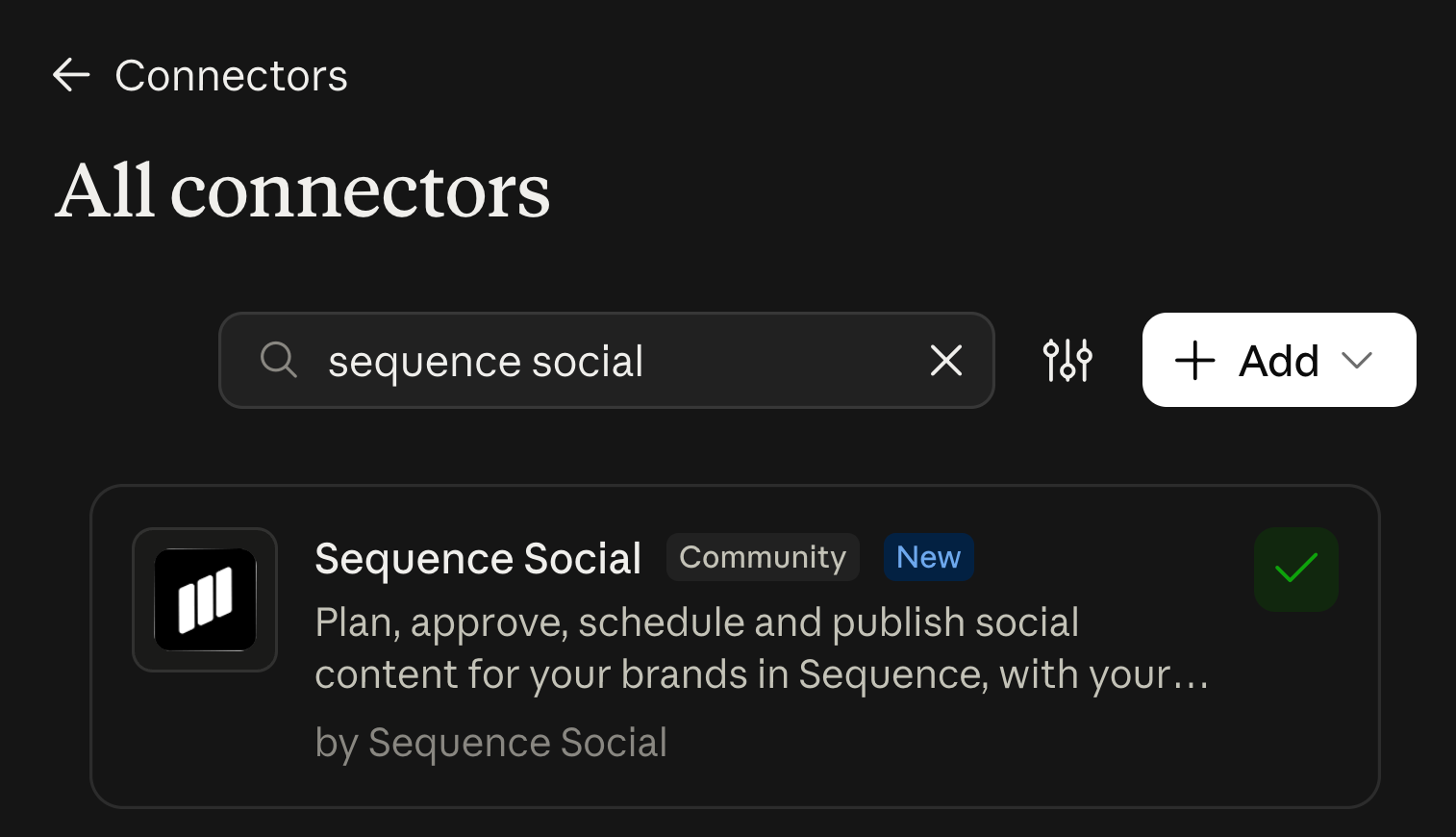
- 02Search for Sequence Social and select + to add it. The + turns into a tick once it's added. You can also open the Sequence Social listing directly.
- 01Sign in to Sequence when Claude asks.
- 02Choose the workspaces, brands, access and social accounts Claude can use, then select Authorize. See Choose what an AI assistant can access.
Use Sequence in a chat
In a chat, open the connectors menu and make sure Sequence Social is turned on. Then ask Claude something like "List the brands you can access in Sequence" to check the connection.
Before scheduling or publishing, Sequence asks Claude to show you the post, the accounts and the time, and to wait for you to confirm. See Schedule and publish posts with an AI assistant.
Team and Enterprise plans
On a Team or Enterprise plan, an owner may need to allow Sequence Social first, in Organization settings under Connectors.
Add Sequence as a custom connector instead
To add Sequence by hand, open Customize, select Connectors, then Add, then Add custom connector, and paste the server address:
https://app.sequencesocial.com/api/mcpIf you added Sequence earlier as a custom connector, it keeps working. Keep just one of the two so Claude sees a single set of Sequence tools.
Using Claude Code? See Connect Codex and other MCP clients.
Was this page helpful?
Related articles
- Choose what it can accessWhen you connect an assistant, Sequence asks which workspaces, brands, access and social accounts to share, and for how long.
- What an assistant can doEverything an AI assistant can do through Sequence MCP, grouped by the access it needs, and what stays in the Sequence app.
- Schedule and publishHow an assistant checks, confirms and schedules or publishes approved posts to the social accounts you shared, and how it moves or unschedules them.
- Manage and troubleshootSee your connected assistants, change or remove their access, and fix common connection problems.
Need more help with this?