
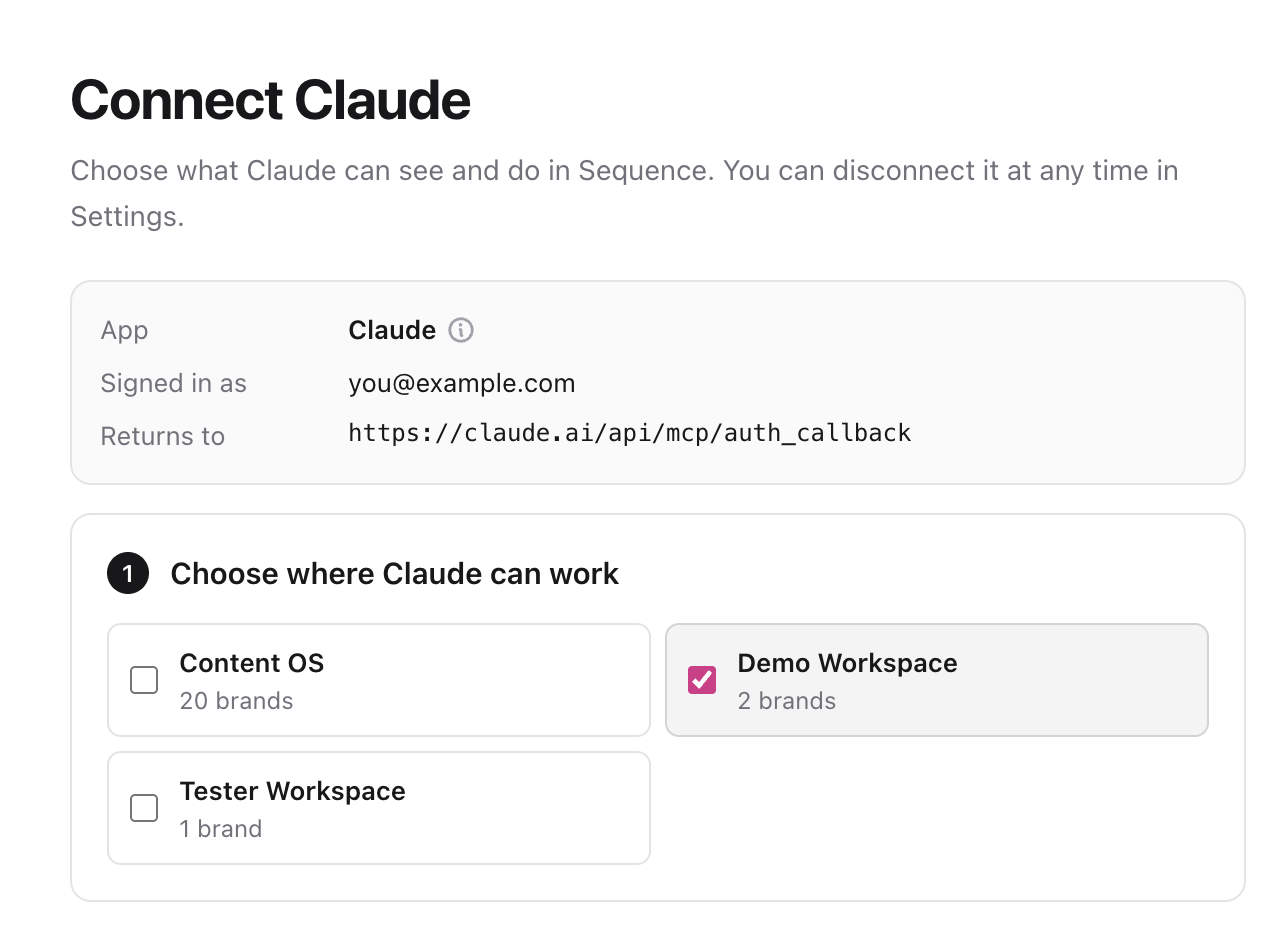
After you sign in, Sequence shows the assistant's name and where it will return you. Only continue if you started the connection yourself.
Choose workspaces and brands
- 01Under Choose where this assistant can work, select one or more workspaces.
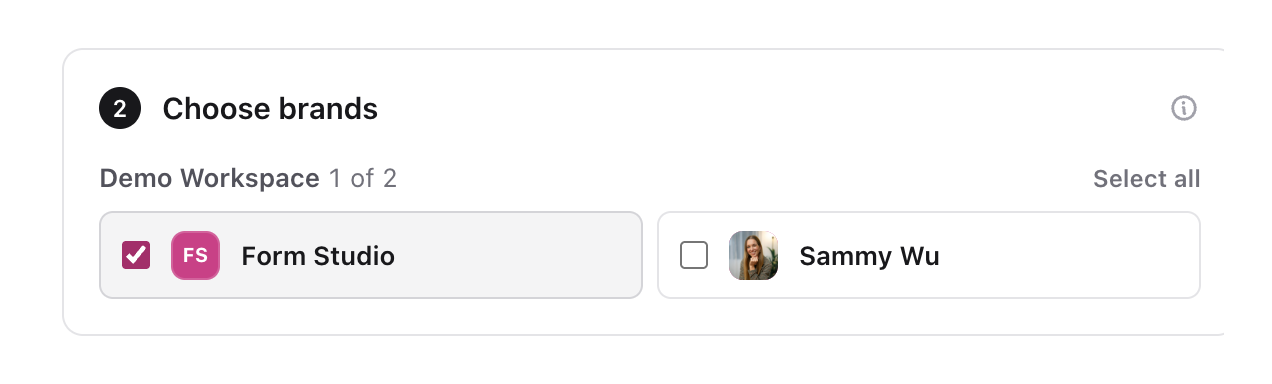
- 01Under Choose brands, select at least one brand in each workspace. Brands you add later are not included automatically.
Choose access
Under Choose access, set each area to No access, Read or Write. Read only and Full access fill the table quickly, and Full access includes Social publishing. Each brand only gets the access your role there allows.
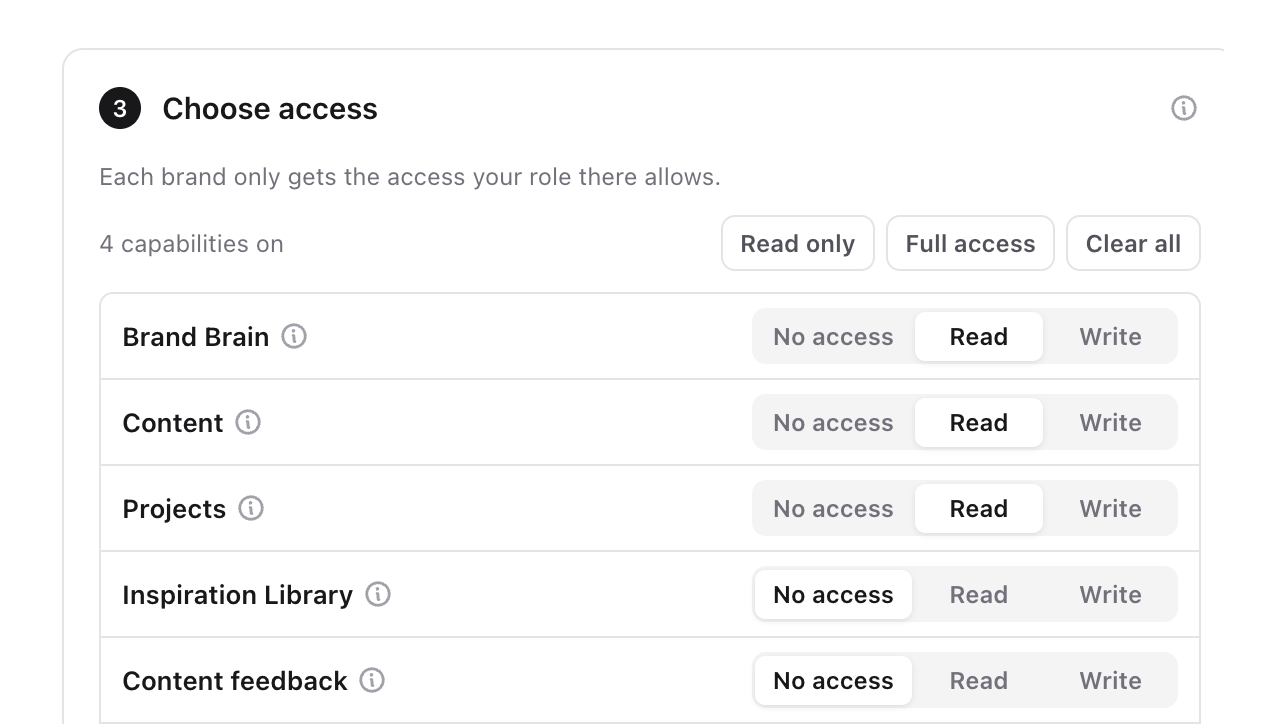
| Area | Read | Write |
| Brand Brain | Brand profile, facts, voice, timezone, content fields and workflow statuses | Create and edit facts, fields and brand-owned statuses |
| Content | Posts, Plan, captions, channels, status, assignees, post type, first comments, templates and media | Create, edit, duplicate, bulk update and share posts, move them to the Bin or restore them, and add, reorder or remove media |
| Projects | Projects that organise posts | Create, rename, delete and duplicate projects, and manage their share links |
| Inspiration Library | Saved posts and references | Save, import and remove references |
| Content feedback | Comments, replies and resolved threads | Add, edit, react to, resolve, reopen and delete comments |
| Approval requests | Review requests, workflow steps and eligible reviewers | Request review for one post or in bulk |
| Approval decisions | Assigned reviews and their status | Approve or request changes for one post or in bulk |
| Workspace | Workspace name, timezone and plan | Not available |
| Content calendar | Not available | Set and clear dates on editable, reviewed and approved posts |
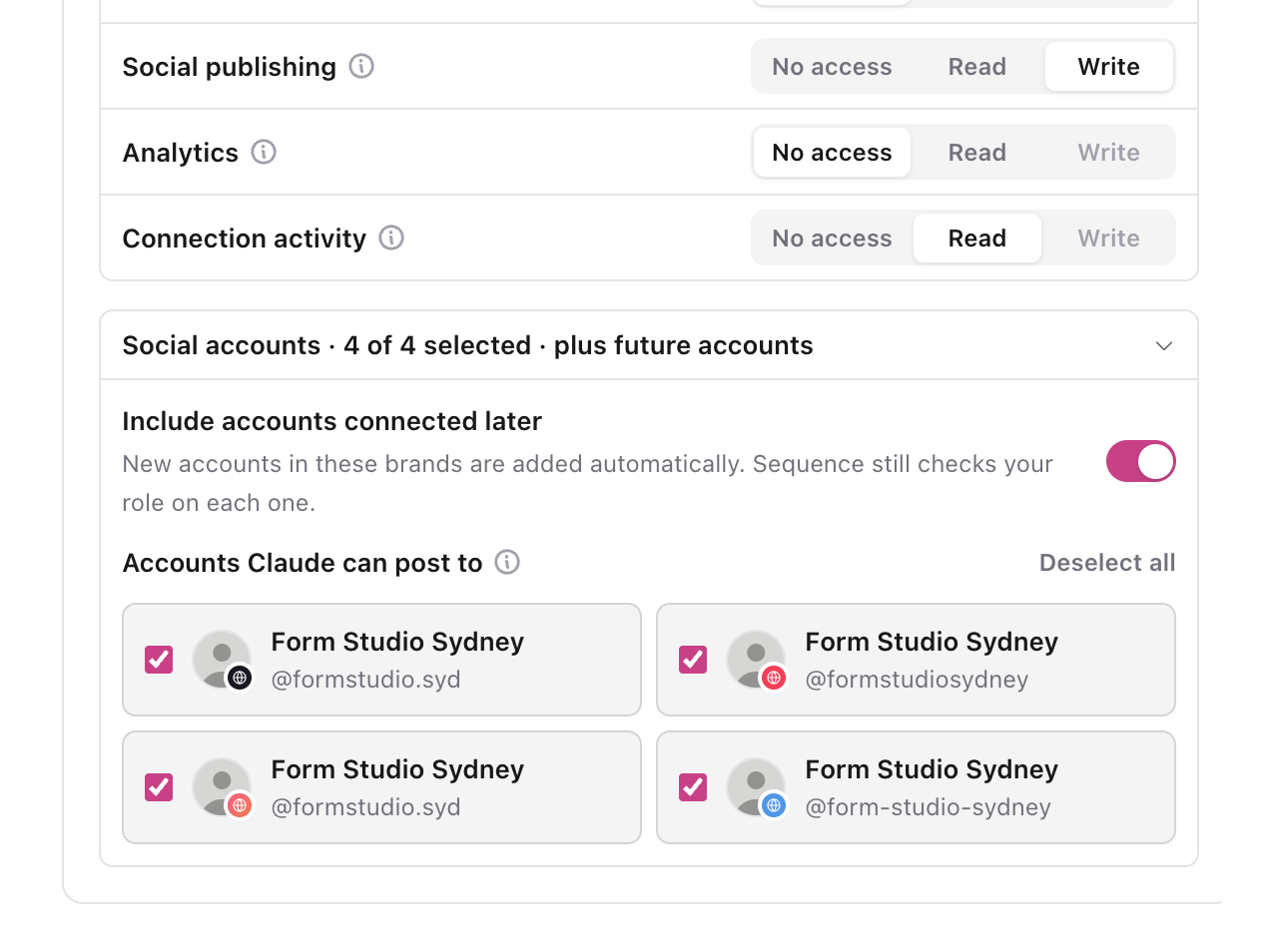
| Social publishing | Social accounts and scheduled posts in the selected brands | Schedule, publish, unschedule and retry failed accounts after you confirm |
| Analytics | Analytics for the selected social accounts | Not available |
| Connection activity | Actions completed through this connection | Not available |
Inbox replies and Sequence AI replies are never available to assistants.
Choose social accounts
To let the assistant schedule or publish, set Social publishing to Write and tick the social accounts it may use. Accounts you can't publish to are unavailable while Social publishing Write is selected.
Include accounts connected later is on by default, so accounts you later connect to the same brands are added automatically. Sequence still checks your role on each one. Turn it off to keep the list fixed.
Review and authorize
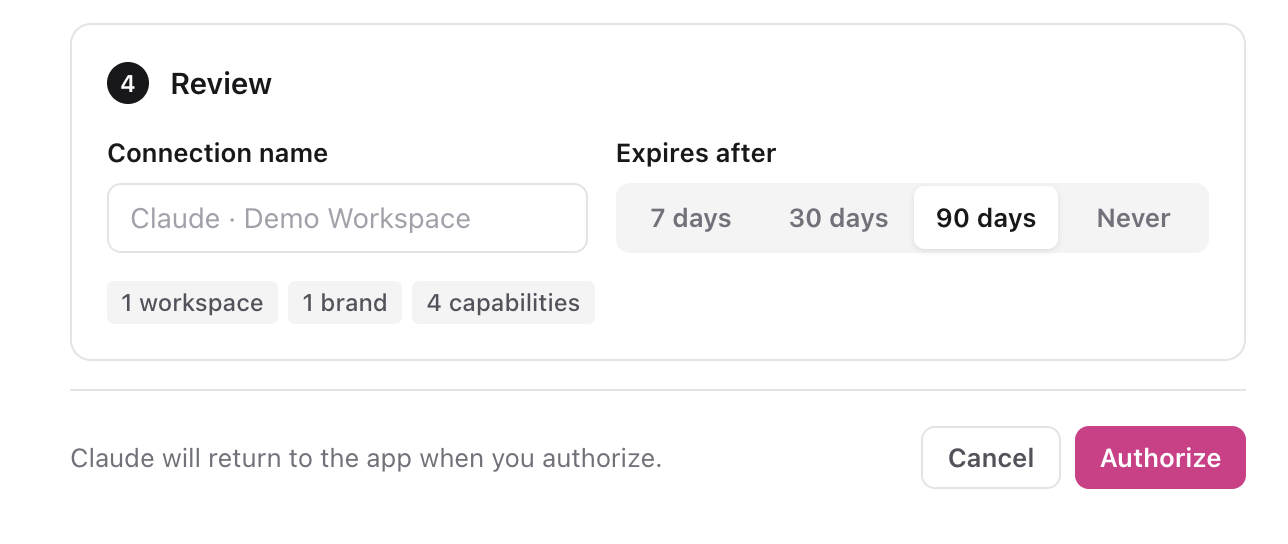
Review the summary, choose how long the connection lasts (7, 30 or 90 days, or Never), and select Authorize. 90 days is selected by default. A connection set to Never stays active until you disconnect it.
You can't edit a connection's access afterwards. To change it, disconnect the connection and connect again with new choices. See Manage and troubleshoot AI assistant connections.
Was this page helpful?
Related articles
- OverviewSequence MCP lets Claude, ChatGPT, Codex and other AI assistants plan, review, schedule and publish content in the Sequence brands you choose, within your permissions.
- Security and permissionsHow Sequence keeps AI assistant connections safe, and how to share only what an assistant needs.
- Roles and brand accessChoose workspace and brand access, tailor role permissions, and give clients the right review capabilities.
Need more help with this?