
See your connections
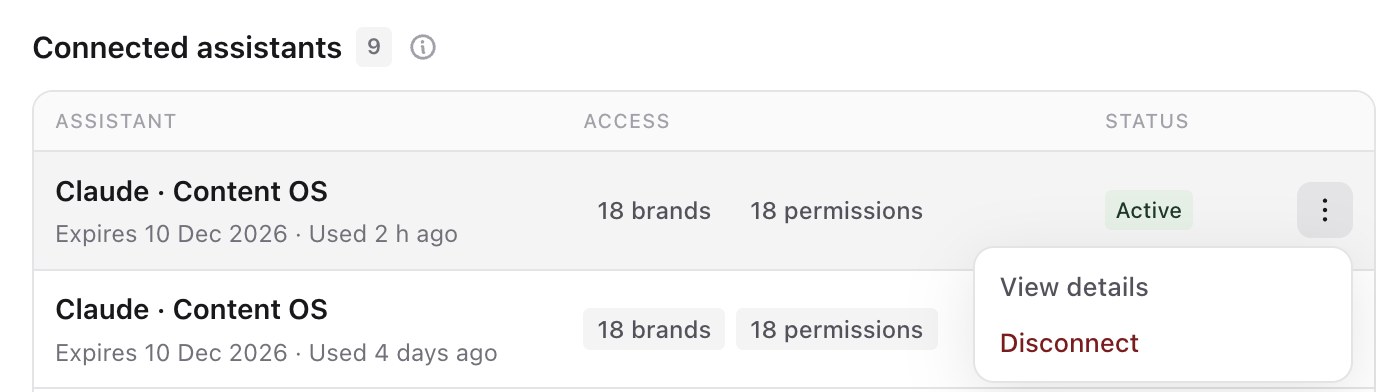
Open Settings, select MCP & API, then AI assistants (MCP). Connected assistants lists each connection with its brands, access, expiry and last use. Open a connection's menu and select View details to see its brands, social accounts and permissions.
Change or remove access
You can't edit a connection's access. To change it, open its menu, select Disconnect, then connect the assistant again with new choices. Disconnecting stops access straight away; anything the assistant already created or scheduled stays in Sequence.
Removing Sequence from the assistant, for example in Claude's connector settings, does not revoke its access in Sequence. Disconnect it in Sequence as well.
Troubleshooting
The assistant is missing a new Sequence action
Most new actions work without reconnecting. If a tool is still missing or shows an old description, reconnect the assistant: in Claude, remove Sequence Social and add it again; in ChatGPT, delete the connection, add it again and start a new chat.
A brand is missing
Brands you add to Sequence after connecting are not included. Disconnect the assistant in Sequence and connect it again with the new brand selected. You also need access to the brand in Sequence.
A social account is missing
Accounts connected later are only included if Include accounts connected later was on when you connected. Otherwise, reconnect and tick the account. The account must also be connected to the brand in Sequence.
The assistant says it doesn't have permission
The connection may not include that access, or your role on the brand may not allow the action. Check the connection's permissions in View details and your role in Sequence.
The connection stopped working
It may have expired or been disconnected. Check it under Connected assistants, then connect the assistant again.
An edit was rejected because the post changed
Someone edited the post after the assistant read it. Ask the assistant to read the post again and retry.
Was this page helpful?
Related articles
- OverviewSequence MCP lets Claude, ChatGPT, Codex and other AI assistants plan, review, schedule and publish content in the Sequence brands you choose, within your permissions.
- Choose what it can accessWhen you connect an assistant, Sequence asks which workspaces, brands, access and social accounts to share, and for how long.
Need more help with this?