
The Grid view in the Content Planner shows each connected profile the way your followers will see it. You can plan from it too: drag posts into place, Sequence works out the times, and nothing saves until you confirm.
What is the Grid view?
Open Content, then choose Grid from the toolbar. The icons above the preview switch between your connected profiles. The sun icon switches the preview between light and dark, and the clock icon shows or hides the time on upcoming posts.

The grid is always in time order, newest first, so moving a post changes its time. Posts that are published, publishing, or due to go out in the next 15 minutes are locked and stay where they are.
Reorder posts on the grid
- 01Drag an upcoming post to a new spot on the grid.
- 02Release it. The times stay where they are and the posts move between them, so your posting rhythm stays the same.
- 03Check the review that opens, then select Reschedule or Save changes. Select Cancel to put everything back.
Dragging works with a mouse or trackpad. On a touch screen, open a post to change its time instead.
Add posts from the Posts panel
The Posts panel beside the preview lists the posts you can place on the profile that is showing. Needs a time lists posts without a time: Ready to place has media, and Still in production holds a slot as a text tile until media is added. All posts also lists what is already on the grid and what is published. Use search, Sort (Post date, Date created or Title) and Filter (status or post type) to find the next post.
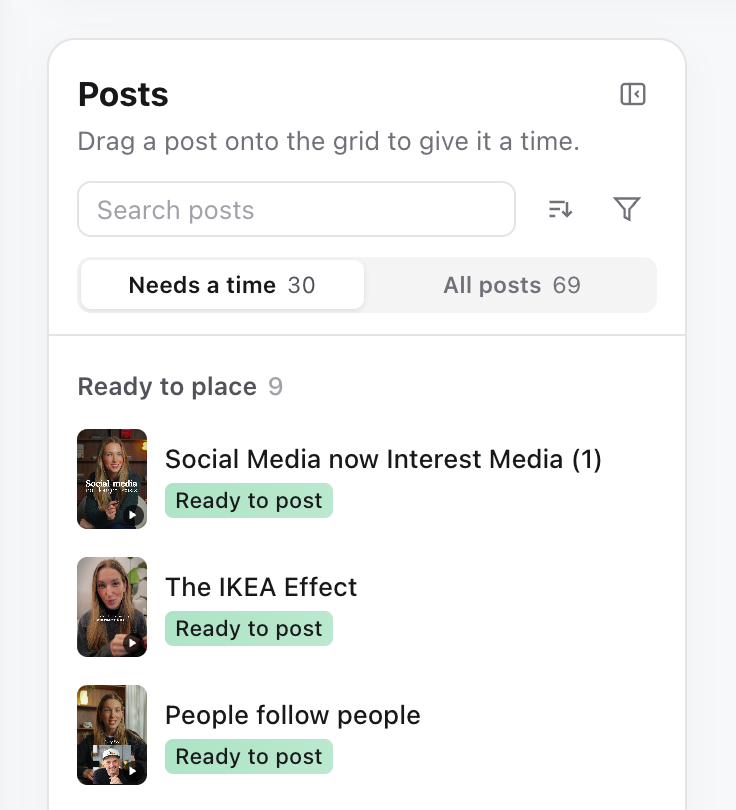
- Drag a post from the panel onto the grid. It gets a new time inside the gap you drop it into, at the same time of day as the post beside it and on a free day where possible. With nothing to match, it uses 9:00am.
- A post that is not planned for any profile yet is added to the profile you drop it on.
- To take a post off the grid, drag it back onto the panel. Its time is cleared, and a post that is already queued to publish is taken off the schedule.
If the panel is hidden, select Posts to show it again. It appears when there is room for it beside the preview.
Make several changes with Rearrange
Select Rearrange to make several moves before saving. Each move is kept as an unsaved change and shows its new time on the post. Select Discard to undo them all, or Review to check and save them together.

Review and save your changes
The review lists every post with its old and new time, grouped by what happens to it:
- Rescheduled on social: posts already queued to publish. Sequence updates them on each platform shown.
- Planned dates: posts that only change their planned date.
- Added to the grid: posts that had no time. If a post is also being added to a profile, the review says which one.
- Taken off the grid: posts whose time is cleared.
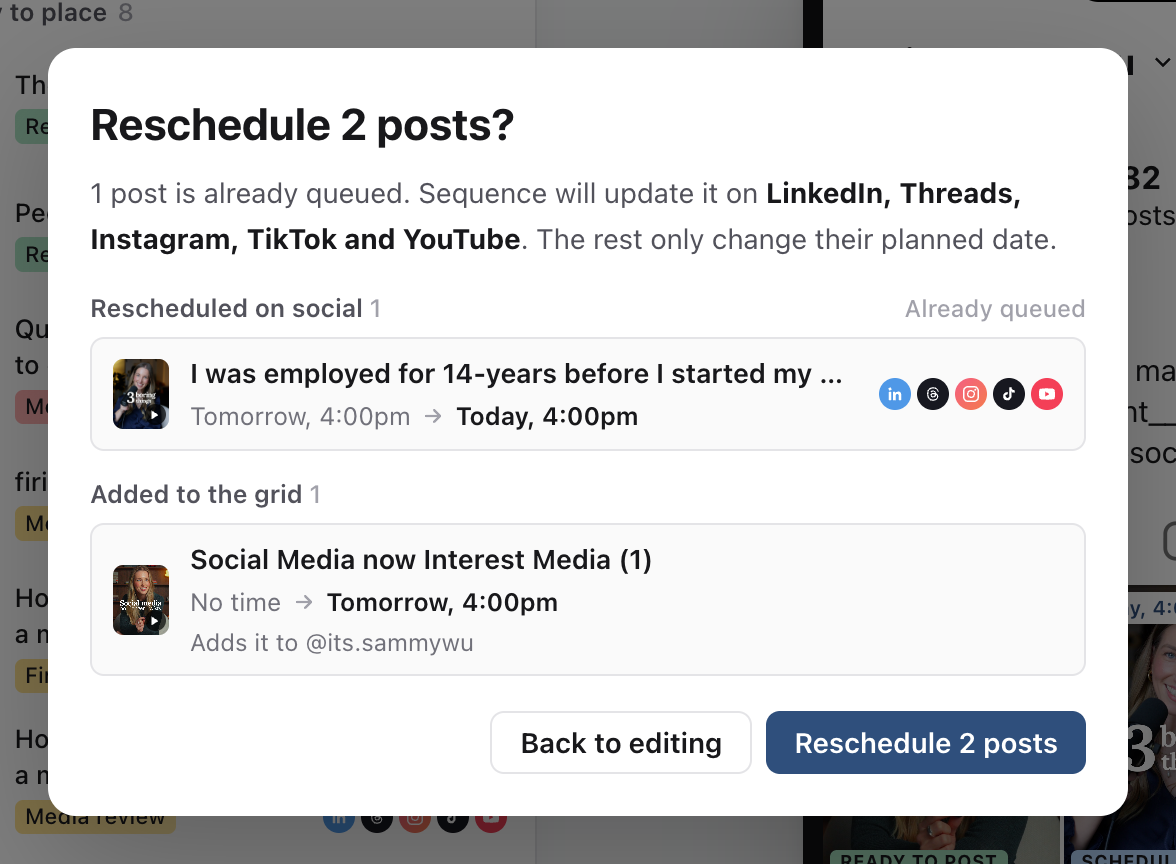
If a new time becomes too close to posting while you review, Sequence asks you to move that post again before saving. If a change does not save, the review stays open with the changes that still need saving.
Was this page helpful?
Related articles
- Use the Content plannerChoose a planner view, find the right content and make the next production hand-off clear.
- Post time and time zoneSet a planning date and time zone, then confirm publishing separately.
- Reschedule and time zonesCancel a queued schedule, check the time zone and submit the post for its new time.
- Saved Content viewsChoose a Content view, save its layout and controls, and share a consistent setup with a brand or workspace.
Need more help with this?