
Cloud Storage keeps your raw footage and working files in folders, inside the same brand as the posts made from them. It is part of Pro.
What is Cloud Storage?
Each brand has two places for files. Post Media holds every file attached to a post or a Plan, ready to publish. Cloud Storage is your team's own drive for everything around the post: camera originals, alternate takes, client assets and project files. Both sit under Files in the sidebar.
Files in Cloud Storage stay private to people with access to the brand until you share them. You can link them to posts, share them with a link and download them as a zip.
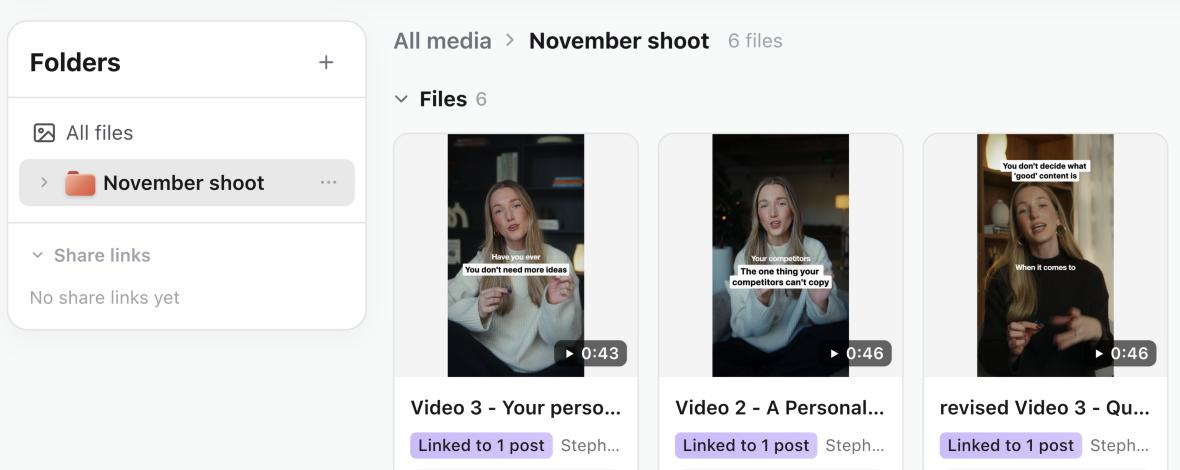
Add files and folders
- 01In the sidebar, open Files, then Cloud Storage.
- 02Select Add, then choose New folder, Upload files or Upload folder.
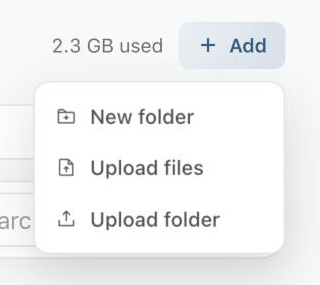
You can also drag files from your computer straight onto the page or into a folder. Uploads keep going while you work elsewhere in Sequence. If an upload is interrupted, you can resume it rather than start again.
Copy a file from Post Media
To keep a copy of a post's file with your folders, open Post Media, right-click the file and choose Copy to Cloud Storage…. Pick a folder, or create one, then select Copy here. Large videos can take a minute or two to copy, so stay on the page until it confirms.
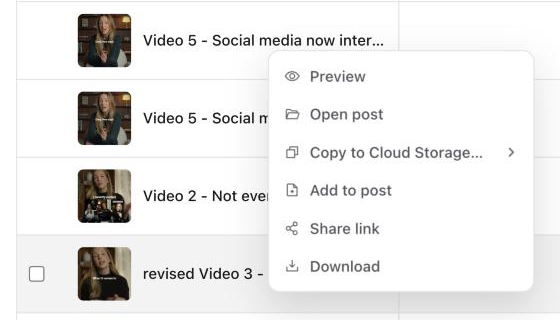
The copy is linked to the posts that use the original, and the file shows In Cloud Storage in Post Media.
Link files to a post
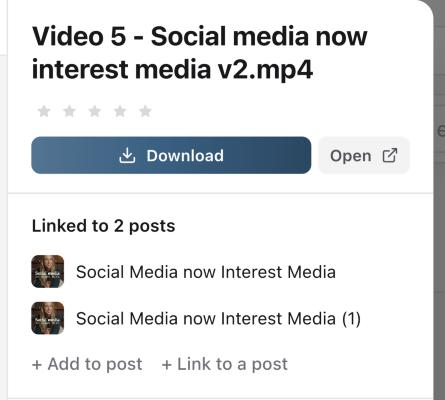
Every post has a Cloud Storage property. Use it to link the files or folders an editor needs for that post. Linking does not add the file to the post's media or publish it; it keeps the footage one click away.
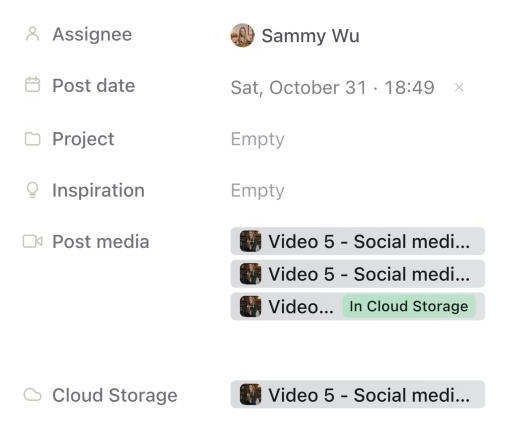
You can also link from the file. Open a file in Cloud Storage and use + Link to a post under Linked to posts. + Add to post is different: it copies the file into that post's media so it can be published.
Share a folder or file
- 01Right-click a folder or file and choose Share link.
- 02Select Create link, then Copy link. To send it from Sequence instead, enter email addresses and select Send.
- 03Select Change to choose whether people Can view or Can view and download. Use the passcode and expiry options to protect the link.
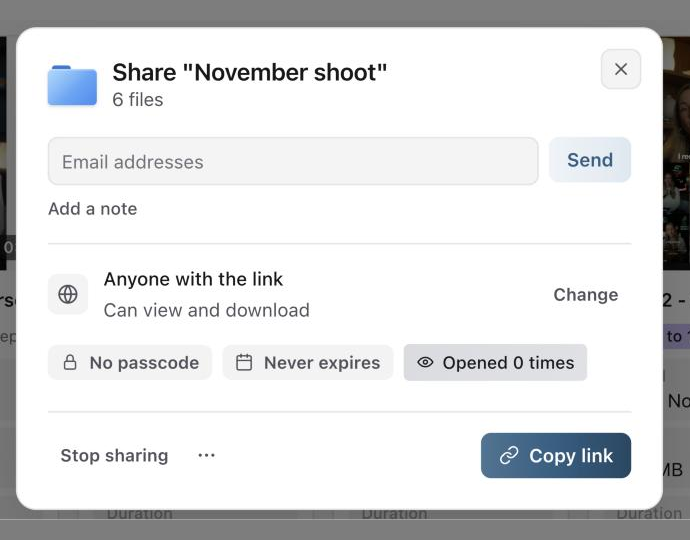
People with the link don't need a Sequence account. Stop sharing turns the link off straight away.
Download files
- Up to 20 files download one by one.
- A folder, or more than 20 files, downloads as one zip of up to 10,000 files. If the download stops, it picks up where it left off.
- For videos, Download proxies gives you smaller review copies instead of the originals.
Link Google Drive or Dropbox
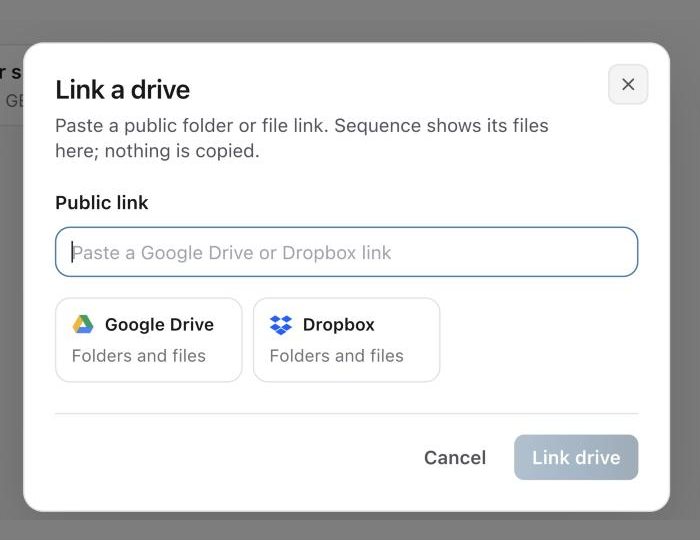
Select Link a drive under the page title and paste a public Google Drive or Dropbox folder or file link. Sequence shows its files here without copying them, so they don't use any of your storage. You can link these files to posts too, but they can't be published as post media.
How much storage you get
Pro includes 20 GB of Cloud Storage per brand, shared across your workspace. A workspace with three brands has 60 GB to use however it likes. Post Media and video review copies don't count towards it. You can see what you've used at the top of Cloud Storage and in Settings, Billing & usage, where workspace owners can also add extra storage for $20 USD per TB a month.
If your workspace goes over its allowance, a banner appears and new uploads pause until you free up space or add storage. We email the workspace owners while it stays over. After 90 days over, the oldest uploads are removed until the workspace fits again. Files attached to posts are never removed.
On the Free plan
Cloud Storage is part of Pro. On the Free plan, opening it shows an upgrade prompt. If a workspace leaves Pro while it has files in Cloud Storage, it can still view and download them for a while, and the banner shows the date to download them by.
Was this page helpful?
Need more help with this?