
Home is the first page in the sidebar. It brings together the posts waiting on you, the brand's latest numbers, upcoming posts and recent messages, so you can see what to do next without opening each page.
What's on Home
Home shows cards for the brand you're in. By default it includes Followers, Total Views and Engagement, the Content pipeline, Published on Sequence, Upcoming, Your best performing posts, Needs you, Inbox, Best channels, Audience and Team activity. Stats and charts follow the date range at the top of Home.
Review what needs you
Needs you lists the posts waiting on your review or approval, the same posts as Assigned to me in Approvals. Each row shows the post's still, its status and how long it has been waiting. The number beside the title counts those posts plus any posts that failed to publish.
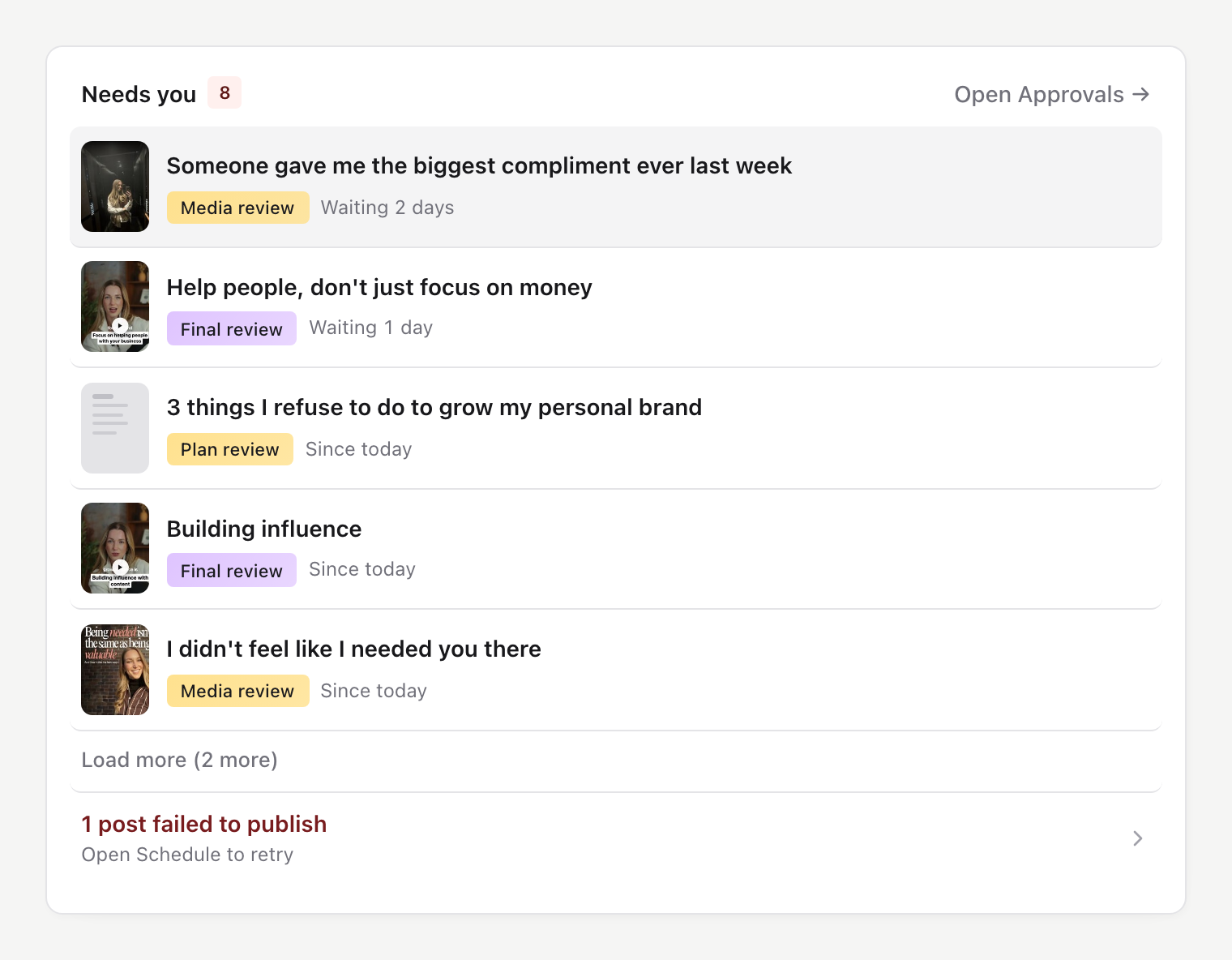
- 01Select a post to open it on Home. It opens on the tab for its review stage: Plan for plan review, Media for media review and Publish for final review.
- 02Check the work, then select Approve or Revise, as you would in Approvals.
- 03Close the post to return to Home. Needs you updates to show what's still waiting.
To open a post in a new browser tab instead, hold Cmd (Ctrl on Windows) as you select it.
The card shows five posts at first. Select Load more to show five more, or Open Approvals to see your whole queue with filters and views. If posts failed to publish, a row such as 1 post failed to publish opens Schedule, where you can retry them.
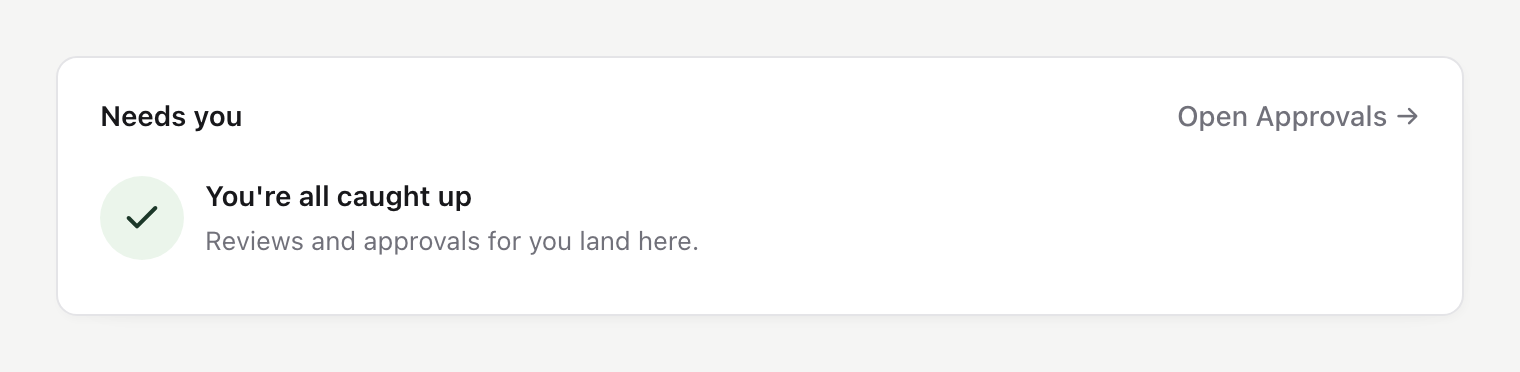
When nothing is waiting, the card reads You're all caught up.
Check new messages
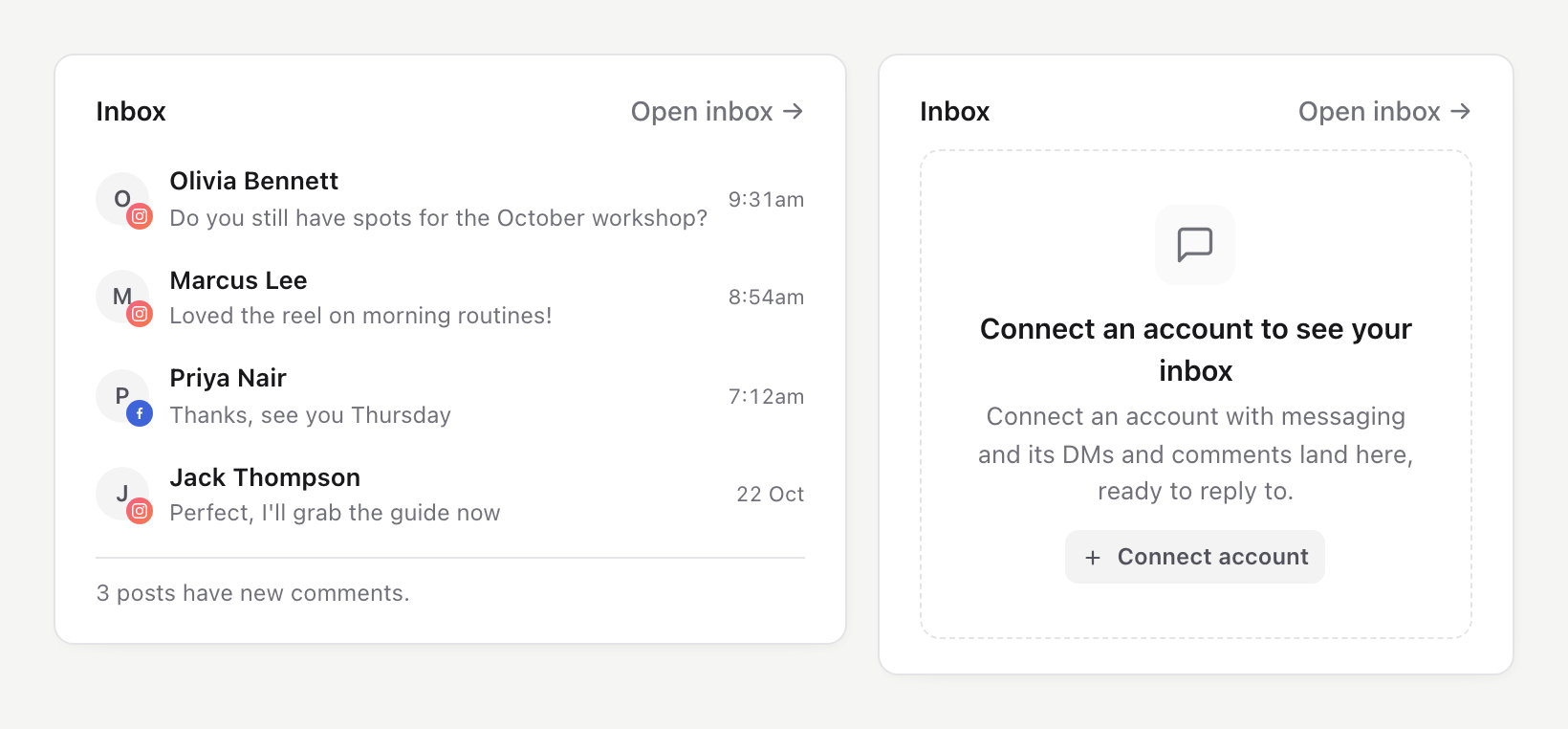
The Inbox card shows the five latest DMs from the brand's connected accounts, and how many posts have new comments. Select a message or Open inbox to reply in Inbox.
If no connected account supports messaging, or you don't have Inbox access to them, the card shows Connect an account to see your inbox. Select Connect account to open Channels. Inbox is part of Pro, so on the Free plan the card offers See Pro instead.
Compare your channels
Best channels ranks the brand's connected channels for the date range. Use Ranked by to choose Views, Comments, Saves, Shares or Posts. Under each number, the change compares it with the previous period of the same length, as a percentage, or as a plain difference when the earlier number is too small for a percentage to be meaningful.
Arrange your Home
Each person arranges Home separately for each brand, so your layout doesn't change anyone else's.
- 01Select Customise widgets below the cards.
- 02Drag cards to arrange them, pull a corner to resize, or select × to hide one. Add hidden cards, more stats, charts and calendars from the library.
- 03Select Done. Reset layout returns Home to the original arrangement.
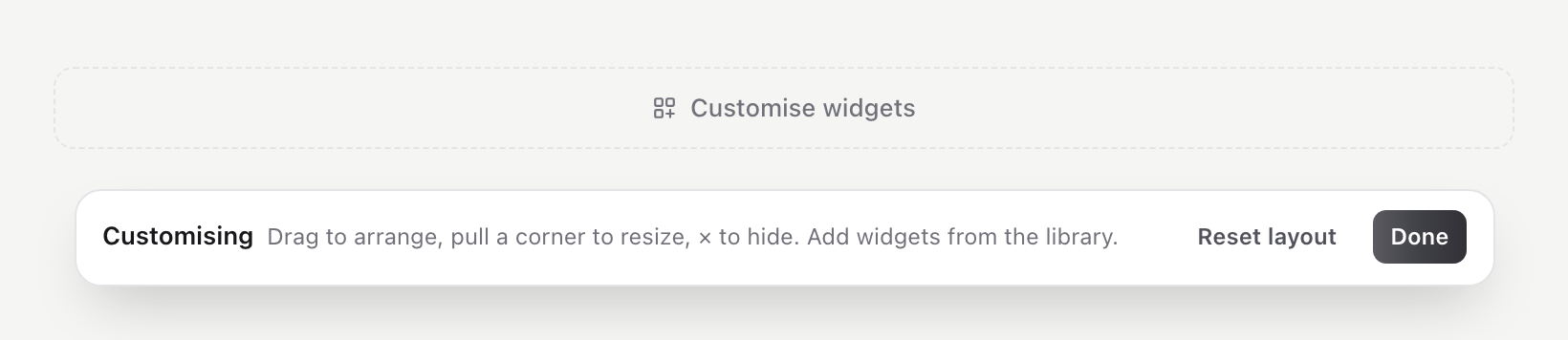
Customising is available on wider screens. On a phone, Home stacks its cards in one column.
Was this page helpful?
Related articles
- Review awaiting decisionsFind your review queue, choose a stage and resolve missing requests before recording a decision.
- Approve or request changesReview the requested stage, approve it or use Revise, and check the recorded decision.
- View and replyFind direct messages or comments, reply from the right account and handle sending or permission errors.
- Navigate SequenceChoose the right workspace and brand first, then use the main navigation without losing track of the active context.
- Analytics overviewChoose a reporting scope and understand Overview cards, period activity, post-level results and data coverage.
Need more help with this?