
Sequence Capture is Sequence's Chrome extension. It adds a Save button to posts as you browse, so you can save a post to a brand's Inspiration library without copying its link.
What is Sequence Capture?
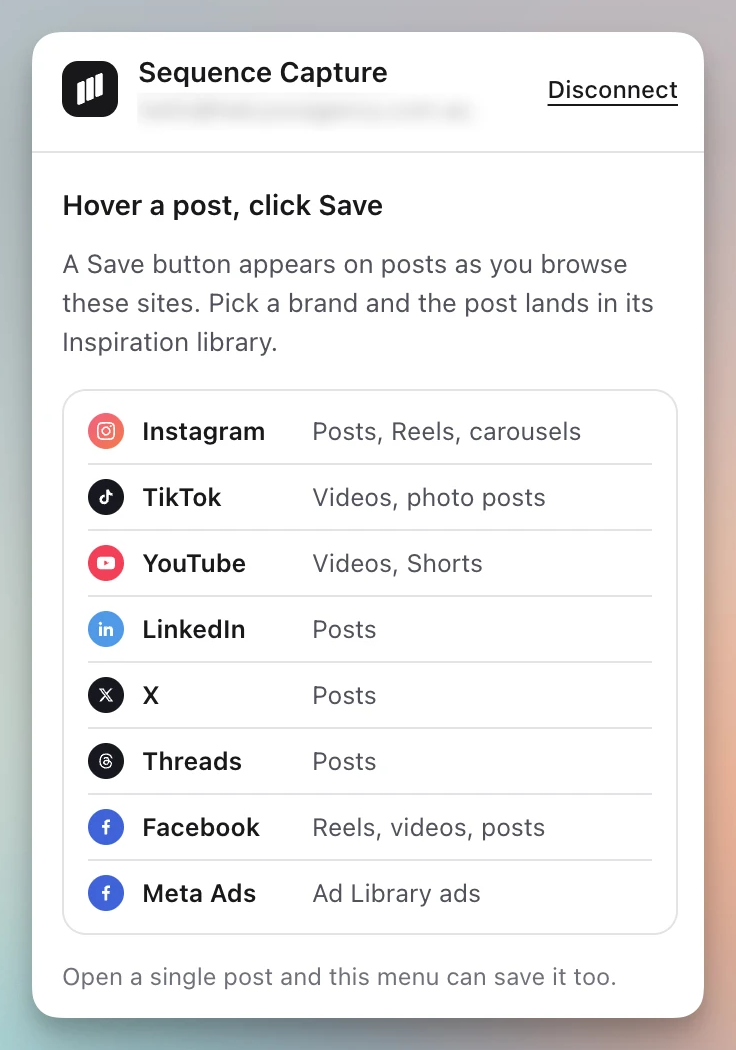
Once you're logged in, a Save button appears on posts on the sites below. Choose a brand and the post is saved to that brand's Inspiration library with its media and details, the same as pasting its link into Sequence.
- Instagram: posts, Reels, carousels and ads in your feed
- TikTok: videos and photo posts
- YouTube: videos and Shorts
- LinkedIn: posts
- X: posts
- Threads: posts
- Facebook: Reels, videos and posts
- Meta Ad Library: ads
Install and log in
1. Install Sequence Capture from the Chrome Web Store. To keep it handy, open Chrome’s Extensions menu, the puzzle piece icon, and pin Sequence Capture.
2. Select the Sequence Capture icon in your toolbar, then select Log in to Sequence.
3. Log in to Sequence in the tab that opens, then come back. The extension connects on its own. If it doesn't, open it again and select I've logged in.
When you're connected, the extension shows your email and the sites it works on.
Save a post
1. Hover a post. A Save button appears on it, usually at the top left of its photo or video.
2. Select Save. Your brands are listed by workspace, with the brand you used last selected. If you have more than seven brands, type in Find a brand to narrow the list.
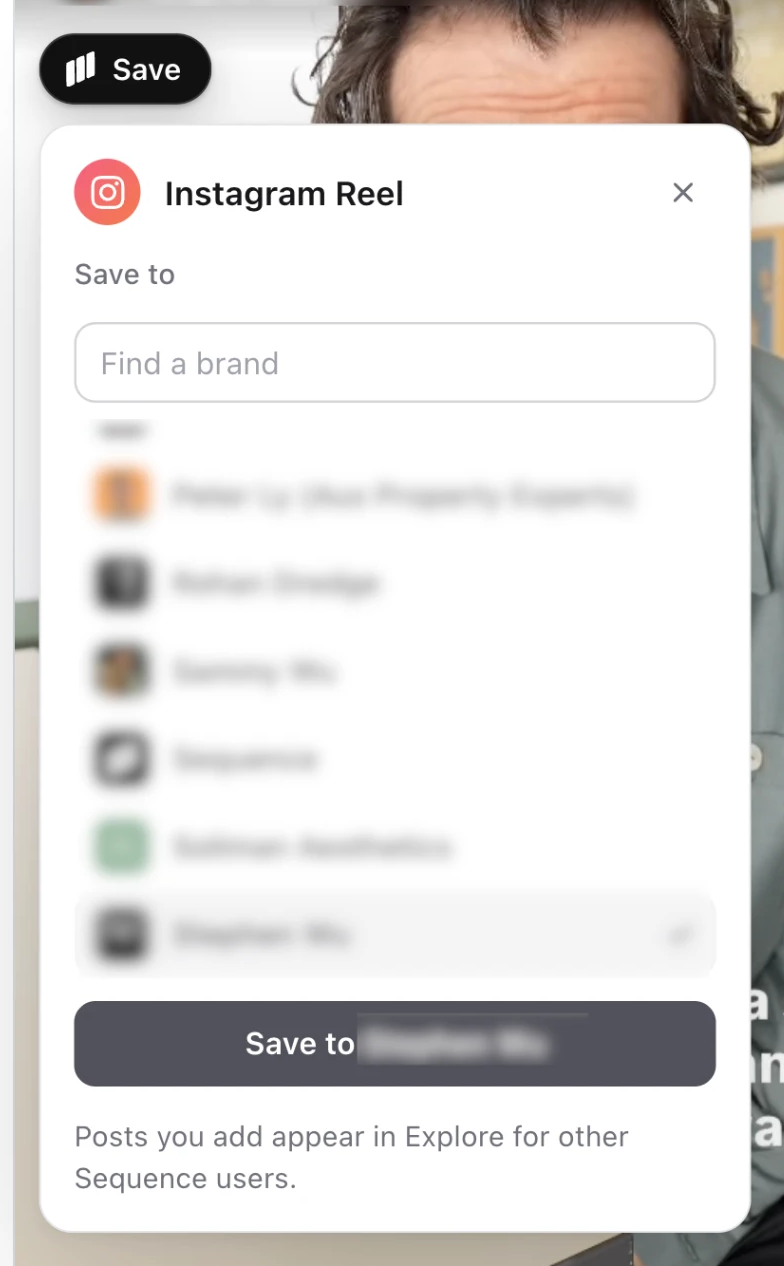
3. Pick a brand and select Save to with the brand's name.
4. The button changes to Saved and a message confirms it. Select Open to see the post in the brand's Inspiration library. Its media and details finish loading in a moment.
To save the same post to another brand, select Saved and choose another brand. Brands you've already saved it to show a Saved tag.
Save a LinkedIn post
On LinkedIn, Save sits under the name and photo of each post in your feed, so you don't need to hover. Reposts can be saved too.
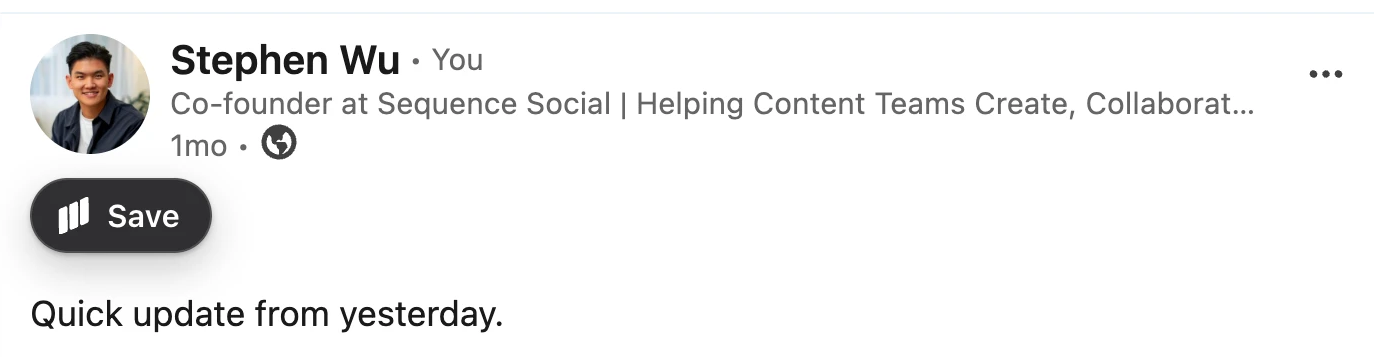
If LinkedIn doesn't show a post's link on the page, the extension asks for it. Open the post's ··· menu, choose Copy link to post, paste the link and select Continue.
Save a YouTube video
On a video's page, Save sits beside Like and is always visible. On the home page, in search results and on Shorts, hover a video to see the Save button.

Save an Instagram ad
Ads in your Instagram feed don't have a post link, so Sequence finds the ad in the Meta Ad Library by its caption and saves it as a Meta ad. You'll see Finding this ad in the Meta Ad Library while it looks, which can take a minute. You can keep scrolling while it works.
If the ad isn't in the Meta Ad Library yet, or has stopped running, the message tells you it couldn't be found. Ads with a very short caption can't be matched, so they don't show a Save button.
Save the post you have open
When a single post is open, such as a Reel or a YouTube video, select the Sequence Capture icon in your toolbar. The menu shows the post type and your brands, so you can save it from there. When it's saved, select Open in Sequence, or Save to another brand.
Good to know
- Posts you save also appear in Explore for other Sequence users.
- If a post is already in the brand's library, the extension tells you instead of saving it twice.
- Saving needs access to add inspiration to that brand.
- Saving is limited to 100 posts an hour, shared with saving links in Sequence and Save from Instagram.
- The Saved label shows posts you saved from this browser. Posts saved another way still show Save.
- To sign this browser out, open the extension and select Disconnect. Other browsers stay connected.
If the Save button doesn't appear
- Refresh the page. After Sequence Capture updates, pages that were already open need a refresh, and the extension says so if you try to save.
- Open the extension from your toolbar. If it shows Not connected, select Log in to Sequence.
- Hover the post's photo or video, or open the post on its own page and save it from the extension menu.
- If a save fails, select Retry in the message. For a post Sequence can't import, see Fix a social post that Sequence cannot import.
Was this page helpful?
Related articles
- Save a post from a URLPaste a direct public post link into the active brand library and separate import, media capture and AI analysis.
- Search saved inspirationFind saved references by text, platform, post type and analysis state instead of scrolling the full library.
- Fix inspiration importRecover a blocked social reference import by distinguishing link validation, media capture and AI analysis.
Need more help with this?