
The Watchlist follows the creators you want to learn from. Sequence checks each watched creator every day, adds their new posts to one feed, and tells you when a post does at least twice as well as that creator usually does.
Watchlist is part of Pro. Each brand can watch up to 15 creators, and the count shows above the feed.
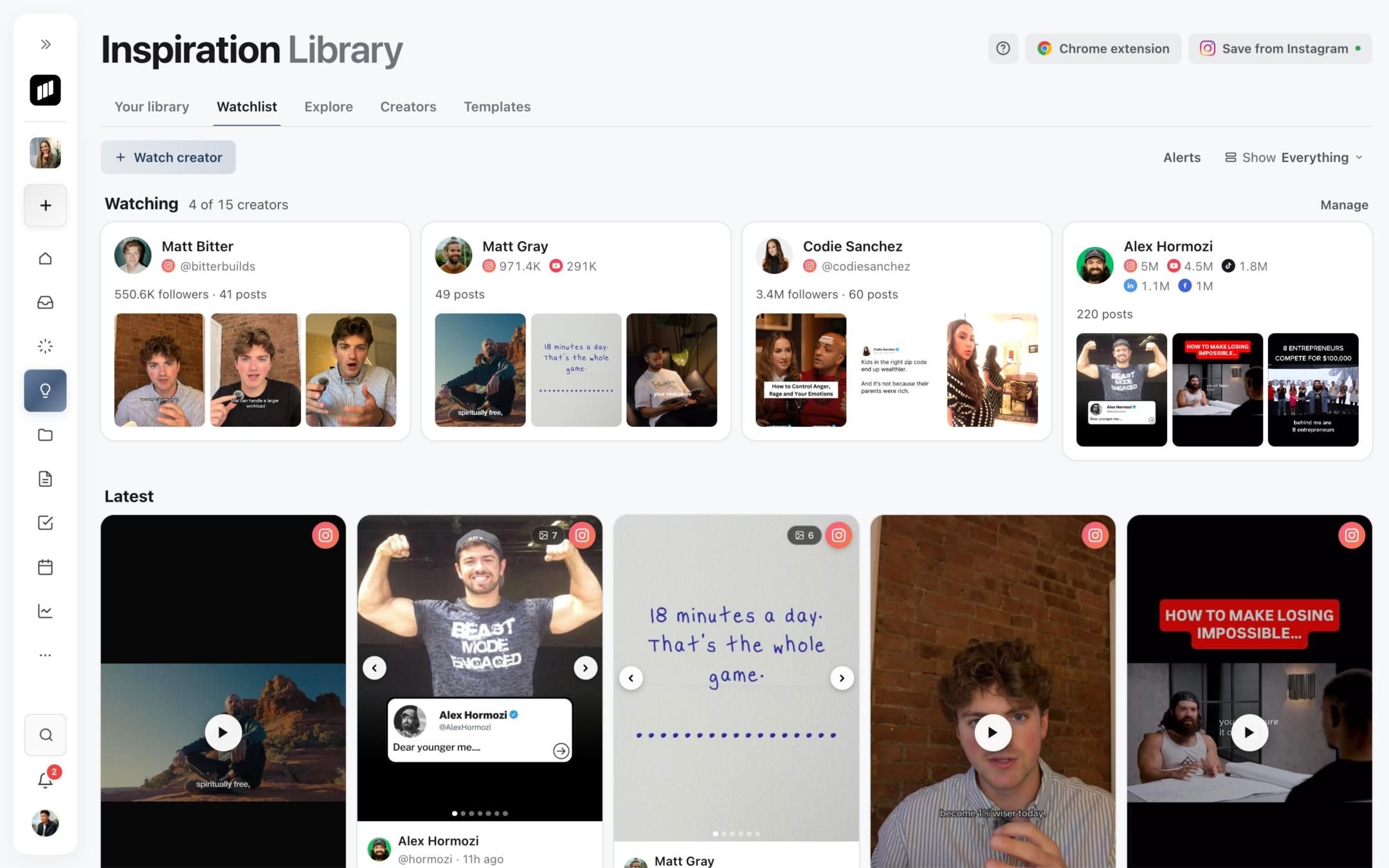
Each creator you watch has a card with their accounts, followers and a few recent posts. Select a card to open the creator's page, and Watchlist at the top of the page to come back.
Watch a creator
- 01Open Inspiration and select Watchlist.
- 02Select Watch creator.
- 03Paste a profile link from Instagram, TikTok, YouTube or LinkedIn, a Facebook page or Meta Ad Library link, or type a handle, then select Find. A creator Sequence hasn't seen before can take up to a minute to look up.
- 04Check that the profile is the right one, then select Watch.
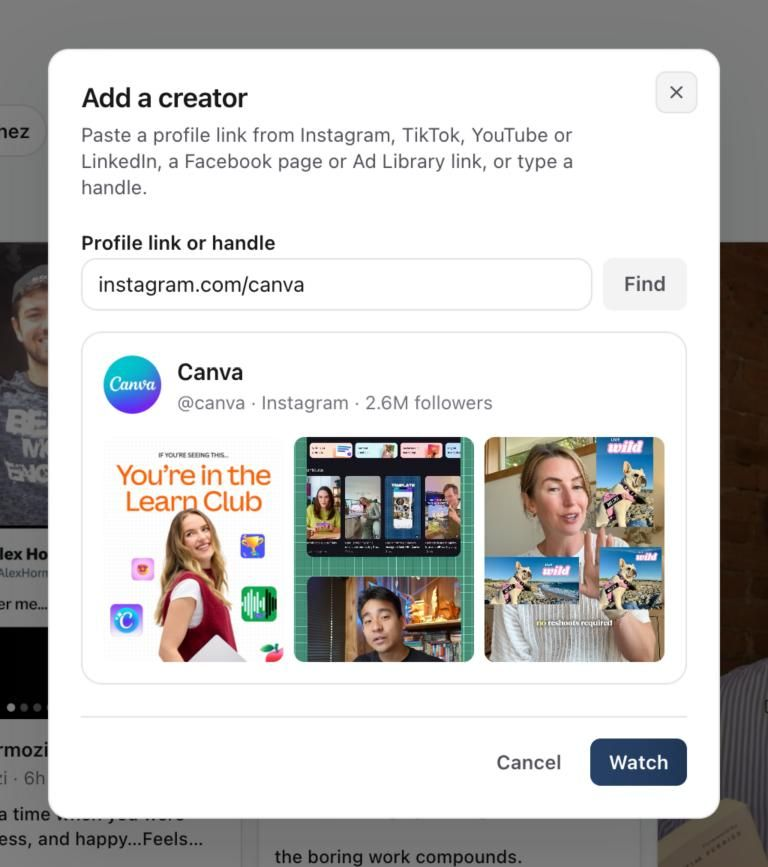
You can also select Watch on any creator in the Creators tab. Creators, typical views and outlier scores explains what the scores mean.
Choose how you hear about outliers
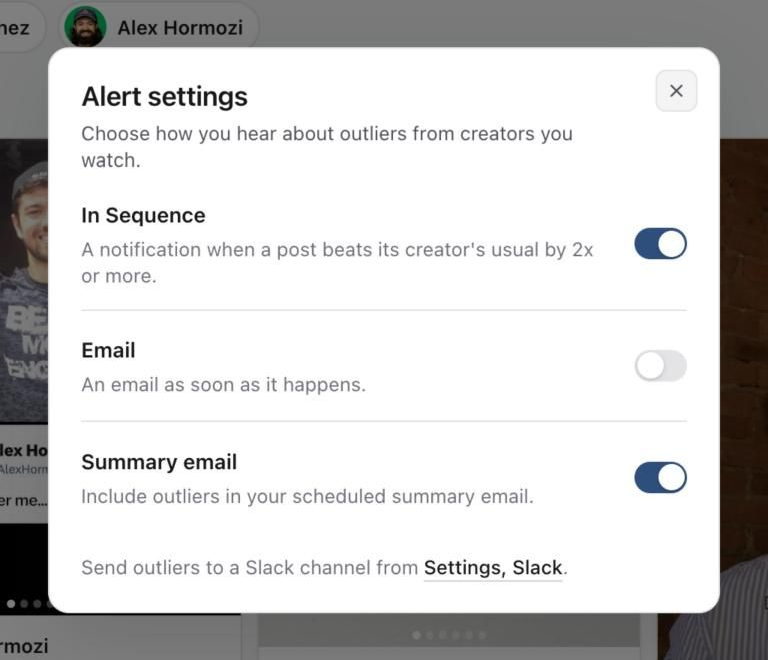
Select Alerts at the top right of the Watchlist and choose how you want to hear about posts that beat a creator's usual by 2x or more.
- In Sequence: a notification in Sequence.
- Email: an email as soon as it happens.
- Summary email: outliers included in your scheduled summary email.
To send outliers to a Slack channel, open Settings and choose Slack. See Connect and use Sequence for Slack.
Show only outliers
Use Show at the top right of the Watchlist to switch the feed between Everything and Outliers (2x+).
Pause or stop watching
Select Manage to see everyone you watch. Pause keeps a creator listed but stops new posts arriving. Stop watching removes them and frees a place in your 15.
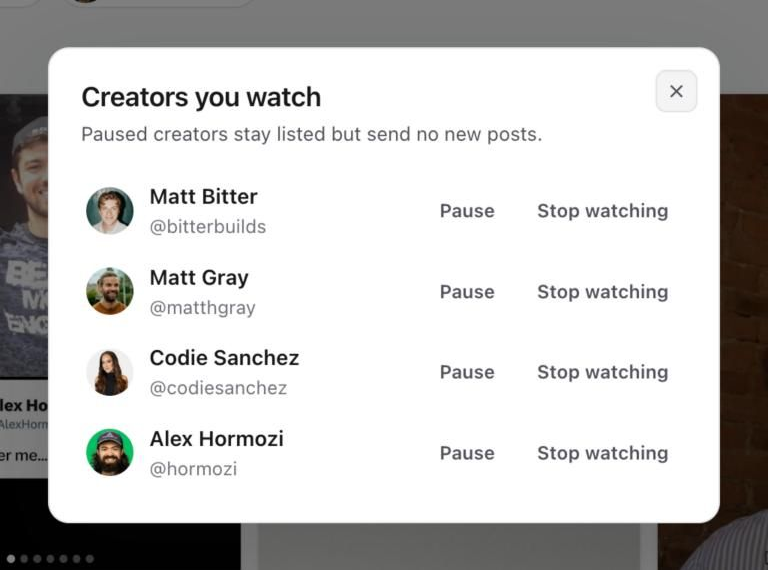
If the workspace moves off Pro, watched creators are paused rather than removed.
Was this page helpful?
Related articles
- Sequence for SlackConnect Slack once, choose channels for each brand, link your own Slack account, and use approvals, shortcuts, media, inspiration and scheduling from Slack.
- Plan usage and limitsRead workspace usage and allowances, understand limit messages and find the relevant billing or AI controls.
Need more help with this?