
Folders keep your saved references in groups you choose, such as hooks that stop the scroll, talking-head formats or one client's campaign. They sit above All posts in Your library, and a post can be in more than one folder.
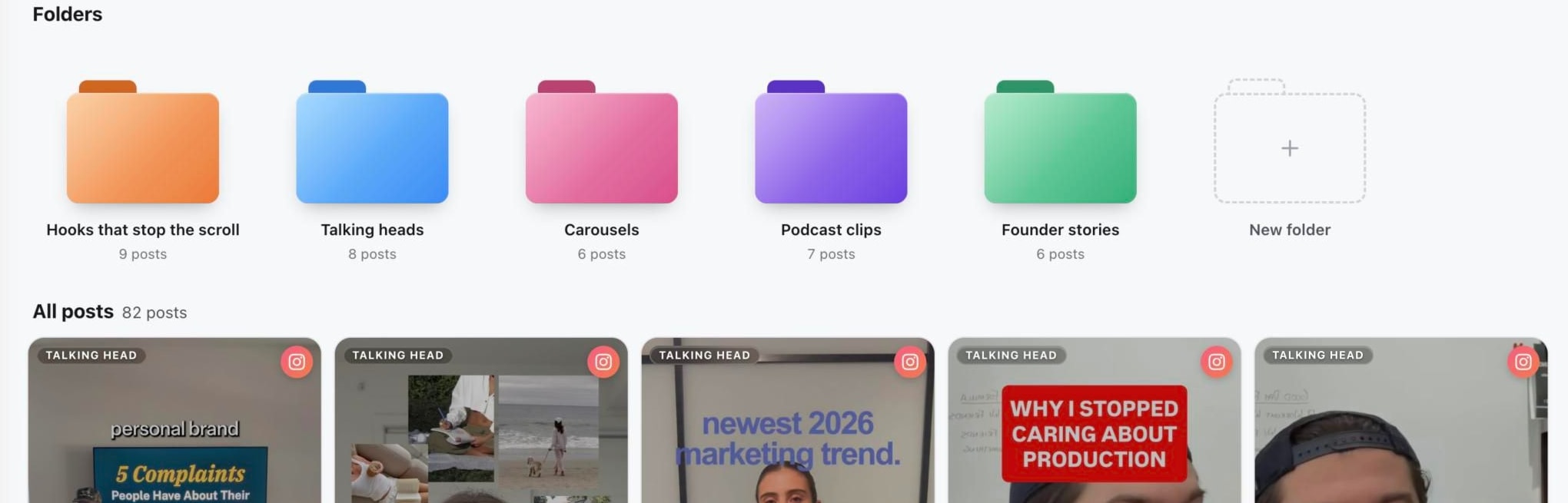
Create a folder
- 01Open Inspiration and stay on Your library.
- 02Select New folder at the end of the folder row.
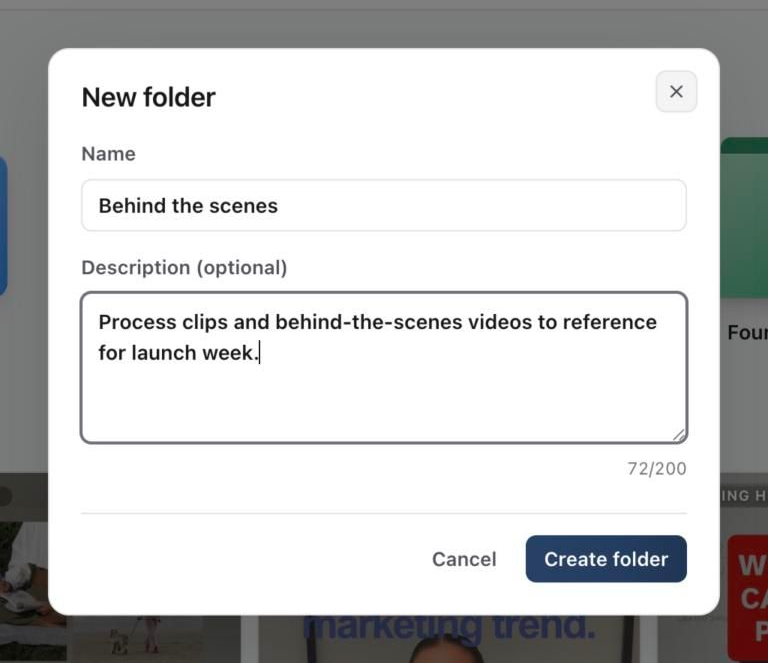
- 03Enter a name and, if it helps your team, a short description, then select Create folder.
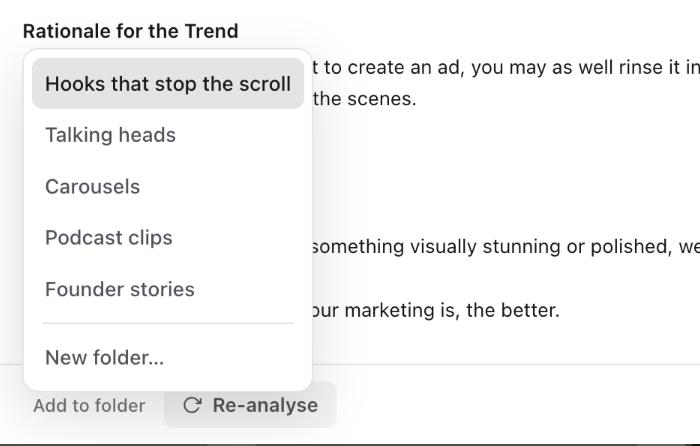
Add posts to a folder
Drag a post from All posts onto a folder to file it. You can also open a post and select Add to folder at the bottom of the pop-up, then pick a folder or choose New folder… to make one on the spot.
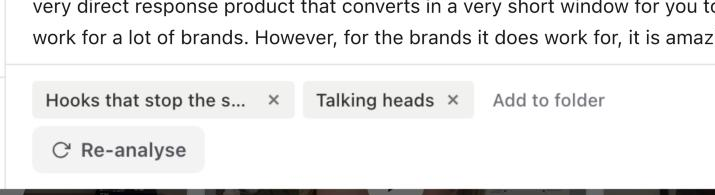
A post's folders show as chips at the bottom of its pop-up. Select the × on a chip to take the post out of that folder. The post stays in your library.
In Explore, the arrow beside Save lets you save a post straight into one of your folders.
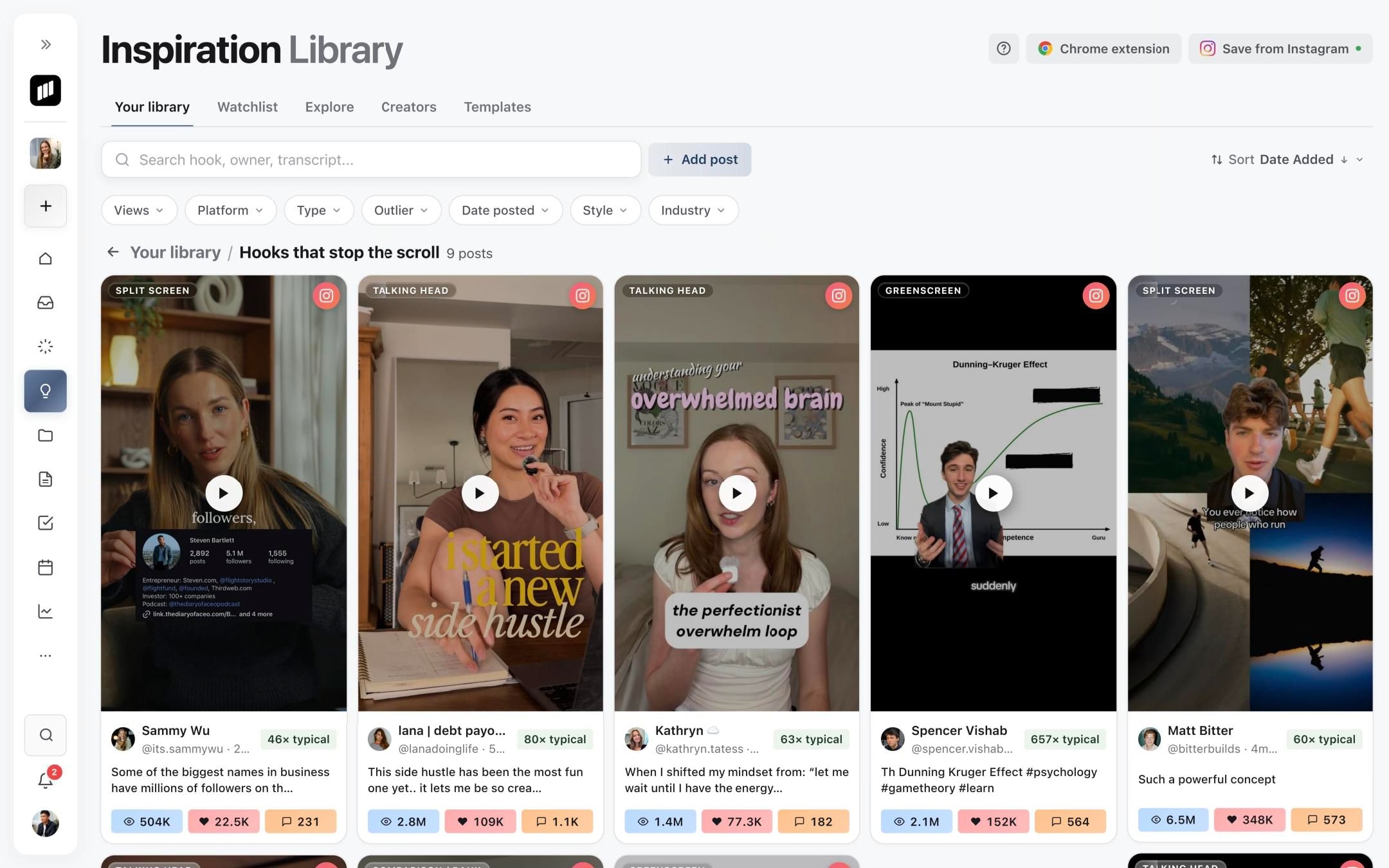
Open a folder
Select a folder to see only its posts. Search, filters and sort work inside the folder, and the path at the top, Your library / folder name, takes you back to everything.
Rename, recolour, share or delete
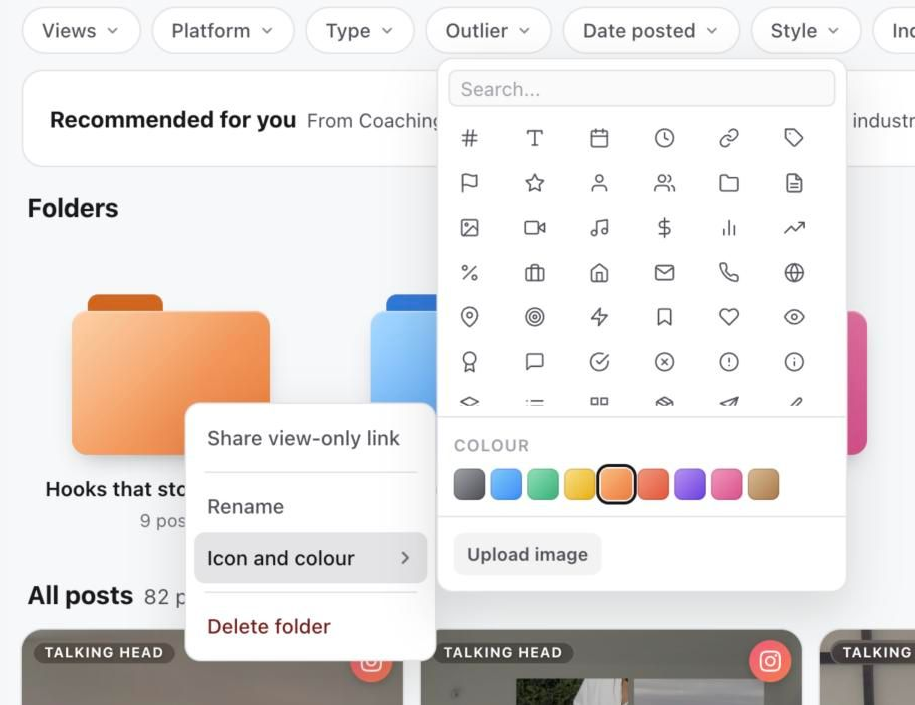
Right-click a folder, or focus it and press the Context Menu key, to open its menu.
- Share view-only link: anyone with the link can see the posts in this folder, but not the rest of your library, and they can't change anything. Choose whether the link shows notes and stats, copy it, or turn it off at any time.
- Rename: change the folder's name or description.
- Icon and colour: pick a colour and an icon, or upload your own image.
- Delete folder: removes the folder only. Its posts stay in your library and in any other folders they're in.
Was this page helpful?
Related articles
- Search saved inspirationFind saved references by text, platform, format, outlier score and industry instead of scrolling the whole library.
- Save a post from a URLPaste a direct public post link into the active brand library and separate import, media capture and AI analysis.
- Develop a referenceUse a saved reference as source context for a new draft or an existing content piece, with optional AI development.
- Creators and outliersSee how Sequence measures a creator's typical views, what an outlier score like 20x means, and how to browse creators and their linked accounts.
Need more help with this?