
Connect the Threads profile to the correct Sequence brand. The connection is complete only after the platform authorisation finishes and the intended account returns to Sequence as Active.
Before you start
Threads requires an Instagram Business or Creator account with Threads enabled. You must be able to sign in to the Instagram account that owns the Threads profile.
Connect the Threads profile
1. Select the workspace and brand that should own this connection.
2. Open Accounts in the sidebar. Under Add social account, choose Threads.
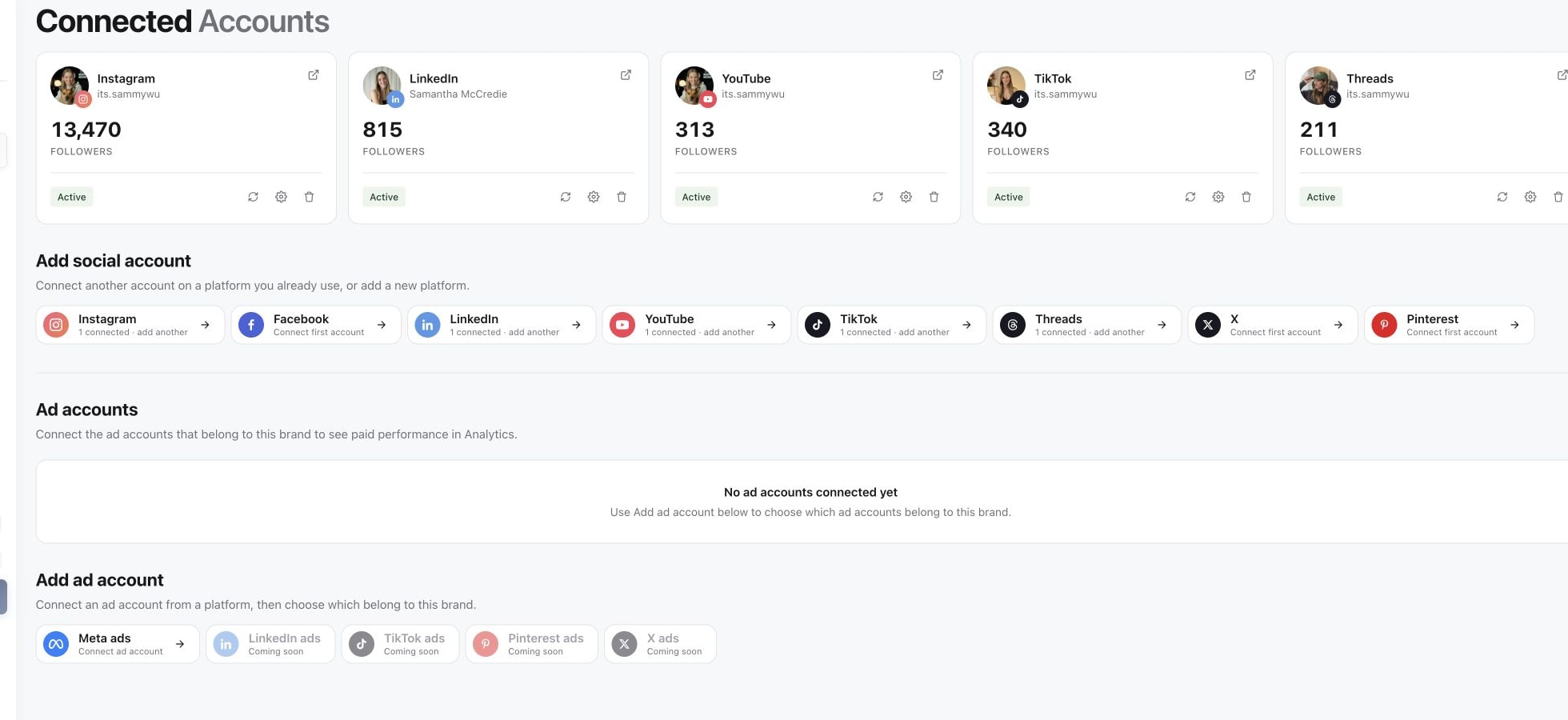
3. Read the connection explanation and select Continue to Threads.
4. Authorise with the Instagram account that owns the intended Threads profile. Check the Instagram username before approving the requested Threads permissions.
5. Return to Sequence. Under Connected Accounts, confirm that the intended account appears and its connection is Active.
If the Threads profile does not appear
If the Threads profile is unavailable, confirm that Threads is enabled for the Instagram account and that the Instagram account is a Business or Creator account. A restricted Instagram account, or loss of access to it, also prevents the Threads connection from working.
If the provider window was closed before authorisation finished, or your browser blocked the pop-up, return to Accounts and start the connection again. If Sequence shows a workspace limit or role message, resolve that message with your workspace administrator before retrying.
Was this page helpful?
Related articles
Need more help with this?