
Write a shared caption once, then customise it for platforms that need different wording. This is useful when the same idea needs a short Threads version and a more detailed LinkedIn version, for example.
Start with the shared caption
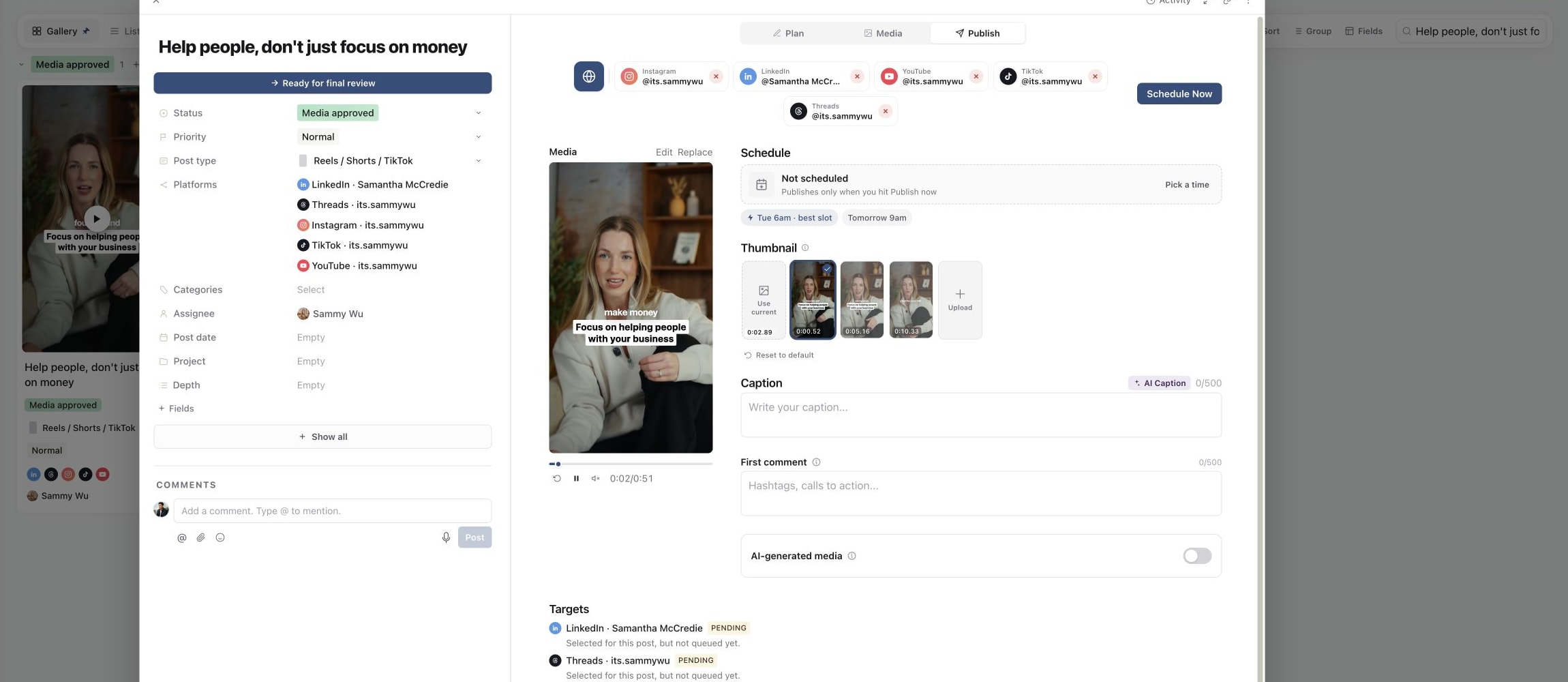
- 01Open the content piece's Publish tab.
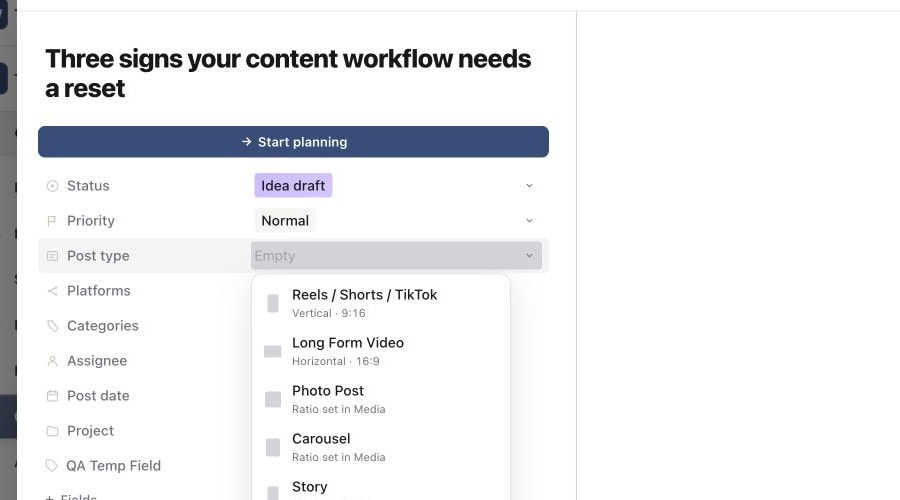
- 02Choose the post type and select the destination accounts.
- 03Select the globe control, All selected accounts.
- 04Write the audience-facing copy in Caption.
The shared caption is used by platform views that have not been customised. A script or brief in Plan is separate from this field, so check that the final copy is in Publish before scheduling.
1. Open the Publish tab
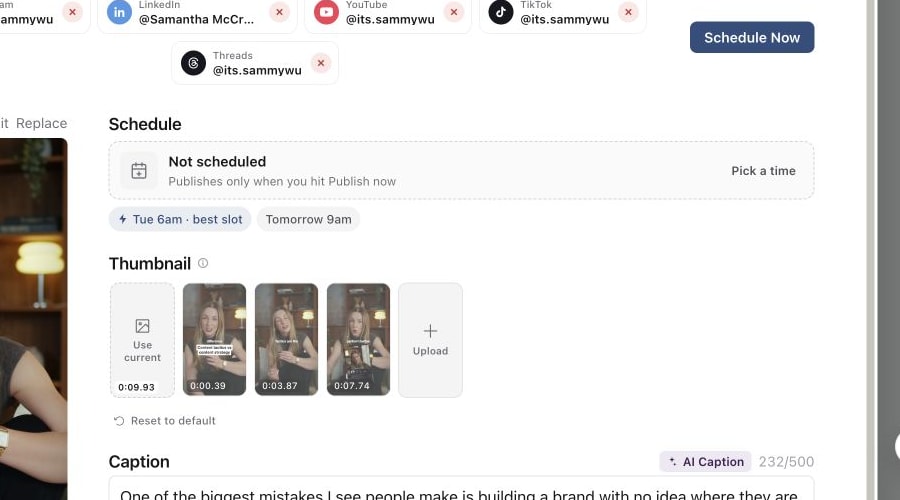
2. Review platform publishing options
3. Keep the caption aligned with the format
Watch the character counter as you write. The shared view takes the selected platforms' limits into account, so its limit can change when you add another destination. Resolve any over-limit message before submission.
Give a platform its own wording
Select an account in the account row to open its platform view. Turn on Customise, then edit Caption for that platform. Check the platform name above the field before typing.
For example, the shared caption might say: “Answer one question your customers ask often.” On LinkedIn, you could expand it with a practical example and a question for the reader. On a shorter-format platform, keep the same main point in fewer words.
Return to All selected accounts to review the shared version. Open each customised platform again to check its final copy. Once a platform is customised, treat that copy as a separate version that needs its own review when the message changes.
Turning Customise off returns that platform to the shared settings. Copy any wording you want to retain before doing so, then check the caption shown after the change.
Review first comments separately
Where available, First comment is a separate field for text to post after the main post goes live. It is not appended to the caption. Check the platform's available controls and counter before using it for hashtags or a follow-up message.
Keep information the audience must see in the main caption rather than depending on a first comment being visible alongside it.
Check every version before approval or scheduling
Read the shared caption and each customised version for names, links, line breaks and the intended call to action. Confirm that no planning notes or instructions to your editor remain in the published copy.
Preview each selected platform, resolve any validation message, and wait for changes to save. If the team requires approval of final copy, send the piece for final review before submitting it for publishing. Changing a caption is not the same as recording a review decision.
Was this page helpful?
Need more help with this?