Introducing Sequence for Slack
Route approvals to the right client channel and turn Slack conversations into structured content work in Sequence.
Slack is where agency teams already discuss client content. Sequence for Slack connects those conversations to planning, reviews and publishing.
Slack is where agency teams already discuss client content. Sequence is where that content is planned, reviewed and scheduled. Sequence for Slack connects those two parts of the workflow, so a useful message can become structured work and a review request can reach the right people without another round of copying and pasting.
The first release is built for agencies and content teams managing several brands in one workspace. Each brand can use its own Slack channels, notification rules and Sequence permissions.
Keep every brand in the right channel
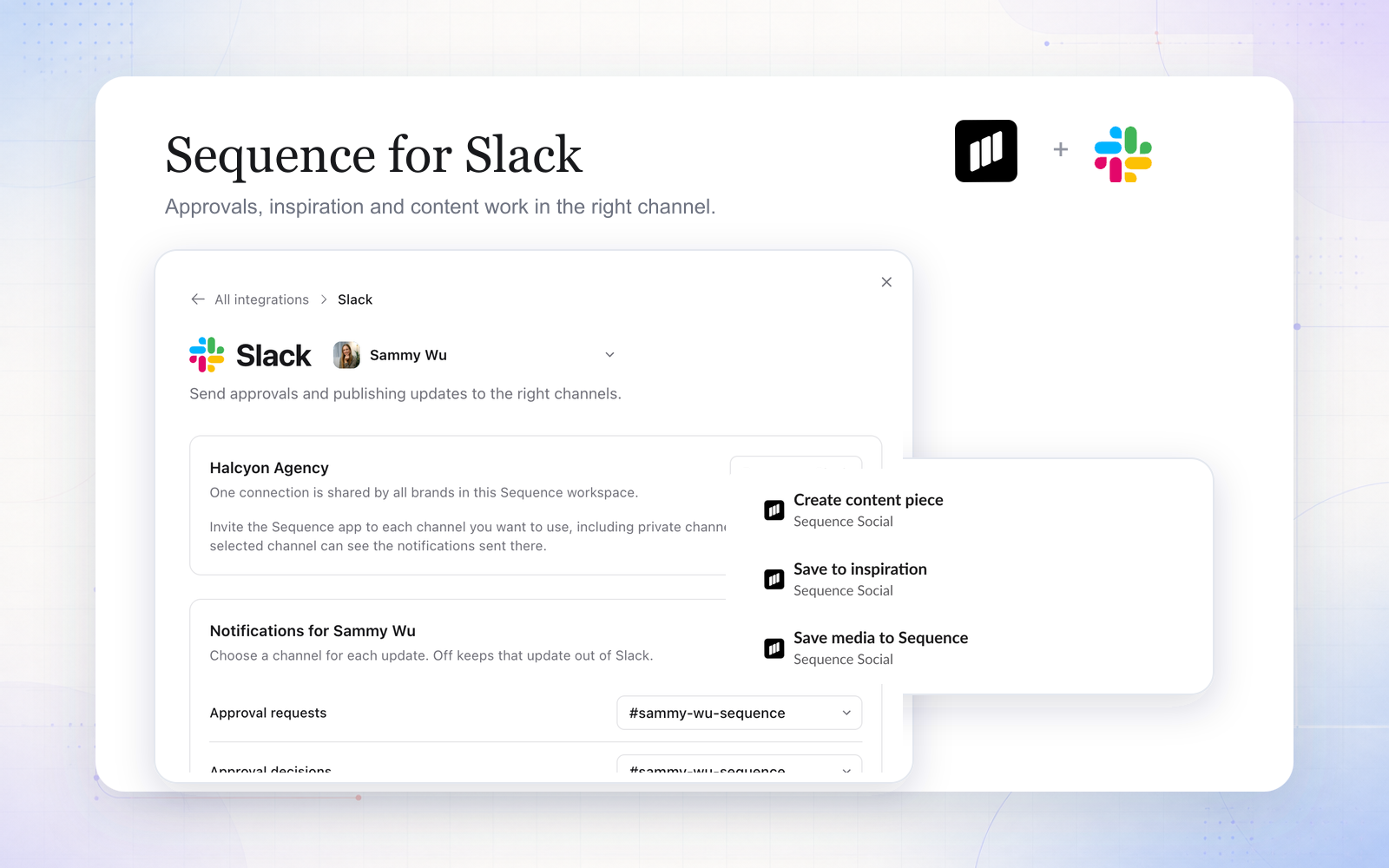
A shared Slack workspace often contains one channel per client, brand or project. Sequence lets you choose a different destination for each brand and each type of update.
You can route approval requests, approval decisions, publishing failures, partial publishes, successful publishes and account reconnection alerts independently. An event only goes to the channel you selected for that brand. If an event is set to Off, Sequence keeps it out of Slack.
This makes the integration useful for a mixed internal and client-facing workspace. An agency can send review requests to a client channel while keeping publishing failures in an internal delivery channel.
Review content without losing the context
When a post reaches Plan review, Media review or Final review, Sequence can send a structured review message to Slack. A native table shows the title, brand, authenticated media link, selected platforms, planning notes, caption and post time.
Reviewers can:
- approve the current version;
- request changes and add a note;
- open the full content piece in Sequence.
The action checks the user's current Sequence access and review assignment before it changes anything. The full post remains in Sequence, where videos, carousels, comments and platform customisations are easier to review accurately. The Slack message links to that complete view instead of embedding fragile media previews.
Turn a Slack message into a content piece
Ideas rarely arrive as neat briefs. They arrive as a client message, a voice of customer quote, a reference link or a quick comment in a channel.
Use the Create content piece message shortcut to carry that message into a new Sequence planner item. Choose the brand, add a title, refine the planning notes, add a caption if it is ready and select the post format. You can attach files from Slack, choose existing media from the brand library or upload a larger file through Sequence.
The result is an unscheduled content idea in the selected brand's planner. The source conversation becomes useful context instead of disappearing into channel history.
Save inspiration from natural conversation
Clients and teammates can share references normally, for example: “This editing style could work for next month: instagram.com/...”
Choose Save to inspiration on that message. Sequence finds supported Instagram, TikTok, YouTube and other public links in the text, lets you confirm the brand and saves the selected references to its Inspiration library.
There is no need to ask someone to resend a clean URL or fill in a category first. Sequence uses the supported source and existing library rules, including duplicate handling.
Work with media already in Slack
The Save media to Sequence shortcut copies supported files from a Slack message into the chosen brand's Media library. The planner and scheduling forms can also use files attached to the source message.
Slack accepts files up to 100 MB. For larger assets, use Upload files in Sequence from the form, then return to Slack and select the uploaded item under existing brand media. This keeps large video transfer inside Sequence's normal upload flow.
Create, schedule and diagnose from one menu
Open the Sequence app in Slack, send /sequence, or use the global Open Sequence tools shortcut to choose a brand and start a task. The available tools include:
- Ask for help, using current Help Centre articles;
- Preview or check a post;
- Create a brand report with performance totals and linked top posts;
- Add a content piece to the planner;
- Create and schedule a post with connected accounts, date, time and media;
- Upload media to a brand library.
These are focused workflows with structured forms and confirmations. Sequence for Slack does not run an open-ended AI agent. Actions use deterministic product rules and the same guarded Sequence services as the web app.
Designed for agency permissions
One Slack connection is shared by the Sequence workspace, but each user links their own Sequence identity. A user only sees brands and performs actions they are allowed to access.
Channel routing adds another layer of separation. Sequence resolves the brand from the connected Slack workspace and the configured channel. If a channel is not mapped clearly, the app asks the user to choose a brand instead of guessing.
This is especially useful when clients share the agency Slack workspace. Each client conversation can stay in its own channel while the agency maintains one Sequence workspace and one Slack installation.
What still works best in Sequence
Slack is a fast place to capture, review and act. Sequence remains the complete workspace for detailed editing, rich media review, long plans, comments, per-platform publishing settings, calendar changes and analytics exploration.
The integration is designed to shorten common handoffs. It gives a reviewer enough context to decide, or a content manager enough structure to create the next step, while keeping the full record in Sequence.
Get started
Open Settings > Integrations > Slack in Sequence. Connect your Slack workspace, invite the Sequence app to the channels you want to use and choose a channel for each brand notification.
Then open Sequence in Slack to link your personal account. Try a review notification, create a content piece from a message or save an inspiration link from a client channel.
Sequence for Slack is included with Pro and can be connected from inside Sequence. See the Help Centre guide for the complete setup and workflow instructions.