
Automations do the routine parts of your workflow for you. Each one waits for something to happen in a brand, such as a post moving into review, then runs the steps you set: ask for approval, tell the team, post to Slack, wait, or move the post on.
What is an automation?
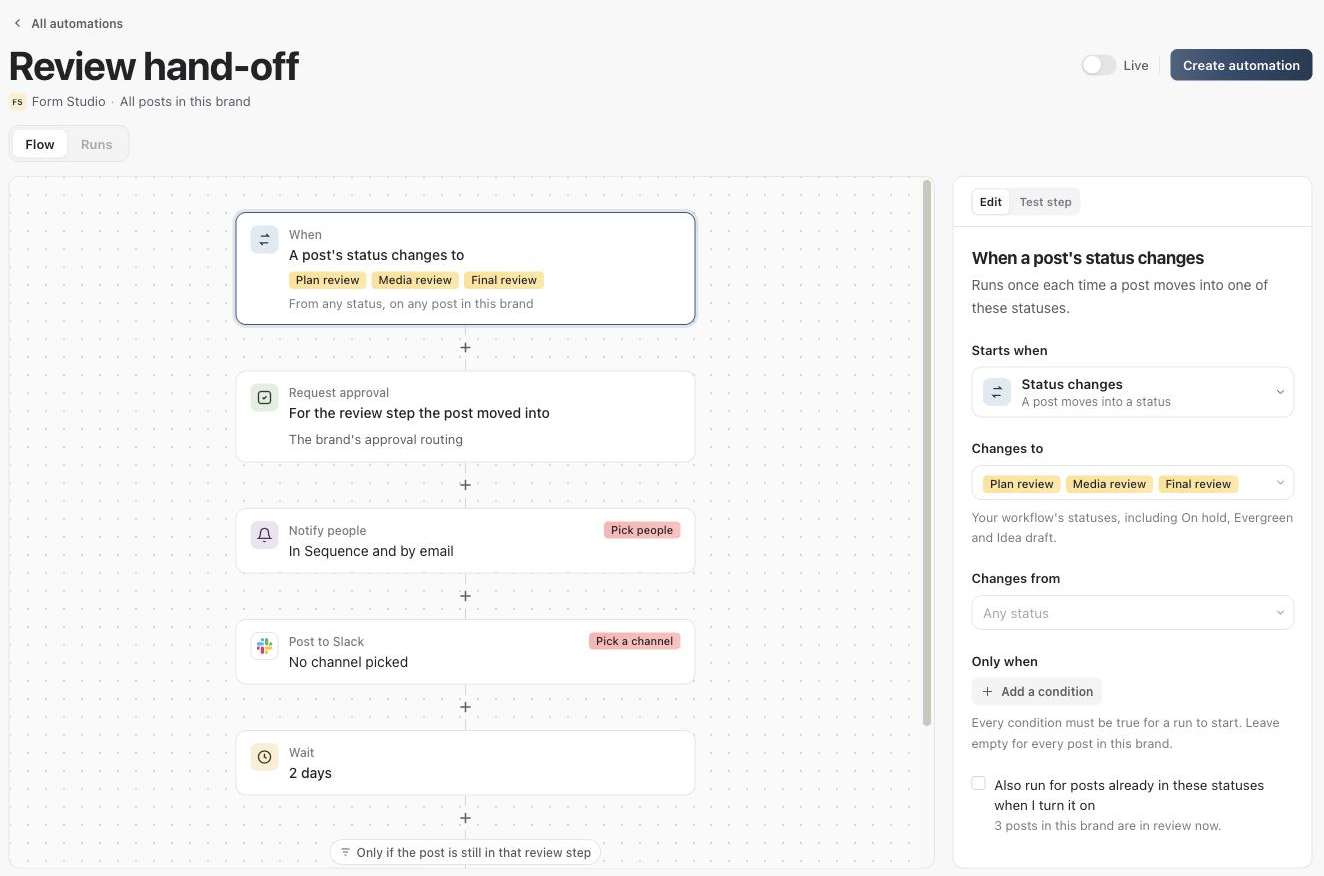
An automation is a rule with two parts: a trigger that starts it, and the steps it runs each time. For example, the Review hand-off template asks the approver to review a post when it moves into a review status, tells the team, then reminds the approver if the post is still waiting two days later.
Automations belong to one brand and run in the background, around the clock, as that brand's Automations identity. Anything they do shows in history, notifications and Slack as Automation: <name>, so everyone can tell it apart from work a person did.
Before you start
- Plan: any workspace can build automations, but turning an automation on needs Sequence Pro or the Pro trial. On Free, an automation stays off and shows Paused, needs Pro.
- Who can build: workspace owners and admins create and edit automations. Everyone who can see the brand can view them and their runs.
- Slack: the Post to Slack step needs the workspace connected to Slack.
Create an automation
- 01Open Automations in the sidebar.
- 02Click New automation. Pick a template, or start from scratch. Nothing runs until you turn it on.
- 03Choose the trigger under Starts when.
- 04Add steps in the order they should run.
- 05Name the automation, then click Create automation.
- 06Turn on the Live switch when you're ready.
Anything the automation still needs, such as an approver or a Slack channel, shows as an issue on that step until you pick it.
Triggers
Pick a trigger from the grouped, searchable list.
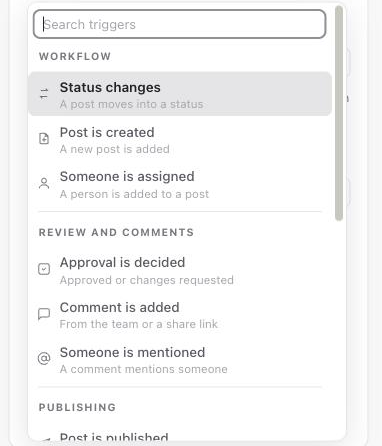
- Workflow: Status changes, Post is created, Someone is assigned.
- Review and comments: Approval is decided, Comment is added (from the team or a share link), Someone is mentioned.
- Publishing: Post is published, Publishing fails.
- Time: Post time is coming up, Post time has passed, On a schedule. Schedules run in the brand's time zone.
- Inspiration: Inspiration is saved, Added to a folder, Watched creator posts (each new post, or once it becomes an outlier).
Narrow it down with Only when
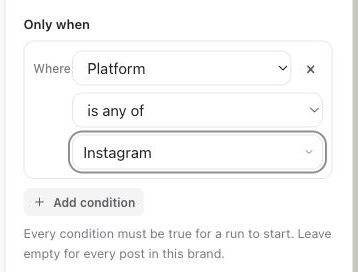
Any post trigger can be limited to the posts that matter. Under Only when, add conditions on status, project, category, assignee, priority, post type, platform or a custom field. Each condition can be is any of, is none of, empty, or set.
Steps
- Create a post: turns an inspiration post into a planner post, linked on its Inspiration property. Inspiration triggers only.
- Change status, Assign someone, Set a field, Add to a project: update the post.
- Request approval: asks the approver you pick to approve or request changes.
- Notify people: sends an in-app notification, and email if you choose, to the people or roles you pick.
- Post to Slack: posts to a channel you pick.
- Add a comment: adds a comment to the post.
- Wait: pauses the run for a set time before the next step.
- Only continue if…: stops the run unless a rule holds, for example that the post is still in the status that started it.
Templates
New automation offers ready-made templates grouped by job, such as Approvals and review, Deadlines and Weekly routines. You can change everything after you pick one.
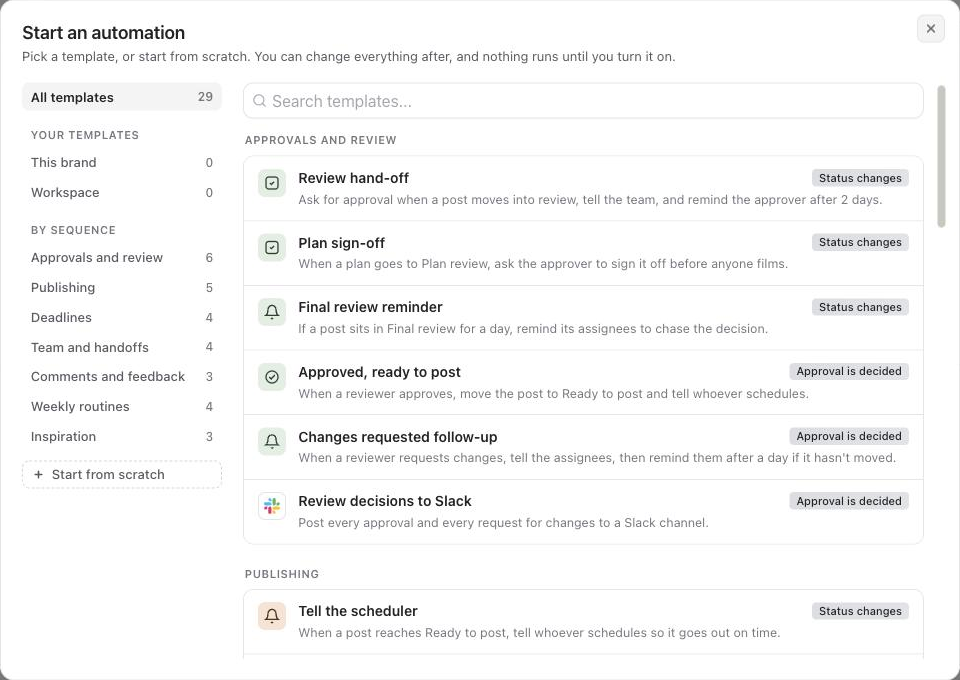
To reuse your own setup, open an automation's ⋯ menu and choose Save as template. Then choose where to keep it:
- This brand: only this brand sees it. People, projects and the Slack channel are kept.
- Workspace: every brand in the workspace sees it. People, projects, folders, creators, Only when conditions and the Slack channel are left out, so each brand picks its own.
Your templates appear under Your templates in New automation. To copy one automation straight to other brands, use Use on other brands in the same menu. Each brand gets its own copy, switched off.
Check what an automation did
Open an automation and switch to its runs to see each time it started, which post it ran for and what each step did. The list shows the last 30 days, and runs are kept for 90 days. Click a run to see every step, including any that were skipped and why.
When an automation has a problem
If a step fails or can't run, for example because the approver lost access or the Slack channel is gone, Sequence sends an Automation problems notification to whoever last saved the automation, or to every owner and admin if that person has left. You get at most one a day per automation. Choose push and email for it in Settings, Notifications.
Turn off, archive or duplicate
- Turn off the Live switch to pause an automation. Runs already in progress stop at their next step.
- Use the ⋯ menu to Duplicate, Copy link or Archive. An unarchived automation stays off until you turn it on.
- If the workspace leaves Pro, its automations stop running until it upgrades again.
Was this page helpful?
Need more help with this?