
Move or copy to brand sends posts, or a whole project, to another brand in the same workspace. Use it when a post was planned in the wrong brand, or when you want to reuse a post for another brand without rebuilding it.
What is the difference between Copy and Move?
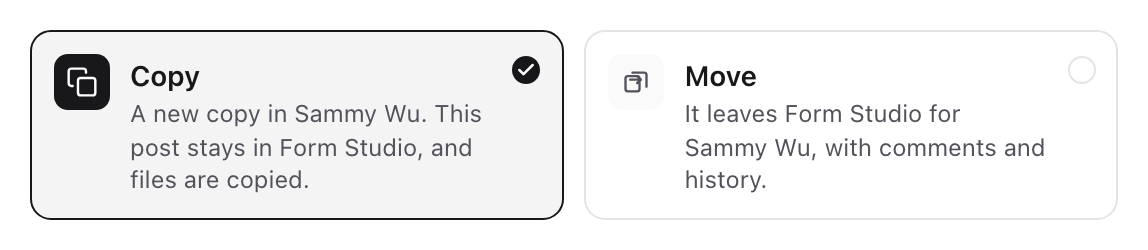
Copy makes a new post in the other brand and leaves the original where it is. The media files are copied too, so the two posts never share a file. Comments, activity and approvals stay with the original.
Move takes the post itself to the other brand, with its comments, history, Plan and share link. It leaves the brand you are in. A pending approval moves with it when the reviewer can approve in the other brand, and is cancelled otherwise.
Either way, nothing is scheduled. The post date stays as a planned date, and you submit the post for scheduling in its new brand when it is ready.
Open Move or copy to brand
Start from wherever you work on posts:
- Open a post, select the three-dot menu at the top right and choose Move or copy to brand…
- Right-click a post in any Content Planner view, including Grid, or on a project page, Schedule or Approvals.
- Select several posts, then choose More in the bar at the bottom of the screen and Move or copy to brand…
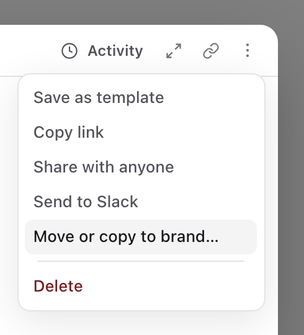
The option only appears when your workspace has another brand where you can create content.
Choose a brand
The dialog lists the other brands in this workspace where you can create content. Select the brand the posts should go to.
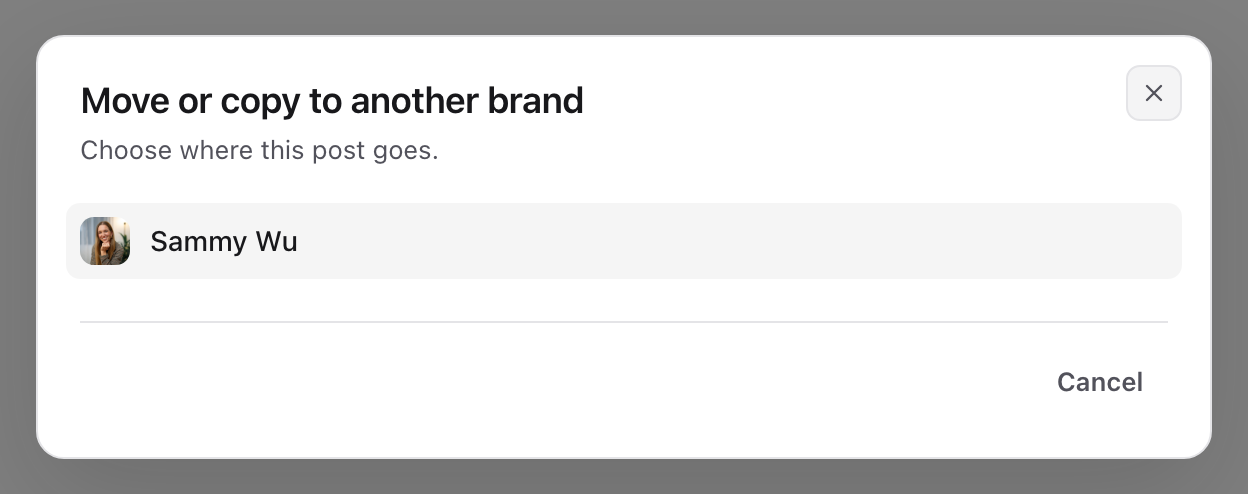
Choose Copy or Move
Copy is selected to start with. Select Move to send the original instead. Each card says what happens to the posts in the brand you chose.
Scheduled, publishing, published and failed posts can't move, because they are tied to this brand's social accounts. They are listed under These stay in this brand and the rest go ahead. Unschedule them first, or copy them instead.
Match what the other brand doesn't have
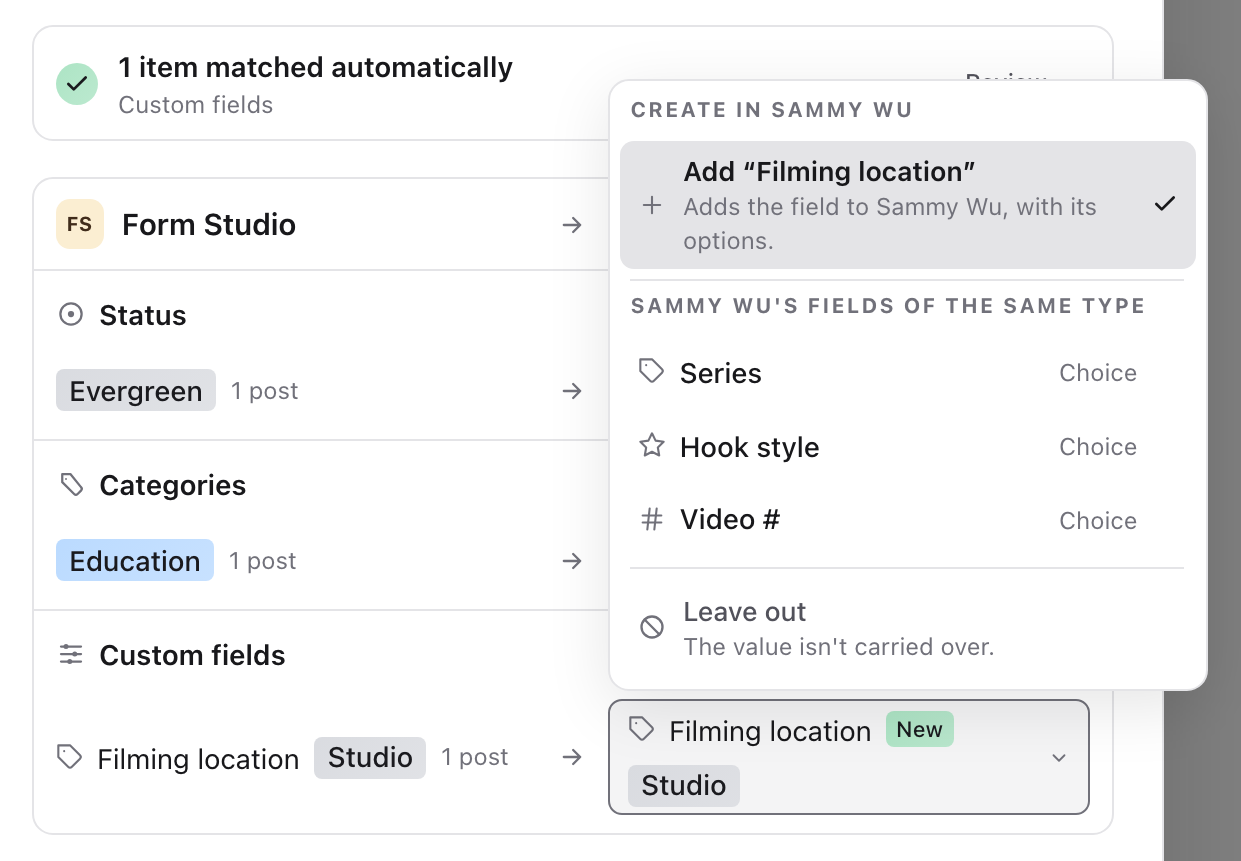
Statuses, categories, custom fields, people, projects and channels belong to each brand. The dialog shows the two brands side by side: the brand you are in on the left and the brand you chose on the right.
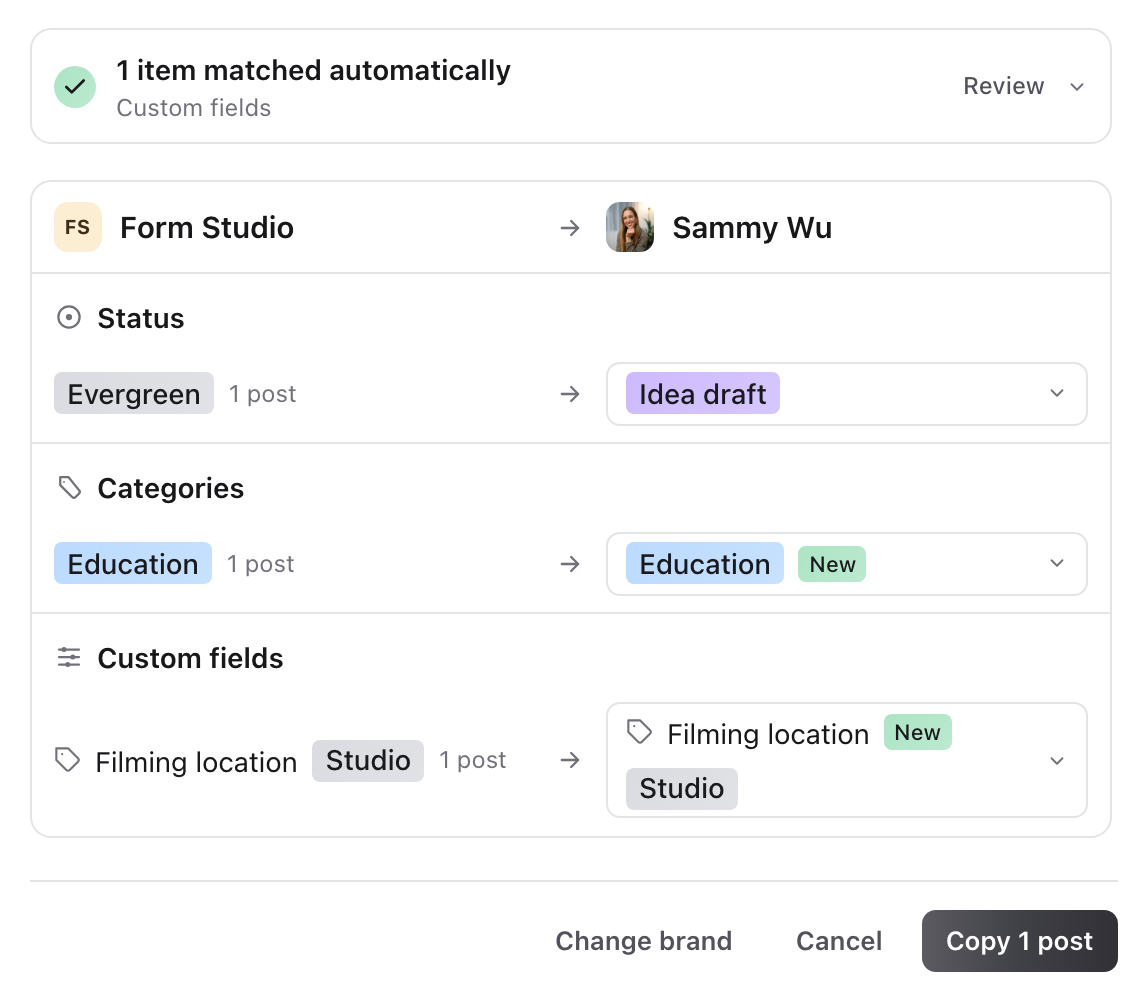
Rows that matched by themselves are grouped under matched automatically. Select Review to check them. Open the menu on the right of any row to choose what it becomes:
- Something the other brand already has, such as one of its statuses or a field of the same type.
- Add, which creates the missing status, category, custom field or project in the other brand.
- Leave out, which drops that value from the posts. For a project the choice is No project.
People who aren't on the other brand's team are never added for you. For each person, choose someone on that brand, add them with the role they have now, or select Leave unassigned. Add all and Leave all unassigned set everyone at once. Adding someone to a brand doesn't sign them out.
Channels match an account on the same platform in the other brand, or are left out. When the other brand uses your workspace statuses, only workspace owners and admins can add a status, and the menu says how many brands use those statuses.
Finish the move or copy
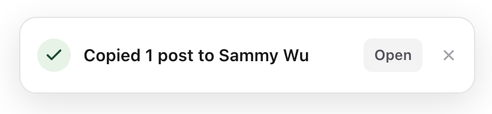
Select the button at the bottom of the dialog, for example Copy 1 post. A message confirms where the posts went. Select Open to go to that brand's content.
Moved posts leave the brand you are in straight away. There is no undo, so to bring a post back, move it again from the other brand.
Move or copy a project
On the Projects page, open a project's three-dot menu or right-click it, then choose Move or copy to brand… The same option is in the menu on the project's own page.
- Copy creates the project in the other brand with the same name, with its posts. Untick Include its posts to copy the project on its own.
- Move takes the project and all its posts together. If any of its posts is scheduled or published, the project stays where it is until you unschedule that post, or you can copy the project instead.
- Posts in the Bin stay in the brand you are in.
- A project with more than 100 posts can't be moved or copied with its posts.
Good to know
- Posts can only go to brands in the same workspace.
- You can move or copy up to 100 posts at a time.
Was this page helpful?
Related articles
- Duplicate and bulk updateUpdate selected pieces, duplicate drafts and reuse published posts without repeating successful deliveries.
- Projects and campaignsCreate a project, connect its content and coordinate campaign ownership without changing each post’s schedule.
- Content statusesCustomise status colours, add and reorder custom statuses, choose approval steps and set default review routes for your workspace or brand.
- Custom fieldsAdd brand fields from a post, set their values, and edit, hide, show or delete them.
- Roles and brand accessChoose workspace and brand access, tailor role permissions, and give clients the right review capabilities.
- Workspaces and brandsUnderstand where content, people, social connections and billing belong before setting up your workspace.
Need more help with this?