Planning social media content in Notion? Here's how to get it published
Notion is a great place to plan social content, but it cannot publish it. Compare copy and paste, Zapier or Make, and planning in the tool that publishes.
Planning and organising social content in Notion works well right up until someone has to publish it. Then the approved caption, the final video and the posting time get copied, one post at a time, into a separate scheduler. This guide explains why that gap exists, what each workaround really involves, and how to decide whether to automate the handoff or remove it.
Why planning in Notion stops at "Scheduled"
Most social teams build roughly the same Notion database. Each post is a page with a title, a status (Idea, Drafting, Client review, Approved, Scheduled, Posted), a post date, the platforms, a caption, a link to the creative and an owner. The page body holds the brief, the script and the references.
Notion is good at this part. It is flexible, easy to share with a client, and the calendar view gives everyone the same picture of the month.
What it does not do is publish. Notion has no built-in way to post to Instagram, LinkedIn, TikTok or any other network. Even Notion's own guide to sharing social posts from Notion sends the post to Make, a separate automation tool, which does the posting.
So a date on the calendar is a plan, not a queue, and "Scheduled" is a label someone updates by hand after doing the real work somewhere else. Every post ends up existing twice: once in Notion, once in the scheduler. Everything below is about managing, or removing, that second copy.
Three ways teams bridge the gap
Almost every Notion-based team ends up in one of three places:
- Copy and paste each approved post into a scheduler such as Buffer or Meta Business Suite.
- Automate the handoff with Zapier or Make, so an approved Notion item creates a post somewhere else.
- Plan where you publish, moving the post database into a tool that also schedules, and keeping Notion for documentation.
None of them is wrong. They suit different volumes, teams and tolerances for maintenance.
Option 1: copy and paste into a scheduler
It usually happens on a Thursday afternoon. Twelve posts are marked Approved. Someone opens each Notion page, downloads the creative from Drive, uploads it to the scheduler, pastes the caption, picks the accounts, sets the time, then goes back to Notion to change the status to Scheduled.
That works, and for a small operation it is often the right call. The costs show up as volume and people increase:
- Captions drift. A client tweaks a line in Notion on Friday. The scheduler still has Thursday's version, and nothing tells you they differ.
- Media takes a round trip. Every file is downloaded and re-uploaded, which is where the wrong cut or the uncropped version sneaks in.
- Status is optimistic. "Scheduled" in Notion means someone intended to schedule it. It does not tell you whether the post actually went out or failed.
- Details get re-entered. Accounts, time zones and platform-specific captions are typed a second time, by hand.
When it is fine: one brand, one person scheduling, a handful of posts a week and few late changes.
Make it safer:
- Add a "Ready to schedule" status and treat it as a freeze. Changes after that point happen in the scheduler, not Notion.
- Give scheduling to one named person per brand.
- Only mark a post Posted after checking it live.
Option 2: automate it with Zapier or Make
Automation removes the typing. A typical setup watches your Notion database and, when a post reaches a certain status, creates a post somewhere else.
Zapier has ready-made templates for this, such as adding new Notion database items to a Buffer queue. It can also post directly to Facebook Pages, LinkedIn and Instagram, although the Instagram action only works with Business accounts, not Creator or Personal accounts. Make offers similar Notion and Buffer modules.
It is a real improvement over copy and paste. It also brings its own set of jobs.
What to plan for
- Delay. Zapier checks Notion for changes on an interval: every 15 minutes on the Free plan, 2 minutes on Professional and 1 minute on Team and Enterprise, according to Zapier's trigger documentation. Make's free plan also runs no more often than every 15 minutes.
- Usage limits. Zapier's Free plan includes 100 tasks a month and two-step Zaps, and each successful action counts as a task. A workflow that finds a file, creates a post and updates Notion uses several per post. Make's free plan includes up to 1,000 credits a month.
- Files. Files uploaded directly into Notion come back through its API as temporary links that are valid for one hour. A run that fails and retries later can find the link has expired. Keep final creative at a stable link, or add a step that copies it somewhere permanent.
- Page content. If you use Notion's own webhook actions instead, they are on paid plans and send database properties, not page contents. A caption written in the page body will not travel unless it also lives in a property.
- Edits after sending. Zapier's Buffer actions add posts to a queue; they do not update one that already exists. If the caption changes in Notion after the automation has run, the queued post needs changing by hand, in the scheduler.
- Duplicates. Triggering on "any update" is the fastest way to create the same post twice. Zapier's own troubleshooting guide lists overly broad triggers and multiple Zaps on the same trigger as common causes.
- Ownership. When a social account disconnects or a field is renamed, the automation stops. Someone needs to see the error and fix it before the post date passes.
If you build it, build it like this
- Trigger on one explicit status, such as "Approved to schedule", rather than any change to the page.
- Keep the final caption in a property, with a separate property for each platform if the captions differ.
- Store final creative at a stable, shareable link.
- As the last step, write a "Sent to scheduler" checkbox or timestamp back to Notion, and filter the trigger so it only runs when that field is empty.
- Send failed runs to a Slack channel or inbox that a person actually watches.
- Freeze the Notion page once it is sent. From that point, the scheduler is the source of truth.
When it is worth it: steady volume, consistent post formats and someone on the team who is comfortable owning the automation.
Option 3: plan where you publish
The third option removes the second copy instead of syncing it. You move the post database, and only the post database, into a planner that can also schedule and publish. Notion keeps doing what it is best at: the wiki, meeting notes, strategy documents and brand guidelines.
If you go this way, look for:
- One record per post that holds the plan, the creative, the caption and the publishing settings.
- Approvals on that same record, so the version the client approved is the version that gets scheduled.
- Platform-specific captions and formats, without keeping a separate copy per network.
- Real publishing results back in the plan, per account, instead of a status someone typed.
- Client access without maintaining a second, client-facing calendar.
The trade-off is real. A dedicated planner is more structured than a blank Notion database, there is a new tool to learn, and a migration to plan.
Comparing the three approaches
| Copy and paste | Zapier or Make | Planner that publishes | |
|---|---|---|---|
| Setup | None | Build and maintain workflows | Import the plan and connect accounts |
| Retyping | Every post | Only fields you have not mapped | None |
| Late caption edits | Change it in both places | ❌ Not updated once sent (Zapier + Buffer) | Edit the post, then re-approve and reschedule |
| Media | Download and re-upload | Needs a stable file link | ✅ Attached to the post |
| Publishing result in the plan | ❌ Manual status | ◐ Only if written back | ✅ Per account |
| Ongoing cost | Time | Automation plan plus upkeep | Planner subscription |
| Best for | Low volume, one person | Steady, predictable volume | Teams with client review |
◐ = possible with extra setup. Zapier, Make and Notion details checked against their own documentation on 13 September 2026.
Moving your Notion content plan into Sequence
We build Sequence, so weigh this section with that in mind. It is the planner-that-publishes route, built for social teams and agencies working with clients.
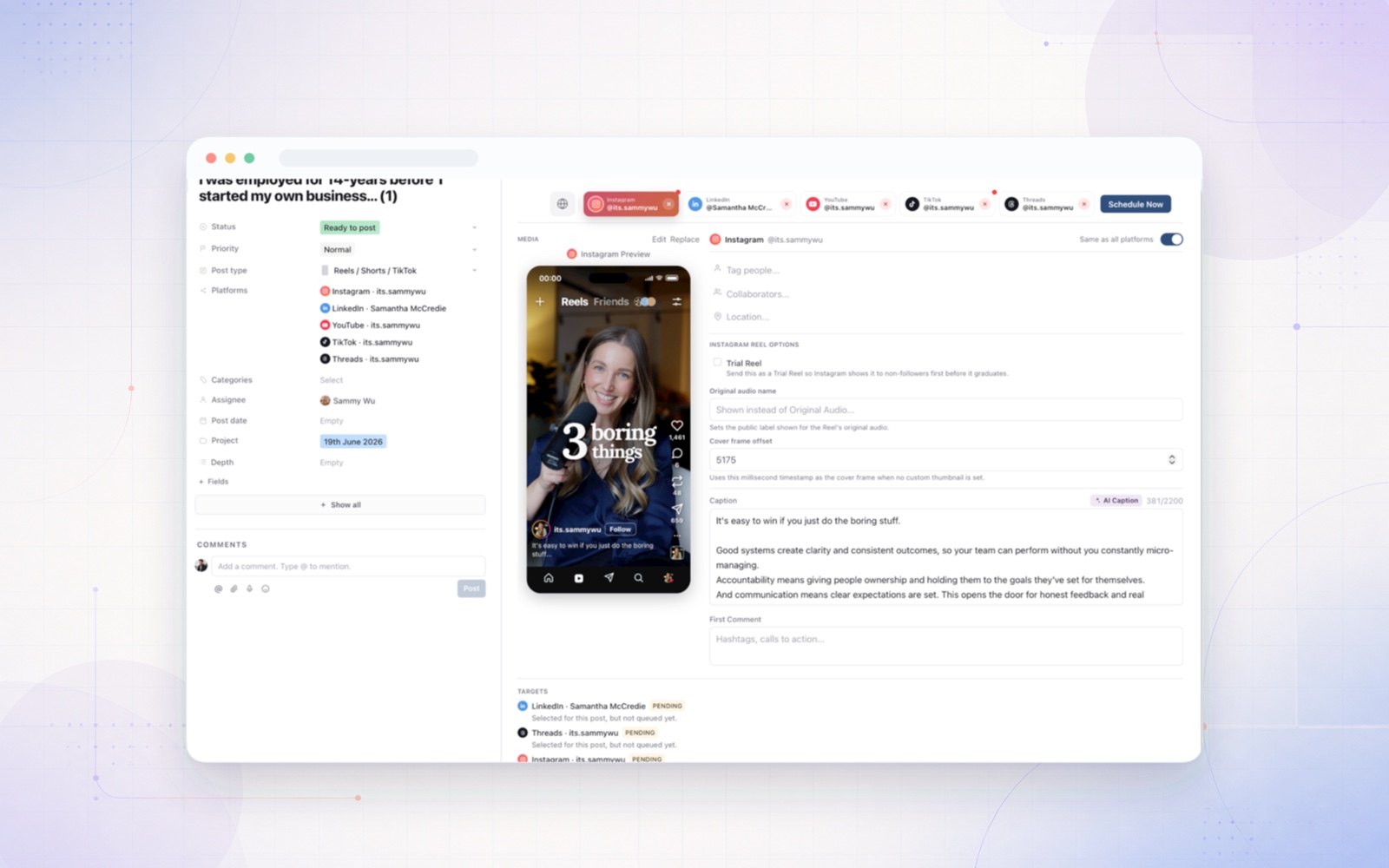
Sequence has a native Notion import. You connect Notion, choose the database and map its fields. The title, caption, status, post type, dates and page body (as the post's Plan) can all come across, and creative in a mapped files property or the page body is copied into Sequence rather than left as a Notion link. You map each of your Notion statuses to a Sequence stage (for example, both Filmed and Editing can become In production), then check a preview before anything is imported.
A few things to know before you try it:
- Importing does not schedule anything. A Notion date or a "Scheduled" label arrives as Ready to post. You choose the accounts and confirm the schedule in Publish, which avoids posting something twice that is already queued elsewhere.
- Publishing covers the main networks. Sequence publishes to Instagram, Facebook, LinkedIn, YouTube, TikTok, Threads, X and Pinterest, with a shared caption plus platform-specific versions where you need them.
- On Pro, approvals happen on the post. Plan, creative and final post can each be sent to a client for review, and the approved version is the one that gets scheduled.
- Late changes go back through review. To change a scheduled post, you unschedule it, and it returns to Final review on the same record. The change is visible, not lost between two tools.
- Results come back per account, so the plan shows what was scheduled, published or failed.
Your Notion workspace does not need to move. Keep the docs there and move only the social pipeline.
Try it with the next two weeks, not the whole archive
You do not need to migrate years of history to find out whether this works for your team. Pick one brand and import only the next two weeks of posts. Send one post through client approval, schedule the batch, and compare the time spent with your usual Thursday afternoon.
If the handoff barely changes, keep your Notion setup and tighten it with the checklists above. If it disappears, you have your answer. Client approval needs Pro, which has a 14-day trial, but you can start with one brand on Sequence for free.