Social Media Management for Video Teams: Review, Approve and Publish in One Place
A practical guide to social media management for video teams: the cut, review, caption, approve and publish workflow, where time leaks, and how to keep frame notes, versions and the post on one record.
Social media management for video teams is mostly a handoff problem. The edit lives in one tool, the notes in another, the caption in a doc and the schedule in a fourth. This guide walks through the workflow from cut to published post, shows where the hours go, and explains when a dedicated review tool still earns its place.
What social media management for video teams actually involves
For a written post, social media management is mostly calendar and caption work. For video, it is a production line. A cut gets made, reviewed, revised, captioned for each platform, approved by someone outside the team, prepared in the right format and scheduled. Then someone has to check it actually went out.
Most video teams run that line across tools that were never meant to talk to each other: footage in Google Drive or Dropbox, review in a dedicated review tool, scripts and captions in Google Docs or Notion, sign-off over email or Slack, and publishing in a scheduler. Each tool does its own job well. The cost sits in the gaps between them.
The video workflow, from brief to published post
Here is the order we see in most video teams, from a two-person creator business to an agency producing short-form video for a dozen clients. The names change. The order rarely does.
- Brief and script. The idea, the hook, the script and any references.
- Shoot and rough cut. Footage arrives and the editor builds a first version.
- Internal review. The producer or creative lead leaves notes before a client sees anything.
- Client review. The client watches, comments and asks for changes.
- Revisions. New cuts come back until the video is signed off.
- Captions and platform settings. Copy for each network, cover frame, first comment, tags.
- Final approval. Someone confirms the whole post, not just the video.
- Publish and report. The post goes out and the results come back to the same place.
Steps 3 to 7 are where video teams lose the most time, because that is where files, notes and decisions travel between people and tools.
Where video teams lose time
Links that point at the wrong version
A Drive link to "final_v3" gets shared in Slack, then "final_v4_REAL" lands in the same folder. The client approves one file and the scheduler gets another. Nobody did anything wrong. The link just had no idea which file was the approved one.
Notes without a frame
"The logo feels late" means something different at 0:03 than at 0:27. When feedback arrives in an email or a chat thread, the editor has to guess the moment, and a wrong guess costs another round.
Approving the video, not the post
Plenty of teams get the cut signed off in a review tool, then write the caption later in the scheduler. The client has approved a video they will see published with words they never read. When the caption is wrong, the fix happens in public.
Re-exporting for every platform
Reels, TikTok, Shorts and LinkedIn each have their own limits. When a scheduler rejects a file, the editor goes back to the timeline for what is really a conversion job.
None of these is dramatic on its own. Across 20 videos a month they add up to days. Our piece on content operations vs scheduling covers the wider version of this problem for agencies.
What good video review looks like
Whatever tool you choose, a review step for social video should give you four things:
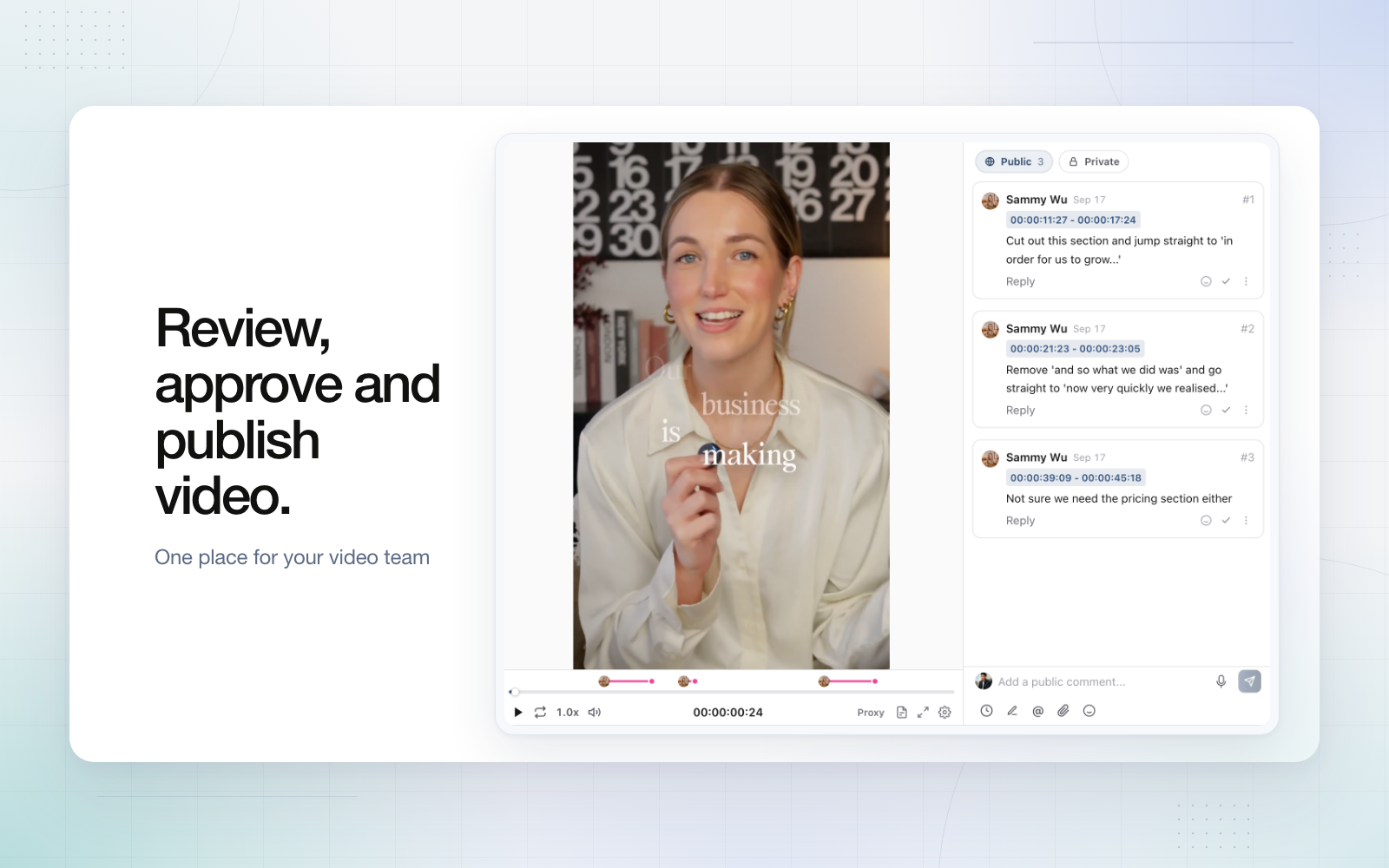
- Timecoded comments. A note pinned to a moment, or better, a range such as 0:12 to 0:19, so the editor jumps straight there.
- Drawing on the frame. An arrow or a box around the problem removes most "which bit?" replies.
- Versions on one record. The new cut sits on top of the old one, earlier notes stay with the version they were made on, and you can compare cuts.
- Review without a login. Clients review faster when they don't have to create an account first.
Social video adds a fifth: the approval should cover the caption and platform settings as well as the cut, because that is what the audience sees.
How Sequence handles video review, approval and publishing
Sequence is an all-in-one social media management platform where each post is one record with three parts: a Plan for the brief and script, Media for the files and their review, and Publish for accounts, captions and the schedule. For a video team, that means the cut, the notes on it and the post that goes live are the same object.
Media review on the post
Upload a cut to a post and reviewers can comment at a timestamp or across a range, draw on the frame with rectangle, freehand, arrow and line tools, reply in threads and resolve notes as they go. Comments can carry voice notes when typing is too slow. New cuts stack as versions on the same post, and you can compare two versions side by side. Large files play through a lighter review copy, so a heavy master doesn't stall a client on a slow connection.
The Help Centre covers commenting on video timestamps and annotating creative and replacing media and comparing versions. Media review and comments are included on the Free plan.
Clients review from a link, without an account
On Pro, a post or project share link lets anyone who has it comment and draw on media at a timecode without signing up. Turn on the link's "Approve or request changes" switch and they can make the review decision too. Guests give their name the first time they write, and you can add a passcode and an expiry date. Private team comments never appear on the link, so the candid internal conversation stays internal.
See sharing content with someone outside your workspace for the link settings, and how to keep internal comments out of client feedback for the habit behind it.
Approval covers the whole post
Sequence approvals (Pro) run as review stages on the post: Plan review, Media review and Final review, plus any custom approval steps you add. A final approval moves the post to Ready to post. It doesn't publish by itself, so the person scheduling still makes the last call. If your team says steps out loud, such as Rough cut, Colour and sound or Needs reshoot, custom statuses (Pro) put them on the board, and there is a Video production starter workflow to begin from. The social media client approval workflow guide walks through the stages in more detail.
Publishing without going back to the timeline
When the approved cut is ready, the Publish tab holds captions and settings for each network: cover frame and Trial Reels for Instagram, title, playlist and thumbnail for YouTube, privacy and disclosure settings for TikTok, and a first comment where the platform supports one. Sequence publishes to Instagram, Facebook, LinkedIn, YouTube, TikTok, Threads, X and Pinterest. Pro accepts video uploads up to 10 GB per file (Free allows 250 MB).
Frame rate is a quiet cause of failed posts. Sequence publishes each video within a frame-rate window per platform, and when a file falls outside it, the platform gets a prepared copy instead of the original. A 120 fps slow-motion clip or a 15 fps screen recording no longer means a trip back to the edit suite.
| Platform | Frame-rate window Sequence publishes within | Caption limit |
|---|---|---|
| 23 to 60 fps | 2,200 characters | |
| TikTok | 23 to 60 fps | 2,200 characters (4,000 for photo posts) |
| 23 to 60 fps | 63,206 characters | |
| Threads | 23 to 60 fps | 500 characters |
| 10 to 60 fps | 3,000 characters | |
| X | Up to 60 fps | 280 characters |
Where Frame.io and Filestage still fit
Dedicated review tools are very good at review, and it would be unfair to pretend otherwise. Frame.io lists frame-accurate and range-based comments, annotations, and share-link reviewers who comment in the browser without an account. Its Pro plan is US$15 per member a month for up to 5 members, and Team is US$25 per member a month for up to 15 (checked October 2026). Filestage offers unlimited reviewers with no account needed and auto-timestamps video annotations. It has a free plan for one project, and paid plans start at US$199 a month on Starter.
Neither lists social scheduling or publishing on its pricing page. They take a video to "approved", and then someone moves the file to a scheduler by hand. That handoff is what this guide is about.
| Job | Frame.io | Filestage | Typical scheduler | Sequence |
|---|---|---|---|---|
| Timecoded video comments | ✅ Frame-accurate and range | ✅ Auto-timestamps | Not documented | ✅ All plans, with ranges |
| Drawing on frames | ✅ Annotations (plan not confirmed) | ✅ Annotations | ◐ Varies; Planable offers text annotations | ✅ All plans |
| Reviewers without an account | ✅ Share links | ✅ Unlimited reviewers | ◐ Varies by product and plan | ✅ Pro share links |
| Approve caption and platform settings | Not listed | Not listed | ✅ On plans with approvals | ✅ Pro |
| Publish to social networks | Not listed | Not listed | ✅ | ✅ 8 networks |
Keep a dedicated review tool if:
- Your main deliverable is a master file for broadcast, paid media or a client's own team, not a social post.
- Your editors' review loop is built around it and a separate team handles publishing.
- You review long-form work where the social cut is a small part of the job.
Move review into your social tool if almost every cut ends as a post on Instagram, TikTok, YouTube or LinkedIn. Then the approval, the caption and the schedule belong next to the video.
Try it on your next 10 videos
You don't need to move every client at once. A small, honest test tells you more than a feature list.
- Pick one client or channel and run its next 10 videos through one post record each.
- Write the script in the post's Plan before the shoot.
- Upload every cut to the same post so the versions stack.
- Ask for timecoded notes only. If feedback still arrives by email, paste it onto the frame yourself so the editor works from one list.
- Write the captions before final review, so the client approves the post they will actually see.
- Schedule from the approved record, then check the results next to it a week later.
After 10 videos you'll know how many review rounds you saved and whether the handoff problem was real for your team.
Choosing your setup
If you're comparing tools more widely, our guide to the best all-in-one social media management software scores ten platforms on planning, approval, publishing, inbox, DM automation and reporting. 5 social media client approval tools compares how sign-off works in each, and the Sequence page for video teams shows the production workflow end to end.
Sequence's Free plan includes media review for one brand. Pro adds guest review, approvals and custom workflows from US$49 a month for one brand, with unlimited members (see pricing). If your cuts end up as social posts, try Sequence on your next video.